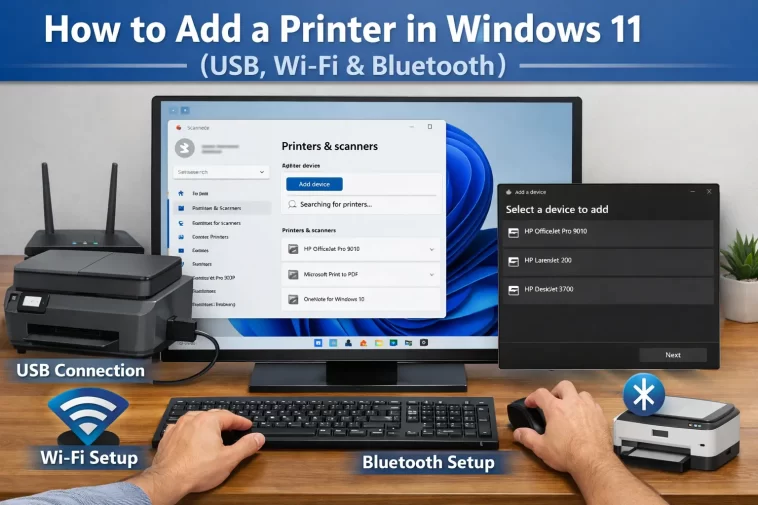
Your printer is sitting right there, but Windows 11 just won’t talk to it — sound familiar? Whether you just bought a brand-new printer or you’re setting up an old one on a new PC, adding a printer in Windows 11 is easier than you might think. This guide walks you through all three connection methods — USB, Wi-Fi, and Bluetooth — step by step, so you can go from frustrated to printing in minutes.
Why Windows 11 Handles Printers Differently
If you’re coming from Windows 10, you’ll notice that the Settings app in Windows 11 has been reorganized. The Printers & Scanners section has moved, and the layout looks a bit different. Nothing to worry about — it’s still all there, just in a slightly new home.
Also worth knowing: Windows 11 has improved automatic driver detection. In many cases, you plug in a printer and Windows figures out the rest on its own. But when it doesn’t, this guide has you covered.
Before you start, make sure:
- Your printer is powered on
- It has paper and ink/toner installed
- For Wi-Fi and Bluetooth printers, the printer is connected to your network or in pairing mode
Step 1 — Add a Printer via USB Cable
This is the most reliable method, and honestly, it’s the one I recommend if you’re having any trouble with wireless setups. A direct USB connection removes a lot of variables.
What you need: A USB-A to USB-B cable (most printers include this in the box) and an available USB port on your PC.
How to do it:
- Plug the USB cable into your printer and then into your PC.
- Turn your printer on. Give it a moment to boot up completely.
- Windows 11 will usually detect the printer automatically and install the necessary drivers in the background. You’ll see a small notification pop up in the taskbar confirming the device was found.
- To confirm it was added, click the Start Menu, then go to Settings (the gear icon).
- Navigate to Bluetooth & devices on the left sidebar.
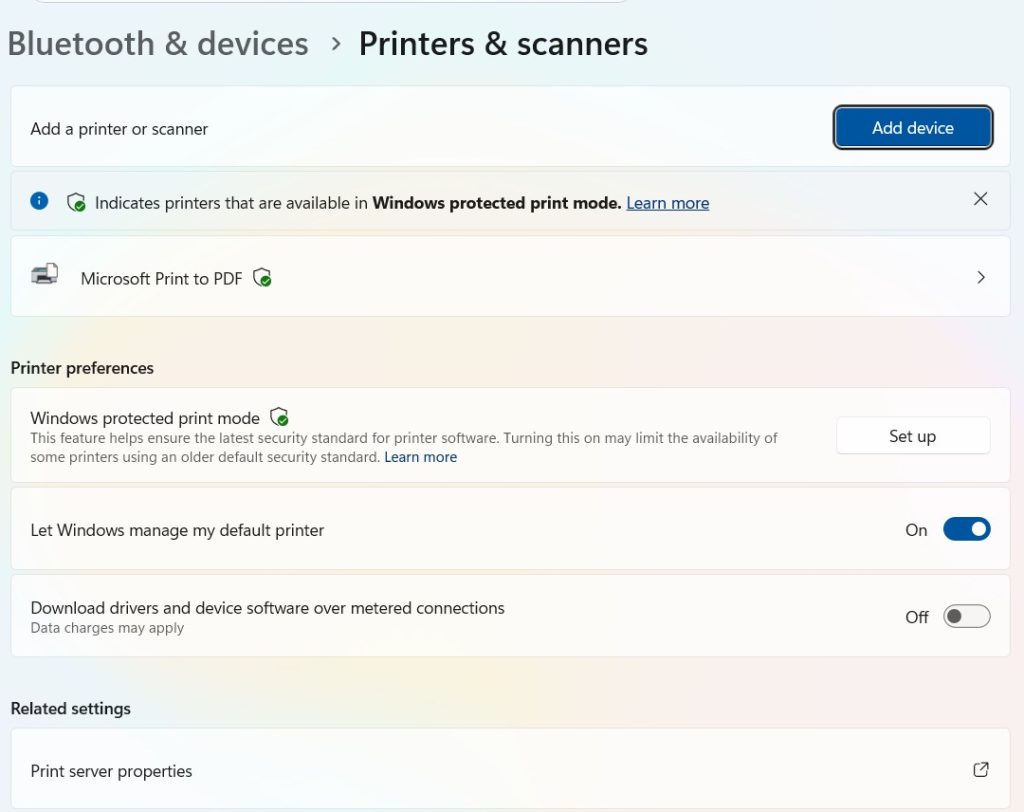
- Click on Printers & scanners.
- Your printer should now appear in the list. If it does — you’re done.
What if Windows doesn’t detect it automatically?
If nothing happens after plugging in the cable:
- Scroll down on the Printers & scanners page and click Add a printer or scanner.
- Windows will search for nearby devices. If it finds your printer, click on it and hit Add device.
- If your printer still doesn’t show up, click The printer I want isn’t listed and follow the manual setup wizard. You can add it by IP address or browse for it on your network.
You may also want to check the printer manufacturer’s website (HP, Canon, Epson, Brother, etc.) and download the latest driver directly. Older printers especially can benefit from having a freshly downloaded driver rather than relying on what Windows finds automatically.
Pro tip: If you’re on a laptop with only USB-C ports, you’ll need a USB-A to USB-C adapter or a hub.
Step 2 — Add a Wi-Fi Printer in Windows 11
Wireless printing is incredibly convenient — you can print from anywhere in your home or office without being physically tied to the printer. Most modern printers support Wi-Fi, and Windows 11 makes the process fairly smooth.
Before you begin: Your printer and your PC need to be connected to the same Wi-Fi network. This is the number one reason Wi-Fi printer setups fail — they’re on different networks (like one being on 2.4 GHz and the other on 5 GHz).
Set up Wi-Fi on your printer first
Every printer brand does this a little differently, but the general process is:
- On your printer’s display panel, go to Network Settings or Wireless Setup.
- Choose your Wi-Fi network (SSID) from the list.
- Enter your Wi-Fi password.
- Wait for the printer to connect — it will usually show a confirmation on screen or flash a light.
Some printers also support WPS (Wi-Fi Protected Setup). If your router has a WPS button, you can press it and then press the WPS button on your printer to connect them without entering a password.
Add the Wi-Fi printer in Windows 11
Once your printer is connected to the Wi-Fi network:
- Open Settings → Bluetooth & devices → Printers & scanners.
- Click Add a printer or scanner.
- Windows will scan your network for available printers. Wait about 20–30 seconds.
- When your printer appears in the list, click on it and select Add device.
- Windows will install the drivers and add the printer. You’ll see it in your printer list when it’s ready.
Still not showing up?
Try these fixes:
- Restart your router, printer, and PC — yes, the classic trio. It works more often than it should.
- Make sure Windows Firewall isn’t blocking the printer discovery. Go to Control Panel → Windows Defender Firewall → Allow an app through the firewall, and check that File and Printer Sharing is enabled.
- Try adding the printer manually by IP address: In the Printers & scanners page, click “The printer I want isn’t listed,” then choose “Add a printer using an IP address or hostname.” You can find your printer’s IP address in its own network settings menu.
Step 3 — Add a Bluetooth Printer in Windows 11
Bluetooth printers are less common than Wi-Fi ones, but they’re handy in situations where you don’t have a local network — like a home office with a simple setup, or a portable printer you carry around.
Keep in mind: Bluetooth printers typically have a shorter range than Wi-Fi printers, and they can only be connected to one device at a time.
Step-by-step Bluetooth pairing:
- Put your printer into Bluetooth pairing mode. How you do this varies by model — check your printer’s manual, but it’s usually a dedicated Bluetooth button or a setting in the menu. The printer will usually start blinking a blue light.
- On your Windows 11 PC, click Start → Settings.
- Go to Bluetooth & devices.
- Make sure Bluetooth is toggled ON at the top of the page.
- Click Add device.
- In the dialog that appears, choose Bluetooth.
- Windows will scan for nearby Bluetooth devices. Your printer should appear in the list — click on it.
- If prompted for a PIN, check your printer’s manual (it’s often
0000or1234). - Once paired, go to Printers & scanners to confirm the printer has been added.
Troubleshooting Bluetooth printer issues
- If your printer doesn’t appear during scanning, make sure it’s within 3–5 feet of your PC during pairing.
- Remove old pairings on the printer itself if it was previously connected to another device.
- If the printer paired but doesn’t print, try removing the device from Bluetooth settings and pairing again from scratch.
- Make sure your Bluetooth adapter drivers are up to date — you can check this in Device Manager under Bluetooth.
Bonus: Set Your Default Printer
Once you’ve added your printer, you probably want to make sure Windows sends jobs to the right one by default — especially if you have more than one printer installed.
- Go to Settings → Bluetooth & devices → Printers & scanners.
- You’ll see a toggle at the top: “Let Windows manage my default printer.” If this is on, Windows will automatically set whichever printer you used most recently as the default.
- If you want to manually choose your default, turn that toggle off, then click on your preferred printer and select Set as default.
Frequently Asked Questions (FAQ)
Q: My printer was working fine on Windows 10 but stopped working after upgrading to Windows 11. What should I do?
This happens sometimes. Start by removing the printer from your system (Settings → Printers & scanners → click the printer → Remove), then add it again fresh. Also, visit the manufacturer’s website and download Windows 11-specific drivers if available. The old Windows 10 drivers sometimes cause compatibility hiccups.
Q: Can I add a printer without administrator privileges?
It depends on how your PC is set up. On personal home computers, your account is usually an administrator by default, so you won’t run into issues. On work or school computers managed by IT, you may need admin rights or help from your IT department.
Q: Windows says “Driver unavailable” for my printer. What does that mean?
It means Windows couldn’t find the right software to communicate with your printer. Go to the printer manufacturer’s website, search for your exact printer model, and download the latest driver. Install it, then try adding the printer again.
Q: My Wi-Fi printer keeps going offline in Windows 11. How do I fix this?
This is a common annoyance. Try setting a static IP address for your printer in your router’s DHCP settings — this prevents the printer’s IP from changing and confusing Windows. Also, in Printers & scanners, click your printer, go to Printer properties, and under the Ports tab, make sure the IP address listed matches the printer’s actual current IP.
Q: Can I share a USB printer over the network so other computers can use it?
Yes! Once you’ve added the USB printer to your Windows 11 PC, you can share it. Go to Settings → Bluetooth & devices → Printers & scanners, click your printer, then go to Printer properties → Sharing tab → check Share this printer. Other PCs on the same network can then add it as a network printer.
Q: Do I need to install the printer manufacturer’s software, or is Windows enough?
For basic printing, Windows 11’s built-in drivers are usually enough. However, if you want access to advanced features like scanning, ink level monitoring, or custom print quality settings, installing the manufacturer’s full software suite is worth it.
Adding a printer in Windows 11 doesn’t have to be a headache. Whether you’re going USB, Wi-Fi, or Bluetooth, the process is pretty straightforward once you know where to look. If you ran into a specific issue that isn’t covered here, drop a comment below — there’s a good chance someone else has had the same problem and found a fix.
Happy printing!
