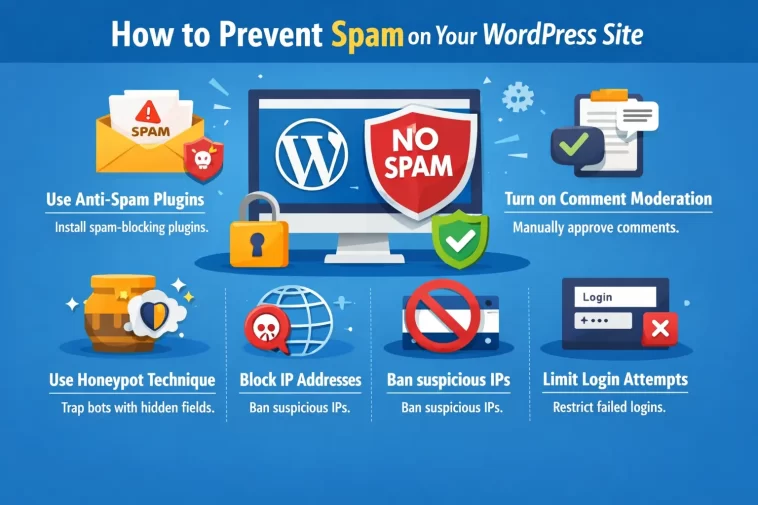
Preventing spam on your WordPress site is something every site owner has to deal with, sooner or later. Spam comments, fake registrations, contact form submissions filled with junk links — it all adds up fast.
Left unchecked, spam wastes your time, clutters your database, and can even hurt your SEO if spammy content makes it onto your pages.
The good news: with the right setup, you can block the vast majority of spam automatically — without lifting a finger every day.
Why Spam Is More Than Just Annoying
Most people think of spam as a minor nuisance. But on a WordPress site, it can cause real problems:
- Database bloat — thousands of spam comments slow down your database queries
- SEO damage — if spam comments with bad links get published, Google may associate your site with low-quality content
- Security risk — some spam submissions are actually probing your site for vulnerabilities
- False data — fake form submissions pollute your analytics and contact lists
- Server load — bots hammering your forms consume server resources
Tackling spam early — before it becomes a flood — is always easier than cleaning it up afterward.
1. Install Akismet Anti-Spam
Akismet is the most widely used spam filtering plugin for WordPress, and it comes pre-installed on most new WordPress sites. It works by checking every comment and contact form submission against a global spam database.
How to set it up:
- Go to Plugins → Installed Plugins and activate Akismet
- Get a free API key at akismet.com (free for personal sites)
- Enter the key in the Akismet settings and you’re done
Akismet works silently in the background. Most spam never even reaches your moderation queue. For personal and non-commercial sites, the free plan is more than enough.
For business sites, the paid plan is affordable and removes ads from the plugin settings page.
2. Add CAPTCHA to Your Forms
CAPTCHA challenges are designed to tell humans and bots apart. They’re one of the most effective frontline defenses against automated spam submissions.
Best CAPTCHA options for WordPress:
- Cloudflare Turnstile — the best option right now. It’s invisible to real users (no “click all the traffic lights” puzzles) and very effective at blocking bots. Free to use.
- hCaptcha — privacy-focused alternative to Google’s reCAPTCHA. Works well with most form plugins.
- Google reCAPTCHA v3 — invisible, score-based system. Widely supported but sends data to Google.
- Simple Math CAPTCHA — basic but surprisingly effective against less sophisticated bots
Most popular form plugins (WPForms, Gravity Forms, Contact Form 7) have built-in support for at least one of these. Enable CAPTCHA on every public-facing form on your site.
3. Use a Honeypot Field
A honeypot is a hidden form field that real users never see or fill in — but bots fill in automatically. If the field has any value when the form is submitted, the server knows it’s a bot and rejects it.
It’s completely invisible to your visitors, requires no interaction, and adds zero friction to the user experience.
Many form plugins include a honeypot option in their settings. WPForms has it built in. For contact forms, the Honeypot for Contact Form 7 plugin adds this feature to CF7 with one click.
Combining a honeypot with CAPTCHA gives you two layers of protection with almost no impact on real users.
4. Turn Off or Restrict Comments
If you don’t need comments on your site, the simplest fix is to turn them off completely.
Go to Settings → Discussion in your WordPress dashboard and:
- Uncheck Allow people to post comments on new articles
- Set Comment must be manually approved if you want to keep comments but moderate them
- Enable Comment author must have a previously approved comment to slow down first-time spammers
You can also close comments on old posts automatically. Under Settings → Discussion, set Automatically close comments on posts older than X days — 30 or 60 days is a common choice.
For individual posts, you can disable comments in the post editor under the Discussion panel.
5. Require User Registration to Comment
One of the easiest ways to stop bot spam in comments is to require users to be logged in before they can comment.
Go to Settings → Discussion and check Users must be registered and logged in to comment.
This eliminates anonymous bot submissions entirely. The downside is that it also reduces genuine engagement from casual visitors — so it’s a trade-off depending on how important community interaction is to your site.
6. Use a Spam-Blocking Contact Form Plugin
Not all contact form plugins are created equal when it comes to spam protection. Some handle it much better than others out of the box.
WPForms includes honeypot protection, CAPTCHA support, and anti-spam token verification on the free plan. It’s one of the most spam-resistant form plugins available.
Gravity Forms is a premium option with robust spam protection features and integrations with multiple CAPTCHA providers.
If you’re using Contact Form 7, add these plugins to strengthen it:
- Flamingo — saves all form submissions so spam doesn’t get lost
- Really Simple CAPTCHA or hCaptcha for CF7
- Honeypot for CF7
CF7 is lightweight but needs extra plugins to match the spam protection of WPForms or Gravity Forms.
7. Protect Your Login Page
Your WordPress login page (/wp-login.php) is a constant target for brute force bots trying username and password combinations.
Steps to secure it:
- Limit login attempts — use a plugin like Limit Login Attempts Reloaded to block IPs after a set number of failed logins
- Change the login URL — plugins like WPS Hide Login move your login page to a custom URL, making it much harder for bots to find
- Enable two-factor authentication (2FA) — WP 2FA or miniOrange Authenticator add a second verification step
- Add CAPTCHA to the login form — most security plugins include this option
Brute force attacks on the login page aren’t technically “spam,” but they generate enormous volumes of automated requests — and they can lock real users out if they share an IP with a bot.
8. Block Spam Registrations
If your site allows user registration (for memberships, WooCommerce accounts, forums, etc.), bots will create fake accounts. Hundreds of them.
How to reduce fake registrations:
- Add email verification — users must confirm their email before their account is activated. Email Verification for WooCommerce handles this for shops.
- Use CAPTCHA on the registration form — most security plugins can add this
- Enable admin approval for new accounts — under Settings → General, check Membership: Anyone can register, then require admin approval via a plugin like New User Approve
- Block disposable email addresses — services like Mailcheck or plugins like Stop Emails can block registrations from known throwaway email domains
9. Use a Security Plugin With Spam Features
A full security plugin handles many spam-related threats in addition to broader security protection.
Wordfence includes:
- Brute force protection on login
- Blocking of known malicious IPs
- CAPTCHA for login and registration forms
- Real-time firewall rules updated with new threats
Solid Security (formerly iThemes Security) offers:
- Bot blocking
- Spam comment protection via integration with third-party services
- Brute force protection
- Login CAPTCHA
These plugins do more than just block spam — they protect your entire site. Installing one is worthwhile even if spam isn’t currently a major problem for you.
10. Enable Comment Moderation and Blacklisting
Even with all the above in place, some spam may slip through. WordPress has built-in tools to catch it before it goes live.
Go to Settings → Discussion and configure:
- Comment Moderation — hold comments for review if they contain more than a certain number of links, or if they include specific words or phrases
- Disallowed Comment Keys — add known spam words, URLs, or IPs. Any comment containing these will be automatically moved to trash
A good starting blacklist includes common spam phrases like “casino,” “cheap pills,” “click here,” and suspicious domain extensions. There are pre-built blacklists online you can copy and paste in.
11. Use Cloudflare for Bot Protection
If you’re not already using Cloudflare, setting it up is one of the best things you can do for both spam prevention and overall site security — and the free plan is genuinely useful.
Cloudflare sits between your visitors and your server. It can:
- Block known bad bots before they ever reach your site
- Apply rate limiting to your forms and login page
- Challenge suspicious traffic with a browser check
- Block traffic from specific countries if needed
The Bot Fight Mode in Cloudflare’s free plan automatically detects and challenges known bots. For more advanced control, the Pro plan adds custom firewall rules.
12. Regularly Clean Your Spam Queue
Even with good protection in place, some spam will end up in your moderation queue. Don’t let it pile up.
- Bulk delete spam comments from Comments → Spam in your WordPress dashboard
- Schedule database cleanups using WP-Optimize to remove spam and trash automatically
- Set auto-deletion for comments in the spam folder after a certain number of days — you can do this with a small code snippet or via WP-Optimize settings
A clean database is a faster database. Regular maintenance keeps things running smoothly.
Quick Checklist: WordPress Spam Prevention
- Activate and configure Akismet
- Add CAPTCHA to all public forms (Cloudflare Turnstile recommended)
- Enable honeypot fields on contact forms
- Turn off comments on posts that don’t need them
- Limit login attempts
- Change or protect your login URL
- Add email verification for new user registrations
- Install a security plugin (Wordfence or Solid Security)
- Set up Cloudflare Bot Fight Mode
- Schedule regular spam queue cleanup
FAQ: WordPress Spam Prevention
Why am I getting so much spam even with Akismet enabled?
Akismet catches the vast majority of spam, but it’s not 100%. If you’re still getting a lot, add a second layer — CAPTCHA or honeypot on your forms. Also check if your comments are set to require manual approval so nothing slips through to your live site.
Is reCAPTCHA or Cloudflare Turnstile better?
Cloudflare Turnstile is generally the better choice in 2026. It’s invisible to real users, doesn’t involve clicking puzzles, doesn’t send user data to Google, and is very effective at blocking bots. The free tier is more than enough for most WordPress sites.
Can spam comments affect my SEO?
Yes. If spam comments with low-quality or harmful links get published on your site, Google may associate your pages with that content. Always moderate comments and mark spam as such (don’t just delete it without marking it — Akismet learns from it).
How do I stop fake user registrations on my WordPress site?
The most effective combination is: email verification + CAPTCHA on the registration form + admin approval for new accounts. This makes it very difficult for bots to complete a fake registration.
Does disabling comments completely hurt SEO?
Not significantly. Comments can contribute to page content and keep pages “fresh,” but the SEO benefit is minor. For most sites, the spam management headache outweighs the benefit. If engagement isn’t core to your site, turning off comments is a perfectly valid choice.
My contact form is getting spammed constantly. What should I do?
First, make sure you have a honeypot field and CAPTCHA enabled. If you’re using Contact Form 7, consider switching to WPForms which has stronger built-in spam protection. Also add Cloudflare to your site and enable Bot Fight Mode.
Will all these anti-spam measures slow down my site?
Not meaningfully. Akismet, honeypot fields, and Cloudflare Turnstile have virtually no impact on load time. CAPTCHA adds a very small script load. The performance trade-off is negligible compared to the benefit of keeping spam out.
Final Thoughts
Spam is an inevitable part of running a website — but it doesn’t have to be a constant problem. With the right combination of tools, you can block almost all of it automatically.
Start with Akismet and CAPTCHA on your forms. Add Cloudflare if you haven’t already. Then work through the rest of the checklist as needed.
The goal is a setup that handles spam in the background so you can focus on what actually matters — creating content and growing your site.
Still dealing with a specific spam problem? Leave a comment and describe what you’re seeing — happy to help.
