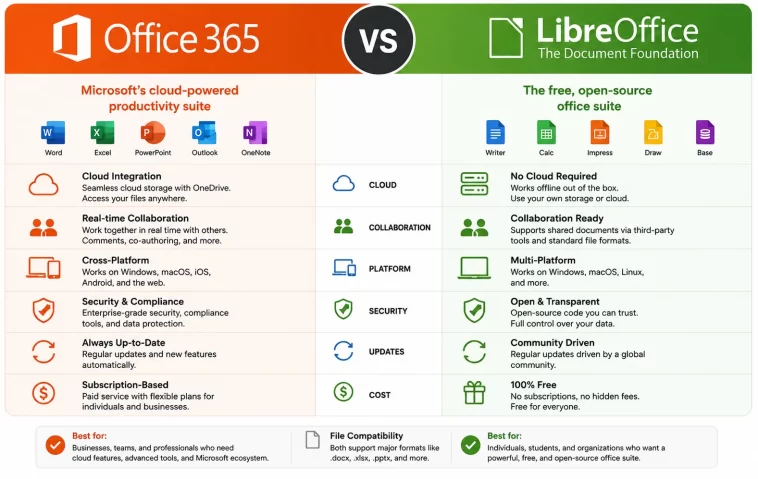
I’ll be honest — I didn’t think this comparison would be difficult to write. I assumed Microsoft 365 would win across the board and that LibreOffice was just something you installed when you couldn’t afford a subscription.
Then I actually sat down and used both. I tested Office 365 vs LibreOffice on real tasks — writing reports, building spreadsheets, making presentations, and collaborating with other people. What I found surprised me more than I expected.
The truth is, neither tool is right for everyone. And depending on how you work, one of them is going to feel like a perfect fit while the other might actively get in your way. This guide gives you a clear, honest picture of both.
What Is Office 365?
Office 365 — now officially called Microsoft 365 — is Microsoft’s subscription-based productivity suite. It includes:
- Word (documents)
- Excel (spreadsheets)
- PowerPoint (presentations)
- Outlook (email and calendar)
- Teams (video calls and messaging)
- OneDrive (1TB cloud storage per user)
- OneNote (note-taking)
Since 2025, Microsoft has also bundled Copilot AI into its personal and family plans. Copilot is integrated directly into Word, Excel, PowerPoint, and Outlook — letting you draft content, summarize documents, generate formulas, and more using natural language.
What Is LibreOffice?
LibreOffice is a free, open-source office suite maintained by The Document Foundation. It runs on Windows, macOS, and Linux, and includes:
- Writer (word processing — equivalent to Word)
- Calc (spreadsheets — equivalent to Excel)
- Impress (presentations — equivalent to PowerPoint)
- Draw (vector graphics and diagrams)
- Base (database management)
- Math (formula editor)
LibreOffice has been around since 2010 (forked from OpenOffice) and is actively developed. It’s widely used by governments, universities, nonprofits, and budget-conscious individuals worldwide.
Office 365 vs LibreOffice: Feature Comparison
Word Processing: Word vs Writer
Both tools cover everything most people need — formatting, styles, tables, headers, footnotes, and mail merge. For everyday writing, you might not notice a meaningful difference.
Where they diverge is in polish and power. Word has a cleaner, more modern ribbon interface, better template library, and tighter integration with cloud features like real-time collaboration and version history.
LibreOffice Writer is fully capable and has some features Word doesn’t — like a built-in PDF export with extensive options and the ability to edit PDFs directly. But the interface feels a bit older, and some advanced layout features (multiple columns, complex tables with heavy formatting) can behave differently than you’d expect if you’re used to Word.
Winner: Microsoft Word for collaboration and polish. Writer for users who need offline PDF control.
Spreadsheets: Excel vs Calc
Excel is the industry standard for a reason. Its formula engine, pivot tables, Power Query, and data modeling tools are unmatched. If you work with large datasets, financial models, or need to build complex dashboards, Excel is hard to beat.
LibreOffice Calc handles everyday spreadsheet tasks well. It supports most standard formulas, conditional formatting, charts, and pivot tables. For typical home or small business use, it’s more than adequate.
The gap shows up with complex files. If someone sends you a heavily formatted Excel file with advanced formulas or macros, Calc will usually open it — but there’s a chance some formatting shifts or certain functions don’t behave identically. VBA macros are a particular sticking point: LibreOffice uses its own macro language (LibreOffice Basic) which is not compatible with Microsoft’s VBA. You’d have to convert macros manually.
Winner: Excel for power users and business. Calc for everyday spreadsheet work.
Presentations: PowerPoint vs Impress
PowerPoint has excellent animation tools, polished built-in themes, Morph transitions, and Designer — an AI-assisted layout tool that automatically suggests better slide arrangements.
Impress does the basics competently. You can build a clean, professional slide deck in Impress without much frustration. But the animation options are more limited, the template library is smaller, and the overall experience feels less refined.
One real-world headache: if you build a presentation in Impress and open it in PowerPoint (or vice versa), you may see font shifts, spacing differences, or animation changes. It’s not always a disaster, but it’s something to check before presenting anywhere important.
Winner: PowerPoint — noticeably ahead on design tools and transitions.
Collaboration
This is the biggest gap between the two tools.
Microsoft 365 is built for collaboration. Multiple people can edit the same Word document, Excel file, or PowerPoint presentation simultaneously — seeing each other’s changes in real time. Combine that with Teams integration, shared OneDrive folders, and comment threads, and you have a complete remote-work platform.
LibreOffice is primarily an offline tool. It doesn’t have built-in real-time collaboration. You can share files through cloud storage services and edit them one at a time, but there’s no co-editing. If working with others is part of your daily routine, this is a significant limitation.
Winner: Microsoft 365 — by a wide margin.
AI Features
Since 2025, Copilot AI has been baked into Microsoft 365 personal and family plans. Inside Word, you can ask Copilot to draft a letter, rewrite a paragraph, or summarize a long document. In Excel, it can explain a formula, spot trends, or suggest charts. In Outlook, it can draft email replies based on a quick prompt.
LibreOffice has no built-in AI assistant. There are community extensions being developed, but nothing official or integrated as of 2026. If AI-assisted writing and data analysis matter to you, this is a clear advantage for Microsoft 365.
Winner: Microsoft 365.
Pricing Comparison
This is where LibreOffice makes its strongest argument.
LibreOffice
Free. Completely. No subscription, no free trial, no “basic vs premium.” You download it, install it, and use every feature without paying a cent. Ever.
This makes it especially attractive for:
- Students and freelancers on tight budgets
- Nonprofits and charities
- Government organizations looking to cut software costs
- Home users who just need to open and edit documents
Microsoft 365
Pricing as of mid-2026 (USD):
| Plan | Price | Users |
|---|---|---|
| Personal | $9.99/month or $99.99/year | 1 user |
| Family | $12.99/month or $129.99/year | Up to 6 users |
| Business Basic | $6.00/user/month | Teams + web apps only |
| Business Standard | $12.50/user/month | Full desktop apps + Teams |
| Business Premium | $22.00/user/month | Advanced security + Copilot |
Note: The 2025–2026 pricing update bundled Copilot AI into Personal and Family plans, which raised prices by 30–43% compared to older plans. Existing subscribers can sometimes opt into a “Classic” plan at the older rate through their account dashboard.
Winner: LibreOffice — it’s free. Microsoft 365 wins on value if you actually use the cloud and AI features.
Compatibility: The Real-World Problem
Here’s where things get tricky for LibreOffice users.
LibreOffice can open and save files in Microsoft formats (.docx, .xlsx, .pptx). For most files, this works perfectly fine. But for complex documents — heavy formatting, embedded objects, intricate tables, or VBA macros — there’s a real chance things will shift when you open them in the other suite.
Some common issues users report:
- Font substitution causing text to reflow across pages
- Margins and spacing shifting in documents with custom styles
- Complex tables rendering differently
- Macros not running because VBA and LibreOffice Basic are different languages
- Slide animations changing or disappearing in presentations
This isn’t a dealbreaker for everyone. If you’re mostly creating and editing your own documents, compatibility is less of a concern. But if your workflow involves constantly exchanging files with colleagues who use Microsoft Office, small formatting differences can add up to frustrating extra work.
Microsoft 365 has perfect compatibility with itself, which is a real advantage in professional settings where everyone is on the same platform.
Platform Support
| Platform | Microsoft 365 | LibreOffice |
|---|---|---|
| Windows | ✓ | ✓ |
| macOS | ✓ | ✓ |
| Linux | Web only | ✓ (native) |
| iOS | ✓ | ✗ |
| Android | ✓ | ✗ |
| Browser/Web | ✓ | ✗ |
| Offline Use | Limited | Full |
If you use Linux, LibreOffice is the obvious choice — it has a full native app on every major Linux distribution. Microsoft 365 only offers browser-based access on Linux.
If you work on mobile, Microsoft 365 has polished iOS and Android apps. LibreOffice has no official mobile apps.
Who Should Use Which?
Choose Microsoft 365 if:
- You collaborate with others regularly and need real-time co-editing
- Your workplace already uses Teams and Outlook
- You want AI tools like Copilot built into your daily workflow
- You work with complex Excel files or PowerPoint presentations
- You use multiple devices including a smartphone
- You’re on macOS and want a polished, native app experience
Choose LibreOffice if:
- You’re on a tight budget or want a completely free solution
- You work primarily alone and don’t need cloud collaboration
- You use Linux as your main operating system
- You’re a student, freelancer, or small nonprofit
- You handle mostly simple to moderately complex documents
- You want to own your software and not depend on a subscription
How to Switch from Microsoft 365 to LibreOffice
If you’ve decided to make the move, here’s how to do it without losing your files:
- Download LibreOffice from the official website (libreoffice.org) — it’s free and takes a few minutes to install.
- Open your existing .docx, .xlsx, and .pptx files — LibreOffice opens them natively without conversion.
- Set your default save format to Microsoft Office formats (Tools > Options > Load/Save) if you still need to share files with Office users.
- Test your most complex documents — check that formatting, tables, and formulas look right.
- Convert any VBA macros you rely on to LibreOffice Basic, or look for extension-based solutions.
- Move cloud files to local storage or another provider (Dropbox, Google Drive, Nextcloud) since LibreOffice doesn’t integrate with OneDrive.
- Cancel your Microsoft 365 subscription once you’ve confirmed everything works.
Office 365 vs LibreOffice: Quick Comparison Table
| Feature | Microsoft 365 | LibreOffice |
|---|---|---|
| Price | From $9.99/month | Free |
| Real-Time Collaboration | ✓ | ✗ |
| AI Assistant (Copilot) | ✓ | ✗ |
| Cloud Storage | 1TB OneDrive | ✗ (bring your own) |
| Mobile Apps | ✓ | ✗ |
| Linux Support | Web only | ✓ (full native) |
| Offline Use | Limited | Full |
| File Compatibility | Perfect | Good (minor issues possible) |
| Macro Support | VBA | LibreOffice Basic |
| Open Source | ✗ | ✓ |
| PDF Export | ✓ | ✓ (more options) |
FAQ
Is LibreOffice really as good as Microsoft Office?
For everyday tasks — writing documents, building basic spreadsheets, creating presentations — LibreOffice is genuinely comparable. Where it falls short is in real-time collaboration, AI features, mobile apps, and handling very complex Microsoft Office files. For most home users and solo workers, LibreOffice does everything they need at zero cost.
Can LibreOffice open Microsoft Office files?
Yes. LibreOffice opens .docx, .xlsx, and .pptx files natively. Simple to moderately complex files usually open without issues. However, documents with heavy custom formatting, VBA macros, or advanced Excel features may display differently. Always check important files visually before sending them on.
Is Microsoft 365 worth the subscription cost?
It depends entirely on how you use it. If you collaborate with others, use Teams, need mobile access, or want AI tools built into your workflow, Microsoft 365 is genuinely worth the cost. If you work alone, mostly offline, and just need to create and edit documents, the subscription cost is hard to justify when LibreOffice offers a capable free alternative.
Does LibreOffice work on Linux?
Yes, and this is one of LibreOffice’s strongest selling points. It has full native desktop apps on all major Linux distributions. Microsoft 365 only offers a browser-based experience on Linux, with no native desktop app.
What is Microsoft Copilot in Office 365?
Copilot is Microsoft’s AI assistant, now bundled into Microsoft 365 Personal and Family plans. It’s integrated directly into Word, Excel, PowerPoint, and Outlook. You can use it to draft text, summarize documents, generate formulas, suggest slide designs, and more — all through natural language prompts.
Can I use LibreOffice for free commercially?
Yes. LibreOffice is licensed under the Mozilla Public License 2.0 and the GNU Lesser General Public License. You can use it freely for commercial purposes without paying licensing fees. Businesses, freelancers, and organizations of any size can deploy it at no cost.
Which is better for students — Office 365 or LibreOffice?
Students who need to collaborate on group projects or frequently share documents with professors and classmates may benefit from Microsoft 365 — especially if their school provides access at reduced or no cost through Microsoft’s education programs. Students on a tight budget who work mostly independently will find LibreOffice more than sufficient for essays, reports, and presentations.
Does Microsoft 365 work offline?
Yes, but with limitations. The desktop apps (Word, Excel, PowerPoint) work fully offline once installed. Some features like real-time collaboration, Copilot AI, and cloud sync require an internet connection. You also need to connect periodically to verify your subscription.
Final Verdict
Office 365 vs LibreOffice isn’t a question with one universal answer — it depends on what you actually do with your computer.
If you collaborate with a team, rely on mobile apps, want Copilot AI writing your first drafts, or live inside the Microsoft ecosystem, Microsoft 365 is worth every dollar. The collaboration tools alone justify the cost for most professionals.
If you’re a solo user, a student, someone on Linux, or anyone who simply refuses to pay a monthly fee for software they already know how to use — LibreOffice is an excellent, genuinely capable choice. The price is zero, and for the majority of document work, you won’t feel like you’re missing much.
The best part? You don’t have to guess. LibreOffice is free to download and try right now, and Microsoft 365 offers a 30-day trial. Give both a real test drive with your own documents and let the experience decide.
Editor’s final note: To be frank, I used LibreOffice for a while, but believe me, it can’t compare to Microsoft Office; Microsoft Office is number one in the world.
