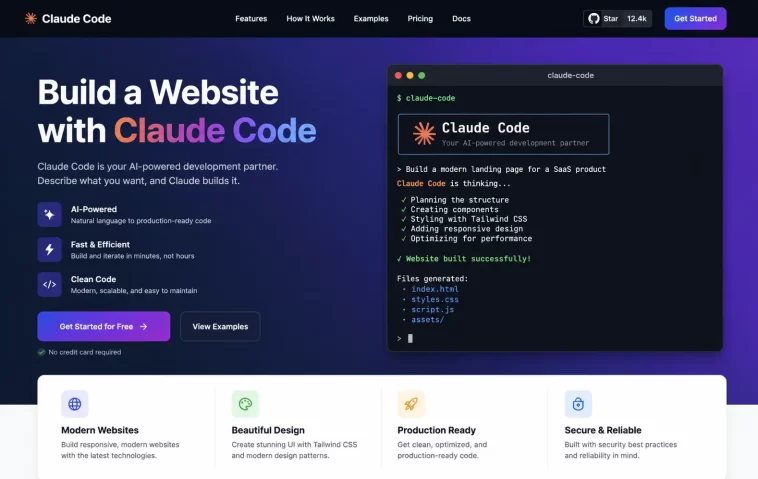
I remember staring at my old portfolio site thinking it would take me an entire weekend to redo it. I don’t code. I never learned HTML properly, and the idea of touching CSS made me close the laptop. Then I tried Claude Code, and I had a working site live on the internet before lunch. No exaggeration. I just typed what I wanted in plain English, and it built the thing.
That experience changed how I think about building websites. If you’ve been putting off launching a portfolio, a small business page, or a landing page because you “don’t know how to code,” this guide is for you. I’m going to walk you through exactly what I did, step by step, so you can do the same thing today.
What Is Claude Code, Exactly?
Claude Code is Anthropic’s AI coding tool that runs from your terminal (or through Claude’s desktop app). You describe what you want in normal sentences, and it writes the actual code, creates the files, and even runs commands for you.
It’s not a website builder with drag-and-drop blocks. It’s closer to having a junior developer sitting next to you who never gets tired of your requests. You say “make the header sticky” or “add a contact form,” and it does the work.
What You’ll Need Before You Start
Before you dive in, gather these things. It will save you from stopping halfway through to go set something up.
- A computer (Windows, Mac, or Linux all work)
- A Claude subscription that includes Claude Code access (Pro plan or higher — the free Claude.ai plan does not include it)
- Node.js installed, if you choose the npm install method (version 18 or newer)
- A rough idea of what you want your site to look like, even just a few bullet points
- Any logos, photos, or text you want on the site, saved in one folder
That’s genuinely it. You don’t need a code editor installed, though having one open (like VS Code) makes it easier to peek at the files later.
Step 1: Install Claude Code on Your Computer
You have a couple of options here, and neither one is complicated.
The native installer is now the method Anthropic recommends. It needs no Node.js, no npm, and it updates itself quietly in the background. Just run the install command from Anthropic’s setup page for your operating system, and it places the claude command right on your system path.
If you’re more comfortable with npm, that still works fine too. Open your terminal and run:
npm install -g @anthropic-ai/claude-code@latestOne important tip: never run this command with sudo. If you hit a permissions error, fix it by changing your npm folder ownership or by using a tool like nvm, rather than forcing it with admin rights.
Once it’s installed, type claude --version to confirm it worked. Then run claude from any folder, and it will open a browser window asking you to log in with your Claude account.
Step 2: Create a Project Folder and Open Claude Code Inside It
This step matters more than people expect. Claude Code works on whatever folder you launch it from, so set this up properly first.
- Create a new, empty folder on your computer. Name it something simple like
my-website. - Drop in any text, logos, or images you want to use as references.
- Open your terminal, navigate into that folder using
cd my-website. - Type
claudeand press enter.
You’re now inside an active Claude Code session, sitting in the exact folder where your site will live. Everything it creates from here on goes straight into this folder.
Step 3: Describe the Website You Want
This is where the actual building begins, and it’s surprisingly conversational. Don’t overthink your first prompt. Just describe your site the way you’d explain it to a friend.
For example, you might type something like:
“Build me a single-page portfolio website for a freelance photographer. I want a hero section with my name and a tagline, a gallery section with placeholder images, an about section, and a contact form at the bottom. Use a clean, minimal design with a dark background and white text. Use plain HTML, CSS, and JavaScript, no frameworks.”
A few tips that genuinely make a difference:
- Mention the tech stack you want (plain HTML/CSS/JS is the simplest if you’re a beginner, since the files are easy to open and preview).
- Describe the mood or style (“minimal,” “playful,” “corporate”) rather than leaving it vague.
- List the sections you want in order, top to bottom.
- If you have brand colors or fonts, say so directly.
Claude Code will often respond first with a short plan describing what it intends to build before writing any files. Read that plan. If something’s off, correct it now rather than after the files exist.
Step 4: Review the Plan Before It Builds
Some versions of Claude Code will generate a plan.md file outlining the approach: which files it will create, what sections go where, and what stack it’s using. Take thirty seconds to actually read this.
If you want changes, just say so in plain language: “Change the tech stack to vanilla HTML and CSS instead of React” or “Add a pricing section between the about and contact sections.” It will update the plan and move forward.
This step saves you rework later. It’s much faster to fix a plan than to fix five files of finished code.
Step 5: Let Claude Code Build the Files
Once you’re happy with the plan, tell it to go ahead: “Implement this according to the plan, starting with the HTML structure, then the styling.”
You’ll watch it create files in real time inside your project folder; things like index.html, style.css, and script.js. Depending on the complexity of your site, this might take anywhere from one to ten minutes.
When it finishes, open index.html in your browser to see the result. Just double-click the file, or drag it into a browser window.
Step 6: Give Feedback and Refine
Your first version almost certainly won’t be perfect, and that’s completely normal. The real value of Claude Code shows up in this back-and-forth.
Look at the site in your browser and note what bothers you. Then describe it back to Claude Code in plain language:
- “The hero text is too small on mobile, make it bigger.”
- “Move the contact form above the gallery.”
- “The blue feels too bright, make it darker and more muted.”
- “Add some spacing between the gallery images.”
You can even take a screenshot of a section you don’t like and describe exactly what to change about it. Claude Code reads your description, edits the relevant files, and you simply refresh your browser to see the update. Repeat this loop until you’re happy.
Step 7: Set Up Version Control with Git
Before you go any further, save your progress properly using Git. This protects your work and is required for most hosting platforms anyway.
You can ask Claude Code to handle this for you directly, or run it yourself:
git init
git add .
git commit -m "Initial commit"
If you don’t already have a GitHub account, create one for free. Then create a new repository there (don’t initialize it with a README, since you already have files locally). Connect your local folder to it:
git remote add origin https://github.com/yourusername/my-website.git
git push -u origin main
Your project is now backed up and version-controlled. Any future change you make can be tracked, compared, and rolled back if needed.
Step 8: Deploy Your Website Live
This is the part that used to intimidate me the most, and it turned out to be the easiest step of the entire process.
Two beginner-friendly hosting platforms stand out: Vercel and Netlify. Both offer generous free tiers and connect directly to your GitHub repository.
Here’s the general flow:
- Create a free account on Vercel or Netlify and sign up using your GitHub login.
- Choose “Import Project” or “New Site from Git.”
- Select the repository you just pushed.
- Leave the default build settings as they are for a simple static site, and click deploy.
Within a minute or two, you’ll get a live URL you can share with anyone. From now on, every time you push a change to GitHub, your site rebuilds and redeploys automatically. You never have to manually upload files again.
Step 9: Connect a Custom Domain (Optional)
If you want something cleaner than a generated subdomain, both Vercel and Netlify let you attach a custom domain you’ve purchased elsewhere. You’ll add a couple of DNS records at your domain registrar, and the platform handles the rest, including a free SSL certificate so your site shows the padlock icon in browsers.
This step usually takes under fifteen minutes and doesn’t require any coding at all.
Common Mistakes to Avoid
A few things tripped me up the first time, so here’s what to watch for:
- Skipping the plan review. Letting Claude Code build immediately without checking its plan often means redoing sections later.
- Vague first prompts. “Build me a website” gets you a generic result. Specific prompts get specific results.
- Forgetting to add
.envto.gitignore. If your site ever uses API keys or secrets, make sure they never get pushed to a public GitHub repository. - Overloading on dependencies. If your build takes a long time or fails, check your
package.jsonfor packages you don’t actually need and remove them. - Not testing on mobile. Always resize your browser window or check the site on your phone before calling it done.
Is Claude Code Worth It for Beginners?
If you’ve never built anything before, the learning curve is much gentler than learning HTML, CSS, and JavaScript from scratch. You’re not memorizing syntax. You’re describing outcomes and reviewing results, which is a skill most people already have from giving feedback on documents or designs.
That said, having even a small understanding of how websites are structured (pages, sections, styling, hosting) helps you give better instructions and catch issues faster. You don’t need to be a developer, but a little curiosity goes a long way.
Frequently Asked Questions
Do I need to know how to code to use Claude Code? No. You describe what you want in plain English, and Claude Code writes the actual code for you. Basic familiarity with files and folders is helpful, but not required.
Is Claude Code free to use? Installing it is free, but using it requires an active Claude subscription, such as the Pro plan or higher. The free Claude.ai plan does not include Claude Code access.
Can I build a multi-page website with Claude Code, not just a single landing page? Yes. You can ask it to create multiple HTML pages with shared navigation, or move to a small framework if your site grows more complex. Just describe the additional pages and how they should link together.
Where should I host the website I build with Claude Code? Vercel, Netlify, and GitHub Pages are all popular, beginner-friendly options with free tiers. They connect directly to your GitHub repository and redeploy automatically whenever you push changes.
What if I don’t like the design Claude Code gives me? Just describe what you want changed, the same way you’d give feedback to a designer. Mention colors, spacing, fonts, or layout issues directly, and it will revise the files accordingly.
Can I use Claude Code for client work, not just personal projects? Yes, plenty of freelancers do this already. The process is identical; you just gather the client’s brand materials and content upfront, and expect a few more rounds of feedback to match their expectations.
Does Claude Code work on Windows? Yes. It runs on Windows, macOS, and Linux. On Windows, you can use it through PowerShell, Git Bash, or WSL, depending on your preference.
Editor’s Opinion
Honest take: this stuff actualy works, and its kinda wild. I was skeptic at first becuase every “no-code” tool I tried before felt limited and clunky. Claude Code feels diferent becuase you are not stuck inside someone elses templates, you just say what you want and it writes real files you can take anywhere. It’s not magic, you still gotta review what it builds and give clear feedback, but for a beginner this is probably the easyest way to get a real site online today.
