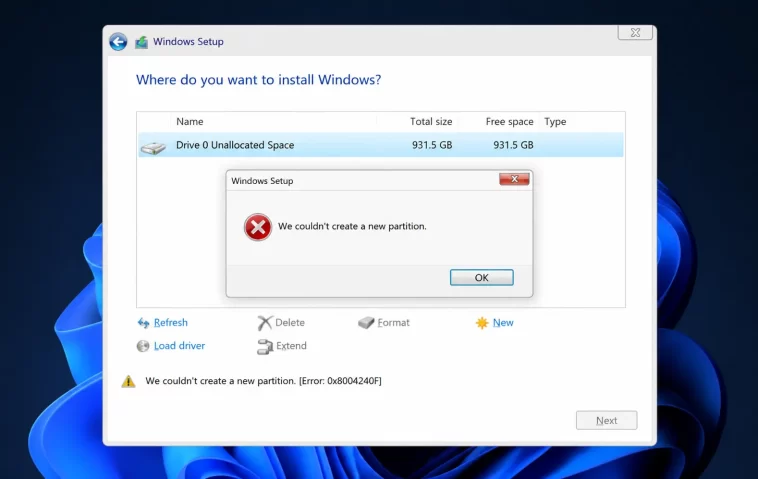
You’re mid-install, you’ve picked your disk, and Windows Setup throws “We couldn’t create a new partition or locate an existing one” right when you expected the progress bar to start. I’ve hit this on three separate machines now — a clean SSD swap, a dual-boot attempt, and once on a PC that genuinely had nothing wrong with it except too many USB drives plugged in. So let’s go through this by actual cause instead of just listing every fix anyone’s ever tried.
Quick Answer
- Unplug every USB device except your install media — this alone fixes a surprising chunk of cases
- Switch to a USB 2.0 port (or drive) if you’re using USB 3.0 — some firmware just doesn’t handle it during setup
- Check your boot mode is UEFI, not Legacy/CSM, in BIOS
- Open Command Prompt with Shift+F10 during setup and use
diskpartto clean the disk and set the partition active/primary - If you’ve got multiple internal drives, disconnect all but the target one
Why Setup Actually Fails Here
Windows Setup’s partitioning step is more fragile than it should be for software running in 2026, and from what I’ve seen it usually comes down to one of these:
Too many storage devices are visible to the installer. This is the single most common cause, and it’s also the most overlooked one because it has nothing to do with the disk you’re actually trying to install to. Extra USB drives, SD cards, a second internal HDD sitting there doing nothing — Setup can get confused about which disk should hold the boot files and just bail with this generic error instead of telling you what actually went wrong.
Wrong partition table format for your boot mode. If your firmware is booting in UEFI mode but the target disk is still formatted MBR (or vice versa with Legacy/CSM), Setup can’t create what it needs. Sometimes it’ll fail with this exact message; sometimes it’ll let you delete partitions and then complain separately about MBR vs GPT once you try to proceed.
USB 3.0 port or drive incompatibility. Sounds old-fashioned in 2026, but it’s still real, especially on older motherboards where the USB 3.0 controller doesn’t get proper driver support inside the WinPE environment Setup runs in. The installer sees the drive, boots from it, and then loses track of things during the partition step.
Leftover partition structure or dirty disk metadata. If the disk was previously used — old Windows install, Linux partition table, a NAS that wrote its own structure — remnants of that can block Setup from creating a fresh partition cleanly, even after you delete the visible partitions in the GUI.
Multipath storage (SAN/RAID controllers). Rare for home users, common in server or workstation setups: if a disk is reachable through more than one path and the multipath driver isn’t loaded in WinPE, Setup sees what looks like duplicate disks and refuses to proceed.
And one cause that’s easy to miss entirely: Intel VMD (Volume Management Device) being enabled in BIOS on some laptops and prebuilt desktops. It’s meant for RAID configurations on NVMe drives, but if it’s on and you’re not actually using RAID, Setup sometimes can’t see the disk properly even though it shows up in the partition list.
Step-by-Step Fixes
Step 1: Strip Down to One Drive
Before anything else, do this.
- Power off the PC completely
- Disconnect every external drive — USB sticks, external HDDs, SD cards — except the one you’re installing from
- If there’s a second internal drive and you don’t need it for this install, unplug it too
- Boot back into Setup and try again
I know it feels like skipping a step, but this fixes more cases than any of the diskpart wizardry below. Setup just isn’t great at sorting out which disk is which when there’s a crowd.
Step 2: Try a USB 2.0 Port (or Drive)
If you made your install media on a USB 3.0 stick:
- Try a different physical port — ideally one that’s USB 2.0 (often a different color, usually black instead of blue)
- If that’s not available, recreate the bootable media on an actual USB 2.0 drive using the Media Creation Tool
- Boot from it and try the install again
This one’s annoying to accept because it feels like it shouldn’t matter in 2026, but older board firmware genuinely still trips over USB 3.0 during the early boot stages.
Step 3: Check UEFI vs Legacy Boot Mode
- Restart and enter BIOS/UEFI settings (F2, Del, or Esc depending on your board)
- Find the boot mode setting — usually under Boot or Advanced
- Confirm it’s set to UEFI, not Legacy or CSM
- Save, exit, and retry the install
If you genuinely need Legacy/CSM for an older system, you’ll need your target disk formatted MBR instead of GPT — which is its own conversation, but worth knowing before you go further.
Step 4: Clean the Disk With Diskpart
This is the fix with the best actual hit rate when steps 1-3 don’t resolve it. Fair warning: this erases everything on the target disk. Back up first if there’s anything on it you care about.
- From the Windows Setup screen, press Shift + F10 to open Command Prompt
- Type
diskpartand press Enter - Type
list disk— find the number matching your target drive (check the size carefully, this is where people pick the wrong disk) - Run these, swapping
0for your actual disk number:
select disk 0
clean
create partition primary
active
format fs=ntfs quick
assign- Type
exitto leave diskpart, thenexitagain to close Command Prompt - Click Refresh on the Setup partition screen, then continue the install
Note: active only matters for BIOS/MBR installs. On UEFI/GPT systems it’s not required and won’t hurt anything either way.
What Actually Worked For Me
The SSD-swap case was the messy one. I’d pulled an old drive out of a laptop, dropped in a blank SSD, and figured a clean install would just work since there was nothing on the disk to conflict with. Wrong — same error, every time, right after picking the unallocated space.
First thing I tried was the obvious one: deleted all partitions in the Setup GUI, tried again on the unallocated space. Same error. So I assumed it was a UEFI/Legacy mismatch and went into BIOS to check — boot mode was already UEFI, so that wasn’t it either, which was a little annoying because that’s supposed to be one of the more common causes.
What actually fixed it was something I’d genuinely forgotten about until I ran into a comment in an old forum thread: I had a second internal drive in that laptop (a spare HDD in the optical bay) that I hadn’t even thought to disconnect, since it wasn’t the target disk and had nothing on it. Pulled it, tried again, and the install went through without a single complaint. Setup had apparently been trying to make sense of two disks at once and just giving up rather than asking which one I meant.
So that’s not the diskpart fix everyone points to first, and it’s definitely not the one I expected to be the actual answer. But it’s the one that worked, and from what I’ve gathered talking to other people about this error, “extra drive nobody thought about” comes up more than you’d guess.
Advanced Fixes and Edge Cases
If the steps above don’t get you anywhere, here’s where this starts getting genuinely fiddly.
Read setuperr.log Before Guessing Further
From the Setup screen, hit Shift+F10 and check X:\Windows\Panther\setuperr.log (or sometimes it’s on the install media itself). Look for a line like BLOCKING reason for disk 0: CanBeSystemVolume — that specific phrase tells you Setup has decided your target disk isn’t eligible to be the boot disk, usually because of multipath storage or a controller configuration issue, not because anything’s actually wrong with the disk itself. This log is genuinely more useful than most of the troubleshooting guides out there, including, weirdly, the official ones.
Disable Intel VMD in BIOS
If you’re not using RAID and your laptop or prebuilt has an Intel chipset with VMD support:
- Enter BIOS, go to Advanced (sometimes you need F7 to unlock Advanced Mode first)
- Find VMD Setup Menu
- Set Enable VMD Controller to Disabled
- Save and exit, then retry the install
Worth knowing this disables RAID functionality for NVMe drives while it’s off, so don’t do this if you actually need RAID for something else on that system.
Copy Install Files Directly to a Local Partition
This is the nuclear option when nothing about the bootable USB seems to be cooperating. Instead of installing from the USB directly, copy the entire contents of the install media onto a local partition on the target drive (after creating one manually with diskpart), then run setup.exe from there instead of from the USB. It’s a workaround rather than a real fix, but it sidesteps whatever’s going wrong specifically with the USB-to-WinPE handoff, and it’s solved this for people when literally everything else failed.
Prevention Tips
- Disconnect everything except your install media before you even start Setup, every time — don’t wait for the error to remind you
- Stick to USB 2.0 media if your hardware is more than a few years old, just to avoid the gamble
- Confirm UEFI vs Legacy boot mode before you start, not after the error shows up
- If a disk has been used by another OS or NAS before, wipe it with diskpart’s
cleancommand ahead of time rather than relying on Setup’s GUI delete - Note your disk numbers in diskpart carefully —
list diskshows size, and picking the wrong one duringcleanis not the kind of mistake you get to undo
FAQ
Will diskpart’s clean command delete my files? Yes, completely, on whichever disk you select. Double-check the disk number against its size before running anything.
Do I need to do this every time I install Windows? No — most people never see this error at all. It shows up under specific conditions: multiple drives connected, USB 3.0 quirks, or boot mode mismatches.
Is this the same as error 0x9cfc7550? Same error message, just with an explicit error code attached in some cases. The causes and fixes are identical.
Does removing other drives actually matter that much? More than you’d think. It was the actual fix in my case, and it shows up constantly in other people’s threads too — it’s just easy to skip because it feels unrelated to the disk you’re targeting.
Can I skip diskpart and just use the GUI? Sometimes. Deleting all partitions and installing to unallocated space through the Setup GUI works for some people. If it doesn’t, diskpart gives you more control over exactly how the partition gets created.
Editor’s Opinion
this error message is one of the least helpful in all of windows setup, it tells you basically nothing about which of five totally different problems you’re actually dealing with. the usb stick advice sounds like old folklore but it’s not — i’ve seen it work on real hardware in 2026. check your extra drives first, genuinely, before you touch diskpart.
