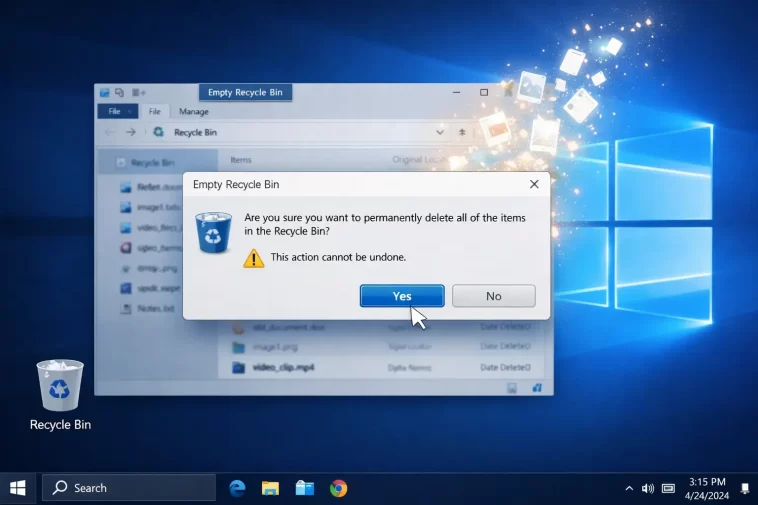
Emptying the Recycle Bin in Windows is normally a two-second right-click, and most of the time that’s exactly how it goes. Every once in a while though, it gets stuck — grayed out, throws a “file in use” error, or just silently does nothing — and that’s usually where people end up searching for this instead of just clicking the button. Let’s cover both: the normal way, and what to do when it’s not behaving.
Quick Answer
- Right-click the Recycle Bin icon on your desktop and choose Empty Recycle Bin
- Or open it, right-click inside the empty space, and pick the same option
- If it won’t empty: restart your PC first, then try again — fixes more cases than anything else
- Still stuck: close any apps that might have a file from the Bin open, or try Safe Mode
- Want it automated going forward: set up Storage Sense
The Normal Way
- Right-click the Recycle Bin icon on your desktop
- Select Empty Recycle Bin
- Confirm if prompted
If there’s no Recycle Bin icon on your desktop, you can also get to it through File Explorer — type “Recycle Bin” into the address bar and press Enter, then right-click anywhere inside the empty window and choose the same option.
Other Ways to Do the Same Thing
A few alternate routes, useful if the desktop icon route isn’t working for you for whatever reason:
Through Settings. Win + I > System > Storage, then find Recycle Bin in the breakdown and clear it from there. This route also lets you set things up to happen automatically going forward (see Storage Sense below).
Through Disk Cleanup. Search “Disk Cleanup” in the taskbar, pick your main drive, and check the box for Recycle Bin in the list of file types before running it.
Through PowerShell, if you want it instant and unprompted. Open PowerShell as administrator and run:
Clear-RecycleBin -Confirm:$falseThis skips the confirmation dialog entirely. Handy if you’re scripting cleanup tasks, less useful for a one-off click.
When It Won’t Empty
This is the part that actually trips people up, so it’s worth a bit more space.
Restart first, every time, before trying anything else. A file that’s technically “in use” by something running in the background — even something you can’t see — will block deletion, and a restart clears that more often than any targeted fix does.
Check whether something has a file from the Bin open. If you deleted a document, image, or video and it’s still open somewhere — including a preview pane, a media player that hasn’t fully closed, or a cloud sync client still chewing on it — Windows won’t let it go until that handle is released. Close anything that might still be touching it and try again.
If it’s grayed out entirely, this is sometimes a permissions issue rather than a stuck-file issue. Make sure you’re signed in with an account that has administrator rights, since emptying the Bin can require that depending on how the system’s configured.
If a specific app keeps grabbing the file back, cloud sync tools (OneDrive being the most common culprit) occasionally interfere here. Closing the sync client before emptying the Bin, or checking whether it’s mid-sync on something you just deleted, resolves this more often than you’d expect.
For a properly stuck or corrupted Recycle Bin, the next step up is resetting it via Command Prompt (run as administrator):
rd /s /q D:\$Recycle.binReplace D: with the actual drive letter — get this exactly right, since this command bypasses the Recycle Bin’s safety net entirely and deletes whatever’s at that path directly. Windows will recreate a fresh Recycle Bin folder structure automatically afterward.
If even that doesn’t help, running sfc /scannow from an administrator Command Prompt checks for and repairs corrupted system files, which occasionally turns out to be the actual root cause when nothing else makes sense.
Why Some Deleted Files Skip the Recycle Bin Entirely
Worth knowing, since it explains a different kind of confusion — files that you expected to land in the Bin and didn’t:
- Deleting with Shift + Delete bypasses the Bin and removes the file permanently right away
- Deleting through Command Prompt does the same
- Files deleted from a USB drive or other removable media generally skip the Bin too
- A file larger than the Bin’s configured size limit gets deleted outright instead of being held
None of these are bugs — they’re just quieter than people expect, and worth knowing before you assume something’s gone wrong.
Set It to Empty Itself Automatically
If you’d rather not think about this at all going forward:
- Settings > System > Storage
- Click Storage Sense
- Turn on Automatic User content cleanup
- Set how often it runs, and how long a file should sit in the Recycle Bin before Storage Sense clears it out
This is a nice set-and-forget option if you tend to forget the Bin exists until it’s eating noticeable disk space.
FAQ
Can I recover files after emptying the Recycle Bin? Not through Windows itself — once it’s emptied, the normal recovery path is gone. Dedicated data recovery software can sometimes pull files back if you act before the disk space gets overwritten, but it’s not guaranteed.
Why does my Recycle Bin say it’s empty but still show used space? Usually a display refresh issue rather than an actual problem — try closing and reopening File Explorer, or restarting.
Is Clear-RecycleBin in PowerShell safe to use regularly? Yes, it does the same thing as the manual right-click option, just without the confirmation prompt.
Does emptying the Recycle Bin free up a meaningful amount of space? Depends entirely on what’s in there. If you’ve been deleting large video or install files, it can be a real chunk of storage; for everyday document deletion, usually not much.
Editor’s Opinion
restarting before troubleshooting anything fancier solves this more than people expect. storage sense is genuinely worth setting up once and forgetting about, saves you from ever thinking about this again.
