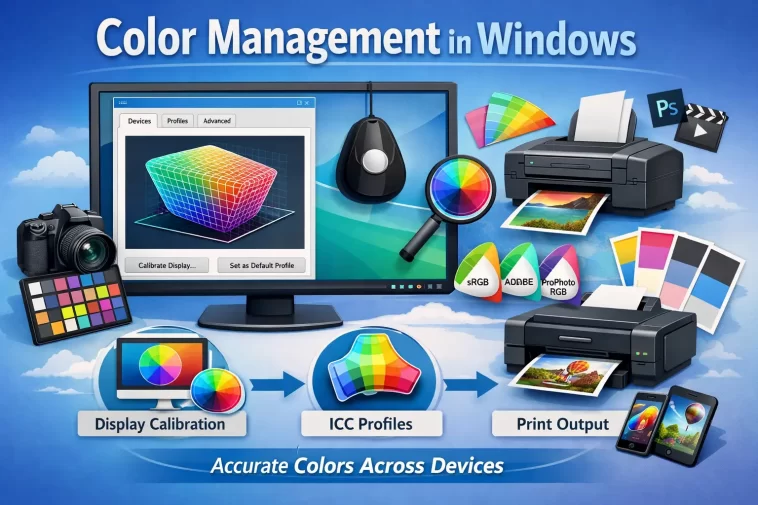
If colors look off on your monitor — too warm, washed out, or just inconsistent between one app and another — the fix usually isn’t your monitor itself, it’s color management in Windows, and that’s a genuinely confusing corner of the OS even for people who’ve used Windows for years. There are two separate control panels doing overlapping things, a legacy calibration tool nobody explains well, and a newer feature that quietly does something different from what most people assume. I’ve gone down this rabbit hole more than once setting up displays for photo and video work, so let’s get through it without the usual run-around.
Quick Answer
- Open Color Management by searching
colorcplin the Start menu, or go to Settings > System > Display > Color profile - Under the Devices tab, check Use my settings for this device, then assign or add an ICC profile for your monitor
- For basic calibration without special hardware, run Display Color Calibration (search
dccw) and walk through the gamma/brightness/contrast steps - Not every app respects your ICC profile — games and some non-color-managed apps will ignore parts of it
- If colors look wrong only in one specific app, the problem is probably that app’s own color handling, not Windows
Why This Feels More Complicated Than It Should
Windows actually gives you a decent set of color tools. The problem is they’re not unified — some are legacy holdovers from older Windows versions, some are newer Settings-app equivalents that don’t fully replace the old ones, and they don’t always agree with each other about which profile is actually active. On top of that, individual apps decide for themselves whether to respect what you’ve set up. Photoshop generally behaves. A lot of games and some older software don’t, because they’re not built to be “color-aware” in the first place.
So before touching any settings, it helps to know there are really three layers here: the ICC profile assigned to your monitor, the calibration data that adjusts gamma and color balance, and whatever an individual application decides to do with both of those. Problems usually live in one specific layer, and figuring out which one saves a lot of clicking around.
Understanding ICC Profiles First
An ICC profile is a file that describes how a specific display renders color — its gamut, its white point, how it maps signal to actual output. Without the right one assigned, Windows is essentially guessing, and colors can look oversaturated, dull, or just inconsistent with what the content actually intends.
These profiles usually come from one of three places:
- Bundled with your monitor’s driver package or install disc
- Downloaded separately from the monitor manufacturer’s support page
- Generated yourself, either through Windows’ built-in calibration wizard or a hardware colorimeter
Worth knowing up front: a generic manufacturer-provided profile is better than nothing, but it’s measured under their conditions, not yours. It doesn’t account for your specific unit’s panel variance, your room’s ambient lighting, or how your particular display has aged. If color accuracy actually matters for your work, a profile created by an actual measurement device beats a downloaded one every time — and even two units of the exact same monitor model can vary enough that one’s profile won’t be perfect for the other.
Step 1: Open Color Management and Assign a Profile
- Press Win + S, type
colorcpl, hit Enter — this opens the classic Color Management panel directly - Go to the Devices tab
- If you’ve got more than one monitor, pick the right one from the dropdown at the top
- Check Use my settings for this device
- Under “Profiles associated with this device,” either select an existing profile or click Add to browse to a downloaded
.iccor.icmfile - Select it and click Set as Default Profile
On Windows 11 version 24H2 and newer, there’s also a more modern equivalent under Settings > System > Display > Color profile, where you can add a profile file directly without going through the older panel. Both routes end up doing the same fundamental thing — assigning a profile to a device — they’re just two different doors into it.
A quirk worth flagging if you’ve got multiple monitors: the Settings app’s color profile picker has, at various points, applied the same profile across multiple displays rather than letting you set genuinely independent ones per monitor. If that happens to you, the classic Color Management panel’s Devices tab is the more reliable place to set per-monitor profiles independently — it’s been the more complete tool for this specific job.
Step 2: Make Sure the Profile Is Actually Being Used
This step gets skipped constantly, and it’s the reason people add a profile and then wonder why nothing changed.
- In Color Management, click the Advanced tab
- Click Change system defaults
- In the new window, go to its own Advanced tab
- Make sure Use Windows display calibration is checked
Without this checked, calibration data from your profile — gamma curves, color channel adjustments — doesn’t actually get applied to the desktop even though the profile is technically assigned. This single checkbox is responsible for more “I added a profile and nothing happened” confusion than anything else in this whole panel.
Step 3: Calibrate Without Special Hardware
If you don’t have a colorimeter, Windows’ built-in wizard gets you a reasonable starting point.
- Search
dccwin the Start menu, or find Calibrate display color in Color Management’s Advanced tab - Click through the wizard: gamma, brightness, contrast, and color balance
- For gamma, you’re aiming for dots that are barely visible — not gone, not glaring
- For contrast, push it up until whites look bright without losing detail or “glowing”
- For color balance, the goal is neutral grays — no visible tint toward red, green, or blue
- Finish, and Windows creates a new ICC profile from your inputs automatically
This is a meaningfully different thing from a profile built with an actual measurement device — it relies on your eyes and your room’s current lighting, both of which are imperfect instruments. It’s a legitimate starting point for casual use, but if color accuracy genuinely matters for your work, a hardware colorimeter and proper third-party calibration software will get you further than this wizard ever will.
Why Colors Look Different in Different Apps
This is the single most common confusion in color management, and it’s not actually a Windows bug — it’s how color-aware versus non-color-aware applications work.
Apps like Photoshop, most browsers (Chrome handles this automatically; Firefox needs manual config through about:config), and other professional creative tools read your ICC profile and adjust what they render accordingly. These are “color-managed” apps.
A lot of games, some older software, and various utilities are not color-managed. They render directly without consulting your ICC profile’s gamut mapping, though gamma and basic channel adjustments from your calibration may still partially apply. This is why a game can look subtly different in color from your desktop even though nothing about your monitor changed in between — the game simply isn’t asking Windows what your calibrated colors should look like.
There’s no universal fix for this from the Windows side, since it’s the application’s own behavior. Third-party tools like Reshade or dedicated color-override utilities exist specifically to force certain games to respect ICC data, with mixed and game-dependent results.
Auto Color Management (ACM) — A Different Thing Entirely
Windows 11 introduced a feature called Auto Color Management, and it’s worth understanding because it’s easy to confuse with “regular” ICC-based color management, but it does something different. ACM tries to keep color consistent automatically between color-aware apps and non-color-aware ones — addressing that exact inconsistency described above — but it requires specific hardware support: an ACM-compatible GPU (recent AMD or NVIDIA cards generally qualify) and an ACM-compatible display, which not every monitor offers regardless of how new it is.
Here’s the part that trips people up: ACM, when active, effectively bypasses your custom ICC profile and instead uses the display’s own EDID-reported factory color data. For most casual users that’s a reasonable, hands-off improvement. For anyone doing color-critical work who’s gone through the trouble of a proper hardware calibration, ACM overriding that custom profile is the opposite of helpful. If you’ve carefully calibrated a display and colors suddenly seem to be ignoring your profile, checking whether ACM is active and turning it off is worth doing before assuming your calibration itself is broken.
Common Problems and What’s Actually Going On
Profile doesn’t show up in Color Management at all. Almost always means the file wasn’t placed in the right folder. Windows expects ICC/ICM files in C:\Windows\System32\spool\drivers\color — if you added it through the Color Management UI this happens automatically, but a manually copied file in the wrong location won’t be recognized.
Colors look fine in one app, wrong in another. Per the section above, this is normal behavior when one app is color-managed and the other isn’t — not a sign that something’s broken.
An old or conflicting profile seems to be taking priority over your new one. Remove the outdated profile entirely through Color Management rather than just adding a new one alongside it, then re-set your preferred profile as default.
Multiple monitors showing the same profile when you wanted different ones. Use the classic Color Management Devices tab rather than the simplified Settings app picker — it gives more reliable independent control per display.
HDR content looks fine but desktop UI elements look uncalibrated. This is a known, ongoing limitation rather than something you misconfigured — not all GUI elements in Windows render through the same HDR-aware path, so a mix of calibrated and uncalibrated-looking elements on screen simultaneously isn’t unusual.
A Few Practical Habits Worth Adopting
- Re-calibrate every few months, especially if you’re using the eyeball-based wizard rather than a hardware colorimeter — displays drift over time
- Keep GPU drivers reasonably current, since some color processing happens at that level too
- Avoid third-party “color booster” or vibrance-enhancing utilities if you’re trying to maintain accuracy — they work against, not with, a calibrated profile
- If you’ve got a multi-monitor setup, don’t assume one monitor’s profile will look right on another, even if they’re the same model — panel variance between individual units is real
FAQ
Do I need a hardware colorimeter, or is the built-in wizard good enough? For casual use, the built-in wizard is a fine starting point. For anything where color accuracy actually matters — photo editing, print work, video grading — a hardware colorimeter and dedicated calibration software will get noticeably better and more consistent results.
Why does my game look different in color from my desktop? Most games aren’t color-managed applications, so they don’t read your ICC profile the way Photoshop or your browser does. This is normal, not a bug.
Should I turn on Auto Color Management? If your hardware supports it and you’re not doing precision color work, it’s a reasonable hands-off option. If you’ve done custom calibration for accuracy, it can override that — worth disabling if your carefully calibrated profile suddenly seems ignored.
My added color profile isn’t doing anything — what did I miss? Check that “Use Windows display calibration” is enabled under Color Management’s system defaults. This is the step almost everyone misses.
Can I use the same ICC profile across two monitors of the same model? Not ideally. Even identical monitor models can have enough panel-to-panel variance that a profile measured on one isn’t perfectly accurate on the other.
Editor’s Opinion
the “use windows display calibration” checkbox buried in system defaults is genuinely the most missed step in this whole process, i’ve seen people add profiles for ages without ever checking that box. ACM is a neat idea but it quietly overriding custom profiles caught me off guard the first time, worth knowing about before you go hunting for what’s “wrong.”
