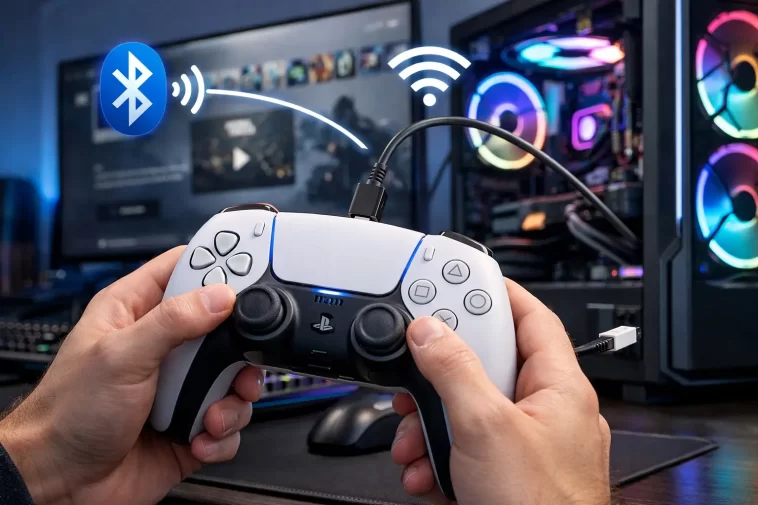
Connecting a DualSense controller to a PC sounds simple — plug in USB, done. But if you’ve tried it and noticed the haptic feedback is completely dead or the adaptive triggers feel like regular rumble motors, you’re not alone. Getting full DualSense haptic support on PC is a different problem from just getting it recognized as a controller, and the process depends heavily on whether you’re using USB or Bluetooth, which game you’re in, and whether the developer actually bothered implementing it.
Why Haptics Don’t Work by Default on PC
Here’s the thing most guides skip over: Windows doesn’t handle DualSense haptics at all. That’s not a bug — it’s just how it works. Windows sees the DualSense as a generic HID device and hands control to XInput or DirectInput, neither of which has any concept of adaptive triggers or HD haptic motors. So the moment you connect via Bluetooth and a game routes through XInput, you get zero haptic output. Nothing.
The actual haptic system on the DualSense is proprietary. Sony’s DSX API (DevKit-side) exposes it, and on PC the only way to get it is through a game that uses the raw HID interface directly — bypassing XInput entirely. And from what I’ve seen, that’s a much shorter list of games than the marketing materials imply.
So why doesn’t USB just fix it? Well, sort of — it’s actually more complicated than that. USB gives the game a more direct communication path to the controller hardware, and some games do use this to send haptic commands. But it only works if the game explicitly supports DualSense on PC. If it’s coded against XInput, USB doesn’t matter. Same dead triggers.
The specific causes that kill haptic feedback:
- Bluetooth audio profile conflict — Windows sometimes grabs the DualSense as an audio device when pairing, which disrupts the HID data stream
- Steam Input intercepting the controller — Steam’s controller remapping layer sits between the game and the hardware; if it’s converting inputs to XInput, haptics won’t reach the controller
- Wrong USB port or cable — Some USB hubs or cheap cables don’t pass through the data lines needed for full HID communication, only power
- Game using XInput instead of raw HID — The developer simply coded against the Xbox controller standard, so DualSense-specific features are ignored
Before You Start: USB vs Bluetooth
This matters more than people think, so let’s settle it quickly.
USB is the better option for haptics. Always. Bluetooth adds latency, occasionally drops the connection mid-session, and some games handle raw HID over Bluetooth differently than over USB. If you’re troubleshooting haptic issues, start by eliminating Bluetooth as a variable. Use a direct USB connection to your PC — not a hub.
Use a USB-C to USB-A cable (or USB-C to USB-C if your port supports it). The cable that came in the PS5 box works. A random phone charging cable might not — some are charge-only and won’t carry data.
Step-by-Step: Connecting via USB
Step 1: Use a data-capable USB-C cable
Plug the DualSense into a USB port directly on your motherboard or PC chassis. Avoid USB hubs. When you plug in, Windows should recognize it immediately — you’ll hear the standard device connection sound.
Step 2: Open Device Manager and confirm the device
Go to Device Manager (Win + X > Device Manager) and look under “Human Interface Devices.” You should see “HID-compliant game controller” — possibly two entries. If you see it listed under Sound, Video and Game Controllers only, that’s a problem. It means Windows grabbed it in a way that can conflict with haptic data.
Step 3: In Steam, configure Steam Input correctly
This is where most people get tripped up. Open Steam, go to Settings > Controller, and look at the global settings. If “PlayStation Controller Support” is set to “Enabled” or “Forced On,” Steam handles the controller natively and can pass haptic commands through — which is what you want for Steam games that support it. But if you’re playing a non-Steam game, Steam Input shouldn’t be in the middle of anything.
For non-Steam games, disable Steam Input for that specific game’s controller settings, or close Steam entirely to remove it from the equation.
Step 4: Verify the game supports DualSense haptics on PC
Check the game’s store page or patch notes. Games that genuinely support DualSense on PC include titles like Returnal (PC port), God of War (PC), and a few others. The list is real but not long. If a game says “DualShock 4 support,” that’s not the same thing.
Step-by-Step: Connecting via Bluetooth
Bluetooth is fine for basic play, but getting haptics through it is hit or miss.
Step 1: Put the controller in pairing mode
Hold the PS button and the Create button (the small one to the left of the touchpad) simultaneously until the light bar flashes rapidly. It’s in pairing mode.
Step 2: Pair in Windows
Go to Settings > Bluetooth & Devices > Add device > Bluetooth. Select “Wireless Controller.” Pairing usually takes about 10 seconds.
Step 3: Check Windows hasn’t added it as an audio device
This is the unexpected one that causes haptic problems for a lot of people. After pairing, open the Sound settings and look at your output devices. If “Wireless Controller” appears there, Windows has registered it as a headset (the DualSense has a built-in mic/headphone jack, so Windows assumes it should be an audio endpoint). This registration can interfere with HID data flow.
To fix it: in Sound settings, disable the Wireless Controller audio device. You might also go into Device Manager, find it under “Sound, video and game controllers,” right-click, and disable it there. This doesn’t affect gameplay — it just stops Windows from routing audio through it.
Step 4: Use Steam with PlayStation controller support enabled
For Bluetooth haptics specifically, Steam’s native DualSense support is actually doing a lot of heavy lifting. With PlayStation Controller Support enabled in Steam, Steam sends haptic commands directly to the controller over Bluetooth using Sony’s protocol. This works for Steam games that support it. For others, you’ll probably see nothing.
What Actually Worked For Me
I spent about an hour going down the wrong path on this one. My DualSense was connecting fine over Bluetooth, showing up in Steam, and games were responding to inputs — but zero haptic feedback, nothing on the adaptive triggers either.
I went through the usual stuff first: reinstalled the driver (there isn’t really a driver to reinstall — Windows handles it automatically), tried a different Bluetooth adapter, updated Steam. Nothing changed.
The actual fix was embarrassingly simple in retrospect. I had Steam’s “Use Nintendo Button Layout” option accidentally enabled, which was part of a broader controller configuration mess I hadn’t noticed. Clearing all per-game controller settings and resetting Steam Input to defaults got haptics working in the two games I tested (both had native DualSense PC support). Not 100% sure that was the actual root cause or if resetting cleared something else, but that’s what changed.
The Bluetooth audio device issue I only discovered later when troubleshooting on a different machine. That one is very real — disabling the controller’s audio entry in Windows Sound settings made a noticeable difference in connection stability.
Using DS4Windows or DualSenseX for Broader Support
If you’re playing games that don’t natively support DualSense, third-party tools can help — with some limits.
DS4Windows is the more established tool. It emulates an Xbox controller (XInput) while adding DualSense touchpad and button support. But because it’s emulating XInput, you won’t get adaptive triggers or haptics in games that aren’t coded for DualSense. That’s a fundamental limit of the approach.
DualSenseX is specifically built for DualSense haptics. It can translate XInput rumble signals into DualSense haptic commands, which means you’ll feel something in games that only support Xbox controllers — it’s not the same as true adaptive trigger support, but it’s better than silence. The free version works; the paid tier adds more features.
To use DualSenseX:
- Download and install from the official site
- Connect your DualSense via USB (Bluetooth is supported but USB is recommended)
- Open DualSenseX — it should detect the controller automatically
- In the tool, you can configure trigger resistance, haptic intensity, and whether to convert XInput rumble to haptic feedback
- Launch your game normally; DualSenseX runs in the background
One thing to watch: if Steam is running with PlayStation Controller Support enabled, it can conflict with DualSenseX. Either close Steam or disable its PlayStation controller handling before using DualSenseX.
Advanced: Checking What the Controller Is Actually Doing
If you’re not sure whether haptics are reaching the controller at all, there’s a way to check.
USBDeview or USB Device Tree Viewer will show you how the DualSense is being enumerated on your system and whether it’s appearing as a full HID device or being partially handled by something else.
Steam’s controller test page is useful too. Go to Steam > Settings > Controller > Test Device Inputs. If you see trigger input registering but no rumble/haptic response on the test, it’s a software configuration issue rather than hardware. If the controller isn’t showing up in the test at all, you have a connection or enumeration problem.
For Bluetooth-specific issues, Windows Event Viewer (Applications and Services Logs > Microsoft > Windows > Bluetooth) sometimes shows pairing failures or protocol fallback events that explain why a specific feature isn’t working.
Games That Actually Support DualSense Haptics on PC (2026)
| Game | USB Haptics | BT Haptics | Adaptive Triggers |
|---|---|---|---|
| Returnal (PC) | Yes | Partial | Yes |
| God of War (PC) | Yes | Yes | Yes |
| Marvel’s Spider-Man Remastered | Yes | Partial | Yes |
| Cyberpunk 2077 | Yes | Partial | Yes |
| Call of Duty series | Rumble only | Rumble only | No |
| Most older PC titles | No | No | No |
“Partial” Bluetooth support usually means haptics work but with reduced intensity or occasional dropout compared to USB.
Prevention and Best Practices
A few things that save headaches long-term:
- Keep Steam updated — DualSense support has improved significantly with updates, and older versions had more bugs
- Don’t use a USB hub for the controller if you’re chasing full haptic fidelity
- If you use DualSenseX, add it to your startup programs — it needs to be running before the game launches
- After Windows updates, re-check your Bluetooth devices list for duplicate controller entries; Windows sometimes creates a new pairing entry and leaves the old one active, causing conflicts
- The DualSense firmware can be updated via PS5. If you have access to a PS5, doing a firmware update occasionally is worth it
FAQ
Does the DualSense work on PC without any software? Yes, for basic input. Plug it in via USB and Windows recognizes it as a game controller immediately. But haptics and adaptive triggers require game-level support or third-party tools like DualSenseX.
Why do my adaptive triggers feel like normal rumble? Because the game isn’t sending adaptive trigger commands to the DualSense. It’s treating the controller like an Xbox pad and using standard rumble instead. Only games with native DualSense PC support will use the triggers properly.
Can I use DualSense on Steam without any extra software? Yes. Steam has built-in DualSense support. Go to Settings > Controller and make sure PlayStation Controller Support is enabled. Steam games that support it will use haptics automatically.
Does Bluetooth latency affect haptics? It can — you may notice haptic feedback is slightly delayed compared to USB. For single-player games it’s usually fine. Competitive multiplayer, stick with USB.
DualSenseX vs DS4Windows — which one? If you specifically want adaptive trigger and haptic feedback support, DualSenseX. If you just need the controller to work as an Xbox controller with some extra features, DS4Windows is simpler and more stable.
Why does my DualSense keep disconnecting over Bluetooth? Probably the Bluetooth adapter. The built-in Bluetooth on many motherboards is mediocre. A dedicated USB Bluetooth adapter (Intel or CSR chipset) can help. Also check that Windows power management isn’t putting the Bluetooth adapter to sleep.
My DualSense shows up as two devices in Device Manager. Is that normal? Yes. The DualSense registers as both a HID-compliant game controller and sometimes an audio device. That’s normal. Just make sure the audio one isn’t interfering by disabling it in sound settings if you don’t need it.
Editor’s Opinion
Honestly the haptic situation on PC is kind of annoying. Sony hasn’t released official PC drivers, so everything depends on game developers bothering to implement raw HID support, or third party tools picking up the slack. DualSenseX does more than it probably should have to. USB connection is really the only reliable baseline — Bluetooth haptics work sometimes and don’t other times and I’ve never totally figured out the pattern. If you’re buying a DualSense specifically for PC gaming haptics, go in with realistic expectations. A few games nail it. Most don’t care.
