Windows updated overnight, and by morning my printer had decided it no longer existed. Not a paper jam, not a connection problem I could see — just “Printer offline” sitting there while the printer itself was on, connected, and printing a test page just fine from its own control panel. The windows 11 printer offline issue after update is one of those bugs that’s almost funny in how confidently wrong Windows is about the printer’s actual status.
So let’s get it back online, starting with the fix that solves this most often.
Quick Answer
- Uncheck “Use Printer Offline” mode manually — sounds dumb, works more often than it should
- Restart the Print Spooler service, which frequently gets stuck after updates
- Remove and re-add the printer if the driver got mismatched during the update
- Check if the update changed your printer’s IP address or network settings
- Update the printer driver directly from the manufacturer, not through Windows Update
Why It Fails
Windows Update resets the “offline” flag incorrectly. Windows 11 sometimes flags a printer as offline during an update — maybe it genuinely was offline for a moment during a reboot — and then just… never flips the flag back, even after the printer’s clearly reachable again. It’s a stale status more than an actual connection problem most of the time.
The Print Spooler service gets stuck or corrupted. Updates restart services, and occasionally the spooler doesn’t come back cleanly. A stuck spooler queue can make every printer on the system appear offline regardless of actual connectivity, and it’s one of the most common causes overall.
Driver mismatch after the update replaces or modifies the print driver. Windows Update sometimes pushes a generic driver over a manufacturer-specific one, or partially updates a driver component without touching others, leaving a version mismatch that causes the printer to report incorrectly.
Network printer IP address changed. If your printer connects over the network rather than USB, a router reboot or DHCP lease renewal around the same time as the Windows Update can assign it a new IP address, and Windows keeps trying to reach the old one.
USB printers losing power management state. Windows’ USB selective suspend feature can leave a printer in a low-power state that Windows itself can’t seem to wake up properly after certain updates, showing offline even though the physical connection is fine.
Common Scenarios
- Network printers on shared office setups — IP address changes are more disruptive here since multiple machines are pointed at the same static address
- USB-connected home printers — power management settings are the more frequent culprit
- Printers shared from another PC on the network — if the host PC updated and its sharing settings reset, every machine printing through it shows offline too
- Older printers using generic or unsigned drivers — Windows 11 updates are more likely to substitute these with a Microsoft-provided driver that doesn’t behave identically
Step-by-Step Fixes
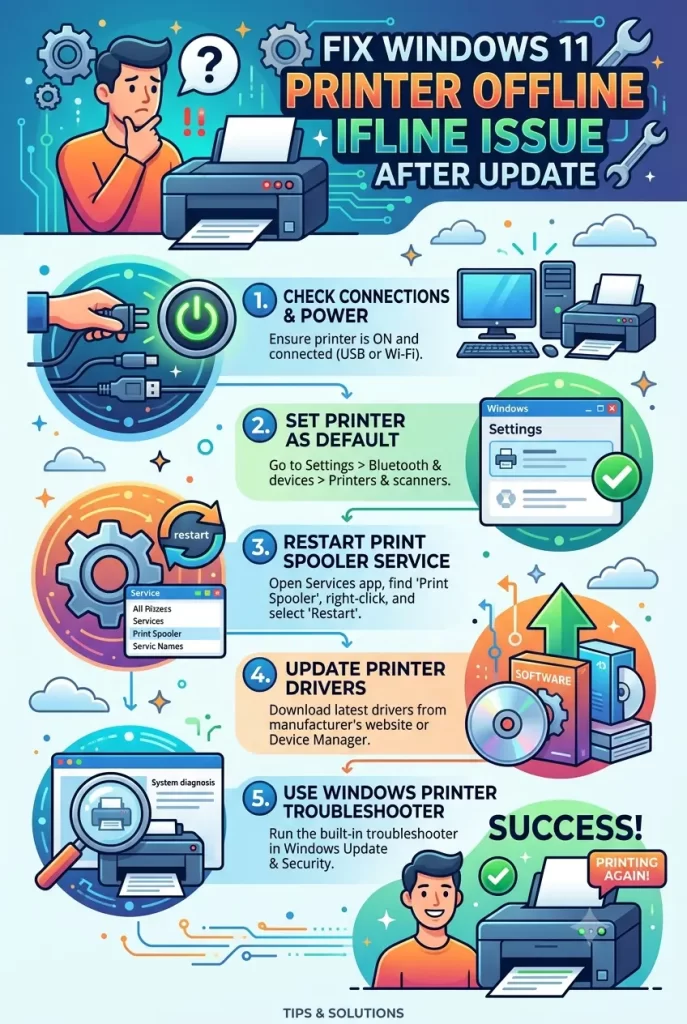
Step 1: Check the obvious “Use Printer Offline” setting
- Open Settings > Bluetooth & devices > Printers & scanners
- Click your printer, then Open print queue
- Under the Printer menu, uncheck Use Printer Offline if it’s checked
This fixes it more often than it has any right to. Worth trying before anything else.
Step 2: Restart the Print Spooler service
- Open Services (services.msc)
- Find Print Spooler, right-click, select Restart
- If it won’t restart cleanly, stop it first, then start it again separately
Step 3: Clear the print queue manually
Sometimes a stuck job in the queue keeps everything jammed even after restarting the spooler.
- Navigate to
C:\Windows\System32\spool\PRINTERS - Delete all files in this folder (spooler service should be stopped first)
- Restart the Print Spooler service
Step 4: Remove and re-add the printer
- Go to Settings > Bluetooth & devices > Printers & scanners
- Select your printer, click Remove device
- Click Add device and let Windows redetect it, or install fresh from the manufacturer’s site
Step 5: Check the printer’s actual IP address
For network printers, print a configuration page directly from the printer’s own menu to see its current IP. Compare that against the port settings in Windows under printer Properties > Ports tab. If they don’t match, update the port or consider setting a static IP on the printer to avoid this happening again.
Step 6: Disable USB selective suspend for the printer
- Open Device Manager, find your printer under Universal Serial Bus controllers or Print Queues
- Go to Properties > Power Management tab
- Uncheck “Allow the computer to turn off this device to save power”
What Actually Worked For Me
I went straight for the print queue and unchecked “Use Printer Offline,” assuming that would be it since I’d seen it mentioned somewhere before. It wasn’t — the printer went right back to showing offline within a couple minutes.
Turned out the real issue was the Print Spooler, which needed a proper restart, not just a queue toggle. And restarting it once wasn’t quite enough either — I had to stop it, clear out the leftover files in the spool folder, and then start it again for it to actually stick. So it was really a two-part fix, not the single-step thing I expected going in. A little frustrating since the offline toggle looked like such an obvious, quick answer.
Advanced Fixes and Edge Cases
Check Event Viewer for spooler crash logs. Under Windows Logs > Application, filter for “PrintService” or spooler-related errors. A repeatedly crashing spooler process points to a corrupted driver rather than a simple stuck state, and that changes your fix from “restart” to “reinstall driver.”
Run the Windows Printer Troubleshooter, but don’t expect much. It’s built into Settings > System > Troubleshoot > Other troubleshooters. From what I’ve seen it catches maybe a third of cases, mostly basic connectivity stuff, and misses the spooler and driver mismatch causes entirely.
Check Group Policy or firewall rules if this is a work machine. IT-managed machines sometimes have firewall rules or Group Policy settings that got reapplied during an update cycle, blocking the printer port that was previously allowed. This one’s outside normal user control and usually needs IT involvement.
Roll back the printer driver if the update pushed a bad one. In Device Manager, under the printer entry’s Driver tab, check if a “Roll Back Driver” option is available. It’s grayed out unless Windows actually kept the previous version, but when it’s there, it’s a faster fix than a full driver reinstall.
Prevention Tips
- Set a static IP for network printers so update-related DHCP changes can’t affect them
- Disable USB selective suspend for printers specifically, not system-wide
- Install manufacturer drivers directly instead of letting Windows Update manage them
- Check print queue status after major Windows updates before assuming everything’s fine
- Keep a note of your printer’s correct IP or port settings somewhere so you can quickly compare after issues like this
FAQ
Why does my printer show offline but still prints a test page from its own panel? That’s the classic sign Windows has a stale status flag or spooler issue, not an actual connectivity problem.
Does this happen with all printer brands equally? Not exactly — HP and Canon network printers seem to get IP mismatch issues more often, from what I’ve seen, though that’s not based on any formal data, just pattern.
Will reinstalling Windows fix a printer offline issue? Almost never necessary. Save that as an absolute last resort, this is almost always a service or driver-level fix.
Should I just use the generic Windows driver instead of the manufacturer’s? Generally no, unless the manufacturer driver is genuinely broken. Generic drivers tend to lose features and can behave inconsistently after updates.
Is there a way to stop this from happening on future updates? Not with full certainty, but static IPs, manufacturer drivers, and disabling USB suspend meaningfully cut down how often it recurs.
Editor’s Opinion
the “use printer offline” checkbox gets recommended everywhere online but it’s honestly not the real fix most of the time, its the spooler. clear the spool folder and restart the service properly and that solves it way more often. also can we talk about how printers in general just refuse to behave consistently, this industry hasnt figured out basic reliability in like 30 years.
