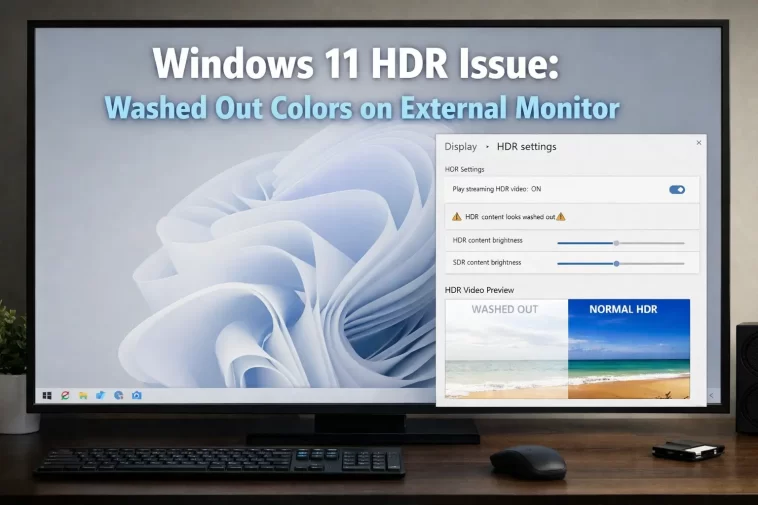
I turned on HDR for the first time on a new external monitor and everything looked worse. Not brighter, not more vivid — just flat and gray, like someone dropped the saturation slider by half. This windows 11 hdr washed out colors problem catches a lot of people off guard because HDR is supposed to make things look better, not like a bad photo filter.
So here’s what’s actually going on and how to get colors that don’t look like they’ve been left out in the sun.
Quick Answer
- Check if your monitor actually supports HDR properly, not just “HDR compatible” labeling
- Adjust the SDR content brightness slider in Windows HDR settings — this one fixes it more than anything else
- Update your GPU driver, especially if you’re on an older Intel or AMD chip
- Turn off any “vivid” or “dynamic contrast” picture modes on the monitor itself
- Use Windows HDR Calibration app to actually tune the range instead of guessing
None of these matter if your cable can’t carry the bandwidth HDR needs, so check that first if nothing else works.
Why It Fails
There’s rarely one clean cause here. A few I keep running into:
The SDR brightness slider in Windows HDR settings is set wrong. This is the number one cause, and almost nobody knows it exists. Windows 11 has a separate slider that controls how bright non-HDR content appears while HDR mode is on, and if it’s set too low, everything — including HDR content — can look muted or gray depending on your monitor’s tone mapping.
Monitor is “HDR compatible” but not actually a real HDR panel. A lot of monitors technically accept an HDR signal without having the brightness range or color gamut to display it properly. Windows turns on HDR mode, the monitor does its best, and its best is a washed-out mess because the panel physically can’t hit the contrast HDR content expects.
Cable or port doesn’t have enough bandwidth. HDR at higher resolutions and refresh rates needs real bandwidth. An HDMI 2.0 cable trying to push 4K HDR at 120Hz will often silently downgrade the color depth or chroma subsampling instead of failing outright, and you get washed out or banded colors as a result.
GPU driver mishandling color space or bit depth. I’ve seen this most on Intel integrated graphics and older AMD drivers — the GPU sends 8-bit color instead of 10-bit, or picks the wrong color format (RGB vs YCbCr) for the connection, and the monitor’s HDR tone mapping falls apart.
Windows HDR Calibration never run. Microsoft’s HDR Calibration app exists specifically because Windows’ default HDR curve doesn’t match most monitors out of the box. Skipping it is basically leaving your monitor’s factory-default color mapping in charge, and it’s rarely a good match.
Common Scenarios
- Laptops connected to an external 4K HDR monitor — this combination is especially prone to bandwidth and driver mismatches since the laptop GPU is doing double duty
- Gaming monitors with “HDR400” certification — HDR400 is the lowest tier and genuinely can’t produce real HDR contrast, so games and Windows both look worse with HDR on than off
- Docking station setups — USB-C docks often can’t pass full HDR bandwidth, so you get a degraded signal even though the monitor itself is capable
- Dual monitor setups with only one HDR display — Windows sometimes applies HDR color management inconsistently across the two screens, making the non-HDR monitor’s colors look off by comparison
Technical Comparison Table
| Cause | Symptom | Fix |
|---|---|---|
| SDR slider too low | Everything looks dim/gray, HDR and non-HDR content both affected | Adjust SDR content brightness in Settings > Display > HDR |
| Cheap or wrong cable | Colors flicker, band, or look washed out at higher refresh rates | Use certified HDMI 2.1 or DisplayPort 1.4 cable |
| HDR400 monitor | Flat, low-contrast HDR that looks worse than SDR | Turn HDR off, or accept it’s a marketing checkbox more than real HDR |
| GPU sending 8-bit color | Slight banding, dull colors, especially in gradients | Update GPU driver, manually force 10-bit if driver allows it |
Step-by-Step Fixes
Step 1: Fix the SDR content brightness slider
Go to Settings > System > Display > HDR. Turn HDR on if it isn’t already, and look for “SDR content appearance” or “SDR content brightness.” Drag it up gradually while watching your desktop — most people have it set way too low without realizing it exists at all.
Step 2: Run Windows HDR Calibration
Download the free HDR Calibration app from the Microsoft Store. It walks you through setting black level, white level, and color range specifically for your monitor’s actual panel, not a generic default. This step alone fixes a surprising number of “HDR looks bad” complaints.
Step 3: Check your cable and port
Make sure you’re on a certified HDMI 2.1 cable or DisplayPort 1.4/2.0 cable, and confirm the port on both ends actually supports the bandwidth you need for your resolution and refresh rate. Cheap cables are a bigger problem than people expect.
Step 4: Update your GPU driver
Grab the latest driver directly from NVIDIA, AMD, or Intel rather than relying on Windows Update, which sometimes lags behind on color-related fixes.
Step 5: Turn off monitor picture modes
Go into your monitor’s on-screen display and disable “Dynamic Contrast,” “Vivid Mode,” or similar picture presets. These modes often fight against what Windows and your GPU are already trying to do for HDR tone mapping, and the result is worse, not better.
Step 6: Force 10-bit color if your GPU allows it
In your GPU control panel (NVIDIA Control Panel or AMD Software), check the output color depth setting under display configuration. If it’s stuck at 8-bit, try manually setting it to 10-bit or 12-bit, assuming your cable and monitor can handle it.
What Actually Worked For Me
My first move was blaming the monitor, since it was new and I figured I’d just gotten a bad HDR panel. Spent a good chunk of an evening messing with the monitor’s own settings menu, which did basically nothing.
Turned out the fix was the SDR brightness slider, which I didn’t even know existed until I stumbled on it half by accident while poking around in Display settings looking for something else entirely. Bumped it up, and the washed-out look mostly disappeared. I still ran the HDR Calibration app afterward just to tighten things up, but honestly the slider did most of the heavy lifting. Kind of annoyed that setting isn’t more obvious, since it’s clearly the most common cause based on how many people ask about this.
Advanced Fixes and Edge Cases
Check EDID data if the monitor isn’t reporting HDR capabilities correctly. Occasionally Windows misreads a monitor’s HDR metadata over certain cables or through docking stations, and shows HDR as available when the actual signal path can’t support it. Using a different port directly on the GPU, bypassing a dock or hub, can confirm whether that’s what’s happening.
Look at color format manually in GPU control panel. RGB and YCbCr 4:2:2/4:4:4 produce different results depending on your monitor and cable bandwidth. If colors look washed out specifically at higher refresh rates, try forcing YCbCr 4:2:0 as a bandwidth-saving test, then compare against RGB full range once bandwidth isn’t a bottleneck.
Check Windows’ Auto HDR and game-specific HDR settings separately. Auto HDR applies its own tone mapping on top of whatever the game or Windows does natively, and combining them can produce a duller image than either alone. Turning off Auto HDR for specific titles is worth testing if only games look washed out and the desktop looks fine.
Prevention Tips
- Always run HDR Calibration after connecting a new HDR monitor, don’t skip it
- Buy certified cables, not the cheapest HDMI cable you can find
- Check your monitor’s actual HDR certification tier before assuming it can do real HDR
- Update GPU drivers after major Windows updates, since color handling regressions do happen
- Avoid docking stations for HDR displays if you can connect directly to the GPU instead
FAQ
Why does HDR look worse than SDR on my monitor? Probably an HDR400 or similar low-tier panel. Real HDR needs real brightness and contrast range, and a lot of monitors technically support the HDR signal without having the hardware to show it properly.
Does turning off Auto HDR help with washed out colors? Sometimes, especially in games. Worth testing individually since it doesn’t affect the desktop the same way.
Is this a Windows 11 bug or a monitor problem? Usually a Windows settings issue (the SDR slider) or a monitor limitation, not a bug exactly. Genuine driver bugs do happen but they’re less common than people assume.
Will a firmware update on the monitor fix it? Rarely helps for this specific issue, but worth checking if the monitor is otherwise misbehaving.
Do I even need HDR on for a monitor? Not always. If your panel is HDR400 or you don’t watch much HDR content, leaving it off and just calibrating SDR properly often looks better anyway.
Editor’s Opinion
honestly this one’s mostly a windows settings problem disguised as a hardware problem. that sdr brightness slider is buried and nobody knows about it until they go looking, and half the “my hdr monitor sucks” complaints online are probably just that. run hdr calibration, fix the slider, and then judge your monitor. don’t judge it before that.
