I spent a solid twenty minutes clicking the Archive button on hundreds of emails last year, feeling productive, only to check my mailbox size afterward and find it hadn’t budged. Turns out the Archive button and actual space-saving archiving are two completely different things in Outlook, and nobody tells you that upfront. Here’s the setup that actually reduces mailbox size, not just tidies your inbox view.
Quick Answer
- The Archive button and Backspace shortcut move emails to a folder but don’t reduce mailbox size at all
- AutoArchive moves old items to a separate .pst file on your computer, which does free up space — but it’s classic Outlook only
- New Outlook for Windows doesn’t have AutoArchive; it uses an admin-managed In-Place Archive mailbox instead
- Set AutoArchive to run every 14 days with a conservative cutoff, like items older than 6 months
- Check with your IT admin if you’re on Microsoft 365, since Online Archive might already be available and better suited for the job
Why Archiving in Outlook Gets Confusing
Here’s the part that trips up almost everyone, myself included for way too long: Outlook has at least three or four things called “archive,” and they don’t do the same thing at all.
The Archive button doesn’t reduce mailbox size. Clicking Archive on the ribbon, using the right-click menu, or hitting Backspace all move the email into a built-in Archive folder — but that folder still lives inside your primary mailbox. It’s basically just another folder like Inbox or Sent Items. Great for decluttering your view, useless for actually reducing storage.
AutoArchive and “Clean Up Old Items” are the ones that actually help. These move items out of your mailbox entirely into a separate .pst file stored on your computer. Since the data leaves your mailbox, your Exchange or Microsoft 365 storage usage actually drops. This is the feature most people are looking for when they search “archive emails to free up space,” even if they don’t realize the terminology gap yet.
New Outlook doesn’t have AutoArchive at all. If you’ve switched to the new Outlook for Windows, or you’re on Outlook on the web, AutoArchive simply isn’t there — it’s a classic Outlook desktop feature only. Instead, new Outlook relies on something called In-Place Archive (sometimes called Online Archive in classic Outlook or Outlook for Mac), which is a separate cloud mailbox your admin has to enable.
There’s a fourth wrinkle worth knowing about: organization-level Auto-Archive for Exchange Online. Microsoft’s been rolling out a feature that automatically moves your oldest emails into an archive mailbox once your primary mailbox hits 90% capacity, but this only works if your organization already has archive mailboxes enabled and it’s something IT controls, not something you toggle yourself.
Which Outlook Version Are You Using?
This matters more than most guides admit, because the steps genuinely differ.
Classic Outlook for Windows has the full AutoArchive settings menu under File > Options > Advanced. If you’re seeing that menu grayed out, it’s worth checking whether your organization has an Exchange Online Archive Mailbox enabled, since that can disable AutoArchive and Clean Up Old Items entirely in favor of server-side retention policies.
New Outlook for Windows doesn’t have AutoArchive. What you’ll find instead, if your admin has enabled it, is an In-Place Archive folder in your navigation pane that mirrors your regular folder structure and moves items based on retention labels your organization sets.
Outlook on the web behaves similarly to new Outlook — no AutoArchive, but an In-Place Archive folder if your admin has turned it on.
Archive Method Comparison
| Method | Frees Mailbox Space? | Available In | Controlled By |
|---|---|---|---|
| Archive button / Backspace | No | All versions | You |
| AutoArchive | Yes | Classic Outlook only | You |
| Clean Up Old Items (manual) | Yes | Classic Outlook only | You |
| Online Archive / In-Place Archive | Yes | All versions, if enabled | Admin (with some user control) |
| Org-level Auto-Archive at 90% | Yes | Exchange Online orgs | Admin only |
Step-by-Step: Setting Up AutoArchive (Classic Outlook)
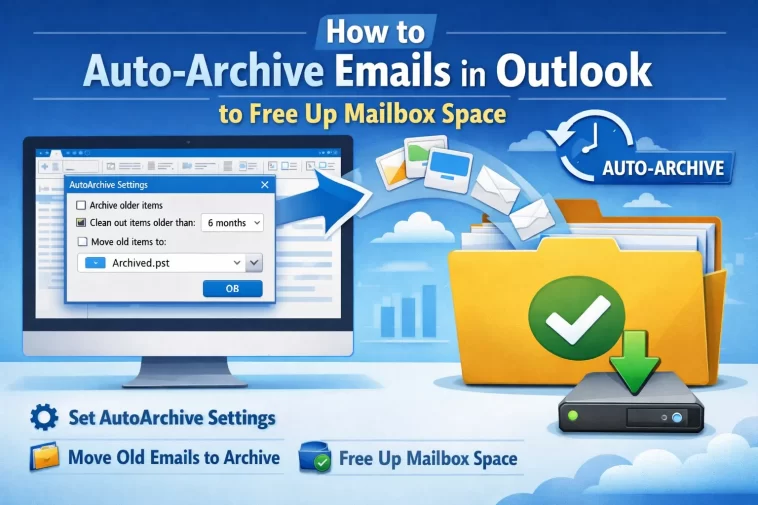
Step 1: Open AutoArchive settings. Go to File > Options > Advanced, then scroll to the AutoArchive section and click AutoArchive Settings.
Step 2: Set your run frequency. Check “Run AutoArchive every” and set a number of days — 14 is a reasonable default that keeps your mailbox from creeping back up between runs.
Step 3: Choose a conservative cutoff date. Set items older than a period you’re comfortable losing quick access to, like 6 months. Being too aggressive here is the single most common regret people report — you archive something you actually needed access to next week and then have to go dig through a .pst file to find it.
Step 4: Decide where the .pst file lives. The default location is Documents\Outlook Files\archive.pst, which works fine for most people. If you’re on a work laptop that gets replaced periodically, though, it’s worth thinking about whether that file needs to be backed up somewhere else too.
Step 5: Enable “Show archive folder in folder list.” This makes the archived items visible and searchable directly from Outlook’s normal folder pane instead of requiring you to manually open the .pst file every time.
Step 6: Run it once manually to confirm it works as expected. Before trusting the automatic schedule, use File > Info > Cleanup Tools > Archive to run it manually one time and check that the right folders and date range get archived the way you intended.
What Actually Worked For Me
I set my first AutoArchive cutoff way too aggressively — 60 days — because I wanted to see space freed up fast. That backfired within two weeks when I needed to reference an email from about six weeks back and had to dig through the .pst file instead of just searching my inbox like normal. Mildly annoying, but enough that I went back and changed it.
What actually worked better was starting conservative at six months and only tightening it after watching how often I actually needed to search that range. That’s not a particularly clever insight, I just wish I’d started there instead of learning it the annoying way.
Advanced Fixes and Edge Cases
If AutoArchive is greyed out entirely, it’s very likely your organization has an Exchange Online Archive Mailbox enabled, which replaces AutoArchive and Clean Up Old Items with server-managed retention policies instead. Check with IT before assuming something’s broken — this is expected behavior once online archiving is turned on for your account.
If you’re on new Outlook and need actual mailbox space freed up, your only real path is asking your admin to enable an In-Place Archive mailbox for your account, since there’s no local .pst-based alternative in the new client. Individual users can’t self-enable this.
Retention labels can override your instincts about what should stay put. If your organization uses retention labels on folders, items can move to In-Place Archive automatically based on rules you didn’t set and might not be aware of — worth checking View Settings > Accounts > Storage if items seem to be disappearing from folders you didn’t manually touch.
Prevention Tips
Start with a conservative AutoArchive cutoff and loosen it over time rather than the other way around, since narrowing an overly aggressive setting after the fact means digging emails back out of a .pst file. Check your actual mailbox size periodically using the storage view in Outlook rather than assuming archiving is working just because you set it up once. And if your organization offers Online Archive or In-Place Archive, ask IT whether it’s already available for your account before spending time configuring local AutoArchive settings that a server-side archive would make redundant anyway.
FAQ
Does deleting emails free up more space than archiving them? Yes, immediately. Archiving keeps the data, just moved elsewhere, while deleting removes it from your mailbox entirely (though it still sits in Deleted Items until that’s emptied too).
Why does my mailbox size stay the same after I archive emails using the Archive button? Because the Archive button just moves emails to a folder inside your same mailbox. It doesn’t reduce your storage usage at all — only AutoArchive, Clean Up Old Items, or Online Archive actually do that.
Can I get AutoArchive back in new Outlook? Not currently. AutoArchive is a classic Outlook for Windows feature only. If you need automatic space-freeing archiving in new Outlook, that has to come through an admin-enabled In-Place Archive mailbox instead.
Will archived emails still show up in search? Yes, by default Outlook searches across your primary mailbox and Archive folder together, though Online Archive sometimes needs to be searched separately depending on your setup.
Editor’s Opinion
the archive button naming thing genuinely annoyed me once i realized it doesnt do what the name suggests, feels like a trap for anyone just trying to free up space without reading three support articles first. if your actual goal is storage, skip the archive button entirely and go straight to autoarchive or ask your admin about online archive, dont waste time clicking through your inbox like i did.
