DNS_PROBE_FINISHED_NXDOMAIN on Microsoft Edge is annoying for one specific reason: it usually only happens in Edge while Chrome or Firefox on the same machine load the site fine. I’ve chased this one before assuming it was a system-wide DNS problem, and wasted time flushing the wrong cache. Turns out the fix is almost always inside Edge itself, not Windows.
Quick Answer
- Clear Edge’s internal DNS cache at
edge://net-internals/#dns(not the same as the Windows DNS cache) - Check Edge’s Secure DNS setting under Privacy, search, and services
- Try the site in an InPrivate window to rule out extensions
- Flush the Windows DNS cache too, just in case:
ipconfig /flushdns - Check your hosts file for a leftover entry for that domain
Why It Fails
NXDOMAIN technically means the DNS server got a response saying the domain doesn’t exist. So on paper, this error should mean you typed something wrong or the site is actually down. But in practice, on Edge specifically, it’s usually one of these:
1. Edge keeps its own internal DNS cache, separate from Windows. This is the one that trips people up. Edge is built on Chromium, and Chromium browsers cache DNS lookups internally instead of relying only on the OS-level cache. So flushing DNS at the Windows level doesn’t touch Edge’s own cache — that’s why Chrome can work while Edge is still stuck resolving an old, bad, or empty record.
2. Secure DNS (DNS-over-HTTPS) is misconfigured. Edge has its own Secure DNS toggle that can point to a different DNS provider than the one your network is set to use. If that provider is unreachable, slow, or doesn’t have a record for the domain you’re hitting, you’ll get NXDOMAIN in Edge even though the domain resolves fine everywhere else.
3. A browser extension is interfering. Ad blockers, privacy extensions, and some VPN browser extensions can intercept requests before they hit DNS resolution properly, and misfire with an NXDOMAIN-style error instead of their own blocking page.
4. A stale or bad hosts file entry. If you or some software ever added an entry for that domain in C:\Windows\System32\drivers\etc\hosts, and it’s wrong or points nowhere, Edge (and technically every browser) will fail before it even asks a real DNS server.
Not 100% sure why, but I’ve also seen this happen right after a Windows update, where a network adapter reset seems to leave Edge’s cached state out of sync with the actual network for a few minutes.
Technical Comparison
| Cause | Confirms As | Fix |
|---|---|---|
| Edge-only DNS cache | Works in Chrome/Firefox, fails in Edge | Clear cache at edge://net-internals/#dns |
| Secure DNS misconfigured | Fails in Edge, works in InPrivate with Secure DNS off | Change or disable Secure DNS provider |
| Extension interference | Works in InPrivate (extensions off by default) | Disable extensions one by one |
| Hosts file entry | Fails in every browser, not just Edge | Edit or remove the entry in hosts file |
Worth admitting: sometimes it’s genuinely just the site being down or the domain expired, and no amount of cache clearing fixes that. Check the domain in another way (phone on mobile data) before assuming it’s your setup.
Step-by-Step Fixes
Step 1: Rule out the obvious. Double-check the URL for typos. And try the same address on your phone using mobile data, not your Wi-Fi — if it fails there too, the domain itself might genuinely be the problem.
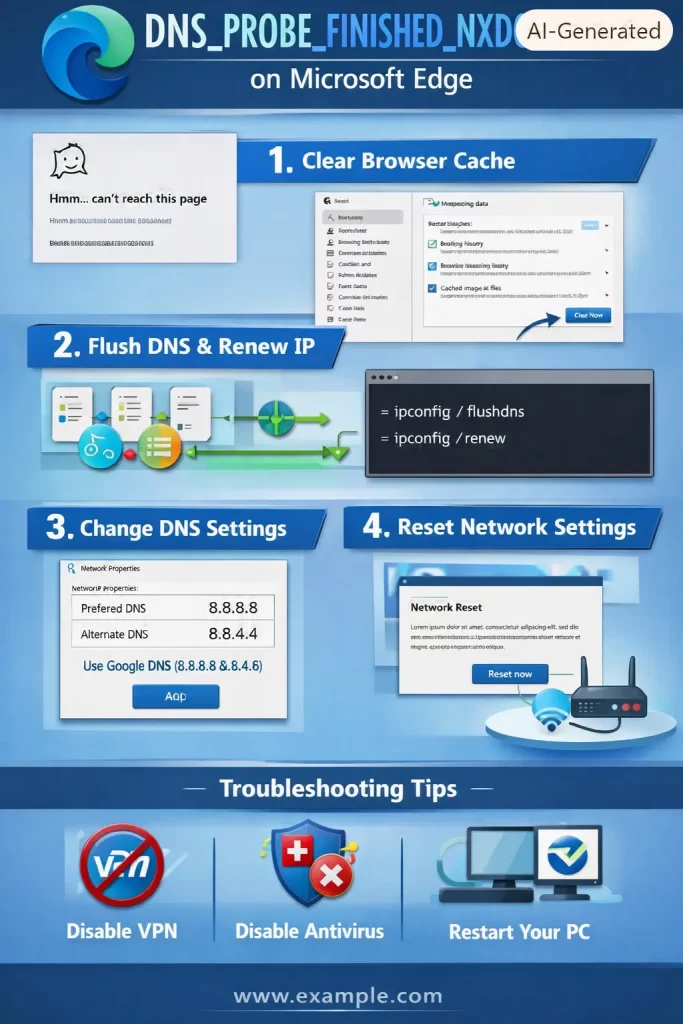
Step 2: Clear Edge’s internal DNS cache. Type edge://net-internals/#dns in the address bar and click “Clear host cache.” This is the step most guides skip because it’s Chromium-specific, but it’s the one that actually matches what’s different about Edge versus other browsers.
Step 3: Test in InPrivate mode. Open a new InPrivate window (Ctrl+Shift+N) and try the site again. If it loads, an extension is probably involved — go back to normal mode and disable extensions one at a time from edge://extensions.
Step 4: Check the Secure DNS setting. Go to edge://settings/privacy, scroll to “Security,” and look at the Secure DNS section. Try switching it to “With” your current service provider, or toggle it off entirely to test.
Step 5: Flush the Windows-level DNS cache too. Open Command Prompt as admin and run:
ipconfig /flushdnsThis won’t fix an Edge-only cache issue by itself, but it clears the system-level cache in case the problem is shared across browsers.
Step 6: Check your hosts file. Open C:\Windows\System32\drivers\etc\hosts in Notepad (as admin) and look for a line referencing the domain that’s failing. If it’s there and looks wrong, comment it out with a # at the start of the line and save.
What Actually Worked For Me
The first time I hit this, I did what everyone does — flushed DNS from Command Prompt, restarted the router, restarted the PC. Nothing changed. Edge kept throwing DNS_PROBE_FINISHED_NXDOMAIN on one specific site while Chrome opened it without a hitch on the same machine, same network, same everything.
So I figured it had to be something Edge-specific, and that’s when I remembered net-internals exists in Chromium browsers from messing with Chrome years ago. Cleared the host cache in Edge, reloaded the page, and it worked immediately. Kind of a lucky guess more than a systematic process, if I’m honest — I got there because of an old habit from a completely different browser, not because I diagnosed it properly from the start.
Advanced Fixes and Edge Cases
Check for a broken proxy or VPN extension. Some VPN browser extensions rewrite DNS requests at the extension layer instead of passing them through cleanly. If InPrivate mode fixes it and you narrow it down to a VPN extension, try the standalone VPN app instead of the browser extension version.
Look at edge://net-internals/#events while reproducing the error. This shows a live event log of what Edge’s network stack is doing in real time. It’s dense, but you can search for the failing domain and see whether it’s actually reaching a DNS server or failing before that.
Reset Winsock if it’s happening across all browsers, not just Edge. Run netsh winsock reset followed by a restart. This is a deeper fix for when the issue isn’t Edge-specific at all, despite how it first presented.
Check Group Policy or managed browser settings on work machines. If Edge is centrally managed (common on corporate laptops), an admin-pushed DNS or Secure DNS policy can override anything you change locally in settings.
Prevention Tips
- Don’t add hosts file entries for testing and forget to remove them later.
- Keep Secure DNS pointed at a provider you actually trust and understand, not just whatever was default.
- Periodically check
edge://extensionsfor anything you don’t remember installing. - If a site fails in Edge only, test in InPrivate before assuming it’s a bigger network problem.
FAQ
Why does this only happen in Edge and not Chrome? Because each Chromium browser keeps its own separate internal DNS cache and its own Secure DNS setting. They don’t share state even though they’re built on the same engine.
Does flushing Windows DNS fix it? Sometimes, but not usually if it’s Edge-only. Clear Edge’s own cache at edge://net-internals/#dns first.
Is DNS_PROBE_FINISHED_NXDOMAIN the same as “This site can’t be reached”? Basically, yes — NXDOMAIN is the specific reason behind that generic-looking error page.
Could my ISP be causing this? It’s possible, especially if you’re using their default DNS servers. Switching to a public DNS provider on your router or adapter can rule that out.
Editor’s Opinion
this one bugged me becuase every guide online just says “flush dns” and moves on, which barely ever fixes it when its edge-only. if chrome works and edge doesnt on the exact same page, go straight to net-internals and stop wasting time on the windows-level stuff first. thats the actual difference that matters here.
