Quick Answer
- No recovery code doesn’t mean no account. Instagram has other verification paths built in.
- Start at instagram.com/hacked on a browser (not always the app) and pick “I think my account was hacked” or “I forgot my password.”
- Try logging in from a device you’ve used before — Instagram sometimes skips the code entirely if it recognizes the device.
- If you’re truly locked out, the “Need more help?” support form with a photo ID is your real fallback, not a random recovery service.
- Two trusted friends can confirm your identity for you if you set that up beforehand (or even sometimes without it, depending on your account history).
So here’s the thing about losing your Instagram recovery code — it feels like game over, but it usually isn’t. I’ve walked a friend through this exact panic at around 11pm on a Tuesday, phone dead, laptop open, both of us assuming the account was just gone. It wasn’t. It took about twenty minutes and a mildly annoying identity form, but it came back. If you’re stuck trying to recover an Instagram account without a recovery code right now, the path forward depends a lot on which piece of the puzzle you still have — email access, an old logged-in device, a linked Facebook account — and I’ll go through all of them.
Why This Happens (And Why It’s Worse Than It Should Be)
Instagram’s recovery code — the 8-digit backup code you get when you turn on two-factor authentication — exists specifically for this scenario: you lose your phone, or your authenticator app, or both. The problem is almost nobody screenshots or saves that code somewhere they can actually find later. From what I’ve seen, it usually gets lost for one of these reasons:
- New phone, no backup restore. You switched devices and didn’t transfer Google Authenticator, Duo, or whatever app was generating your codes. The account on the new phone doesn’t magically inherit the old codes.
- The 8-digit code got confused with the 6-digit login code. This trips up a shocking number of people. The 6-digit code from an authenticator app rotates every 30 seconds. The recovery code is a static 8-digit backup you were shown once, during setup, and told to save. They are not interchangeable, and Instagram’s error messages don’t make that obvious.
- The linked email or phone number is also outdated. So even the fallback options — “we’ll text you a code” — fail, because that number belongs to someone else now.
- The account was set up years ago on a device that’s long gone, and whatever “trusted device” memory Instagram had has since expired from inactivity.
None of these are exotic. They’re just annoying, and Instagram’s UI doesn’t explain the difference between “forgot password,” “lost 2FA,” and “account hacked” clearly enough for people to pick the right door on the first try.
Common Scenarios Where This Bites People
- You reset your phone to factory settings before backing up your authenticator app — the single most common version of this I’ve seen.
- You switched from Android to iPhone (or the reverse) and the authenticator app doesn’t sync across platforms without manual setup.
- You deleted the authenticator app thinking you didn’t need it anymore, not realizing it was still tied to Instagram’s 2FA.
- Someone else changed your 2FA settings after gaining access — this is the “hacked” branch, and it needs a slightly different recovery form than a simple lockout.
Step-by-Step Fixes
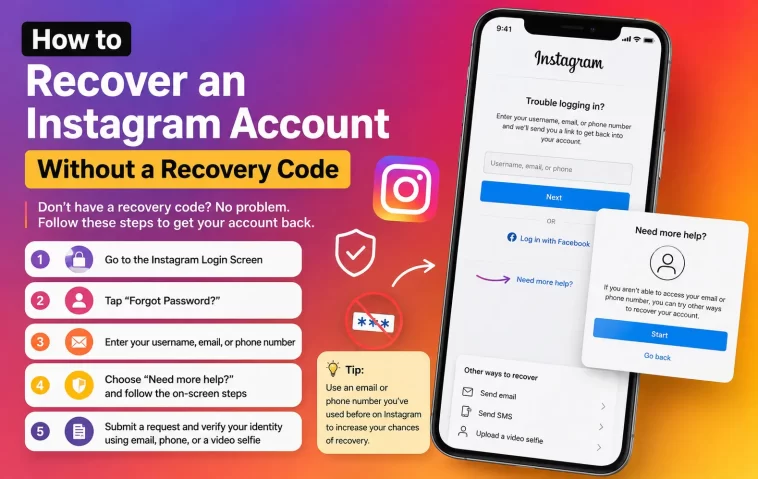
Step 1: Try the device you last logged in on
Before anything else, open Instagram on any phone, tablet, or browser where you’ve logged in successfully before. Instagram’s fraud detection leans on device history, and it’ll sometimes let you straight in, or ask for a much lighter verification than a full recovery code. This sounds too easy to work, but it’s the first thing worth ruling out.
Step 2: Go to instagram.com/hacked directly
Don’t rely on the in-app “Forgot password?” flow alone — the browser-based hacked hub gives you more branches to choose from: hacked, forgot password, lost 2FA access, or disabled account. Pick the one that matches your situation as closely as possible, since the recovery flow actually differs depending on which you pick.
Step 3: Use “Try another way” on the 2FA screen
If you get to the 2FA prompt and don’t have your code, look for “Try another way” underneath the input box. This usually opens up options like sending a login link to your email, or texting a code to a phone number on file — assuming those are still accurate.
Step 4: Check for a linked Facebook account
If your Instagram was ever connected to a Facebook account, logging in through Facebook can bypass the Instagram-side 2FA wall entirely in some cases. Go to Facebook, confirm you’re logged in there, then try “Continue as [name]” or “Log in with Facebook” from the Instagram login screen.
Step 5: File the support request form
When none of the above work, you’ll eventually land on “Need more help?” This opens a request form where you provide your email, describe the issue, and — increasingly often — upload a photo of a government ID or a short video selfie for identity verification. It’s not fun, but it’s the legitimate path, and it works more often than people expect once they actually fill it out completely instead of half-answering it.
Step 6: Use trusted contacts if you set them up
If you’d previously chosen two friends as “trusted contacts” for account recovery, this is where that pays off. They get a code to pass along to you, confirming you’re the real account owner. Not everyone sets this up in advance, and if you didn’t, you can’t retroactively add it mid-lockout — worth remembering for next time.
What Actually Worked For Me
I’ll be honest, the first time I dealt with this it wasn’t even my own account — it was my friend’s, and I assumed the Facebook-linked login trick would solve it in two minutes. It didn’t. Facebook and Instagram had been unlinked at some point without either of us noticing, so that whole approach was a dead end. Then I tried the “Try another way” option on 2FA, figuring the old phone number would still be active. It wasn’t either — she’d switched carriers.
What actually got her back in was the plain old support form, filled out with way more detail than felt necessary — old profile picture description, approximate account creation date, a couple of usernames she used to follow regularly. Instagram came back within about a day with a request for a selfie video, and after that, access was restored. Not glamorous, not instant, but it worked. And that’s honestly the pattern I’ve seen most — the boring, slow, over-detailed support form beats every clever workaround people suggest in forums.
Advanced Fixes and Edge Cases
If you’re getting stuck in a redirect loop between “enter recovery code” and “contact support,” clear your browser cache and cookies for Instagram specifically, then retry from a private/incognito window. Session data can sometimes get Instagram’s servers confused about which recovery state you’re actually in.
If your account was compromised and the email was changed by an attacker, don’t bother trying the standard password reset — it’ll go to an email you no longer control. Go straight to the “hacked” branch on instagram.com/hacked, which has a dedicated flow for accounts where the attacker changed contact info.
Check for a login alert email you might have missed. If you get notified about a login from an unrecognized device around the time you lost access, that email sometimes contains a direct “This wasn’t me” link that kicks off a faster recovery path than the general support form.
One thing that’s commonly recommended but rarely actually solves anything: third-party “Instagram recovery” services that promise to get your account back for a fee. I’d stay away from these entirely — best case they do nothing useful, worst case you’re handing your login details to someone with no relationship to Meta at all.
Prevention Tips
- Save your 8-digit recovery code somewhere outside your phone — a password manager, or printed and stored somewhere safe.
- Set up trusted contacts for account recovery before you need them, not after.
- Keep your linked email and phone number current, even if you rarely check them.
- Consider an authenticator app that backs up to the cloud (Authy does this, Google Authenticator added it more recently) so a lost phone doesn’t wipe out your 2FA history.
FAQ
Can I recover my Instagram account with just my username? Not on its own — Instagram will still need to verify you own the account through email, phone, or the support form.
How long does the support form recovery actually take? Usually 24–72 hours, though your mileage may vary depending on how much detail you provide and how backed up their review queue is.
Does Instagram ever just refuse to give the account back? Yes, unfortunately, especially if the identity verification doesn’t line up or the account had prior violations. It’s rare but it happens.
Is there a phone number I can call for this? No official phone support exists for regular Instagram accounts — Meta Verified subscribers get some priority support, but it’s still not a call center.
Editor’s Opinion
honestly this whole system is fine once you know it exists, the problem is nobody explains it clearly until your after youve already panicked. the recovery code thing trips up way more people than it should and instagram’s ui doesnt help. just save your dang backup code somewhere you’ll actually find it later, thats basically the whole lesson here.
