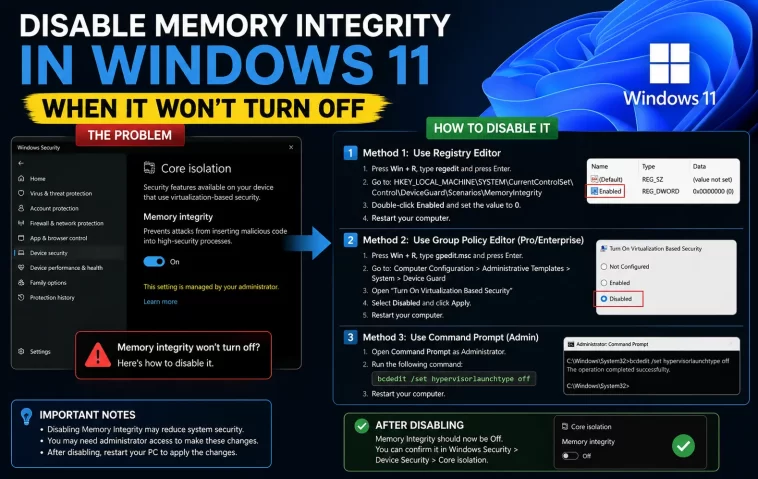
I had a Memory Integrity toggle that just would not budge — clicked it off, hit restart, and it was back on before I even opened another app. Disabling Memory Integrity in Windows 11 when it won’t turn off usually comes down to one of three things: a locked policy, a driver dependency, or Windows just quietly re-enforcing it after a reboot. Here’s how to actually get past it.
Quick Answer
- If it says “This setting is managed by your administrator,” check the
Lockedvalue in the registry — it’s probably set to 1 - The core toggle lives at
HKEY_LOCAL_MACHINE\SYSTEM\CurrentControlSet\Control\DeviceGuard\Scenarios\HypervisorEnforcedCodeIntegrity, key nameEnabled, set to 0 to disable - Check Group Policy under Device Guard if you’re on Pro/Enterprise — a policy there overrides the Windows Security toggle every time
- A grayed-out toggle (rather than one that reverts) is usually an incompatible driver issue, not a lock issue — different fix entirely
- After any registry or policy change, you need a full restart, not just closing and reopening Windows Security
Why It Won’t Turn Off
There isn’t one universal cause here — it genuinely depends on whether the toggle is grayed out, or whether it turns off and then silently turns back on. Those are two different problems with two different fixes, and mixing them up wastes a lot of time.
Group Policy or MDM lock. If your machine was ever domain-joined, provisioned by an organization, or came with an OEM management profile, a policy can force Memory Integrity on regardless of what the Windows Security toggle shows. This is the single most common cause on business laptops.
The Locked registry value. Separate from Group Policy itself, there’s a Locked DWORD in the registry that Windows sets when a policy is applied. Even after a policy technically gets removed, this value can linger and keep the toggle grayed out.
Windows reasserts it after updates. So this one is sneaky — a cumulative update or feature update can silently re-enable HVCI even after you’ve disabled it cleanly through the registry. It’s not a bug exactly, more like Microsoft’s default security posture reasserting itself.
Driver-level enforcement. Memory Integrity checks drivers for compatibility, and in rare cases a specific driver — often something old, like a VPN client or a legacy audio driver — actively keeps VBS-dependent features locked in an on state because Windows treats the presence of that driver as a security dependency.
Third-party security software. If you’re running enterprise endpoint protection or certain antivirus suites, some of them enforce HVCI as part of their own hardening baseline, and they’ll flip it back on independently of anything you change in Windows Security or the registry.
An overlooked cause worth checking: Credential Guard being enabled alongside it. These two features share the same underlying virtualization layer, and disabling Memory Integrity alone sometimes doesn’t fully release things if Credential Guard is still active — Windows treats them as a linked pair on some builds.
Two Different Problems, Two Different Fixes
| Symptom | Likely Cause | Fix |
|---|---|---|
| Toggle is grayed out entirely | Incompatible driver or Locked policy value | Registry edit or driver removal |
| “Managed by your administrator” message | Group Policy or MDM enforcement | Edit Locked key, or contact IT if domain-joined |
| Turns off, then reverts after restart | Windows update reasserting HVCI, or third-party AV | Registry edit + recheck after every update |
| Turns off but WSL2/Hyper-V/Docker stop working | Expected — these depend on the same virtualization layer | Not a bug, it’s a trade-off |
Step-by-Step Fixes
Step 1: Confirm what’s actually blocking it
Open Windows Security > Device Security > Core Isolation. If you see “This setting is managed by your administrator,” that’s a policy lock, not a driver issue — skip to Step 3. If the toggle is grayed out with an incompatible driver warning, that’s Step 2. If it turns off but comes back after a restart, that’s Step 4.
Step 2: Deal with incompatible drivers
Click “Review incompatible drivers” if it’s shown. Note the driver names. Open Device Manager, find each one (checking under “Show hidden devices” from the View menu if it’s not visible normally), and either update it from the manufacturer’s site or uninstall it if you don’t need it. Restart and check Core Isolation again.
Step 3: Fix the Locked registry value
Open regedit (Win + R, type regedit). Navigate to:
HKEY_LOCAL_MACHINE\SYSTEM\CurrentControlSet\Control\DeviceGuard\Scenarios\HypervisorEnforcedCodeIntegrityLook for a DWORD named Locked. If it’s set to 1, change it to 0. Close regedit, restart Windows Security or just reboot, and try the toggle again.
And a quick note — if this key doesn’t exist at all, don’t panic and don’t create it just to be thorough. An absent key usually just means nothing is locking it, and the block is coming from somewhere else, like Group Policy directly.
Step 4: Set the Enabled key directly
In the same registry path as above, look for a DWORD named Enabled. Set it to 0. This is the actual on/off switch for HVCI at the registry level, separate from the Locked flag. Restart your PC — not a sign-out, a full restart — for this to take effect.
Step 5: Check Group Policy (Pro/Enterprise only)
Run gpedit.msc, go to Computer Configuration > Administrative Templates > System > Device Guard, and look at “Turn On Virtualization Based Security.” If it’s set to Enabled, that’s overriding everything else you’ve changed. Set it to Not Configured or Disabled, then restart.
If you’re on Windows Home, you don’t have gpedit — the registry edits in Steps 3 and 4 are your equivalent path.
What Actually Worked For Me
The toggle on my machine wasn’t grayed out — it would turn off just fine, then I’d restart for something unrelated and Core Isolation would show Memory Integrity back on again. Genuinely annoying, and for a while I assumed I was doing something wrong with the registry edit itself.
Turned out it wasn’t the registry at all. I was running a security suite from a previous job’s IT department that I’d never fully uninstalled, and it had its own hardening policy that reasserted HVCI on every boot as part of a scheduled compliance check. Found this out almost by accident — I was uninstalling old software to free up space and noticed the agent process still running in Task Manager months after I thought I’d removed it. Uninstalled it properly through Programs and Features, rebooted, and the registry edit finally stuck.
Not a clean, linear troubleshooting story. But that’s often how it goes — the actual cause is sometimes something completely unrelated to the setting itself.
Advanced Fixes and Edge Cases
Check Credential Guard status separately. Run msinfo32 and look for both “Virtualization-based security” and any Credential Guard line. If Credential Guard shows as running, disabling Memory Integrity alone may not release full performance — you may need to separately disable Credential Guard through its own registry path or Group Policy setting.
Event Viewer for driver-related blocks. Check Windows Logs > System, filtered for Kernel-related and CodeIntegrity events. These often name the exact driver or component that’s tripping compatibility checks, which is faster than guessing through Device Manager.
PowerShell verification. Get-CimInstance -ClassName Win32_DeviceGuard -Namespace root\Microsoft\Windows\DeviceGuard shows the actual running security services, which is more reliable than trusting the Windows Security toggle state alone — the UI doesn’t always reflect reality immediately after a change.
Reset Windows Security app. If nothing above works and you suspect app-level corruption rather than a real policy block, go to Settings > Apps > Installed apps, find Windows Security, and use Advanced options > Reset. This clears cached state that sometimes causes a toggle to misbehave independent of any actual policy.
Prevention Tips
- Fully uninstall old enterprise security software rather than just disabling it — leftover agents can keep enforcing policies in the background
- Recheck msinfo32 after every Windows feature update, since these have a track record of resetting HVCI state
- If the PC was ever domain-joined, remove it from the domain properly before assuming local settings will stick
- Keep a note of any registry changes you make here in case a future update reverts them and you need to redo it quickly
FAQ
Is it safe to force Memory Integrity off with the registry if the toggle won’t cooperate? Yes, functionally it’s the same mechanism the toggle uses. Just make sure you understand you’re trading off a security layer, not just fixing a UI bug.
Why does it say “managed by your administrator” on a personal, non-work PC? Sometimes it’s leftover policy residue from a previous OS image or enterprise software that was never fully removed, not necessarily active management. Check for old security agents first.
Will disabling Memory Integrity break Windows Hello or BitLocker? No, those depend on TPM, not specifically on Memory Integrity/HVCI. They’re related security layers but not the same dependency.
Does a Windows reinstall fix this permanently? Usually, yes, if the cause was corrupted policy state or leftover enterprise software. It’s a heavy-handed fix, so try the registry and driver routes first.
I fixed it but it turned back on after three weeks. Why? Almost certainly a Windows update. This is common enough that it’s worth just checking periodically instead of assuming a one-time fix is permanent.
Editor’s Opinion
the annoying part of this one is that “wont turn off” and “grayed out” get treated as the same problem in a lot of guides online and they’re really not — grayed out is usually a driver thing, reverting after restart is usually a policy or third party software thing. figure out which one you actually have before you start editing the registry blind. and if you used to work somewhere with managed IT, check for leftover security agents before you blame windows itself, that one gets missed a lot.
