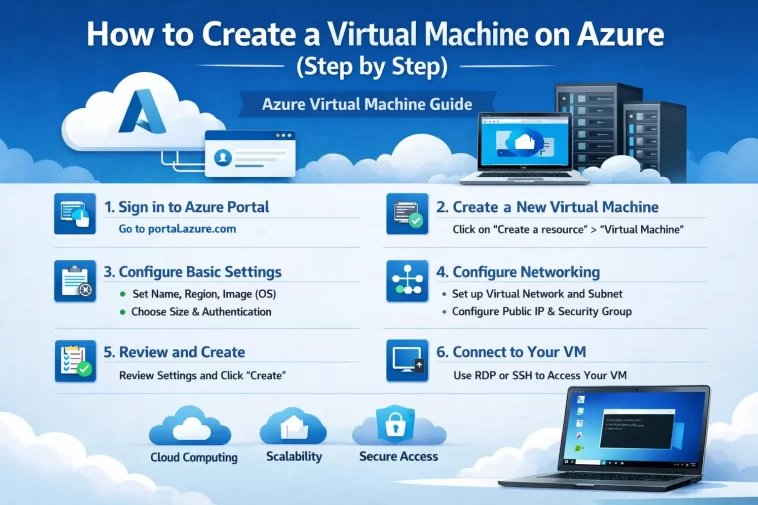
If you’ve been trying to create a virtual machine on Azure but don’t know where to start, you’re in the right place. Azure can feel overwhelming at first — all those menus, settings, and options. But once you see the full picture laid out clearly, it’s actually pretty straightforward. This guide walks you through everything from logging in to connecting to your new VM, with no fluff.
Why Azure Virtual Machines?
Before we get into the steps, let’s quickly talk about why you’d want to use Azure for this in the first place.
Microsoft Azure is one of the biggest cloud platforms in the world. It gives you the ability to spin up a virtual computer — basically a server you can access from anywhere — in just a few minutes. You don’t need to buy any physical hardware, you don’t need a server room, and you only pay for what you use.
People use Azure VMs for all kinds of things: hosting websites, running software tests, learning Linux or Windows Server, building development environments, running databases, and much more.
The best part? You can get started with a free Azure account that includes $200 in credits for the first 30 days. That’s plenty of time to follow this tutorial and explore on your own.
Alright, let’s get into it.
What You Need Before You Start
- A Microsoft Azure account (free or paid)
- A web browser
- About 10–15 minutes of your time
That’s it. No special software needed. Everything happens in the Azure portal, which is just a website.
Step 1 — Log In to the Azure Portal
Go to https://portal.azure.com and sign in with your Microsoft account. If you don’t have an Azure account yet, click Start free on the Azure homepage and follow the registration steps. You’ll need a credit card for verification, but you won’t be charged during the free trial.
Once you’re logged in, you’ll see the Azure dashboard. It looks a little busy the first time, but don’t worry — you don’t need to understand everything on the screen right now.
Step 2 — Go to Virtual Machines
In the top search bar, type “Virtual machines” and click on the result. This takes you to the Virtual Machines page, where you’ll see a list of all your existing VMs (probably empty if this is your first time).
Click the + Create button in the top left, then choose Azure virtual machine from the dropdown. This opens the VM creation wizard, which has several tabs you’ll fill out step by step.
Step 3 — Fill Out the Basics Tab
This is the most important tab. Let’s go through each field.
Subscription — This is your billing account. If you just signed up, you’ll only have one option here (probably “Azure subscription 1” or your free trial subscription).
Resource group — Think of this as a folder that holds your VM and its related resources. Click Create new and give it a name like my-first-vm-group. You can delete the whole group later to clean everything up.
Virtual machine name — Pick a name for your VM. Something like my-test-vm works fine. Just keep it lowercase with no spaces.
Region — Choose the geographic region where your VM will be hosted. Pick the one closest to you for the best performance. For example, if you’re in Europe, choose something like (Europe) West Europe.
Availability options — For a basic setup, leave this as “No infrastructure redundancy required.” This is fine for testing and learning.
Security type — Leave this as “Standard” for now.
Image — This is the operating system. You can choose Windows Server, Ubuntu, Debian, Red Hat, and more. If you’re not sure, go with Ubuntu Server 22.04 LTS — it’s free, widely used, and lightweight.
VM architecture — Leave as x64.
Size — This determines how much CPU and RAM your VM gets. Click See all sizes to browse. For a basic test VM, Standard_B1s (1 vCPU, 1 GB RAM) is the cheapest option and works fine for light tasks. It typically costs less than $10/month.
Authentication type — For Linux VMs, you can use SSH public key or password. If you’re not comfortable with SSH keys yet, choose Password and set a username and password you’ll remember.
Public inbound ports — Select Allow selected ports and check SSH (22) for Linux, or RDP (3389) for Windows. This is what lets you connect to your VM remotely.
Once all that is filled in, click Next: Disks.
Step 4 — Configure the Disk
The Disks tab is where you choose the storage for your VM. For most basic setups, the default settings here are perfectly fine.
OS disk type — You’ll see options like Premium SSD, Standard SSD, and Standard HDD. For a test VM, Standard SSD gives you decent performance without costing much. If you just want the cheapest option for learning, pick Standard HDD.
Leave everything else at the defaults and click Next: Networking.
Step 5 — Set Up Networking
The Networking tab handles how your VM connects to the internet and to other Azure services.
Virtual network — Azure will auto-create a virtual network for you. Leave it as is.
Subnet — Same, leave the default.
Public IP — This is the address you’ll use to connect to your VM from your computer. Azure will create one automatically. Make sure it’s set to (new) your-vm-name-ip.
NIC network security group — Set this to Basic and confirm that the inbound port you selected in the Basics tab (SSH or RDP) is listed here. The network security group acts like a firewall.
Delete public IP and NIC when VM is deleted — Check this box. It’s just good housekeeping — when you delete the VM later, it cleans up the associated resources too.
Click Next: Management.
Step 6 — Review Management and Monitoring Options
The Management tab has a few optional features. For a basic VM, you don’t need to change much here.
Auto-shutdown — This is a very useful setting, especially if you’re on the free trial. You can set the VM to automatically shut down at a certain time each day, so you don’t accidentally leave it running and get charged. Enable this and set a time like 11:00 PM in your local timezone.
Microsoft Defender for Cloud — This is Azure’s security tool. For a test VM, you can leave it off to avoid extra costs, or enable the free basic plan.
Everything else can stay at the default. Click Next: Monitoring.
Step 7 — Monitoring Settings
On the Monitoring tab, you can configure alerts and diagnostics.
Boot diagnostics — Leave this enabled. It helps you troubleshoot your VM if it ever has trouble starting up.
OS guest diagnostics — Leave this disabled for a basic setup.
You can skip the Advanced and Tags tabs unless you have specific needs. Click Review + create.
Step 8 — Review and Create Your VM
Azure will now run a validation check on all your settings. If everything looks good, you’ll see a green “Validation passed” message at the top.
Take a moment to look over the summary. Pay attention to the Estimated cost shown at the bottom — it gives you a sense of what you’ll be charged per hour and per month if you leave the VM running.
When you’re ready, click the Create button.
Azure will now start building your VM. This usually takes between 1 and 3 minutes. You’ll see a deployment progress screen with several items being created: the VM itself, the network interface, the public IP address, the disk, and the network security group.
Once you see “Your deployment is complete”, your virtual machine is live.
Step 9 — Connect to Your Virtual Machine
Click Go to resource to open your VM’s page. Here you’ll see all the details about your new machine — its IP address, status, operating system, and more.
For Linux (SSH):
- Find the Public IP address on the VM overview page.
- Open a terminal on your computer (Terminal on Mac/Linux, PowerShell or Windows Terminal on Windows).
- Type:
ssh your-username@YOUR_PUBLIC_IPReplace your-username and YOUR_PUBLIC_IP with the values from your setup. If you used a password, you’ll be prompted to enter it.
- Type
yeswhen asked about the host fingerprint, and you’re in.
For Windows (RDP):
- Click the Connect button at the top of the VM page and choose RDP.
- Download the
.rdpfile. - Open it — Windows will launch the Remote Desktop Connection app automatically.
- Enter your username and password, and click Connect.
That’s it — you’re now connected to your virtual machine running in Microsoft Azure.
Step 10 — Manage and Stop Your VM
Once you’re done with your VM, don’t forget to stop it so you don’t keep getting charged.
Go back to your VM’s page in the Azure portal. At the top, you’ll see buttons for Stop, Restart, Delete, and more.
- Click Stop to shut it down (you won’t be charged for compute time while it’s stopped, though you still pay for the disk storage).
- Click Delete to permanently remove the VM and all its associated resources.
If you created a resource group specifically for this VM, you can also delete the entire resource group from the Resource Groups page — that removes everything at once and is the cleanest option.
Tips to Keep Costs Low on Azure
Azure can get expensive quickly if you’re not careful. Here are a few practical tips:
- Always stop VMs when not in use. A VM running 24/7 costs real money. Stop it when you’re done.
- Use the auto-shutdown feature. Set it up so the VM shuts off automatically every night.
- Set up billing alerts. In Azure, go to Cost Management + Billing and create an alert that notifies you when spending hits a threshold.
- Use B-series VMs for low-traffic workloads. The Standard_B1s and B1ms sizes are the most affordable and work well for learning and testing.
- Delete resources when done. It’s easy to forget about VMs, public IPs, and disks. Deleting the whole resource group is the safest way to make sure nothing gets left running.
Frequently Asked Questions (FAQ)
How long does it take to create a virtual machine on Azure?
Usually 1 to 3 minutes. Azure creates all the necessary resources in the background — the VM, disk, network interface, and public IP — and they’re all ready to use within a few minutes of clicking “Create.”
Is Azure free to use for virtual machines?
New Azure accounts come with $200 in free credits for the first 30 days. After that, you pay based on usage. Some VM sizes (like the B1s with certain OS images) may qualify for the Azure free tier, which gives you 750 hours of free VM usage per month. Check the Azure pricing page for the latest details.
What’s the difference between stopping and deleting a VM?
Stopping a VM powers it off but keeps all your data and settings. You won’t be charged for CPU/RAM while it’s stopped, but you’ll still pay a small amount for disk storage. Deleting removes the VM permanently.
Can I change the size of my VM after creating it?
Yes. Go to your VM in the Azure portal, click Size in the left-hand menu, and choose a new size. You’ll need to stop the VM first before resizing. This is one of the great things about cloud VMs — you can scale up or down any time.
What operating systems can I run on Azure VMs?
Azure supports a wide range: various versions of Windows Server, Ubuntu, Debian, Red Hat Enterprise Linux, CentOS, SUSE, Oracle Linux, and more. You can also bring your own custom images. Linux VMs are generally cheaper since you don’t pay for a Windows license.
How do I connect to a Linux VM from Windows?
You can use PowerShell, Windows Terminal, or a third-party tool like PuTTY. On Windows 10 and 11, SSH is built in — just open PowerShell and run the ssh command as shown in Step 9.
What is a resource group in Azure?
A resource group is basically a container that holds all the Azure resources related to a specific project or purpose. It makes it easy to manage, monitor, and delete everything together. Think of it like a folder.
Can I run a website on an Azure VM?
Absolutely. You can install a web server like Apache or Nginx on a Linux VM, or IIS on a Windows VM, and host a website. You just need to open port 80 (HTTP) and/or 443 (HTTPS) in the network security group, and point your domain’s DNS to the VM’s public IP address.
What’s the difference between an Azure VM and Azure App Service?
An Azure VM gives you a full virtual computer where you have root/admin access and full control. Azure App Service is a managed platform where you just deploy your code and Azure handles the infrastructure. For most web apps, App Service is easier and cheaper. VMs make sense when you need more control or need to run specific software.
Is Azure better than AWS or Google Cloud for virtual machines?
All three platforms are excellent and competitive. Azure tends to be the preferred choice in enterprise environments, especially for companies already using Microsoft products like Windows Server, Active Directory, or Office 365. AWS has the largest market share and broadest service catalog. Google Cloud is strong in data/AI workloads. For beginners, all three are solid choices — the best one is usually whichever one your employer or school already uses.
Wrapping Up
Creating a virtual machine on Azure isn’t as complicated as it might look at first glance. Once you’ve done it once, the whole process feels natural. The Azure portal guides you through each step, and the defaults are sensible enough that you don’t need to understand every single option to get something up and running.
Whether you’re setting up a dev environment, learning Linux, testing software, or building something real, Azure VMs give you a flexible and powerful place to work. And with free credits available for new accounts, there’s no reason not to give it a try.
If you run into any issues, the Azure documentation is genuinely good — and the community forums are active and helpful. Good luck with your first VM.
