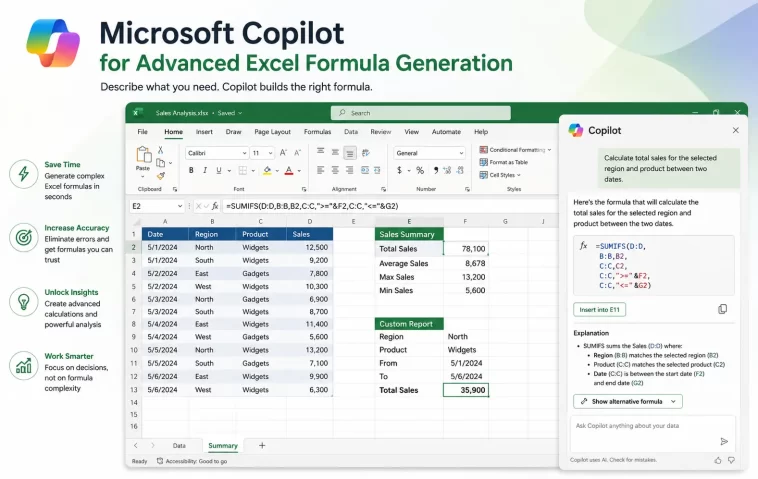
I spent about forty minutes last month trying to get Copilot in Excel to write a formula that pulled the second-to-last non-blank value from a messy weekly report column. It kept giving me confident, clean-looking formulas that returned #VALUE! or just the wrong number entirely. Microsoft Copilot in Excel can absolutely generate advanced formulas — nested INDEX/MATCH, dynamic arrays, LAMBDA functions, the works — but only if you feed it the right context, because by default it’s guessing at your data structure.
So this isn’t a “Copilot is magic, just type what you want” post. It’s more of a “here’s what actually gets decent formulas out of it, and here’s where it falls apart” post.
Quick Answer
- Copilot needs your data formatted as a proper Excel Table (Ctrl+T) or it loses track of ranges fast
- Reference specific column names and example values in your prompt, not vague descriptions
- For multi-condition logic, ask for the formula in plain English first, then ask Copilot to “convert this logic to a formula” — it’s noticeably more accurate this way
- Always test on a small sample range before applying to the full sheet
- If Copilot returns a formula with #REF! or circular reference warnings, it’s almost always a range mismatch, not a syntax problem
Why Copilot Gets Formulas Wrong in the First Place
There are a handful of real reasons this happens, and most of them aren’t about Copilot being “bad” at math — it’s about context loss.
It doesn’t always see your full sheet structure. Copilot in Excel works off whatever data context it’s grabbed, and if your sheet has merged cells, hidden columns, or inconsistent headers, it can misread which column is which. I’ve had it confidently reference “Column C” when my actual data started two rows lower than it assumed.
Ambiguous natural language gets ambiguous formulas. If you type “show me the average sales by region excluding refunds,” Copilot has to guess what counts as a refund in your dataset. Sometimes it guesses right. A lot of the time it doesn’t, especially if “refund” isn’t literally a column header anywhere.
Array and spill behavior trips it up. Newer functions like FILTER, SORT, and UNIQUE return dynamic arrays that spill into adjacent cells. If those cells already have something in them, you get a #SPILL! error — and Copilot doesn’t always warn you that the destination range needs to be clear first.
And one that’s easy to overlook: version mismatches. Not every LAMBDA-based or newer function Copilot suggests is available in older Excel builds or in Excel for the web versus desktop. So you can get a perfectly valid formula that just doesn’t run in your specific Excel version.
Common Scenarios Where This Bites People
- Finance/reporting spreadsheets with multiple tabs — Copilot sometimes references the wrong tab when asked for cross-sheet formulas
- Excel for the web vs desktop — formula suggestions can differ, and some advanced functions aren’t fully supported in web yet
- Large datasets (10k+ rows) — Copilot can time out or simplify the formula logic to keep things “performant,” which sometimes strips out a condition you actually needed
- Shared/co-authored workbooks — if someone else is editing while you’re prompting Copilot, I’ve seen it grab a stale snapshot of the data
Step-by-Step: Getting Copilot to Generate Reliable Advanced Formulas
Step 1: Convert your range to a Table first
Select your data, hit Ctrl+T, confirm headers. This sounds basic but it matters more than people think — Copilot anchors to structured references (Table1[Sales]) way more reliably than to raw cell ranges like A2:A500.
Step 2: Open Copilot and describe the logic, not just the goal
Instead of “calculate commission,” try something like: “If Region is ‘West’ and Sales is greater than 5000, commission is 8%, otherwise 5%. Write this as a formula referencing the Sales and Region columns in this table.”
That’s verbose, I know. But the specificity is what keeps Copilot from inventing its own assumptions.
Step 3: Ask for the formula explained, not just dropped in
Add “explain each part of the formula” to your prompt. This does two things — it helps you catch logic errors before you commit to the formula, and it forces Copilot to actually reason through the structure instead of pattern-matching to something similar it’s seen.
Step 4: Test on a 5–10 row sample first
Copy a small chunk of your data to a scratch sheet, run the formula there, manually verify two or three results by hand. Sounds tedious. It’s saved me from rolling out a wrong formula across 3,000 rows more than once.
Step 5: For nested or array formulas, build incrementally
Ask Copilot for the innermost function first (say, the MATCH portion of an INDEX/MATCH), confirm it works, then ask it to wrap that into the next layer. Trying to get the whole nested formula in one shot tends to produce something that’s almost right but has one reference off.
What Actually Worked For Me
Honestly, my first few attempts were a mess. I tried just typing my original ask straight in — “find the second to last non-blank value in column D” — and Copilot gave me a formula using LOOKUP that returned the wrong row entirely. I tried again with more detail, it switched to an INDEX/SMALL combo, still off by one because of how blanks were counted.
What actually fixed it was almost an accident. I’d seen a forum post months back about using COUNTA inside an INDEX formula to handle blank-aware row offsets, and I half-remembered the pattern. I described that exact logic to Copilot — “use COUNTA to find the position, then INDEX to retrieve the value at that offset minus one” — and it nailed it on the first try.
So the lesson, for me anyway, wasn’t “Copilot can’t do this.” It’s that vague requests get vague-quality formulas, and once you give it the actual logical structure, it’s genuinely good at translating that into correct syntax.
Advanced Fixes and Edge Cases
LAMBDA and named function conflicts. If you’re using Copilot to generate custom LAMBDA functions and storing them in Name Manager, check for naming collisions with existing defined names. I’ve had a LAMBDA silently fail to calculate because it shared a name with an old, unused range I’d forgotten about.
Circular reference false positives. Sometimes a Copilot-generated formula triggers a circular reference warning even when there isn’t a true circular dependency — this usually happens with self-referencing dynamic array formulas (like a running total using the spill range itself). Go to Formulas > Error Checking > Circular References to trace it instead of guessing.
Volatile function performance drag. Copilot occasionally suggests formulas using TODAY(), NOW(), or OFFSET inside large arrays, which recalculate on every single change to the sheet. On big workbooks this turns into noticeable lag. If your sheet starts feeling sluggish right after adding a Copilot formula, check for volatile functions first — that’s the usual suspect, not corruption or file size.
Cross-workbook references. Copilot doesn’t reliably generate formulas referencing external workbooks even when you describe the file by name. Not 100% sure why, but from what I’ve seen, it tends to default to assuming everything lives in the active workbook unless you explicitly paste in the external sheet’s structure too.
Technical Comparison: Common Fix Attempts vs. Actual Success Rate
| Approach | Works Often? | Notes |
|---|---|---|
| Typing the end goal directly (“calculate commission”) | Rarely | Copilot fills in assumptions you didn’t specify |
| Describing exact conditional logic in plain English | Most often | Best balance of effort vs. accuracy |
| Asking for formula + explanation | Often | Catches errors before they hit your sheet |
| Building nested formulas in one shot | Rarely | Tends to be “close but wrong” rather than fully broken |
| Converting range to Table first | Almost always helps | Cheap fix, easy to forget |
Prevention Tips
Keep headers clean and consistent — no merged cells in the header row, no duplicate header names across sheets. Convert ranges to Tables as a habit, not an afterthought, before you start prompting Copilot. And when a formula looks suspiciously simple for a complex ask, double-check it manually — that’s usually a sign Copilot oversimplified the logic to fit something it recognized.
FAQ
Can Copilot in Excel write VBA or macros instead of formulas? No, it’s focused on native formulas and some Power Query-adjacent suggestions, not VBA generation.
Why does Copilot sometimes suggest a formula that’s not available in my Excel version? Because it doesn’t always check your specific build before suggesting newer dynamic array or LAMBDA-based functions — verify function availability if the formula throws a #NAME? error.
Does Copilot work the same in Excel for Mac as Windows? Largely yes for formula generation, though some Copilot panel features have rolled out unevenly between platforms, so don’t be surprised if availability lags slightly on one side.
Is it worth using Copilot for simple SUM or AVERAGE formulas? Not really — that’s overkill. Save it for the multi-condition, nested, or array stuff where typing it manually is genuinely error-prone.
Why did Copilot’s formula work in my test but break on the full dataset? Almost always a data inconsistency further down the sheet — a stray text value in a numeric column, an extra blank row, that kind of thing. Check the full range for outliers before blaming the formula itself.
Editor’s Opinion
honestly this took longer to get right than I expected going in. copilot’s fine, even good, once you stop treating it like a search engine and start treating it like a junior analyst who needs the actual logic spelled out. the COUNTA/INDEX thing was pure luck/half-memory tbh, not some clean systematic debugging process. your mileage will vary depending on how messy your sheet already is — and most sheets are messier than people admit.
