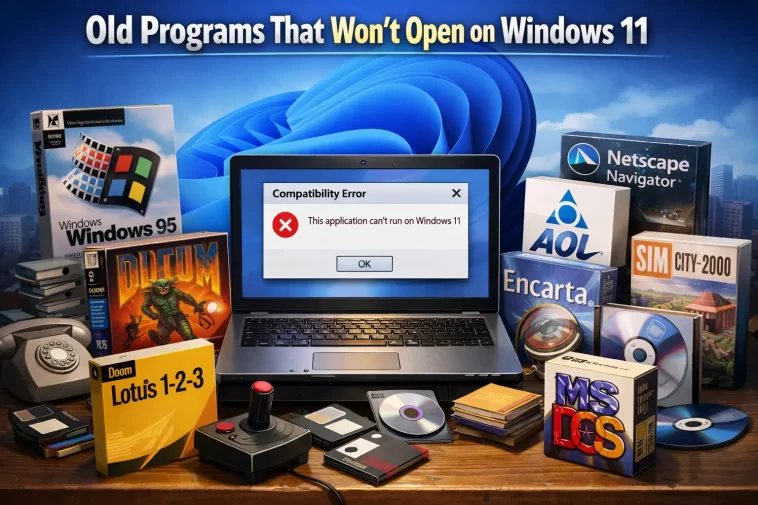
Old programs that won’t open on Windows 11 usually fail in one of two ways — either they throw an error immediately, or they just vanish from the taskbar a second after you double-click them. I’ve run into both versions across a pile of legacy software I still need for work, and the fix depends entirely on which kind of failure you’re dealing with, which most generic “compatibility mode” tutorials don’t really explain.
Quick Answer
- Check the error message first — “not a valid Win32 application” means something very different from a silent crash
- Compatibility Mode fixes maybe 40% of cases, mostly ones tied to version-checking code, not actual missing components
- Missing Visual C++ Redistributables and DirectX runtimes cause more launch failures than people expect
- 16-bit DOS-era software can’t run at all on 64-bit Windows 11 — no compatibility setting fixes that, it needs emulation
- Antivirus and SmartScreen quietly blocking unsigned old executables is an overlooked cause that looks identical to a “real” compatibility error
Why It Fails
There are several distinct reasons here, and lumping them together is exactly why so many fixes online don’t work for everyone.
The app checks the Windows version and refuses to run. A lot of older software literally has a line of code that checks GetVersion() and bails out if it doesn’t recognize the result. So it’s not that the program is actually incompatible — it’s just being stubborn about a number. This is the case Compatibility Mode handles best, because it tricks the app into seeing an older version string.
Missing runtime dependencies. Visual C++ Redistributables (2005, 2008, 2010, 2012, 2013, 2015–2022 — yes, they’re all separate) and old DirectX components frequently aren’t present on a fresh Windows 11 install. The app was built against a specific version, and if that DLL isn’t on the system, you get a launch failure with little to no useful error text.
Architecture mismatch. This one’s a hard wall, not a setting you can toggle: 16-bit applications, the DOS-era stuff, cannot run on 64-bit Windows at all. Windows 11 doesn’t ship NTVDM (the subsystem that used to translate those calls), and even 32-bit Windows dropped it in recent versions for most consumer builds. If you see “not compatible with the version of Windows you’re running” on something genuinely old, this is very likely why — and compatibility mode will not help, because the OS literally cannot execute the instruction set the right way.
Security software interference. Windows Defender SmartScreen and third-party antivirus tools are more aggressive about unsigned or unrecognized executables than they were a decade ago. An old game installer with no digital signature can get silently quarantined or blocked, and the only symptom is “nothing happens when I double-click it” — no error dialog at all.
Changed file paths and permissions. Older installers sometimes hardcode paths like C:\Program Files\ assumptions that don’t match how UAC and folder virtualization behave now, especially if the software tries to write config files into its own install directory instead of AppData.
Common Scenarios
- Old retail PC games (early-to-mid 2000s) that ran fine on Windows 7 or 8 but throw errors immediately on a fresh Windows 11 build
- Business software — accounting tools, old CAD programs, internal company utilities — that hasn’t been updated since Windows XP or 7
- Steam or GOG re-releases of older titles that still occasionally hit DirectX or redistributable issues despite the platform handling most of it automatically
- Freshly built Windows 11 PCs missing the runtime libraries that accumulate naturally on an older, upgraded-in-place system
Step-by-Step Fixes
Step 1: Read the Actual Error Message
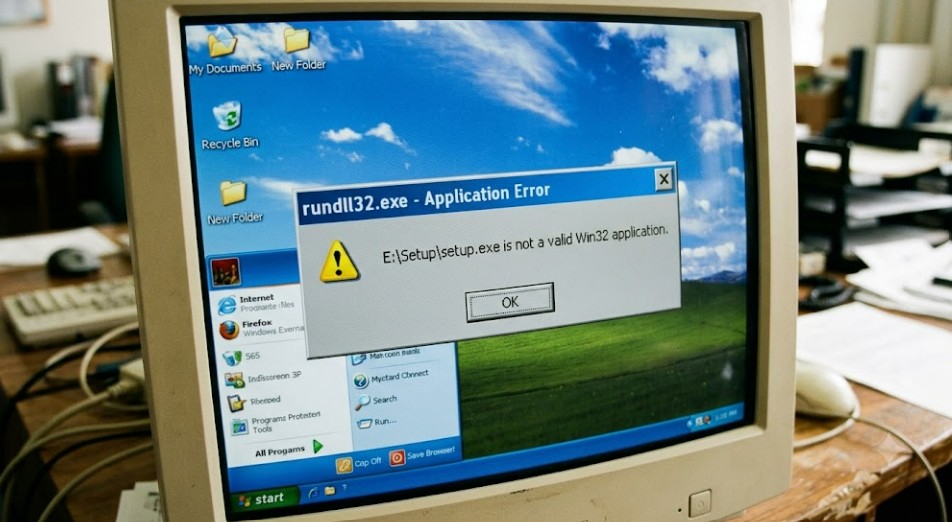
This sounds obvious, but it changes everything downstream. “Not a valid Win32 application” points to an architecture or corrupted file issue. A missing DLL message points to runtimes. A generic crash with no message at all often points to security software or a version check.
Image: Windows error dialog showing a typical “not a valid Win32 application” message
Step 2: Try Compatibility Mode First
- Right-click the program’s .exe (or its shortcut, then “Open file location” to get to the real .exe)
- Properties > Compatibility tab
- Check “Run this program in compatibility mode for” and pick the OS it was originally built for — if you’re not sure, start with Windows 7
- Also try “Run as administrator” alongside it
- Apply, then launch
If you don’t know the original target OS, Windows’ built-in Compatibility Troubleshooter (right-click > “Troubleshoot compatibility”) will test a few configurations automatically.
Step 3: Install Missing Runtimes Manually
Don’t rely on the app’s installer to grab these — download them directly from Microsoft:
- Visual C++ Redistributables (install all the versions you’re missing, not just the newest one — older apps often need the specific year they were built against)
- DirectX End-User Runtimes, especially for anything from the DirectX 9 era, which Windows 11 doesn’t include by default
Apps Not Opening In Windows 11? Best Fixes!
Step 4: Check Whether Security Software Is Quietly Blocking It
Open Windows Security > Protection History and look for anything flagged around the time you tried launching the program. If your antivirus quarantined the file, restore it from quarantine and add a specific exclusion for that file or folder — not the whole drive.
Step 5: Confirm It’s Not a 16-bit / DOS Application
If none of the above work and the program predates Windows 95, it might genuinely be 16-bit. Check by right-clicking the .exe and looking at Properties > Details — modern Windows often won’t even show a Compatibility tab for true 16-bit executables, which is itself a signal. At that point your real options are DOSBox or a virtual machine running an old Windows version, not a compatibility toggle.
Step 6: Try Running in a Sandbox or Lightweight VM
For business-critical legacy software where compatibility mode and runtimes don’t fully solve it, Windows Sandbox (built into Windows 11 Pro) or a small VM running Windows 7/8 gives you a clean environment that doesn’t fight with modern security defaults. Slower to set up, but it’s the most reliable path for genuinely stubborn software.
Advanced Fixes and Edge Cases
Application Compatibility shims. Power users dealing with internal business software can use the Microsoft-provided compatibility database tooling to apply specific shims — these patch the way the app calls certain APIs without modifying the original executable. It’s more involved than the standard Compatibility tab and mostly relevant for IT environments managing multiple legacy apps, but worth knowing it exists.
Event Viewer crash details. If the program launches and then crashes silently, check Event Viewer under Windows Logs > Application for an “Application Error” entry around that timestamp. The faulting module name listed there often points directly at a missing or mismatched DLL, which narrows down which redistributable you actually need instead of guessing.
Secure Boot and driver signing for old games with custom drivers. Some older games shipped with their own anti-cheat or DRM drivers (SecuROM, certain early anti-cheat systems) that won’t load on a system with Secure Boot enabled, since those drivers were never signed for modern requirements. This is a fairly narrow edge case, but it’s brutal to diagnose because the failure looks like a generic crash with zero useful information.
Group Policy or registry restrictions on unsigned executables. On managed or previously locked-down machines, a leftover Group Policy setting can block unsigned executables system-wide, not just flag them. Check gpedit.msc under Computer Configuration > Windows Settings > Security Settings > Software Restriction Policies if you’re on a machine that was ever centrally managed.
What Actually Worked For Me
I had an old accounting tool from a previous job’s archive that I needed for reference, and it just refused to open — no error, no crash dialog, nothing. Compatibility mode didn’t touch it. I assumed it was a redistributable issue and spent close to an hour installing every Visual C++ package I could find, which didn’t help either.
Turned out Defender had quarantined it the moment I extracted it from the zip file, and I never saw a notification because it happened so fast. I only found that out by checking Protection History almost as an afterthought, after a coworker mentioned offhand that he’d had the exact same thing happen with an old installer months earlier. So that’s the part I’d flag for anyone stuck: if there’s truly zero error message at all, check your security software before you touch compatibility settings, because compatibility mode can’t fix something that’s already been deleted or sandboxed.
For genuine version-check failures, Compatibility Mode is the fix that works most consistently — it’s quick, it’s reversible, and it doesn’t require installing anything extra. The fix that’s recommended constantly but rarely actually solves anything on its own is “just run as administrator” — it helps with permission-specific errors, but on its own it does very little for the version-check or missing-runtime cases that make up most of these failures.
Prevention Tips
- Keep a folder of common redistributables (VC++ 2005 through 2022, DirectX 9 runtime) so you’re not hunting for them every time you reinstall Windows
- Before reinstalling Windows, note which legacy apps you rely on and check whether they’re 16-bit before you’re stuck without them
- For business-critical old software, set up a small dedicated VM in advance rather than waiting until you need it under pressure
- Avoid extracting old, unsigned executables directly into a security-software-watched folder if you can preview or scan them first — it reduces silent quarantine surprises
FAQ
Why did this program work fine on Windows 10 but not Windows 11? Windows 11 tightened some security defaults and dropped a few legacy compatibility shims that Windows 10 still carried over. Most apps aren’t affected, but some genuinely sat right on that line.
Does Compatibility Mode actually change how the program runs, or is it just cosmetic? It actually changes behavior — it intercepts certain API calls and version queries so the app believes it’s running on the OS you selected. It’s not just a label.
Can I run 16-bit DOS games on Windows 11 at all? Not natively. DOSBox or a VM is the realistic path, and honestly DOSBox is usually easier to set up than people expect.
Is reinstalling Windows going to fix this? Rarely, and it’s a lot of effort for something usually fixable with redistributables or compatibility settings. Worth trying those first.
My antivirus says the file is clean, can I rule that out as a cause? Mostly, yes — but check Protection History specifically, not just a fresh scan result, since the original quarantine event might be old and the file already gone even though a new scan shows nothing wrong.
Editor’s Opinion
most of these “old game won’t launch” issues come down to like three real causes hiding behind generic error messages, which is annoying because the actual fix is usually quick once you know which one you’re dealing with. compatibility mode gets recommended for everything and it does help a lot, but it’s not magic — it can’t conjure a missing DLL or undo a quarantine. check the error message properly before you start clicking checkboxes, it saves real time.
