I’ve been there — you wake your laptop from sleep, open a browser, and nothing loads. The Wi-Fi icon shows connected, but there’s no actual internet. You toggle airplane mode, wait, reconnect, and lose another two minutes of your day. Every. Single. Time.
This is one of the most common and frustrating Wi-Fi issues in Windows 11, and the good news is it’s almost always fixable. This guide walks you through every real solution, from the quick one-minute fixes to the deeper driver-level changes that actually stick.
Why Does Wi-Fi Disconnect After Sleep Mode in Windows 11?
The root cause usually comes down to power management. Windows 11 is aggressively designed to save battery, and one of the ways it does that is by cutting power to your network adapter when the device sleeps. The problem is, when the system wakes up, the adapter doesn’t always reconnect cleanly.
Here are the most common reasons this happens:
- Windows turns off the Wi-Fi adapter to save power — and forgets to properly turn it back on
- Outdated or buggy network adapter drivers that don’t handle sleep/wake cycles well
- Fast Startup feature interfering with proper hardware initialization on wake
- Network adapter firmware conflicts with Windows 11’s power policies
- IP address lease expiring while the device is asleep, causing the connection to fail silently
This isn’t a hardware failure. Your Wi-Fi card is fine. It’s a software and settings problem, which means you can fix it.
Fix 1: Disable Power Management on Your Wi-Fi Adapter (Most Effective)
This is the fix that works for the majority of users. Windows is literally shutting off your adapter during sleep — you just need to tell it not to.
Step 1: Right-click the Start button and select Device Manager.
Step 2: Expand Network Adapters and find your Wi-Fi adapter (usually something like “Intel Wi-Fi 6” or “Realtek Wireless LAN Adapter”).
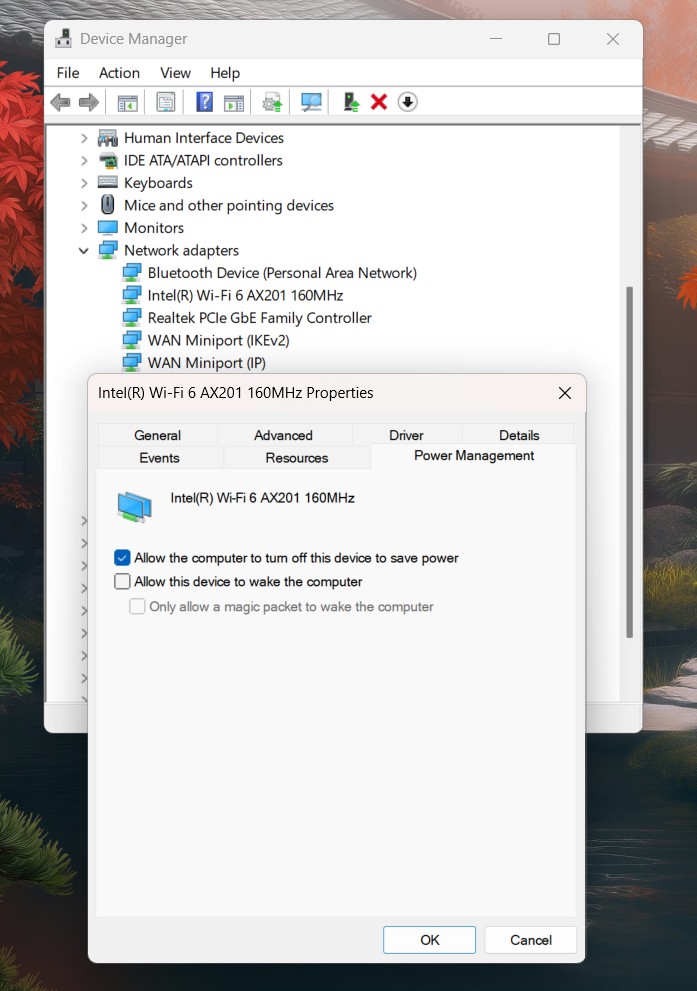
Step 3: Double-click it to open Properties, then go to the Power Management tab.
Step 4: Uncheck the box that says “Allow the computer to turn off this device to save power.”
Step 5: Click OK and restart your PC.
This single change fixes the sleep disconnection problem for most Windows 11 users. If your laptop is always plugged in, there’s no reason to let Windows cut power to your adapter anyway.
Fix 2: Change Advanced Power Settings for the Network Adapter
Even with Fix 1 applied, some systems still have issues because of a deeper power setting buried in Windows. This one targets Wi-Fi specifically.
Step 1: Press Win + R, type powercfg.cpl, and hit Enter.
Step 2: Click Change plan settings next to your active power plan, then click Change advanced power settings.
Step 3: In the Power Options window, scroll down and expand Wireless Adapter Settings, then expand Power Saving Mode.
Step 4: Change the setting to Maximum Performance.
Step 5: Click Apply and OK.
This prevents Windows from throttling your Wi-Fi adapter’s performance to save power — which is often what causes the delay or failed reconnection after sleep.
Fix 3: Disable Fast Startup
Fast Startup sounds great in theory — it makes your PC boot faster by saving a hibernation file. But it’s notorious for causing hardware initialization issues, including Wi-Fi adapters not coming back online properly.
Step 1: Open Control Panel → Power Options → Choose what the power buttons do.
Step 2: Click Change settings that are currently unavailable.
Step 3: Under “Shutdown settings,” uncheck Turn on fast startup (recommended).
Step 4: Click Save changes.
After this, do a full shutdown (not just restart) and boot back up. Then test your sleep/wake cycle.
Note for laptop users: Disabling Fast Startup may add a few extra seconds to your boot time, but the trade-off in stability — especially for Wi-Fi — is usually worth it.
Fix 4: Update or Reinstall Your Wi-Fi Adapter Driver
If the above fixes didn’t solve it, the problem is likely a driver issue. Windows 11 sometimes installs a generic driver for your Wi-Fi adapter that doesn’t handle power states correctly.
Step 1: Open Device Manager → Network Adapters.
Step 2: Right-click your Wi-Fi adapter and choose Update driver → Search automatically for drivers.
Step 3: If Windows says the driver is up to date, don’t trust it. Go to your laptop manufacturer’s website (Dell, HP, ASUS, Lenovo, etc.) or your adapter manufacturer (Intel, Realtek, Qualcomm) and download the latest driver manually.
Step 4: If updating doesn’t help, try uninstalling the driver instead (right-click → Uninstall device → check “Delete the driver software for this device”), then restart. Windows will reinstall the driver fresh on reboot.
Step 5: After installing the new driver, repeat Fix 1 (disable power management) since driver updates can reset that setting.
For Intel Wi-Fi Users Specifically
If you have an Intel wireless adapter, download and install the Intel Driver & Support Assistant. It will correctly identify your adapter model and install the right driver version — often fixing sleep-related issues that Windows Update misses entirely.
Fix 5: Reset TCP/IP Stack and Network Settings
Sometimes the issue isn’t the adapter itself but the network stack getting corrupted after a sleep cycle. Running a network reset clears this out.
Step 1: Open Command Prompt as Administrator (search “cmd” → right-click → Run as administrator).
Step 2: Run each of these commands one by one, pressing Enter after each:
netsh winsock reset
netsh int ip reset
ipconfig /release
ipconfig /flushdns
ipconfig /renew
Step 3: Restart your PC after all commands complete.
This refreshes your network configuration from scratch and often resolves cases where the Wi-Fi shows “connected” but has no actual internet access after sleep.
Fix 6: Change Network Adapter Sleep Settings via Registry (Advanced)
If nothing above has worked, this registry tweak forces your network adapter to stay active through sleep states. Only do this if you’re comfortable making registry edits.
Step 1: Press Win + R, type regedit, and hit Enter.
Step 2: Navigate to:HKEY_LOCAL_MACHINE\SYSTEM\CurrentControlSet\Control\Class\{4D36E972-E325-11CE-BFC1-08002bE10318}
Step 3: Look through the numbered subkeys (0000, 0001, 0002, etc.) and find the one where DriverDesc matches your Wi-Fi adapter name.
Step 4: Inside that key, right-click in the right panel → New → DWORD (32-bit) Value.
Step 5: Name it PnPCapabilities and set the value to 24 (hexadecimal).
Step 6: Restart your PC.
This value tells Windows to skip power-saving actions for that adapter during sleep cycles.
Best Practices to Prevent Wi-Fi Sleep Issues Long-Term
- Keep your Wi-Fi drivers updated — especially after major Windows 11 updates, which can overwrite your drivers
- Use a balanced or high-performance power plan — the default Windows 11 power plan can be overly aggressive on battery devices
- Avoid putting your PC to sleep with active VPN connections — VPN software often conflicts with Wi-Fi wake behavior
- Check Windows Update regularly — Microsoft has released several patches specifically targeting Wi-Fi reliability after sleep
- If you use a USB Wi-Fi dongle, check its power settings in Device Manager separately — dongles are especially prone to this issue
FAQ: Wi-Fi Disconnecting After Sleep in Windows 11
Q: My Wi-Fi reconnects but has no internet — is that a different problem?
Not really. It’s the same root cause. The adapter reconnects to the router but doesn’t properly renew its IP address. Fix 5 (network stack reset) and Fix 2 (power settings) usually solve this variation.
Q: Does this happen more on laptops than desktops?
Yes, significantly. Laptops have more aggressive power management enabled by default because they run on battery. Desktop users rarely see this issue unless they’re running a power-saving plan.
Q: Will disabling power management on my Wi-Fi adapter drain my battery faster?
Marginally, yes — but the difference is small. Your Wi-Fi adapter uses very little power in idle state. The bigger battery drains are screen brightness, CPU load, and background apps.
Q: I applied all fixes but it still happens every few days. What now?
This suggests a firmware issue with your specific adapter model. Check your laptop manufacturer’s support site for a BIOS update — BIOS updates sometimes include fixes for exactly this kind of hardware power state issue.
Q: Can a Windows 11 update cause this to come back?
Yes, unfortunately. Feature updates can reset driver settings and power configurations. After any major Windows update, it’s worth rechecking the power management tab on your adapter.
Q: Is there a way to test if the fix worked without waiting for it to fail?
Put your device to sleep for 10–15 minutes, wake it, and immediately try to load a website. Do this three times in a row. If it connects instantly all three times, your fix is working.
Editor’s Opinion
Honestly, the Wi-Fi sleep issue in Windows 11 is something Microsoft should have fixed years ago. The fact that you have to dig into Device Manager or the registry just to keep your internet working after sleep is… not great. That said, Fix 1 and Fix 2 together solve it for probably 80% of people. I’d start there before going anywhere near the registry. The Fast Startup fix is also underrated — a lot of people don’t realize how many weird hardware issues that one setting causes.
