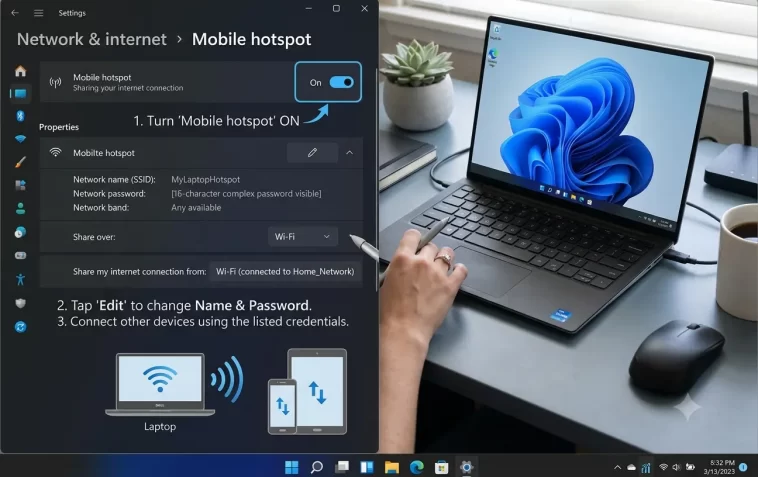
If your Windows 11 PC can create a Wi-Fi hotspot, you can share your internet connection with any device nearby — your phone, tablet, another laptop, or even a smart TV.
Windows 11 has a built-in mobile hotspot feature that requires no third-party software and takes less than a minute to set up.
What Is a Windows 11 Mobile Hotspot?
A mobile hotspot turns your PC into a wireless access point. Any device that connects to it uses your PC’s internet connection — whether that connection comes from Wi-Fi, Ethernet, or a mobile broadband adapter.
It’s useful in many situations:
- Your phone’s mobile data is faster than the available Wi-Fi
- You have an Ethernet connection on your PC but need Wi-Fi for other devices
- You’re in a hotel or workplace where only one device can be connected at a time
- You want to create a temporary private network for guests
Windows 11 supports up to 8 devices connected simultaneously through the hotspot.
Before You Start: What You Need
Make sure your setup meets these basic requirements:
- Your PC must have an active internet connection (Wi-Fi, Ethernet, or mobile broadband)
- Your PC needs a Wi-Fi adapter that supports hotspot mode (most modern adapters do)
- You need to be logged in as an administrator
If your PC is connected to the internet via Wi-Fi and you want to share that same connection, the hotspot will work on the same adapter — Windows handles this automatically.
Method 1: Using Windows 11 Settings (Easiest Way)
This is the official, built-in method and works for most users.
Step 1: Open Mobile Hotspot Settings
Click the Start button and open Settings (gear icon).
Go to Network & internet in the left panel, then click Mobile hotspot.
Step 2: Configure Your Hotspot
Before turning it on, set your hotspot name and password.
Click Edit under the network properties section. You’ll see three fields:
- Network name: This is what other devices will see when searching for Wi-Fi. Change it to something you recognize.
- Network password: Set a strong password of at least 8 characters. Anyone with this password can connect and use your internet.
- Network band: Choose between 2.4 GHz, 5 GHz, or Any available. Use 5 GHz for faster speeds if your devices support it, or 2.4 GHz for better compatibility and range.
Click Save after making your changes.
Step 3: Choose What to Share
Under Share my internet connection from, select the connection you want to share.
If your PC is connected via Ethernet, select that. If you’re connected via Wi-Fi and want to share it, select Wi-Fi. Windows automatically lists your active connections.
Step 4: Turn On the Hotspot
Toggle the Mobile hotspot switch to On.
Your hotspot is now active. Other devices can open their Wi-Fi settings, find your network name, enter the password, and connect.
Method 2: Using Quick Settings (Fastest Way)
Once you’ve configured your hotspot at least once, you can turn it on and off in seconds from the taskbar.
Click the Wi-Fi / Volume / Battery icon cluster in the bottom-right corner of the taskbar to open Quick Settings.
Look for the Mobile hotspot tile. Click it to toggle the hotspot on or off instantly.
If you don’t see the tile, click the pencil icon to edit Quick Settings and add the Mobile hotspot button to the panel.
Method 3: Using Command Prompt (Advanced)
If the Settings method isn’t working or you prefer the command line, you can set up a hotspot using Command Prompt.
Open Command Prompt as Administrator (search for cmd → right-click → Run as administrator).
Set up the hotspot:
netsh wlan set hostednetwork mode=allow ssid="YourNetworkName" key="YourPassword"Replace YourNetworkName with your desired network name and YourPassword with your password.
Start the hotspot:
netsh wlan start hostednetworkStop the hotspot:
netsh wlan stop hostednetworkCheck hotspot status:
netsh wlan show hostednetworkThis method works even on some systems where the GUI toggle is grayed out.
Method 4: Share via Ethernet to Wi-Fi (Internet Connection Sharing)
If the mobile hotspot setting doesn’t appear or your adapter doesn’t support it, you can use Windows’ older Internet Connection Sharing (ICS) method instead.
- Press Win + R, type
ncpa.cpl, press Enter — this opens Network Connections - Right-click your active internet connection (the one bringing internet in — could be Ethernet or a mobile broadband adapter)
- Click Properties
- Go to the Sharing tab
- Check “Allow other network users to connect through this computer’s Internet connection”
- In the dropdown, select your Wi-Fi adapter as the home network connection
- Click OK
This shares your internet through the selected Wi-Fi adapter. You may need to set up the Wi-Fi adapter as an ad-hoc network separately using the Command Prompt method above.
How to See Who Is Connected to Your Hotspot
Windows 11 shows connected devices directly in the Mobile hotspot settings page.
Go to Settings → Network & internet → Mobile hotspot.
Under the toggle, you’ll see a list of connected devices with their names and IP addresses. The page also shows how many devices are currently connected out of the maximum 8.
This is useful for monitoring who’s using your connection and how much bandwidth they might be consuming.
How to Auto-Enable Hotspot When a Device Is Nearby
Windows 11 has a feature that automatically turns on your hotspot when a previously connected device is detected nearby — so you don’t have to remember to turn it on manually.
In Settings → Network & internet → Mobile hotspot, look for:
“When no devices are connected, automatically turn off mobile hotspot” — keep this enabled to save battery.
“Turn on remotely” — enable this to allow Bluetooth-paired devices to automatically wake the hotspot when they’re nearby.
This is especially handy on laptops — your phone can trigger the hotspot automatically when you take your PC out of your bag.
Fixing Common Hotspot Problems on Windows 11
Hotspot Toggle Is Grayed Out
This is the most common issue. It usually means:
- Your Wi-Fi adapter doesn’t support hosted network mode
- You’re not connected to any internet source
- Your Wi-Fi driver is outdated
Fix: Update your Wi-Fi driver from the manufacturer’s website. Also make sure your PC has an active internet connection before enabling the hotspot.
If the toggle is still grayed out after a driver update, try the Command Prompt method (Method 3) — it bypasses the GUI limitation on some adapters.
Other Devices Can See the Hotspot but Can’t Connect
This usually happens because of a wrong password or a firewall blocking connections.
Fix:
- Double-check the password — it’s case-sensitive
- Go to Windows Defender Firewall → Allow an app or feature through Windows Defender Firewall and make sure network sharing is allowed
- Try turning the hotspot off and on again
- Restart both devices
Hotspot Turns Off by Itself
Windows 11 automatically disables the hotspot after a period with no connected devices to save power.
Fix: In Mobile hotspot settings, disable the option “When no devices are connected, automatically turn off mobile hotspot” if you want it to stay on permanently.
Hotspot Is Slow
If the hotspot connection is sluggish, the cause is usually:
- Your PC’s own internet connection is slow — test it first
- Too many devices connected and sharing bandwidth
- The 2.4GHz band is congested — switch to 5GHz in hotspot settings
- Your Wi-Fi adapter is running in power-saving mode — set it to Maximum Performance in Device Manager → Advanced tab
Can’t Find the Hotspot on Other Devices
If your network name isn’t showing up on other devices:
- Make sure the hotspot is actually turned on (the toggle is blue/active)
- Check that Airplane mode is off on both devices
- Try changing the network band from 5GHz to 2.4GHz — some older devices don’t support 5GHz
- Move the devices closer together during initial setup
Tips for a Better Hotspot Experience
A few things worth knowing before you rely on it regularly:
- Password length matters: Use at least 12 characters mixing letters, numbers, and symbols. This prevents unauthorized access.
- Monitor your data: If your PC is connected via mobile broadband or a limited data plan, hotspot usage counts against your data cap.
- Hotspot and battery: Running a hotspot drains laptop battery noticeably faster. Keep your charger nearby for extended use.
- Keep drivers updated: Hotspot stability is directly tied to your Wi-Fi driver quality. Always use the latest manufacturer driver.
- Rename your hotspot: The default name usually includes your computer name, which can be identifying. Change it to something neutral.
FAQ: Windows 11 Wi-Fi Hotspot
Can I use the hotspot while connected to Wi-Fi at the same time?
Yes. Windows 11 allows you to share your Wi-Fi connection through the same adapter. You stay connected to your router’s Wi-Fi while simultaneously broadcasting a hotspot for other devices.
How many devices can connect to a Windows 11 hotspot?
Windows 11 supports up to 8 devices connected at the same time through the mobile hotspot feature.
Does using a hotspot slow down my own internet?
Yes — all connected devices share your PC’s internet bandwidth. The more devices connected and the more they use, the slower the connection will be for everyone, including your PC.
Can I set up a hotspot without a Wi-Fi adapter?
No. The hotspot feature requires a Wi-Fi adapter to broadcast the signal. If your PC only has Ethernet and no Wi-Fi, you’d need to add a USB Wi-Fi adapter first.
Is Windows 11 hotspot secure?
Yes, as long as you set a strong password. Windows 11 uses WPA2 encryption for hotspot connections by default, which is the current standard for wireless security. Avoid using simple or obvious passwords.
Can I use a Windows 11 hotspot to connect a game console?
Yes. Any device that supports Wi-Fi — including PlayStation, Xbox, and Nintendo Switch — can connect to a Windows 11 hotspot just like a regular Wi-Fi network.
Does the hotspot work when my PC is sleeping?
No. When your PC goes to sleep, the hotspot turns off. Connected devices will lose internet access until the PC wakes up. Adjust your power settings to prevent sleep while the hotspot is in use if needed.
Creating a Wi-Fi hotspot on Windows 11 is one of the most practical built-in features most people never use. Once it’s configured, turning it on takes a single tap in Quick Settings — and any device around you can get online through your connection instantly.
