I remember the first time I enabled HDR on a new monitor connected to my Windows 11 PC. I expected the screen to come alive — richer colors, deeper blacks, punchier highlights. Instead, everything looked pale and flat, like someone had turned down the saturation on the entire display. Whites had a milky haze, dark scenes looked muddy, and the desktop looked worse than it did before HDR was even on. It was genuinely confusing.
It turns out this is one of the most common HDR problems on Windows 11, and it’s completely fixable. The cause isn’t the monitor failing or the feature being broken — it’s a mismatch somewhere in the chain between Windows, your GPU, your cable, and your display settings. This guide walks through every fix, in order, so you can get HDR looking the way it was always supposed to.
What Is HDR and Why Does It Look Wrong on Windows 11?
HDR (High Dynamic Range) is a display technology that allows monitors and TVs to show a much wider range of brightness and color compared to standard SDR (Standard Dynamic Range) displays. Done right, it means brighter highlights, more detailed shadows, and colors that are visibly more vibrant and lifelike.
The problem is that HDR on Windows 11 involves an entire chain of components that have to agree with each other:
- The Windows HDR pipeline
- Your GPU and its drivers
- The physical cable connecting your GPU to your monitor
- Your monitor’s hardware and firmware
- Your monitor’s OSD (on-screen display) settings
When any one of these components is misconfigured or out of sync, the result is what most users describe as washed-out, muddy, or flat-looking colors. Sometimes the whole screen turns grayish. Sometimes SDR content — your desktop, browser, apps — looks completely wrong while HDR video looks acceptable. Sometimes it’s the opposite.
Understanding that this is a system-level calibration issue, not a single broken setting, is the key to fixing it properly.
Why Does HDR Make Colors Look Washed Out?
There are several root causes behind the washed-out HDR appearance in Windows 11:
- HDR was enabled but never calibrated — Windows requires calibration after you turn on HDR. Without it, default values often produce poor results.
- SDR content brightness is mismatched — Windows 11 has to display both HDR and non-HDR content simultaneously. If the SDR brightness slider is set incorrectly, your desktop, taskbar, and regular apps will look bleached or muddy.
- Wrong color format or output range — Your GPU may be outputting YCbCr color instead of RGB, or Limited range instead of Full range. These settings directly affect how colors appear.
- Monitor is using the wrong picture mode — Many monitors ship with aggressive dynamic contrast or vivid processing modes that fight against Windows HDR tone mapping, producing flat, lifeless results.
- Outdated GPU drivers — Driver updates frequently include HDR fixes. Running old drivers is a leading cause of HDR color problems.
- Cable limitations — HDR at high resolutions requires HDMI 2.0+ or DisplayPort 1.4+. Using an older or lower-quality cable silently degrades the color signal.
- Night Light or f.lux active — These color temperature tools break HDR rendering entirely when active alongside HDR mode.
Fix 1: Enable HDR the Right Way in Windows 11 Settings
Before troubleshooting, make sure HDR is actually enabled correctly in Windows. Many users turn it on but don’t configure the additional settings that matter.
- Right-click the desktop and select Display settings.
- If you have multiple monitors, select the HDR-capable display.
- Scroll down and click HDR.
- Toggle Use HDR to On.
- Also check whether Auto HDR is enabled — this is a separate toggle that applies HDR processing to SDR content like games and apps.
After enabling HDR, Windows may briefly flash the screen as it switches modes. This is normal. If the Use HDR toggle is grayed out or missing, Windows isn’t detecting HDR capability on that display — check your cable and drivers first.
Fix 2: Adjust the SDR Content Brightness Slider
This is the single most common fix for washed-out colors on the Windows desktop when HDR is active. When HDR mode is on, Windows has to render SDR content — your taskbar, browser, desktop icons — alongside true HDR content. The SDR content brightness slider controls how bright that non-HDR content appears within the HDR color space.
If it’s set too high, everything looks blown out and pale. If it’s too low, the desktop looks dim and muddy.
Here’s how to adjust it:
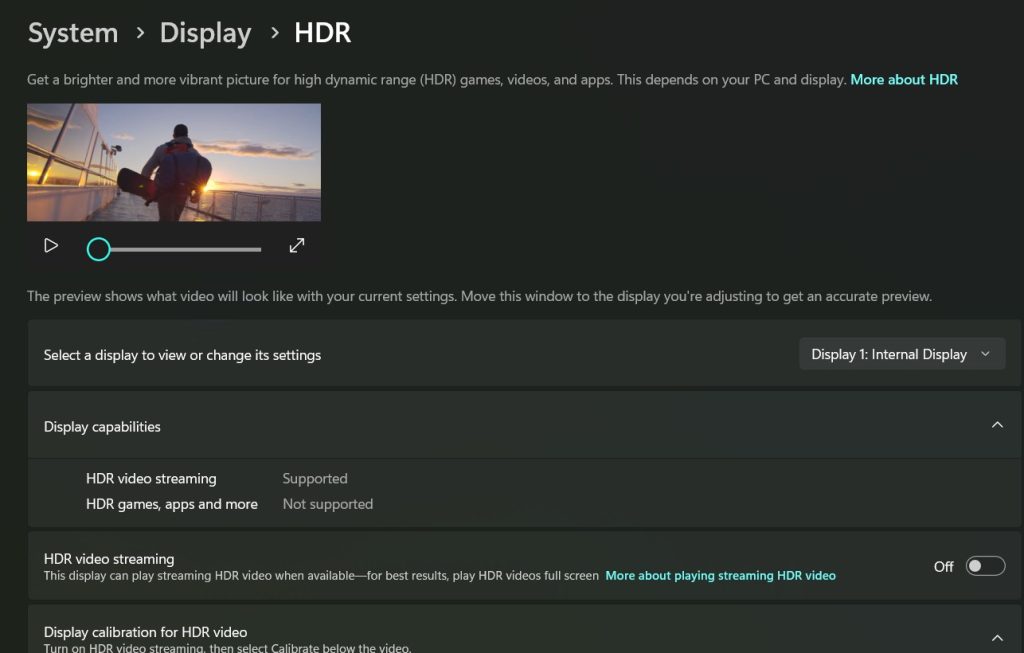
- Go to Settings > System > Display > HDR.
- Find the SDR content brightness slider.
- Move it slowly in either direction until your desktop, browser windows, and regular apps look natural and comfortable.
Most users find a setting between 40 and 60 works well as a starting point, but the correct value depends on your specific monitor’s brightness capabilities. This slider does not affect true HDR content like HDR video or native HDR games — it only affects SDR content rendered within the HDR pipeline.
Fix 3: Run the Windows HDR Calibration App
Microsoft offers a dedicated HDR calibration tool that generates a custom color profile for your display. This is the most effective single fix for poor HDR color accuracy and is something Windows doesn’t do automatically when you enable HDR.
- Open the Microsoft Store and search for Windows HDR Calibration.
- Download and install the free app.
- Open it — make sure HDR is already enabled in your display settings.
- Follow the on-screen calibration steps, which walk you through:
- Minimum luminance (black level)
- Maximum luminance (peak brightness)
- Color saturation and accuracy
The app generates an ICC color profile tailored to your specific monitor’s actual HDR capabilities. This replaces the generic defaults Windows uses and almost always produces a noticeably better result.
Re-run this calibration after major GPU driver updates or Windows feature updates, as these can reset or override your color profile.
Fix 4: Check and Change Your GPU Output Color Format
Your GPU may be outputting color in a format that doesn’t work well with your monitor’s HDR processing. The two main settings to check are the color format (RGB vs. YCbCr) and the output dynamic range (Full vs. Limited).
For NVIDIA GPUs:
- Right-click the desktop and open NVIDIA Control Panel.
- Go to Display > Change resolution.
- Scroll down to the Apply the following settings section.
- Set Output color format to RGB.
- Set Output dynamic range to Full.
- Click Apply.
For AMD GPUs:
- Open AMD Software: Adrenalin Edition.
- Go to Display settings.
- Find Pixel Format and set it to **RGB 4:4:4 Pixel Format PC Standard (Full RGB)**.
Using YCbCr output or Limited range can cause exactly the washed-out, low-contrast appearance most users are trying to fix. Switching to Full RGB often makes an immediate and visible difference.
Fix 5: Update Your GPU Drivers
Outdated graphics drivers are one of the most common causes of HDR color problems on Windows 11. GPU manufacturers regularly push updates that specifically address HDR rendering, color accuracy, tone mapping, and Auto HDR behavior.
For NVIDIA:
- Open the NVIDIA App or GeForce Experience.
- Go to Drivers and check for updates.
- Download the latest Game Ready Driver or Studio Driver.
- Install it — a clean install is recommended if you’ve been having persistent display issues.
For AMD:
- Open AMD Software: Adrenalin Edition.
- Click the Home tab and check for updates.
- Install the latest Adrenalin driver package.
For Intel (integrated graphics):
- Open Intel Driver & Support Assistant or visit Intel’s website directly.
- Download and install the latest graphics driver for your processor generation.
After updating drivers, restart your PC and test HDR again before making any other changes.
Fix 6: Check Your Monitor’s OSD Settings
Windows can be correctly configured while the monitor itself is undermining the result. Many HDR-capable monitors ship with picture presets that include aggressive processing — dynamic contrast, vivid color enhancement, super resolution — that directly conflicts with Windows HDR tone mapping.
Access your monitor’s OSD (the physical menu using the buttons on the monitor itself) and check the following:
- Set the picture mode to an HDR-specific preset — look for options labeled HDR Cinema, HDR Standard, HDR Professional, or Creator. Avoid the generic “Vivid” or “Dynamic” modes when using HDR.
- Set Black Level to Normal — not Low or Expanded, unless you have a specific reason based on your panel’s behavior.
- Disable dynamic contrast — this feature competes with Windows HDR tone mapping and causes flattened, inconsistent results.
- Enable the monitor’s own HDR input mode — some monitors require you to manually enable HDR in their OSD even when Windows is already sending an HDR signal. Look for an HDR, HDR10, or DisplayHDR option in the monitor menu.
This step is one that many guides skip, but monitor OSD settings are frequently the root cause when everything on the Windows side looks correct but the image is still wrong.
Fix 7: Check Your Cable and Ports
The physical cable connecting your GPU to your monitor matters more for HDR than most people realize. HDR requires sufficient bandwidth to carry 10-bit color at your chosen resolution and refresh rate. If your cable doesn’t support that bandwidth, Windows silently downgrades the signal, resulting in reduced color depth that looks washed out or posterized.
Requirements:
- For HDMI: Use HDMI 2.0 or higher for 4K HDR at 60Hz. Use HDMI 2.1 for 4K HDR at 120Hz.
- For DisplayPort: Use DisplayPort 1.4 or higher for 4K 10-bit HDR at high refresh rates.
- Avoid cheap passive adapters — HDMI-to-DisplayPort or USB-C-to-HDMI adapters frequently fail to carry the full HDR bandwidth even when they claim compatibility.
To verify, try a different cable or connect to a different port on your GPU. HDMI and DisplayPort ports on the same GPU can behave differently depending on the hardware.
Fix 8: Disable Night Light and Third-Party Color Tools
Night Light (Windows’ built-in warm color filter) and third-party tools like f.lux or iridescent apply color temperature shifts at the display driver level. These tools are fundamentally incompatible with HDR rendering — they break the color pipeline by applying their own transformations on top of the HDR output, producing muddy or incorrectly colored results.
To disable Night Light:
- Go to Settings > System > Display.
- Toggle Night light to Off.
If you use f.lux, Iris, or any similar third-party color management tool, disable them completely while HDR is active. Windows 11’s built-in display calibration and the HDR Calibration app are sufficient for accurate results.
Fix 9: Verify Monitor and Driver HDR Compatibility
Windows 11 supports HDR10 as its primary HDR standard. Some monitors also support Dolby Vision, which uses a different signal pathway. If your monitor supports Dolby Vision but your GPU driver doesn’t negotiate it correctly, the result can be tone-mapping errors that show up as washed-out or over-saturated colors.
To check what HDR format your monitor is actually using:
- Go to Settings > System > Display > Advanced display.
- Look at the Color space and Display capabilities section.
Also check your monitor’s manual or manufacturer website to confirm exactly which HDR standard it supports — HDR10, HDR400, HDR600, HDR1000, or Dolby Vision. A monitor certified at DisplayHDR 400 has a peak brightness of only 400 nits, which is relatively low. At that brightness level, HDR can look less impressive than the marketing suggests because the panel physically cannot reach the peak levels that make HDR pop.
Fix 10: Use Auto HDR Carefully
Auto HDR is a Windows 11 feature that algorithmically converts SDR games to HDR output. When it works well, older games gain noticeably better contrast and color depth. When it’s misconfigured or applied to games with incompatible rendering paths, it can produce oversaturated, blown-out highlights or, conversely, washed-out flat images.
To control Auto HDR:
- Go to Settings > System > Display > HDR.
- Toggle Auto HDR separately from the main HDR toggle.
- Open Xbox Game Bar (Windows key + G) while a game is running.
- Look for the Auto HDR intensity slider and adjust it per game.
If a specific game looks wrong with Auto HDR enabled but fine with it disabled, turn it off for that title. Auto HDR is applied per-game and does not affect video playback or SDR desktop content.
Quick Troubleshooting Checklist
If you’re still experiencing washed-out or muddy HDR colors after working through the fixes above, run through this checklist:
- Is Use HDR toggled on in Settings > System > Display > HDR?
- Is the SDR content brightness slider adjusted (not left at default)?
- Have you run the Windows HDR Calibration app and saved a profile?
- Is your GPU outputting RGB Full range (not YCbCr or Limited)?
- Are your GPU drivers up to date?
- Is your monitor in an HDR-compatible picture mode (not Vivid or Dynamic)?
- Is Dynamic Contrast disabled in your monitor’s OSD?
- Is your cable HDMI 2.0+ or DisplayPort 1.4+?
- Is Night Light or any third-party color tool disabled?
- Have you checked whether Auto HDR is causing the problem in a specific game?
Working through this list systematically resolves the vast majority of HDR color issues on Windows 11.
FAQ: Windows 11 HDR Color Problems
Why does HDR make my monitor look washed out in Windows 11?
The most common causes are an uncalibrated HDR setup, incorrect SDR content brightness settings, the wrong GPU color output format (YCbCr instead of RGB), or a monitor picture mode that conflicts with Windows HDR tone mapping. Start by adjusting the SDR brightness slider and running the Windows HDR Calibration app.
Does HDR look bad on all monitors with Windows 11?
No. HDR quality varies significantly by monitor. DisplayHDR 400 certified monitors have a relatively low peak brightness that limits how impactful HDR appears. Higher-tier panels certified at HDR600 or HDR1000 produce much more dramatic results. Some panels simply aren’t capable of showing the full benefit of HDR regardless of software settings.
What is the Windows HDR Calibration app and do I need it?
Yes, you need it if you want accurate HDR colors. It’s a free app from the Microsoft Store that walks you through calibrating your display’s black level, peak brightness, and color accuracy. It generates a custom ICC color profile for your monitor, which is far more accurate than Windows’ generic defaults.
Should I use RGB Full or RGB Limited for HDR on Windows 11?
Use RGB Full. This applies to both NVIDIA and AMD GPU settings. RGB Limited can cause blacks to crush and colors to appear washed out, particularly in HDR mode. Set this in your GPU’s control panel.
Does Auto HDR make colors look worse?
It can, depending on the game. Auto HDR applies tone mapping to games that weren’t designed for HDR, and the results vary. If a game looks wrong with Auto HDR on, disable it for that title using the Xbox Game Bar intensity slider or by turning off Auto HDR globally.
Can a bad HDMI or DisplayPort cable cause HDR color problems?
Yes. A cable that doesn’t support sufficient bandwidth for HDR at your resolution and refresh rate will silently degrade the color signal. Use HDMI 2.0 or higher, or DisplayPort 1.4 or higher, and avoid passive adapters for HDR use.
Does Night Light affect HDR quality?
Yes, significantly. Night Light applies a warm color shift to the entire display output. When combined with HDR, it breaks the color pipeline and causes inaccurate, muddy colors. Always disable Night Light and any third-party color temperature tools when using HDR.
Why does my desktop look pale but HDR videos look fine?
This is the SDR content brightness slider issue. Your desktop and regular apps are SDR content being rendered within an HDR pipeline. The brightness slider in Settings > System > Display > HDR controls how that SDR content looks. Adjust it until your desktop appears natural.
HDR on Windows 11 can genuinely deliver a better visual experience — but it requires a properly configured chain from Windows settings to GPU output to your monitor’s hardware. The fixes in this guide address every layer of that chain. Work through them one at a time, test after each change, and the difference between a correctly configured HDR setup and a washed-out one is night and day.
