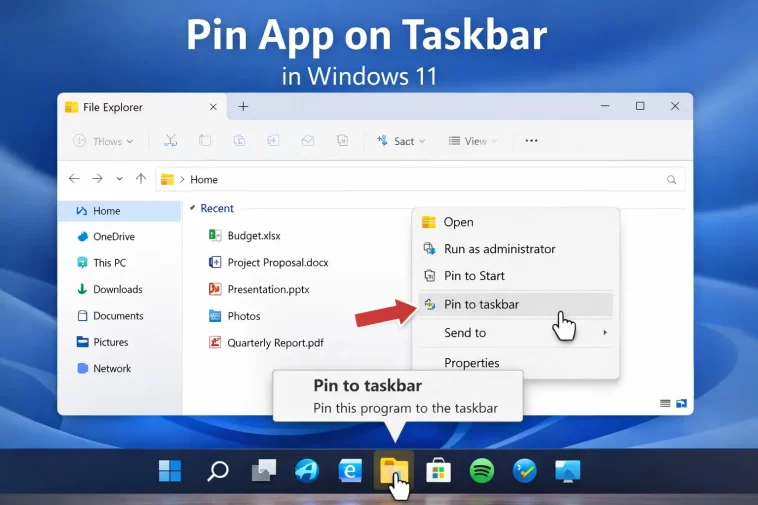
I used to double-click the desktop, scroll through the Start menu, and waste a good 30 seconds every time I needed to open an app. It sounds small, but when you’re doing it dozens of times a day, it adds up fast. The fix was embarrassingly simple: I started pinning everything I actually use to the Windows 11 taskbar. One click, done. It changed how I work at my PC.
If you’re still launching apps the slow way, this guide will show you exactly how to pin app on taskbar Windows 11 — plus the advanced pin options most people never bother to learn.
Why Pinning Apps to the Taskbar Matters
The Windows 11 taskbar sits at the bottom of your screen at all times. When you pin an app there, it becomes a one-click launch button that never disappears, even after you close the app.
This is different from the apps that appear on the taskbar only while they’re running. Pinned apps are permanent. They stay there until you manually remove them.
For any app you open more than once a day, pinning it is one of the easiest productivity wins on Windows 11.
Method 1: Pin an App from the Start Menu
This is the most straightforward way to pin any installed app.
Step 1: Open the Start Menu
Click the Windows icon in the center of the taskbar, or press the Windows key on your keyboard. The Start menu will open.
Step 2: Find the App You Want to Pin
You’ll see a section called Pinned at the top. If you can see your app there, you’re ready for the next step. If not, click All apps in the top-right corner of the Start menu. This shows every installed app on your system.
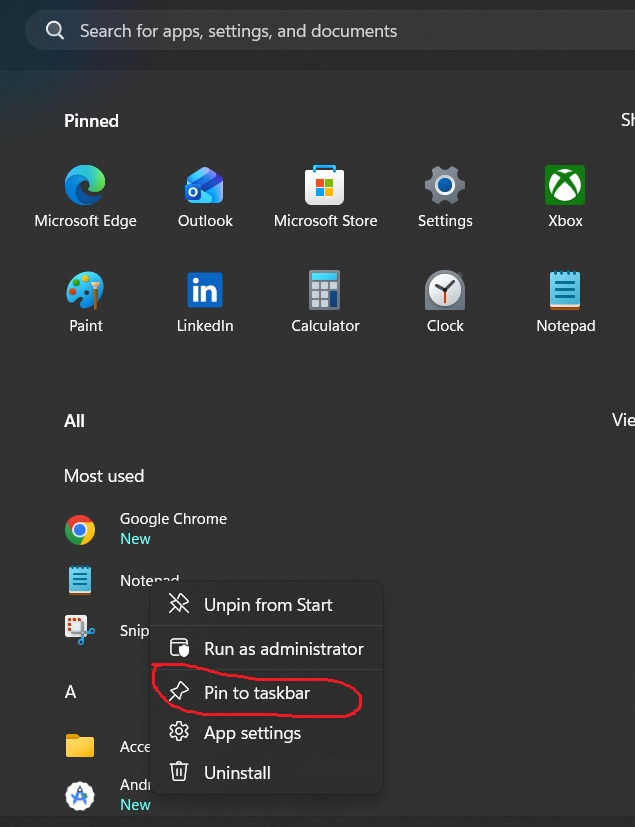
Step 3: Right-Click the App Name
Right-click on the app you want to pin. A context menu will pop up.
Step 4: Select “More” Then “Pin to Taskbar”
Hover over More in the context menu, then click Pin to taskbar. That’s it — the app icon will now appear permanently in your taskbar.
Method 2: Pin a Running App to the Taskbar
Already have an app open? You can pin it directly from the taskbar without going through the Start menu at all.
Step 1: Open the App You Want to Pin
Launch the app however you normally would. You’ll see its icon appear in the taskbar while it’s running.
Step 2: Right-Click the App’s Taskbar Icon
Right-click the app icon in the taskbar. A small menu will appear.
Step 3: Click “Pin to Taskbar”
Select Pin to taskbar from the menu. The icon will stay in place after you close the app. You’ll notice a small indicator under the icon disappears when the app closes, but the icon itself remains.
Method 3: Pin an App Using the Search Bar
This method works well when you know the app’s name but can’t find it quickly in the Start menu.
Step 1: Click the Search Icon
Click the magnifying glass icon on the taskbar, or press Windows + S to open the search bar.
Step 2: Type the App Name
Start typing the name of the app. Windows will show matching results almost instantly.
Step 3: Right-Click the App in Results
When you see the app you want in the search results, right-click on it.
Step 4: Click “Pin to Taskbar”
Select Pin to taskbar from the right-click menu. Done.
Method 4: Pin from a Desktop Shortcut
If you have a desktop shortcut for an app, you can pin it to the taskbar directly.
Step 1: Locate the Shortcut on Your Desktop
Find the app shortcut icon on your desktop.
Step 2: Right-Click the Shortcut
Right-click the shortcut icon. If you see Pin to taskbar directly in the menu, click it and you’re finished.
Step 3: Use “Show More Options” if Needed
On some Windows 11 builds, the right-click menu is simplified. If you don’t see Pin to taskbar, click Show more options at the bottom of the menu. This opens the classic context menu where the pin option should appear.
Method 5: Pin a Folder to the Taskbar (Workaround)
Windows 11 doesn’t let you pin folders directly. But there’s a clean workaround using a desktop shortcut.
Step 1: Right-Click an Empty Area of Your Desktop
Select New > Shortcut from the context menu.
Step 2: Enter the Folder Path
In the location field, type:
explorer.exe C:\Users\YourName\DocumentsReplace the path with the actual folder you want to pin. Click Next, give the shortcut a name, then click Finish.
Step 3: Pin the Shortcut to the Taskbar
Right-click the new desktop shortcut, and select Pin to taskbar (use Show more options if needed). Clicking that taskbar icon will open that exact folder instantly.
Advanced Pin Options You Should Know
Most users stop after pinning an app. But there are several advanced options built into the Windows 11 taskbar that are genuinely useful once you know about them.
Using Jump Lists for Quick File Access
Every pinned app has a jump list — a hidden menu that appears when you right-click the taskbar icon. Jump lists show you:
- Recently opened files from that app
- Pinned items you’ve manually added
- App-specific shortcuts (like “New Window” or “Incognito Window” in a browser)
To use a jump list, just right-click any pinned app icon. You’ll see recent files and pinned shortcuts right there. You can even pin specific files to the jump list permanently by hovering over them and clicking the pin icon that appears.
This is especially powerful for apps like Word, Excel, File Explorer, or your browser. Instead of opening the app and then navigating to a file, you jump straight to it.
Pinning Items to a Jump List
You can pin specific files or folders inside a jump list so they always appear at the top.
- Right-click a pinned app (like File Explorer or Word)
- Hover over a recently opened file in the jump list
- Click the pin icon (a thumbtack) that appears on the right side
That item will move to the Pinned section of the jump list and stay there permanently until you unpin it.
Opening a Pinned App as Administrator
Some tasks require elevated permissions. Instead of finding the app, right-clicking, and selecting “Run as administrator,” you can do it faster from the taskbar.
Hold Ctrl + Shift and click the pinned app icon. This launches the app directly as an administrator. No extra menus needed.
This is useful for apps like Command Prompt, PowerShell, or any tool that regularly needs admin rights.
Opening a Second Instance of an App
If you already have an app open and want to open a second, separate window of the same app, hold Shift and click the pinned taskbar icon. Windows will open a brand-new instance instead of switching to the existing one.
This is handy for browsers, text editors, or File Explorer windows when you need two side by side.
Reordering Pinned Apps
You’re not stuck with the order apps appear in. Just click and drag any pinned icon to a new position on the taskbar. The other icons shift to make room. Organize them however makes sense to you — most-used on the left, or grouped by work type.
Unpinning an App
Changed your mind? Right-click any pinned app icon and select Unpin from taskbar. The icon disappears. The app itself is not affected — it stays installed and fully usable.
Controlling Jump List Behavior in Settings
You can turn jump lists on or off system-wide through Windows Settings:
- Open Settings (Windows + I)
- Go to Personalization > Start
- Find the toggle for Show recently opened items in Jump Lists on Start or the taskbar
- Turn it on or off as you prefer
Turning this off hides recent files from jump lists while keeping your pinned jump list items intact.
Common Problems and Fixes
“Pin to Taskbar” Option Doesn’t Appear
Some Microsoft Store apps behave differently. If the right-click menu doesn’t show the pin option, try opening the app first. Then right-click its icon from the taskbar while it’s running. The option should appear from there.
App Won’t Stay Pinned After Restart
This can happen if the app’s installation path changed or an update moved it. Unpin the app, find it again in the Start menu or Search, and re-pin it. The new pin will point to the correct location.
Custom Shortcut Shows a Generic Icon
If you pinned a folder shortcut or custom command, it may show a plain white icon. To fix it:
- Right-click the shortcut on your desktop
- Select Properties > Shortcut tab
- Click Change Icon
- Browse to an
.icofile or choose from the built-in Windows icons
After you change the icon, re-pin the shortcut so the taskbar shows the new icon.
FAQ: How to Pin App on Taskbar Windows 11
Can I pin a website to the Windows 11 taskbar?
Yes. In Microsoft Edge, open the website, click the three-dot menu, go to More tools, and select Pin to taskbar. In Chrome, you can create a shortcut (More tools > Create shortcut > check “Open as window”) and then pin the resulting shortcut from your desktop.
Can I pin more than one app at the same time?
Not in a single action — you need to pin apps one by one. But you can do it quickly by going through All Apps in the Start menu and pinning several in a row.
How many apps can I pin to the taskbar?
There’s no hard limit set by Windows, but the taskbar has limited physical space. Once icons start getting too small or crowded, it becomes harder to use. Most users find 8–12 pinned apps is a practical maximum.
Can I pin Control Panel or Settings to the taskbar?
Yes. Search for “Control Panel” or “Settings” in the Windows search bar, right-click the result, and select Pin to taskbar. Both will appear as regular taskbar icons.
Does pinning an app slow down Windows 11?
No. Pinned icons are just shortcuts. They don’t run in the background or use memory unless you actually open the app.
How do I pin File Explorer to the taskbar?
File Explorer is often already pinned by default. If not, search for “File Explorer” in the Start menu search bar, right-click it, and select Pin to taskbar.
Can I pin items to jump lists without opening the app?
No — you need to open the app first so that recent files appear in the jump list. Once a file shows up in the list, you can pin it for permanent quick access.
What is the difference between pinning to Start and pinning to the taskbar?
Pinning to Start places the app tile in the Start menu’s Pinned section. Pinning to the taskbar places the icon directly on the bar at the bottom of your screen. The taskbar is more accessible since it’s always visible.
Final Thoughts
Learning how to pin app on taskbar Windows 11 takes about 30 seconds. But using all the advanced options — jump lists, admin shortcuts, multiple instances, and folder pins — can meaningfully speed up your daily workflow.
Start with the apps you open every single day. Pin them. Then explore the right-click jump lists to see what shortcuts are hiding there. Once you start using Ctrl + Shift + click for quick admin access and jump list pins for your most-used files, going back to the old way of working feels genuinely painful.
The taskbar is right there. Make it work for you.
