I’ll be honest — I almost skipped the June 2026 Windows update. After a few months of fairly quiet Patch Tuesday releases, I wasn’t expecting much. But when I actually went through the changelog for KB5094126, I changed my mind fast. This one is genuinely different. It’s one of the most feature-packed Windows 11 updates in a long time, and if you haven’t installed it yet, you’re leaving real performance improvements on the table.
In this guide, I’ll walk you through exactly how to install the Windows 11 June 2026 Update, what’s actually new, and — just as importantly — how to squeeze every bit of performance out of your PC once it’s done.
What Is the Windows 11 June 2026 Update?
The June 2026 Patch Tuesday update, officially identified as KB5094126, applies to Windows 11 versions 24H2 and 25H2. It brings your system to OS Builds 26100.8655 (24H2) or 26200.8655 (25H2).
This isn’t just a routine security patch. The update includes:
- A new Low Latency Profile that boosts CPU speed on demand
- Shared Audio via Bluetooth LE Audio
- Multi-app camera streaming
- Per-app NPU monitoring in Task Manager
- Improvements to Windows Hello, Windows Search, and Magnifier
- Critical Secure Boot certificate updates
- Fixes for several system stability issues
It started rolling out on June 9, 2026, and Windows Update delivers it automatically for most users. However, you may need to trigger it manually depending on your settings.
What’s Actually New in KB5094126?
Before jumping into installation, it’s worth knowing what you’re actually getting.
Low Latency Profile — The Biggest Performance Upgrade
This is the headline feature. The Low Latency Profile temporarily pushes your CPU to its maximum frequency for one to three seconds whenever you launch an app, open the Start menu, or trigger the Action Center. The result is noticeably snappier everyday interactions — less lag between clicking something and it actually appearing on screen.
It’s automatic. You don’t need to configure anything. Microsoft rolls this out gradually, so you may not see it immediately after installing the update, but it will activate on its own.
Shared Audio
You can now share audio from a single Windows 11 PC with two Bluetooth devices at the same time. This uses Bluetooth LE Audio broadcast technology. If you want to watch something together with a friend without disturbing others — each using their own earbuds — this is exactly what you need. Note that both devices need to be compatible with Bluetooth LE Audio.
Multi-App Camera Access
Previously, only one application could use your webcam at a time. That was a real problem for streamers and content creators juggling OBS, a video call, and a second recording tool simultaneously. The June 2026 update solves this — multiple apps can now access the camera feed at the same time.
Per-App NPU Monitoring
If your PC is a Copilot+ device with a dedicated Neural Processing Unit (NPU), you can now see exactly which apps are using it and how much, directly inside the Processes tab in Task Manager. Previously, you could only see total NPU usage — not which app was responsible.
Improved Windows Search
Windows Search can now return local file results with as few as two characters typed. It’s a small change but makes finding things significantly faster in practice.
Windows Hello Improvements
Face and fingerprint sign-in now reassert themselves as the default option after every session. If you’ve been frustrated by Windows defaulting back to PIN, this fix sorts it out.
How to Install the Windows 11 June 2026 Update
There are three ways to get KB5094126 on your machine. Here’s each one explained clearly.
Method 1: Windows Update (Recommended)
This is the easiest and safest method for most users.
- Open the Start menu and click Settings
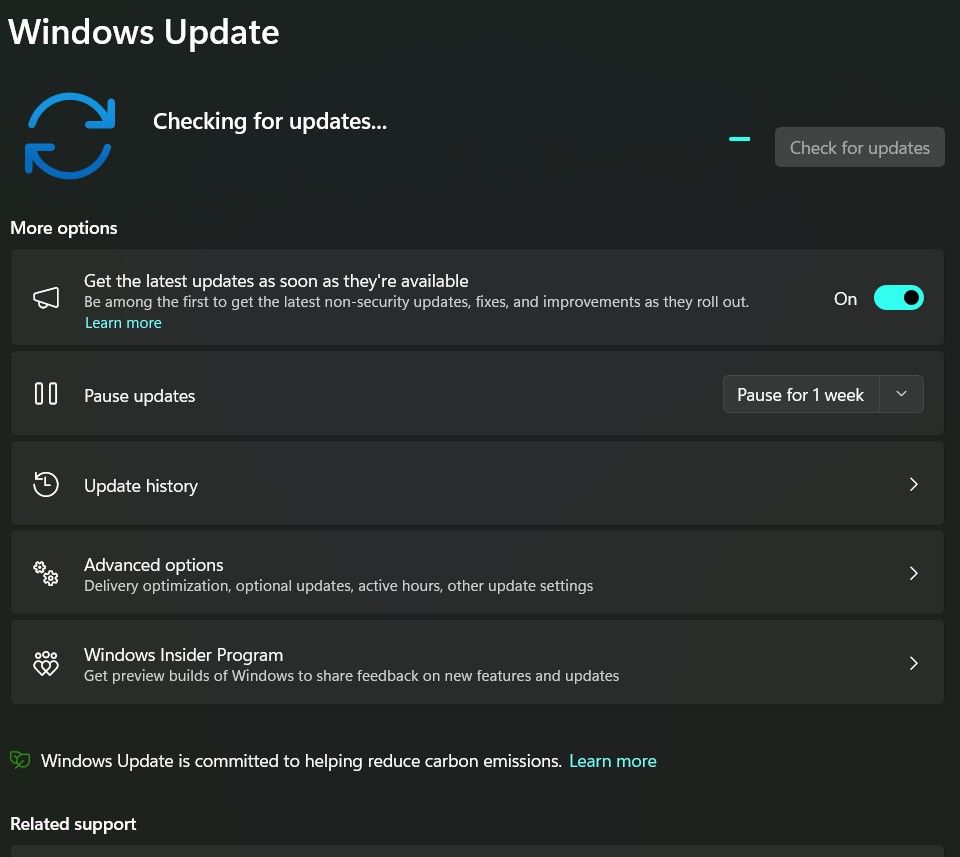
- Click Windows Update in the left sidebar
- Click Check for updates
- When 2026-06 Security Update (KB5094126) appears, click Download & install
- Let the download complete — this may take several minutes depending on your connection
- Click Restart now when prompted
Tip: If you want to get updates faster in the future, toggle on “Get the latest updates as soon as they’re available” inside the Windows Update settings page.
Method 2: Manual Download from Microsoft Update Catalog
If Windows Update isn’t offering the update yet, or you’re managing multiple PCs, you can download the installer directly.
- Go to the Microsoft Update Catalog website (catalog.update.microsoft.com)
- Search for KB5094126
- Download the correct version for your system — there are separate files for x64 (Intel/AMD) and ARM-64 processors
- Run the downloaded .msu file
- Follow the on-screen prompts and restart when finished
Note: The offline installer is quite large — well over 5GB — so make sure you have storage space and a stable connection before starting.
Method 3: Command Line (Advanced Users)
If you’re deploying this across multiple machines or prefer the command line:
- Open Command Prompt as Administrator
- Run the following:
wusa.exe C:\Path\To\KB5094126.msu /quiet /norestart- Restart manually once installation completes
Before You Optimize: Confirm the Update Installed Correctly
Once your PC restarts, take a moment to verify the installation went through properly.
- Open Settings
- Go to Windows Update
- Click Update history
- Confirm KB5094126 appears under Quality Updates with a status of Successfully installed
You can also check your build number by pressing Win + R, typing winver, and pressing Enter. You should see Build 26100.8655 (24H2) or 26200.8655 (25H2).
How to Optimize Windows 11 After the June 2026 Update
Installing an update is only half the job. A fresh update is also a great opportunity to tune your system. Here’s what to do right after KB5094126 finishes.
1. Update Your Drivers
After any major update, outdated drivers can conflict with new components. Check for driver updates immediately.
- Open Device Manager (right-click Start > Device Manager)
- Right-click on Display adapters, Network adapters, and any other key components
- Select Update driver > Search automatically for drivers
For GPU drivers specifically, go directly to NVIDIA, AMD, or Intel’s websites for the latest version. Windows Update doesn’t always have the newest GPU drivers.
2. Disable Unnecessary Startup Apps
Every app that launches at startup eats into boot time and early session performance. After an update, some applications sneak back into your startup list.
- Press Ctrl + Shift + Esc to open Task Manager
- Click the Startup apps tab
- Right-click anything you don’t need at boot and select Disable
Common culprits: Spotify, Discord, Teams, OneDrive (if you don’t actively use it), browser update helpers, and gaming platform launchers.
3. Set Your Power Mode to Best Performance
The Low Latency Profile in the June 2026 update works best when your power settings aren’t fighting it.
- Open Settings
- Go to System > Power & battery
- Under Power mode, select Best performance
On a desktop, you can leave this permanently. On a laptop, switch to Balanced when you’re on battery to preserve charge.
4. Enable Storage Sense and Run a Cleanup
Updates leave behind temporary files and old packages. Clean them up right after installing.
- Go to Settings > System > Storage
- Toggle on Storage Sense
- Click Storage Sense settings and set the cleanup schedule to Every week
- Scroll down and click Run Storage Sense now
For a deeper clean, search for Disk Cleanup in the Start menu, run it, and click Clean up system files to remove update remnants.
5. Manage Background App Permissions
Background apps quietly use CPU and RAM even when you’re not using them. Restricting them gives you back resources.
- Go to Settings > Apps > Installed apps
- Click the three-dot menu next to any app
- Select Advanced options
- Under Background app permissions, choose Never for apps you rarely use, or Power optimized for apps that occasionally need to sync
6. Adjust Visual Effects for Speed
Windows 11’s animations and transparency effects look polished but use real GPU resources. If you want maximum responsiveness:
- Search for “Adjust the appearance and performance of Windows” in Start
- Select Adjust for best performance — this strips all visual effects
- Or manually uncheck specific items like animations and transparency to find a balance
Alternatively, you can toggle off transparency effects alone by going to Settings > Personalization > Colors and turning off Transparency effects.
7. Verify Windows Hello Is Working Correctly
The June 2026 update improved Windows Hello’s reliability. After installing, confirm it’s set up properly:
- Go to Settings > Accounts > Sign-in options
- Under Windows Hello Face or Windows Hello Fingerprint, click Set up if it hasn’t been configured
- If it’s already set up, run Improve recognition to refresh your biometric data
8. Update Microsoft Store Apps
Don’t forget app updates — they often include performance improvements that complement the OS update.
- Open the Microsoft Store
- Click Library in the bottom-left
- Click Get updates
Let everything finish downloading before you start heavy work sessions.
9. Check NPU Usage If You Have a Copilot+ PC
The June 2026 update adds per-app NPU monitoring. If your machine has an NPU:
- Open Task Manager
- Click the Processes tab
- Right-click the column headers and add NPU to your view
This helps you identify which AI-powered apps are actively using the NPU, so you can manage resources better during intensive tasks.
10. Free Up Disk Space on Your System Drive
A drive that’s more than 85% full starts to perform slower, especially SSDs. After installing the update:
- Empty the Recycle Bin
- Move large files (videos, backups, archives) to a secondary drive or external storage
- Uninstall apps you no longer use via Settings > Apps > Installed apps
Aim to keep at least 15–20% of your system drive free at all times.
Troubleshooting: Common Issues After the June 2026 Update
Update won’t download or keeps failing:
Go to Settings > Windows Update > Advanced options > Delivery Optimization and toggle it off, then try again. You can also try the manual download method from the Microsoft Update Catalog.
PC is slower after the update:
Give it 15–30 minutes after the first restart. Windows performs background indexing after updates. If it’s still slow after that, run Disk Cleanup and check startup apps.
Custom folder icons disappeared:
This is a known side effect of a Folder Customization security change in KB5094126. Microsoft adjusted how Windows processes desktop.ini files. Your actual folder access is not affected — only visual customizations.
Bluetooth audio not working correctly:
The Shared Audio feature requires Bluetooth LE Audio-compatible hardware. If your Bluetooth adapter or headphones are older, they won’t support it. Check for updated Bluetooth drivers.
Windows Hello not recognizing you:
After the update, re-run the Improve recognition option under sign-in settings, or delete and re-enroll your biometric data.
FAQ: Windows 11 June 2026 Update
What is KB5094126?
It’s the official June 2026 Patch Tuesday cumulative update for Windows 11 versions 24H2 and 25H2. It includes security fixes, the new Low Latency Profile, Shared Audio, multi-app camera support, and more.
Is the June 2026 update mandatory?
Yes. It contains critical security patches and will install automatically unless you’ve manually paused Windows Update.
Which versions of Windows 11 receive KB5094126?
Windows 11 versions 24H2 and 25H2 both receive the same update. Version 23H2 receives a separate but related package (KB5093998).
What is the Low Latency Profile and do I need to enable it?
It’s automatic. You don’t configure it yourself. Windows activates it momentarily when you launch apps or open system UI elements to reduce lag. It rolls out gradually, so it may take a few days to activate after you install the update.
Does Shared Audio work with any Bluetooth headphones?
No. It requires headphones or earbuds that support Bluetooth LE Audio. Older Bluetooth 5.0 or 4.x devices won’t be compatible.
Will this update affect my PC’s gaming performance?
The Low Latency Profile is designed for interactive tasks like app launches — not sustained gaming performance. For gaming, the update should be neutral to positive, especially with the security fixes included.
Can I roll back the June 2026 update if something breaks?
Yes. Go to Settings > Windows Update > Update history > Uninstall updates and find KB5094126. Note that Microsoft may eventually block rollback for mandatory security updates after a certain period.
How large is the KB5094126 download?
Through Windows Update, the download size varies depending on your current build. The offline installer from the Update Catalog is significantly larger — over 5GB.
Final Thoughts
The Windows 11 June 2026 Update is worth installing promptly, not just for the security fixes but for the genuine quality-of-life improvements it brings. The Low Latency Profile alone makes everyday use feel more responsive, and features like Shared Audio and multi-app camera access solve real problems that users have been asking about for a long time.
But installing the update is just the starting point. Taking 20 minutes to optimize your system afterward — updating drivers, clearing startup apps, adjusting your power mode — makes a bigger difference than most people realize. Your PC doesn’t have to slow down over time. A little maintenance after each major update keeps it running the way it should.
