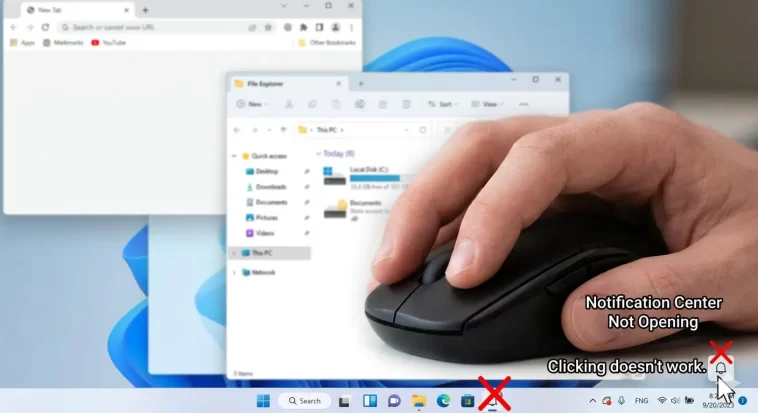
Notification Center not opening on Windows 11 usually shows up one of three ways: nothing happens at all when you click, it flickers open and instantly closes, or it spins for a second and then just gives up. I’ve hit all three on different machines, and they don’t share one single fix — which is the main reason generic troubleshooting guides leave people stuck after step two.
Quick Answer
- First, confirm you’re clicking the right spot — the icon cluster (wifi/volume/battery) opens Quick Settings, the clock/date opens the calendar and notification flyout, and they’re two different panels
- Restart Windows Explorer first, it’s the fastest test and fixes a surprising number of cases
- Check the
DisableNotificationCenterregistry value and the matching Group Policy setting — both can silently block it - Rapid open-and-close flicker is usually a different cause than a panel that does nothing at all — don’t apply the same fix to both
- Full-screen exclusive-mode games or remote desktop sessions can block the panel from rendering even when nothing is actually broken
Why It Fails
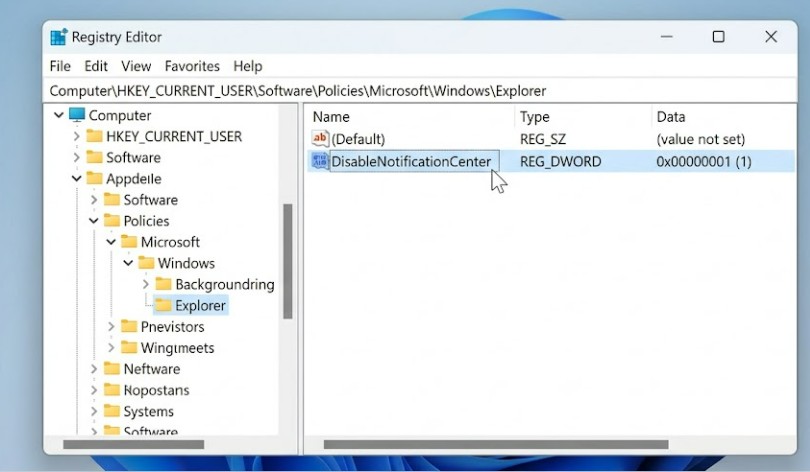
Group Policy or registry disabling it outright. There’s a specific policy, “Remove Notifications and Action Center,” and a matching registry DWORD (DisableNotificationCenter under HKEY_CURRENT_USER\Software\Policies\Microsoft\Windows\Explorer). If either is set, the panel won’t open no matter what else you try — and this can get set accidentally through a tweaking tool or a leftover setting from a previous Windows build that carried over during an upgrade.
Windows Explorer or shell processes getting stuck. The Notification Center is tied closely to Explorer and a couple of background shell components. So when Explorer hangs even slightly — something that happens more than people notice, especially after waking from sleep — the panel can fail to render even though the rest of your desktop looks fine.
Corrupted system files. This is the boring but real cause. A damaged system file related to the shell experience can make the panel open, immediately decide something’s wrong, and close itself before you can interact with it. That’s the flicker pattern specifically, not the “nothing happens” pattern.
Third-party taskbar or Start menu customization tools. Apps that modify or replace parts of the Windows shell (taskbar styling tools, classic Start menu replacements, clipboard managers that hook into system tray behavior) can intercept the click before Windows’ own panel gets it. And this one’s sneaky because the conflict might have existed for months before an unrelated Windows update suddenly exposed it.
Full-screen exclusive mode and remote sessions. Some games and remote desktop tools take over the display in a way that blocks Windows system UI overlays entirely. If you’re testing this while a game is minimized in the background rather than fully closed, that alone can be the entire problem.
A cause that’s easy to miss because it doesn’t feel related: clicking the wrong target. The icon cluster and the clock open two different panels in Windows 11, and if you’re clicking the clock expecting Quick Settings, it can look like the feature is “broken” when it’s actually working exactly as designed, just not where you expected.
Step-by-Step Fixes
Step 1: Confirm What You’re Actually Clicking
Click the network/volume/battery icon group first — that’s Quick Settings. Then separately click the date and time — that opens the calendar and notification flyout. If one works and the other doesn’t, you’re dealing with a narrower problem than a full Action Center failure.
Step 2: Restart Windows Explorer
- Press
Ctrl + Shift + Escto open Task Manager - Find Windows Explorer under Processes
- Right-click it and select Restart
This refreshes the shell without a full reboot, and it’s worth trying before anything more involved — it fixes the panel surprisingly often when the cause is just a stuck shell process.
Step 3: Check the Registry Value
- Press
Win + R, typeregedit, hit Enter - Navigate to
HKEY_CURRENT_USER\Software\Policies\Microsoft\Windows\Explorer - Look for
DisableNotificationCenter— if it’s there and set to1, change it to0, or delete the value entirely - If the
Explorerkey doesn’t exist at all, there’s nothing to fix here, move on
Image: Registry Editor showing the Explorer policy key and the DisableNotificationCenter DWORD value
Step 4: Check Local Group Policy
This only applies on Pro/Enterprise editions, or Home editions where you’ve manually enabled gpedit.
Win + R, typegpedit.msc- Navigate to User Configuration > Administrative Templates > Start Menu and Taskbar
- Find Remove Notifications and Action Center
- Set it to Disabled (yes, disabling the “remove” policy is what restores the feature — it’s worded backwards from what you’d expect)
- Apply, then restart
Step 5: Run SFC and DISM
Open Command Prompt as administrator and run:
sfc /scannowLet it finish completely, then run:
DISM /Online /Cleanup-Image /RestoreHealthThis targets the flicker-and-close pattern specifically. It takes a while — don’t interrupt it even if it looks stalled for a few minutes on the DISM step, that’s normal.
Step 6: Test in a Clean Boot
If a third-party shell tool is suspected, a clean boot isolates it quickly. Open msconfig, disable all non-Microsoft startup services temporarily, restart, and test the panel again. If it works clean, re-enable services one at a time (or just uninstall whatever taskbar/Start menu tool you’re running) to find the conflict.
Advanced Fixes and Edge Cases
Re-registering the shell experience packages. If the steps above don’t help, re-registering the relevant Appx packages can reset whatever’s misbehaving without a full reinstall:
Get-AppxPackage -AllUsers | Foreach {Add-AppxPackage -DisableDevelopmentMode -Register "$($_.InstallLocation)\AppXManifest.xml"}Run this in PowerShell as administrator. It re-registers every installed Appx package on the system, not just the shell components, so it takes a few minutes — that’s expected, not a hang.
Checking Event Viewer for the exact failure. Event Viewer under Windows Logs > Application, filtered around the timestamp of a failed click, often shows an error tied to ShellExperienceHost or StartMenuExperienceHost. If you see repeated crashes from either of those, the fix is usually the Appx re-registration above rather than anything registry-related.
New user profile test. Corrupted user profiles can cause shell quirks that don’t show up anywhere else. Creating a new local user account and testing the Notification Center there isolates whether the problem is system-wide or tied to your specific profile. If it works fine on a new profile, the fix becomes migrating your data rather than chasing more system-level fixes.
Focus Assist conflicts. Not entirely a separate cause, but worth checking — if Focus Assist is set aggressively, it can suppress notification rendering in a way that makes the panel look broken when it’s actually just empty or display-suppressed by design. Settings > System > Focus Assist, set it to Off for testing.
What Actually Worked For Me
The version I dealt with was the flicker — open for half a second, then gone, every single time, on a machine that had been upgraded from Windows 10 rather than a clean install. I tried the registry check first since it’s the fastest thing to rule out, and the value wasn’t even there, so that wasn’t it.
Restarting Explorer didn’t fix it either, which is honestly the result I expected the least, since it usually does something. So, not entirely a clean troubleshooting story — I ended up running SFC almost as a last resort before considering a reinstall, and it actually found and repaired a handful of corrupted files. After that and a restart, the panel opened normally and stayed open. From what I’ve seen in other reports since, that flicker pattern specifically tends to be system-file corruption more often than registry or policy issues, which are more associated with the “nothing happens at all” version of this.
The fix that gets recommended constantly but barely moves the needle on its own is just restarting the PC. It occasionally helps with a one-off glitch, but if the cause is a policy setting, a corrupted file, or a third-party shell conflict, a reboot alone won’t touch any of that.
Prevention Tips
- Be cautious with taskbar customization tools, especially ones that haven’t been updated recently — they’re a common source of shell conflicts after Windows feature updates
- Run SFC occasionally as routine maintenance rather than only when something breaks, especially on machines that were upgraded in place rather than freshly installed
- If you manage multiple machines, check Group Policy settings before assuming a fresh install has the same defaults as an older one
- Keep at least one administrator account free of heavy shell customization, so you always have a clean baseline to test against
FAQ
Why does Win+A work but clicking the icon does nothing? That points to a taskbar-specific input issue rather than a full Action Center failure — the panel itself is fine, something’s intercepting the click on the taskbar surface.
Is this the same as notifications not showing up at all? No, that’s usually a Focus Assist or per-app notification setting issue. This guide is about the panel itself failing to open, not notifications being suppressed.
Will resetting Windows fix this for good? Probably, but it’s a lot of effort for something that’s almost always fixable with SFC, a registry check, or finding the conflicting third-party tool first.
Does this happen more after Windows updates? Yes, especially after feature updates that touch the shell. If it started right after an update, check Event Viewer first — it often points straight at the cause.
I have DisableNotificationCenter set to 0 already and it’s still broken — now what? Then it’s not a policy issue. Move on to SFC/DISM and the Appx re-registration steps, those address the more common non-policy causes.
Editor’s Opinion
the click-and-nothing-happens version and the flicker-open-close version look like the same bug from the outside but they’re really not, and trying registry fixes on a corrupted-system-files problem (or the other way around) just wastes time. start with restarting explorer because it’s free and fast, then branch based on which symptom you actually have. also double check you’re clicking the right icon, i know that sounds dumb but it trips people up more than you’d think.
