I still remember the first time I asked the original Siri to set a timer and it responded with a weather forecast. That was years ago, and honestly, Siri had a rough reputation for a long time. But things have changed in a big way. When I started using Siri AI on iPhone with the latest Apple Intelligence features, I was genuinely surprised. It felt less like talking to a broken robot and more like asking a smart, patient assistant who actually understood what I meant.
This guide covers everything you need to know — from setup to advanced tips — so you can actually get value from Siri AI every single day.
What Is Siri AI and Why Does It Matter?
Siri AI is Apple’s fully rebuilt AI-powered assistant, introduced as part of Apple Intelligence. It’s not just a minor update — Apple redesigned Siri from the ground up using powerful AI foundation models, including a collaboration with Google’s Gemini technology.
The result is an assistant that can:
- Understand follow-up questions in the same conversation
- Search across your emails, messages, and photos for specific information
- Handle complex, multi-step requests within apps
- Pull real-time information from the web
- Work with ChatGPT for even more advanced queries
This is a meaningful leap from the older version of Siri. It’s now designed to be a persistent, conversational assistant — not just a one-shot command tool.
Which iPhones Support Siri AI?
Before diving into setup, it’s worth confirming your device is compatible. Siri AI requires:
- iPhone 15 Pro or Pro Max (minimum for Apple Intelligence)
- iPhone 16, 16 Plus, 16 Pro, 16 Pro Max
- iPhone 17 series and iPhone Air (these get enhanced features including voice customization and advanced dictation)
Note: iPhone 17 Pro, iPhone 17 Pro Max, and iPhone Air support Apple’s most powerful on-device model, which includes extras like adjustable Siri voice expressiveness and more accurate systemwide dictation.
If you have an iPhone 15 (non-Pro) or older, you won’t have access to Siri AI features. That said, any iPhone can access ChatGPT through Siri by installing the ChatGPT app — more on that later.
How to Set Up Siri AI on iPhone
Step 1: Update Your iPhone to the Latest iOS
You need to be running the most current version of iOS to access Siri AI. Here’s how to check:
- Open the Settings app
- Tap General
- Tap Software Update
- If an update is available, tap Download and Install
Keep your iPhone plugged in and connected to Wi-Fi during the update.
Step 2: Enable Apple Intelligence
Once your software is up to date, turn on Apple Intelligence:
- Open Settings
- Tap Apple Intelligence & Siri
- Toggle on Apple Intelligence
- Follow the on-screen prompts to complete setup
You may be placed on a waitlist depending on your region. This is normal — Apple has been rolling out Siri AI in phases.
Step 3: Turn On Siri
If Siri isn’t already active:
- Go to Settings
- Tap Apple Intelligence & Siri
- Tap Talk & Type to Siri
- Choose your preferred activation method — voice, button, or both
You can enable “Hey Siri” or just “Siri” as a wake word, depending on your iOS version.
How to Activate Siri on iPhone
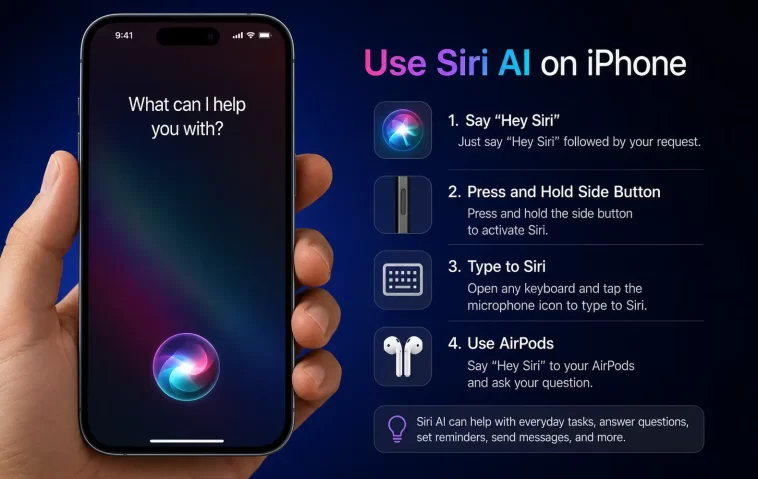
There are several ways to call on Siri, and it’s worth knowing all of them:
By voice:
Just say “Hey Siri” or simply “Siri” followed by your request. Siri activates immediately and waits for you to speak.
By button:
- On iPhones without a Home button: Press the Side button
- On iPhones with a Home button: Press the Home button
- Hold the button for longer requests so Siri doesn’t cut you off early
By typing:
Double-tap the bottom of the screen when Apple Intelligence is active to open a text input field. This is great in quiet environments or when you don’t want to speak out loud.
From the Dynamic Island:
On supported iPhones, swipe down from the Dynamic Island to start a full-screen Siri conversation and get detailed, in-depth answers.
How to Use Siri AI on iPhone: Practical Examples
This is where things get genuinely useful. You can use Siri AI across nearly every part of your iPhone experience.
Communication and Messaging
- “Read me my unread messages from Sarah”
- “Reply to my last email from work and say I’ll call back tomorrow”
- “Find the confirmation number from the hotel email I got last week”
Siri AI can search your inbox and messages to find specific pieces of information. You no longer have to scroll through hundreds of threads yourself.
Calendar and Reminders
- “Schedule a dentist appointment for next Thursday at 3 PM”
- “What do I have on Friday afternoon?”
- “Set a reminder to take my medication every morning at 8”
Siri handles scheduling naturally, even if you phrase things casually or change your mind mid-sentence.
Photos and Media
- “Find photos from my trip to Italy last summer”
- “Show me videos from Christmas 2024”
- “Play relaxing music on Spotify”
With Apple Intelligence, Siri can now actually search your photo library by context — not just dates.
Apps and Tasks
- “Open my last document in Notes and add a new bullet point”
- “Turn on Do Not Disturb until 9 AM”
- “Set my brightness to 50%”
Siri AI can now navigate inside apps to complete actions, not just launch them.
Web and General Knowledge
- “What’s the weather in Istanbul this weekend?”
- “When does the next solar eclipse happen?”
- “Summarize the latest news about electric cars”
Siri AI pulls real-time information from the web, so you get current answers — not outdated ones.
Using Siri AI with ChatGPT
One of the most powerful additions to Siri is its integration with ChatGPT. When Siri encounters a question that’s too complex or creative for it to handle alone, it can pass the query to ChatGPT with your permission.
Here’s how to use it:
- Ask Siri something and watch for the prompt asking if you want to use ChatGPT
- Tap Continue to allow the handoff
- Get a more detailed, conversational response
You can also say “Ask ChatGPT” followed by your question to go directly to ChatGPT through Siri. No need to open a separate app.
Privacy note: Siri passes information to ChatGPT privately and securely, and Apple says your data isn’t stored by ChatGPT unless you’re logged into an account.
Siri AI Conversation Mode
Unlike the old Siri that forgot everything after each response, Siri AI now holds multi-turn conversations. This means you can ask follow-up questions naturally:
“What restaurants are near me?”
(Siri lists options)
“Which one has outdoor seating?”
(Siri filters based on context)
You don’t have to repeat yourself or re-establish context. Siri remembers what you were just talking about.
There’s also a new dedicated Siri app that stores your past conversations. You can revisit previous queries, continue where you left off, and sync conversations across your Apple devices through iCloud.
Tips to Get More Out of Siri AI
Here are some practical habits that make Siri AI significantly more useful:
Be specific rather than vague.
Instead of saying “Call someone,” say “Call Mom on her mobile.” The more context you give, the better the result.
Use Type to Siri in noisy places.
Double-tap the bottom of the screen to type your request quietly instead of speaking.
Follow up when you’re unsatisfied.
If Siri gives you an incomplete answer, just say “Can you give me more detail?” or “That’s not what I meant.” Siri AI can course-correct.
Adjust Siri’s pause timing.
Go to Settings > Accessibility > Siri > Siri Pause Time and choose Longer or Longest if Siri cuts you off before you finish speaking.
Use Siri hands-free with AirPods.
Siri works through supported AirPods, so you can make requests without touching your phone at all.
How Siri AI Protects Your Privacy
A common concern with AI assistants is what happens to your data. Apple has been clear about its approach:
- Most Siri processing happens on-device, meaning your requests never leave your phone
- When cloud processing is needed, Apple uses Private Cloud Compute, which means your data isn’t stored on Apple’s servers
- You can review and delete Siri history at any time in Settings > Apple Intelligence & Siri > Siri History
This hybrid model — on-device for basic tasks, secure cloud for complex ones — is designed to keep your information private even as Siri gets smarter.
Common Siri AI Problems and Fixes
Siri isn’t responding to my voice:
Go to Settings > Apple Intelligence & Siri > Talk & Type to Siri and make sure voice activation is turned on. Also check that your microphone isn’t blocked.
Siri AI features aren’t showing up:
Confirm your device is compatible and that Apple Intelligence is enabled in Settings. Also make sure your region supports Apple Intelligence — it’s not available everywhere yet.
Siri misunderstands me often:
Try typing instead of speaking to see if the issue is voice recognition. You can also try speaking more slowly or rephrasing your request in a more direct way.
Siri ends my request too quickly:
Increase the pause time in Settings > Accessibility > Siri > Siri Pause Time.
FAQ: Using Siri AI on iPhone
What is Siri AI on iPhone?
Siri AI is the upgraded version of Apple’s voice assistant, now powered by Apple Intelligence and built on advanced AI foundation models. It supports multi-turn conversations, web search, cross-app actions, and more.
Do I need an internet connection to use Siri AI?
Basic tasks like setting timers or alarms work offline. However, web searches, ChatGPT integration, and some Apple Intelligence features require an internet connection.
Can I use Siri AI on older iPhones?
Full Siri AI features require at least an iPhone 15 Pro. However, you can use ChatGPT through Siri on any iPhone by installing the ChatGPT app and saying “Ask ChatGPT.”
Is Siri AI available in all countries?
No. Apple Intelligence and Siri AI are rolling out gradually by region. Some markets — including parts of the EU — may experience delays due to regulatory requirements.
Does Siri AI share my data with third parties?
Siri processes most requests on-device. When it uses ChatGPT, it does so securely, and your data isn’t stored by ChatGPT unless you choose to sign in. Apple does not sell your Siri data.
How is Siri AI different from the old Siri?
The older Siri handled single, isolated commands. Siri AI supports full conversations, remembers context, can act inside apps, searches your personal data across emails and photos, and accesses real-time web information.
Can Siri AI control third-party apps?
Yes. Developers can integrate their apps with Siri AI through Apple’s app intent system, allowing Siri to perform actions inside those apps on your behalf.
How do I turn off Siri AI?
Go to Settings > Apple Intelligence & Siri and toggle off Apple Intelligence. You can still use the basic version of Siri independently.
Final Thoughts
Using Siri AI on iPhone has genuinely changed how I interact with my phone. It’s not just faster — it’s actually helpful in ways that save real time. Whether you’re pulling up a hotel confirmation from a buried email, asking follow-up questions in a conversation, or letting Siri handle a multi-step task inside an app, the experience is far more capable than anything Siri offered before.
The key is to treat Siri AI like a real assistant. Give it context, follow up when needed, and explore the features that matter to your routine. Once you build that habit, you’ll wonder how you managed without it.
