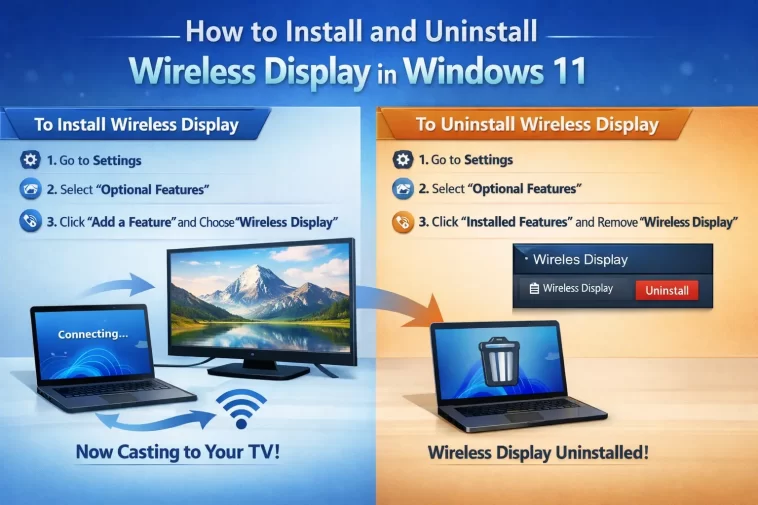
If you’ve been trying to mirror your screen to a TV or projector without cables, you’ve probably come across the Wireless Display feature in Windows 11. It’s a built-in optional feature that lets you cast your screen wirelessly — no HDMI cable, no adapter, no hassle. But it doesn’t come pre-installed on every system, and sometimes you need to remove it to troubleshoot or clean up your device.
In this guide, I’ll walk you through exactly how to install Wireless Display on Windows 11, how to use it, and how to uninstall it cleanly if you no longer need it. Everything here is straightforward and you don’t need to be a tech expert to follow along.
What Is Wireless Display in Windows 11?
Wireless Display is an optional Windows feature that enables screen mirroring and casting over Wi-Fi. It’s based on the Miracast protocol, which is a wireless standard that allows devices to share screens without needing to be on the same Wi-Fi network — they connect directly.
Once installed, you can:
- Mirror your Windows 11 screen to a smart TV, monitor, or projector that supports Miracast
- Extend your display wirelessly for a dual-monitor setup without cables
- Cast presentations, videos, or your entire desktop to a larger screen
- Use your Windows 11 PC as a wireless display receiver for another device
It’s particularly useful in meeting rooms, home theater setups, and situations where running a cable simply isn’t practical.
What You Need Before You Start
Before installing the Wireless Display feature, make sure your system meets a few basic requirements:
- Windows 11 installed and up to date
- Wi-Fi adapter that supports Miracast (most modern laptops and desktops with Wi-Fi 5 or newer are compatible)
- Administrator access on the device — you’ll need this to install optional features
- Active internet connection — Windows downloads the feature from Microsoft’s servers
To check if your PC supports Miracast, press Windows + R, type dxdiag, and press Enter. In the DirectX Diagnostic Tool, click Save All Information and open the saved file. Search for “Miracast” — it will say either “Available” or “Not Available.”
If Miracast isn’t available on your hardware, the Wireless Display feature won’t work even if installed. Most laptops made in the last several years support it, but some older desktops with basic Wi-Fi cards may not.
How to Install Wireless Display in Windows 11
Installing Wireless Display on Windows 11 takes just a few minutes. Here are two ways to do it.
Method 1: Through Windows Settings (Recommended)
This is the easiest and most reliable method.
Step 1: Open Windows Settings
Press Windows + I on your keyboard to open the Settings app. You can also click the Start button and select the gear icon.
Step 2: Go to Apps
In the Settings menu, click on Apps from the left sidebar.
Step 3: Open Optional Features
Click on Optional features. This is where Windows stores features that aren’t installed by default but are available to add.
Step 4: Click “View features”
At the top of the page, next to “Add an optional feature,” click the View features button.
Step 5: Search for Wireless Display
In the search box that appears, type Wireless Display. The feature should appear in the results list.
Step 6: Select and Install
Check the box next to Wireless Display and click Next, then click Install. Windows will download and install the feature automatically. The process usually takes one to two minutes depending on your internet speed.
Step 7: Restart if prompted
Once installation is complete, Windows may ask you to restart. Go ahead and restart — after that, the feature is ready to use.
Method 2: Using Windows PowerShell
If you prefer working with the command line or you’re managing multiple devices, you can install Wireless Display using PowerShell.
Step 1: Open PowerShell as Administrator
Right-click the Start button and choose Windows Terminal (Admin) or search for PowerShell, right-click it, and select Run as administrator.
Step 2: Run the install command
Type the following command and press Enter:
Add-WindowsCapability -Online -Name App.WirelessDisplay.Connect~~~~0.0.1.0Windows will install the feature automatically. You’ll see a progress indicator and a confirmation message when it’s done.
Step 3: Restart your PC
Restart your computer to complete the installation.
How to Use Wireless Display After Installing
Once Wireless Display is installed, here’s how to actually connect to a screen.
Step 1: Make sure your target display is ready
Your TV, monitor, or projector needs to support Miracast or be connected to a Miracast adapter (like the Microsoft Wireless Display Adapter). Turn on the display and set it to the correct input source.
Step 2: Open the Cast menu on your PC
Press Windows + K on your keyboard. This opens the Cast panel on the right side of your screen. Alternatively, click the notification area in the bottom right of the taskbar, then click Cast.
Step 3: Select your display
Windows will scan for nearby Miracast-compatible devices and list them in the Cast panel. Click on your target display to connect.
Step 4: Choose your display mode
Once connected, you can choose between:
- Duplicate — mirrors your screen exactly
- Extend — adds the wireless display as a second monitor
- Second screen only — your laptop screen turns off and only the external display is active
Step 5: Disconnect when done
Press Windows + K again and click Disconnect, or just close the Cast panel and select disconnect from there.
How to Uninstall Wireless Display in Windows 11
If you no longer need the feature, want to troubleshoot a problem, or just want to clean up optional features on your system, uninstalling Wireless Display is just as easy as installing it.
Method 1: Through Windows Settings
Step 1: Open Settings
Press Windows + I to open Settings.
Step 2: Go to Apps → Optional Features
Click Apps in the left sidebar, then click Optional features.
Step 3: Find Wireless Display
Scroll through the list of installed optional features, or use the search bar at the top to search for Wireless Display.
Step 4: Click on it and Uninstall
Click on Wireless Display to expand it. You’ll see an Uninstall button. Click it.
Step 5: Wait for the process to finish
Windows will remove the feature in a few seconds. A restart is generally not required for uninstallation, but you can restart anyway to make sure everything is cleaned up.
Method 2: Using PowerShell
Step 1: Open PowerShell as Administrator
Right-click Start and choose Windows Terminal (Admin).
Step 2: Run the removal command
Type this command and press Enter:
Remove-WindowsCapability -Online -Name App.WirelessDisplay.Connect~~~~0.0.1.0Step 3: Confirm removal
PowerShell will confirm that the feature has been removed. Restart your PC if prompted.
Common Issues and How to Fix Them
Even with a straightforward feature like this, a few things can go wrong. Here are the most common problems and how to solve them.
Wireless Display Not Showing Up in Optional Features
If you search for Wireless Display in Optional Features and it doesn’t appear, your device may not support Miracast, or the feature may already be installed. Check your list of installed optional features first — scroll through the full list to see if it’s already there.
If it’s not installed and doesn’t appear in search, run the dxdiag check mentioned earlier to confirm your hardware supports Miracast.
Installation Gets Stuck or Fails
This sometimes happens when Windows Update is running in the background or your internet connection drops during the download. Try:
- Waiting a few minutes and trying again
- Pausing any active downloads or Windows Update
- Restarting your PC and trying the installation fresh
- Using the PowerShell method as an alternative
Cast Panel Shows No Devices
If you open the Cast panel (Windows + K) and no devices appear, check the following:
- Make sure your TV or monitor is turned on and set to Miracast input
- Make sure your PC and the target display are in range (Miracast works best within 30 feet)
- Temporarily disable your firewall or antivirus to test — some security software can block Miracast connections
- Restart both your PC and the display device
Poor Video Quality or Lag During Casting
Wireless display is sensitive to interference. If you’re experiencing lag or poor quality:
- Move closer to your wireless router
- Switch your router to the 5GHz band if available — it’s faster and less congested than 2.4GHz
- Close other applications that are using your Wi-Fi connection
- Make sure no large physical objects or walls are between your PC and the display
Wireless Display vs. Other Screen Casting Options
It’s worth knowing how Wireless Display compares to other casting options you might already have.
Chromecast / Google Cast — works great for streaming apps, but requires the same Wi-Fi network and doesn’t support full desktop mirroring as cleanly as Miracast.
Apple AirPlay — Mac and iPhone only. Not available for Windows natively.
HDMI cable — still the most reliable option for zero-latency, high-quality display output. If cable management isn’t a concern, HDMI beats wireless every time for quality.
Miracast via Wireless Display — works without a shared Wi-Fi network (direct device-to-device), supports full desktop mirroring, and is built directly into Windows 11. Best for presentations, sharing your screen in meetings, or home theater use cases.
For Windows 11 users who want a fully wireless, cable-free setup and don’t want to buy extra hardware, Wireless Display is the best native option.
Should You Keep Wireless Display Installed?
Honestly, it depends on how often you use it. The feature doesn’t use significant system resources when idle, so keeping it installed doesn’t slow down your PC. If you cast your screen even occasionally, it’s worth having it ready.
On the other hand, if you’ve never used it and don’t have a Miracast-compatible display, there’s no real reason to keep it — it just occupies a small amount of storage. Uninstalling it also means one fewer potential point of failure if you’re troubleshooting network or display issues.
For most users though, installing it once and leaving it is the path of least resistance.
Quick Reference: Install and Uninstall Commands
For those who want to save time in the future, here are the PowerShell commands in one place:
Install:
Add-WindowsCapability -Online -Name App.WirelessDisplay.Connect~~~~0.0.1.0Uninstall:
Remove-WindowsCapability -Online -Name App.WirelessDisplay.Connect~~~~0.0.1.0Bookmark this page or save those commands somewhere handy — you’ll be glad you did.
Final Thoughts
Learning how to install and uninstall Wireless Display in Windows 11 is one of those small things that makes a surprisingly big difference. Once it’s set up, casting your screen wirelessly becomes completely seamless — no cables to trip over, no adapters to dig out of a drawer, no fiddling with HDMI inputs.
The installation process takes less than five minutes, works on any Miracast-compatible hardware, and the feature is completely free as part of Windows 11. That’s a pretty good deal for something that eliminates cable clutter from your setup entirely.
If you found this guide useful, share it with someone who’s still using a three-meter HDMI cable to connect their laptop to the TV. They deserve better.
