Stuck print queue in Windows 11 is one of those problems that shows up at the worst possible time. You hit print, nothing happens, and suddenly every job you send just piles up in a frozen queue that refuses to move.
The good news? It’s almost always fixable in a few minutes. This guide walks you through every method — from the quick and easy to the more thorough — so you can get back to printing without reinstalling drivers or calling IT.
Why Does the Print Queue Get Stuck?
Before jumping into fixes, it helps to understand what’s actually going wrong.
The print queue is managed by a Windows background service called the Print Spooler. This service takes your print jobs, lines them up, and sends them to the printer one by one. When a job gets corrupted, the printer goes offline unexpectedly, or the Spooler service freezes, the entire queue can lock up.
Common reasons include:
- A print job was interrupted mid-process (power cut, paper jam, cable disconnect)
- The printer was turned off while jobs were queued
- A corrupted or incompatible print driver
- A bug in the Print Spooler service itself
- Sending too many jobs too quickly
The fix almost always involves clearing those stuck jobs and restarting the Spooler. Here’s how.
Method 1: Cancel Jobs Directly from the Taskbar (Try This First)
This is the quickest fix and works for minor jams.
- Look for the printer icon in the system tray (bottom-right corner of your taskbar). If you don’t see it, click the upward arrow to show hidden icons.
- Double-click the printer icon to open the print queue window.
- Right-click each job listed and select Cancel.
- Wait 30 seconds, then try printing again.
If the jobs disappear and your printer starts responding, you’re done. If they stay stuck or keep reappearing, move to the next method.
Method 2: Restart the Print Spooler Service
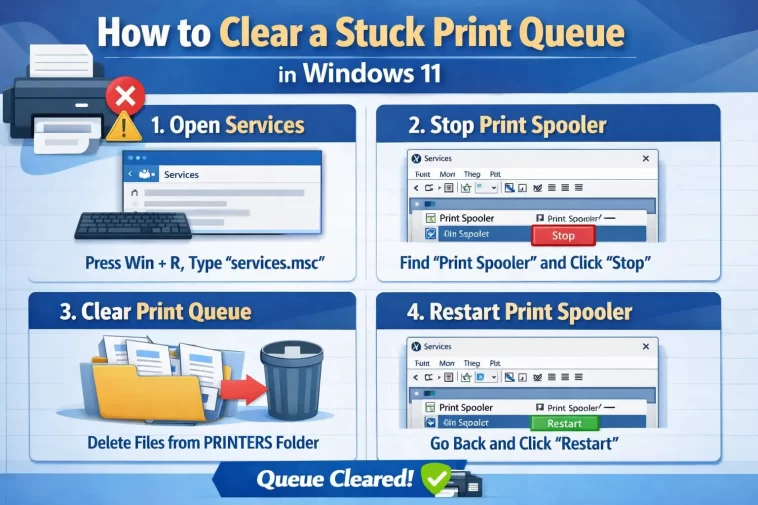
This is the most reliable fix for a truly frozen queue. Restarting the Print Spooler clears everything and forces Windows to start fresh.
Using Services (GUI Method)
- Press Windows + R to open the Run dialog.
- Type
services.mscand press Enter. - Scroll down and find Print Spooler in the list.
- Right-click it and select Stop.
- Leave the Services window open — don’t close it yet.
- Now open File Explorer and navigate to:
C:\Windows\System32\spool\PRINTERS - Delete all files inside the PRINTERS folder. Do not delete the folder itself — only the files inside.
- Go back to Services, right-click Print Spooler again, and select Start.
- Try printing again.
This method clears every stuck job and forces a clean restart. It works in the vast majority of cases.
Note: You may need administrator rights to access the PRINTERS folder. If Windows blocks access, right-click the folder, go to Properties → Security, and make sure your user account has Full Control.
Method 3: Use Command Prompt (Faster for Advanced Users)
If you’re comfortable with the command line, this does the same thing as Method 2 but faster.
- Click Start, type
cmd, right-click Command Prompt, and choose Run as administrator. - Enter the following commands one by one, pressing Enter after each:
net stop spooler
del /Q /F /S "%systemroot%\System32\spool\PRINTERS\*.*"
net start spooler
That’s it. The first command stops the Spooler, the second deletes all queued files, and the third restarts the Spooler. The whole process takes under ten seconds.
Method 4: Create a One-Click Fix with a Batch File
If your print queue gets stuck regularly, a batch file saves you from repeating these steps every time.
- Open Notepad.
- Paste the following:
@echo off
net stop spooler
del /Q /F /S "%systemroot%\System32\spool\PRINTERS\*.*"
net start spooler
echo Print queue cleared successfully.
pause- Go to File → Save As.
- Set the file type to All Files.
- Name it something like
ClearPrintQueue.batand save it to your Desktop.
Next time your queue freezes, just right-click the file and choose Run as administrator. Done in seconds.
Method 5: Use Windows Troubleshooter
Windows 11 includes a built-in printer troubleshooter that can fix common queue issues automatically.
- Press Windows + I to open Settings.
- Go to System → Troubleshoot → Other troubleshooters.
- Find Printer in the list and click Run.
- Follow the on-screen instructions.
The troubleshooter will check for common problems, attempt to clear stuck jobs, and restart relevant services automatically. It’s not always as thorough as the manual methods, but it’s a good first step if you prefer not to use the command line.
Method 6: Restart the Printer Itself
Sometimes the issue isn’t Windows — it’s the printer holding onto a bad job.
- Turn the printer completely off using the power button.
- Unplug it from the power outlet (don’t just switch it off — actually unplug it).
- Wait 30–60 seconds.
- Plug it back in and turn it on.
- Clear the print queue in Windows using Method 1, then try again.
This clears the printer’s internal memory buffer, which can hold jobs independently of Windows.
Method 7: Update or Reinstall Printer Drivers
If clearing the queue fixes the problem temporarily but it keeps coming back, a corrupted or outdated driver is likely the cause.
Update the Driver
- Press Windows + X and select Device Manager.
- Expand Printers.
- Right-click your printer and select Update driver.
- Choose Search automatically for drivers and let Windows find the latest version.
Reinstall the Driver
If updating doesn’t help:
- In Device Manager, right-click your printer and select Uninstall device.
- Check the box that says Delete the driver software for this device and confirm.
- Restart your PC.
- Visit your printer manufacturer’s website and download the latest driver for your specific model.
- Run the installer.
A clean driver install resolves most recurring print queue issues.
Method 8: Set the Print Spooler to Restart Automatically
By default, if the Print Spooler crashes, Windows doesn’t always restart it automatically. You can change this.
- Open Services (Windows + R →
services.msc). - Double-click Print Spooler.
- Go to the Recovery tab.
- Set all three failure options (First failure, Second failure, Subsequent failures) to Restart the Service.
- Click Apply, then OK.
This way, if the Spooler crashes in the future, Windows will restart it on its own without you needing to intervene.
How to Prevent the Print Queue from Getting Stuck Again
Fixing the problem once is great. Keeping it from coming back is better.
Keep your printer online before sending jobs. Always make sure the printer is on and ready before you hit print. A job sent to an offline printer is the most common cause of queue jams.
Don’t send multiple large jobs at once. Sending 10 heavy documents back to back can overwhelm the Spooler. Send them in smaller batches if possible.
Keep drivers up to date. Printer manufacturers regularly release driver updates that fix known bugs. Check every few months, especially after a major Windows update.
Avoid force-closing applications mid-print. If a program crashes while printing, the job may stay in the queue in a broken state. Always try to cancel a print job properly before closing an application.
Reboot your PC regularly. A fresh restart clears temporary service issues before they build up into bigger problems.
Windows 11 Specific Notes
Windows 11 made a few changes to how printing works compared to Windows 10.
The Print Management tool is no longer installed by default, but you can add it. Go to Settings → Apps → Optional Features → Add a feature, search for Print Management, and install it. This gives you a more detailed view of all printers and queues on your system.
Also, if you’re on Windows 11 22H2 or later, Microsoft moved some print settings deeper into the Settings app. The classic Devices and Printers panel is still accessible via Control Panel if you prefer the older interface.
If you’ve upgraded from Windows 10, some older printer drivers may not be fully compatible with Windows 11. Always check your manufacturer’s website for a Windows 11-specific driver version.
Quick Summary: Which Method Should You Use?
| Situation | Best Method |
|---|---|
| Queue is frozen, want the fastest fix | Method 3 (Command Prompt) |
| Not comfortable with command line | Method 2 (Services + File Explorer) |
| Problem keeps coming back | Method 7 (Reinstall drivers) |
| Want Windows to handle it | Method 5 (Troubleshooter) |
| Queue freezes regularly | Method 4 (Batch file) |
| Printer seems unresponsive | Method 6 (Restart printer) |
FAQ
Why does my print queue keep getting stuck even after clearing it?
The most likely cause is a corrupt or outdated printer driver. If clearing the queue fixes it temporarily but the problem returns, reinstall your printer driver from the manufacturer’s website using a clean install (remove the old driver first).
Can I delete files from the PRINTERS folder safely?
Yes. The files in C:\Windows\System32\spool\PRINTERS are just temporary spool files — they’re not system files. Deleting them only removes queued print jobs. Your printer, settings, and drivers are not affected.
My print queue shows no jobs but the printer still won’t print. What’s wrong?
If the queue looks empty but printing still doesn’t work, the issue is probably with the printer itself or the driver, not the queue. Try restarting the printer, checking the connection cable or Wi-Fi, and updating the driver.
The Print Spooler service won’t start. What should I do?
If the Spooler refuses to start, it may be due to a corrupted system file. Open Command Prompt as administrator and run sfc /scannow. This scans Windows for corrupted files and repairs them automatically. Restart after the scan completes.
Does clearing the print queue delete saved print settings?
No. Clearing the queue only removes the pending print jobs. Your printer preferences, default settings, and driver configuration are completely unaffected.
How do I find the PRINTERS folder if I can’t see it?
The PRINTERS folder may be hidden. In File Explorer, go to View → Show → Hidden items to make hidden folders visible. Then navigate to C:\Windows\System32\spool\PRINTERS.
Is there a way to clear the print queue without administrator access?
Not reliably. The Print Spooler and the PRINTERS folder both require administrator rights to modify. If you’re on a work or school PC without admin access, contact your IT department — they can clear it remotely.
Final Thoughts
A stuck print queue in Windows 11 is frustrating, but it’s rarely a serious problem. In most cases, stopping the Print Spooler, deleting the spool files, and restarting the service is all it takes. If that doesn’t do it, a driver reinstall almost certainly will.
Bookmark this page or save the batch file to your Desktop. The next time your printer decides to stop cooperating, you’ll have the fix ready in seconds.
