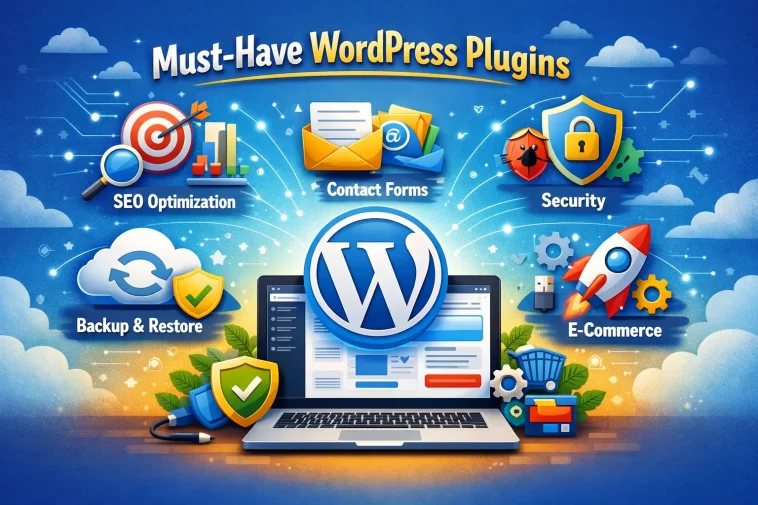
Must-have WordPress plugins are the backbone of any well-functioning website. Without the right ones installed, your site is basically a car with no engine — it looks fine on the outside, but it won’t get you very far.
Whether you just launched your first WordPress site or you’re giving an old one a fresh start, this guide covers the essential plugins you should install before anything else. No fluff, no extras — just the ones that actually matter.
Why Plugins Matter So Much in WordPress
WordPress by itself is powerful, but it’s intentionally kept lean. The real magic happens when you add plugins that handle specific jobs — security, performance, SEO, backups, and more.
The good news: most of the plugins on this list are free (or have solid free versions). You don’t need to spend a fortune to build a professional, fast, and secure website.
1. Security Plugin — Wordfence or Solid Security
Security is the first thing you should address on any new WordPress site. Attacks happen every day, and unprotected sites are low-hanging fruit for bots.
Wordfence Security is one of the most popular options. It includes:
- A Web Application Firewall (WAF)
- Malware scanning
- Login attempt limiting
- Real-time threat alerts
Solid Security (formerly iThemes Security) is another strong choice, especially for beginners. It offers two-factor authentication, brute force protection, and a security dashboard that’s easy to understand.
Pick one and set it up the day you launch your site. Don’t wait.
2. SEO Plugin — Rank Math or Yoast SEO
If people can’t find your site on Google, it doesn’t really matter how good your content is. An SEO plugin helps you optimize every page and post so search engines understand what your content is about.
Rank Math has quickly become the go-to choice for many WordPress users. It’s lightweight, feature-rich even on the free plan, and integrates well with the Gutenberg editor. You can set focus keywords, get content analysis scores, add schema markup, and manage redirects — all from one place.
Yoast SEO has been around longer and is still widely trusted. The free version covers the basics well: meta titles, meta descriptions, XML sitemaps, and readability analysis.
Either plugin will do the job. Rank Math tends to offer more features for free, while Yoast has a larger support community.
3. Caching Plugin — WP Rocket or W3 Total Cache
Slow websites lose visitors. Google also uses page speed as a ranking factor, so performance really does affect your SEO.
A caching plugin stores static versions of your pages so WordPress doesn’t have to rebuild them from scratch every time someone visits.
WP Rocket is the gold standard. It’s paid, but it’s worth every penny. Setup takes minutes, and the performance improvements are immediate. It handles page caching, browser caching, lazy loading images, and database optimization.
If you’re on a budget, W3 Total Cache or LiteSpeed Cache (if your host supports it) are solid free alternatives.
4. Backup Plugin — UpdraftPlus
Backups are one of those things people ignore until something goes wrong — and then they really wish they hadn’t.
UpdraftPlus is the most popular backup plugin in the WordPress ecosystem, and for good reason. The free version lets you schedule automatic backups and store them in the cloud (Google Drive, Dropbox, Amazon S3, and more).
Set up weekly backups as a minimum. Daily is better if you publish content regularly. Having a backup saved somewhere off your server means you can restore your site even if your hosting account is completely compromised.
5. Contact Form Plugin — WPForms or Contact Form 7
Every website needs a way for visitors to reach you. While Contact Form 7 is the classic free choice and still works well, WPForms Lite is easier to use and comes with a drag-and-drop builder.
Key features to look for in a contact form plugin:
- Spam protection (CAPTCHA or honeypot)
- Email notifications
- Mobile-friendly forms
- Basic validation (required fields, email format checks)
If you need more advanced forms — payment forms, multi-step forms, surveys — the paid version of WPForms or Gravity Forms are worth considering.
6. Image Optimization Plugin — Smush or ShortPixel
Large images are one of the most common reasons WordPress sites load slowly. Uploading a 5MB photo that gets displayed at 400px wide is a waste of bandwidth and hurts your Core Web Vitals scores.
Smush (by WPMU DEV) is a popular free option that automatically compresses images as you upload them. It also has a bulk optimization feature to compress existing images in your media library.
ShortPixel and Imagify are also excellent alternatives. ShortPixel offers more compression quality options, while Imagify integrates tightly with WP Rocket.
Install one of these before you start uploading content — it saves you a lot of cleanup work later.
7. Anti-Spam Plugin — Akismet
If your site has comments, contact forms, or user registrations, you’ll get spam. It’s not a matter of if — it’s when.
Akismet comes pre-installed with WordPress for a reason. It’s made by Automattic (the company behind WordPress.com) and filters spam comments automatically. It’s free for personal sites and very affordable for commercial use.
For extra spam protection on forms, combining Akismet with a CAPTCHA solution like hCaptcha or Cloudflare Turnstile is a smart move.
8. Page Builder or Block Editor Enhancement — Kadence Blocks or Spectra
The default WordPress Gutenberg editor is good, but it has limitations when it comes to layout and design flexibility. A block library plugin fills those gaps without requiring a full page builder.
Kadence Blocks adds a clean set of extra blocks — advanced text, row/column layouts, icon lists, testimonials, and more — without bloating your site.
Spectra (formerly Ultimate Addons for Gutenberg) is another strong option with a similar approach.
If you need a full page builder, Elementor is the most popular choice, though it does add more weight to your site compared to block-based alternatives.
9. Analytics Plugin — Site Kit by Google or MonsterInsights
Understanding who visits your site, where they come from, and what they do when they’re there is essential. Without data, you’re flying blind.
Site Kit by Google is a free plugin that connects your site to Google Analytics 4, Google Search Console, and other Google tools. It’s developed by Google itself, so the integration is seamless.
MonsterInsights is another popular option that displays your analytics data directly inside the WordPress dashboard, making it easier to check stats without leaving your site.
Either way, set up Google Analytics on day one. The sooner you start collecting data, the more useful it becomes over time.
10. Redirection Plugin — Redirection
Broken links hurt both user experience and SEO. When you rename a page, move content, or delete something, you need to set up redirects so visitors (and search engine bots) land in the right place.
Redirection is a free plugin that handles 301 redirects easily. It also logs 404 errors, so you can spot broken links on your site and fix them before they become a bigger problem.
This plugin becomes especially important if you’re migrating from an old site or restructuring your content.
Quick Recap: The Essential WordPress Plugin List
Here’s a summary of the plugins covered:
| Category | Recommended Plugin |
|---|---|
| Security | Wordfence or Solid Security |
| SEO | Rank Math or Yoast SEO |
| Caching | WP Rocket or W3 Total Cache |
| Backups | UpdraftPlus |
| Contact Forms | WPForms Lite |
| Image Optimization | Smush or ShortPixel |
| Anti-Spam | Akismet |
| Page Building | Kadence Blocks or Spectra |
| Analytics | Site Kit by Google |
| Redirects | Redirection |
How Many Plugins Should You Actually Install?
Less is more. Every plugin you add is another potential security vulnerability, compatibility issue, or performance drag.
A good rule of thumb: install a plugin only when you have a specific need it solves. Don’t install things “just in case.” Stick to well-maintained plugins with regular updates and a large user base.
Regularly audit your plugin list and deactivate or delete anything you’re not actively using. Inactive plugins still pose a security risk if they’re not updated.
FAQ: Must-Have WordPress Plugins
Are free WordPress plugins safe to use?
Most free plugins from the official WordPress.org repository go through a review process. That said, always check the last update date, the number of active installations, and user reviews before installing. Avoid plugins that haven’t been updated in over a year.
Do I really need a caching plugin if my host provides caching?
It depends on your host. Some managed WordPress hosts (like Kinsta or WP Engine) have built-in server-level caching that works very well. If your host already handles caching, adding a plugin on top of it can sometimes cause conflicts. Check with your host first.
Can too many plugins slow down my WordPress site?
Yes, they can — but the number alone isn’t the issue. A poorly coded plugin can slow things down more than ten lightweight ones. Focus on plugin quality, not quantity. Use a performance testing tool like GTmetrix or PageSpeed Insights to monitor your site speed.
What’s the difference between Rank Math and Yoast SEO?
Both are solid SEO plugins. Rank Math offers more features on the free plan (schema markup, keyword tracking, redirect manager), while Yoast SEO has a longer track record and a large support community. Rank Math is generally recommended for new sites starting fresh.
Do I need a page builder, or is Gutenberg enough?
For most sites, Gutenberg with a good block library plugin is plenty. Page builders like Elementor add flexibility but can slow down your site and create dependency issues. Unless you have specific design needs that Gutenberg can’t meet, start with blocks and see how far they take you.
How often should I back up my WordPress site?
At minimum, once a week. If you post content daily or run an eCommerce store, daily backups are strongly recommended. Always store backups in a location separate from your web server — cloud storage like Google Drive or Dropbox is ideal.
Is Akismet free?
Akismet is free for personal, non-commercial websites. For business sites, it requires a paid plan. If cost is a concern, Antispam Bee is a completely free alternative with no commercial restrictions.
Final Thoughts
Getting your WordPress plugin setup right from the start saves you a lot of headaches down the road. You don’t need dozens of plugins — you need the right ones, properly configured.
Start with security and backups. Add SEO and performance next. Then fill in the gaps as your site grows.
Keep your plugins updated. Delete what you don’t use. And if something breaks after an update, don’t panic — that’s exactly why you set up backups.
Found this guide helpful? Share it with someone who’s just getting started with WordPress.
