
Elementor ships a frankenstein amount of CSS on every page load, and most of it never gets used by the page actually rendering it. If you’ve run a PageSpeed Insights test and seen “Reduce unused CSS” flagging hundreds of kilobytes, you already know the problem — what you probably don’t know is that you can fix a meaningful chunk of it without installing another plugin, which is usually the first thing every tutorial tells you to do.
I went down this path after a client site kept failing Core Web Vitals despite already running three different “optimization” plugins. Turned out two of them were fighting each other over CSS minification, and neither was actually addressing the real source: Elementor’s own default CSS generation settings. So before reaching for another plugin, it’s worth fixing what Elementor itself controls — because that’s free, and it’s permanent in a way plugin-based CSS purging often isn’t.
Why Elementor Generates So Much Unused CSS
Elementor isn’t sloppy by accident — it’s built for flexibility, and flexibility means generating styles for every possible widget state, breakpoint, and configuration option, whether or not your page uses them.
A few specific things drive this:
- Global CSS files load on every page regardless of content. By default, Elementor bundles widget styles into shared files rather than per-page files, so a page with zero forms still loads form widget CSS if any other page on the site uses a form widget.
- Font Awesome and other icon libraries load in full even if you’re using three icons out of several thousand available in the library.
- Responsive breakpoint CSS gets generated for all five default breakpoints whether your design actually changes at each one or not.
- Third-party widget bundles (from addon plugins like Essential Addons or Premium Addons) inject their own CSS files separately, often without checking if the specific widgets are even placed on the page being loaded.
- Theme builder templates compound the problem — header, footer, and archive templates each carry their own CSS payload that loads alongside page-specific styles, even on pages that don’t visually need most of it.
That breakpoint thing surprised me the first time I dug into it. I assumed unused CSS was mostly a third-party plugin problem. It’s not, really — a decent amount comes from Elementor’s own core just being thorough to a fault.
Step-by-Step Fixes
Step 1: Switch to Elementor’s Improved CSS Loading Mode
Go to Elementor → Settings → Advanced and find CSS Print Method. Set it to External File. This alone doesn’t remove unused CSS, but it’s a prerequisite for everything after — internal/inline CSS can’t be cached or trimmed effectively by anything downstream.
Image: Elementor Advanced settings panel showing the CSS Print Method dropdown set to External File
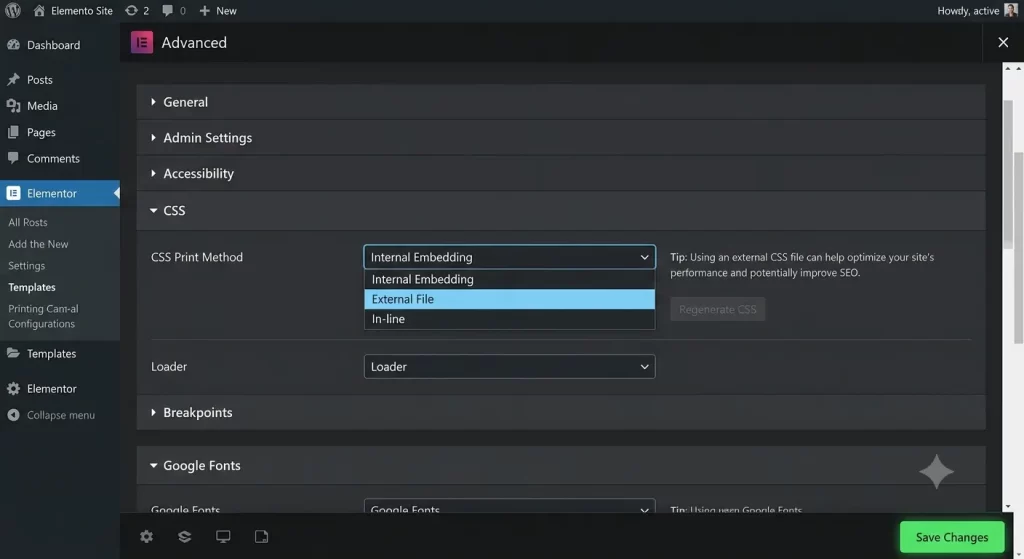
Step 2: Enable Improved Asset Loading
Still in Elementor → Settings → Experiments, enable Improved Asset Loading and Improved CSS Loading. These are labeled as experimental in older Elementor versions, but they’ve been stable enough in practice for a while now — your mileage may vary depending on your specific theme and addon combination, so test on staging first.
What this actually does: instead of loading one giant CSS bundle across the whole site, Elementor starts generating and loading CSS per-widget, per-page, based on what’s actually placed there. This is the single biggest lever you have without touching a plugin.
Step 3: Disable Unused Default Widgets
Go to Elementor → Settings → General and look for widget management (in some versions this is under a separate “Custom Code” or “Widgets” tab depending on your version). Disable any default Elementor widgets you genuinely never use — Pricing Table, Price List, Testimonial Carousel, whatever doesn’t appear on your site.
This is, the more aggressive part. Disabling widgets you do use anywhere breaks those page sections, so check your actual page builder content first before flipping switches here.
Step 4: Regenerate CSS Files
After changing any of the above, go to Elementor → Tools → Regenerate CSS & Data. Skipping this step is a common mistake — your settings changes won’t take effect on already-generated CSS files until you force a regeneration.
Step 5: Trim Font Awesome and Icon Library Loading
If you’re using a handful of icons, Elementor lets you switch from the full Font Awesome library to SVG icons only under Settings → Advanced → Improved Asset Loading. This one’s easy to miss because it’s not obviously related to CSS — Font Awesome’s CSS file is genuinely massive for what most sites use from it.
Step 6: Clean Up Theme Builder Template CSS
If you’re using Elementor’s Theme Builder for headers/footers, check each template’s individual settings for unused widgets the same way you did for regular pages. Header and footer templates load on every single page, so unused CSS there has the widest blast radius across the entire site.
What Actually Worked For Me
My first move was the obvious one — Improved CSS Loading toggle, regenerate, test. PageSpeed score went from a 41 to a 58. Better, but nowhere close to where I wanted it.
So I figured the addon plugins were the real culprit and started disabling individual widgets from Essential Addons one at a time, retesting after each. That took maybe two hours and barely moved the number — turns out the addon plugin’s CSS bundling wasn’t really the bottleneck on this particular site.
What actually got it from 58 to 81 was almost embarrassingly simple: the site’s header template (used on every page) had six widgets in it that weren’t even visible — leftover from an earlier design that got hidden via display:none in custom CSS rather than actually removed from the template. Hidden widgets still generate their full CSS. I found this by accident, scrolling through the header template in the Theme Builder looking for something else entirely, and noticing widget elements I didn’t recognize. Deleted them, regenerated CSS, and that was the bulk of the win.
Advanced Fixes and Edge Cases
Auditing actual unused CSS with browser dev tools: Open Chrome DevTools, go to the Coverage tab (under the three-dot menu → More Tools → Coverage), reload the page, and it’ll show you exactly which CSS rules in each loaded file were never applied. This is more reliable than guessing — it tells you precisely which files are worth chasing down further versus which are already lean.
Checking for orphaned CSS from removed plugins: If you’ve ever uninstalled an Elementor addon plugin, sometimes its CSS generation hooks leave the database _elementor_css postmeta in a stale state. Running Regenerate CSS & Data typically clears this, but on stubborn cases you may need to manually check the wp_postmeta table for leftover Elementor CSS entries tied to deleted widgets.
Server-level Brotli or Gzip compression: Not strictly a “remove unused CSS” fix, but combined with the steps above, confirming your host has Brotli compression enabled (most do by default now, but not all shared hosts) compounds the file-size savings meaningfully on top of what you’ve already trimmed.
Prevention Tips
Don’t let unused widgets pile up in header/footer templates — that’s clearly the highest-leverage place to audit, based on what I found above. And when you remove a section from a page, actually delete the widget rather than hiding it with custom CSS; hidden elements still cost you in CSS payload even if visitors never see them rendered. Re-run Coverage in DevTools every few months, especially after adding new addon plugins, since each one tends to bring its own CSS bundle along for the ride.
Frequently Asked Questions
Does Improved CSS Loading work with all themes? Mostly, yes. But some older or heavily customized themes built before this feature existed can have conflicts — test on staging first.
Will this break my site if something goes wrong? Possible but unlikely if you regenerate CSS after each change and check pages as you go. Keep a backup regardless.
Do I still need a caching plugin after doing this? Yeah, this isn’t a replacement for caching — it’s reducing the actual CSS payload, caching just serves it faster once it’s smaller.
Why didn’t disabling unused widgets help much for me? Depends on the site. If your bloat is concentrated in templates rather than individual page widgets, widget-level disabling won’t move the needle as much as cleaning up theme builder templates.
Is this safe to do on a live production site? I wouldn’t. Do it on staging, verify nothing visually breaks, then push to production.
Editor’s Opinion
the header template thing is what actually got me, not the settings toggles everyone talks about online. feels like most guides stop at “enable improved css loading” and call it done, but that’s maybe half the win on a site that’s been built up over time with stuff nobody bothered to delete. worth the 20 min it takes to just scroll through your header/footer builder and look for stuff that doesn’t belong anymore
