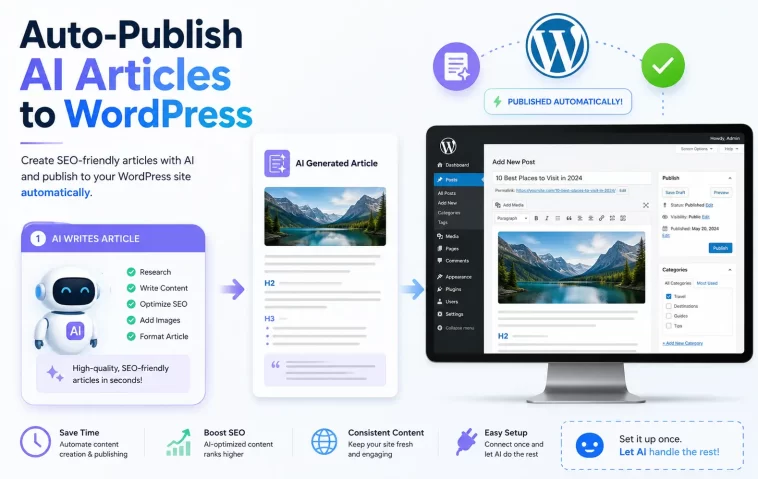
If you want to auto-publish AI articles to WordPress without babysitting the process, the pieces you need are a REST API connection, an application password, and a way to map your AI tool’s output to WordPress fields like title, content, and SEO meta. I’ve built this pipeline twice now — once badly, once properly — and the second attempt only worked because I finally understood why the first one kept silently mangling my Rank Math fields.
Why This Breaks More Often Than People Expect
Most tutorials make this sound like plug-and-play. It mostly is, once it’s set up right. But there are three specific failure points that account for almost every “it’s not working” thread you’ll find.
Your security plugin is quietly blocking the REST API. Wordfence, iThemes Security, and similar plugins ship with REST API restrictions that are sometimes enabled by default depending on your security level. If your test post never shows up and you’re not getting a clear error, this is the first place to check — not your code.
You’re using your real admin password instead of an application password. WordPress added application passwords back in version 5.6 specifically so external tools don’t need your actual login credentials. If you’re pasting your normal password into a Zapier or n8n credential field, that’s both a security problem and, on a lot of hosts, something that just won’t authenticate at all.
Your permalink structure is set to “Plain.” The REST API generally needs pretty permalinks to route correctly. So if requests are timing out or returning 404s instead of a clean 401/403, check Settings → Permalinks before you touch anything else.
Approaches Compared
| Approach | Setup Time | Cost | Control Over Output | Best For |
|---|---|---|---|---|
| Custom script (Python/PHP hitting the REST API directly) | A few hours upfront | Free (just hosting/API costs) | Full | Anyone comfortable writing a basic script and willing to maintain it |
| Zapier or Make.com | 30-60 minutes | $20-50+/month depending on volume | Moderate, drag-and-drop field mapping | Non-coders who want something visual |
| n8n (self-hosted or cloud) | 1-2 hours | Free self-hosted, or paid cloud tier | High, with workflow logic | People who want automation logic without full custom code |
| All-in-one AI writer + publisher tools | Minutes | Often bundled into a content subscription | Low — you get their formatting defaults | Teams who don’t want to think about the plumbing at all |
I left “control over output” a little fuzzy for the all-in-one tools on purpose — it really depends which one, and most of them don’t expose enough about how they handle Rank Math-specific fields for me to say anything more precise than “less than the alternatives.”
Step-by-Step Setup (Custom Script Path)
I’m walking through the custom-script version here since it gives you the most control over exactly how Rank Math fields get filled, and it’s the version that actually held up over months of daily posting for me.
Step 1: Confirm the REST API is reachable
Visit yoursite.com/wp-json/wp/v2/posts in a browser. You should see JSON. If you see a 404 or a security-plugin block page instead, fix that before doing anything else — there’s no point building on top of a connection that doesn’t exist yet.
Step 2: Create a dedicated application password
Go to Users → Profile, scroll to Application Passwords, and generate one with a name like “AI Publisher.” Copy it immediately — WordPress shows it exactly once.
[Image: WordPress Application Passwords section under a user profile, showing the generated password field]
I’d also recommend creating a separate WordPress user just for this, rather than using your main admin account. If something goes sideways with a malformed payload, you want it contained to a user with editor-level permissions, not full admin.
Step 3: Build the request
A basic POST to create a draft post looks like this in Python:
python
import requests
from requests.auth import HTTPBasicAuth

url = "https://yoursite.com/wp-json/wp/v2/posts"
auth = HTTPBasicAuth("ai_publisher", "your application password here")

payload = {
    "title": "Your AI-generated title",
    "content": "<p>Your AI-generated HTML content</p>",
    "status": "draft",
    "categories": [12]
}

response = requests.post(url, json=payload, auth=auth)
print(response.status_code, response.json())
A 201 response means it worked. A 401 means your credentials are off. A 403 usually points back to that security plugin blocking things.
Step 4: Handle the featured image separately
WordPress wants images uploaded to the media endpoint first, then attached by ID — you can’t just hand it a URL in the post payload. So upload to /wp-json/wp/v2/media with the image as binary data, grab the returned ID, then include "featured_media": [id] in your post payload.
Step 5: Map your Rank Math fields
This is the part most guides skip, and it’s the part that actually matters for SEO-focused content. Rank Math’s meta fields — focus keyword, SEO title, meta description — aren’t exposed through the default REST API meta argument out of the box. You’ll need a small snippet in your theme’s functions.php (or a custom plugin) to register them:
php
register_post_meta('post', 'rank_math_focus_keyword', [
    'show_in_rest' => true,
    'single' => true,
    'type' => 'string',
]);
Repeat for rank_math_title and rank_math_description. Once registered, you can pass them in the meta object of your POST payload alongside title and content.
[Image: Rank Math meta box in the WordPress post editor showing focus keyword, SEO title, and meta description fields populated]
What Actually Worked For Me
My first attempt used Zapier, mostly because it looked like the path of least friction. It mapped title and content fine. But the SEO fields just weren’t there as options in the field-mapping screen, and I didn’t understand why for an embarrassingly long time — I assumed Rank Math just didn’t support API access at all.
It turns out that’s not quite right. Rank Math’s fields exist in the database; they’re just not registered for REST exposure unless you tell WordPress to expose them, which Zapier’s no-code interface has no way of doing for you. I only figured this out after stumbling on an old WordPress.org support thread where someone mentioned register_post_meta almost as an aside, buried in a reply about a completely different plugin. That one function call was the entire fix.
So I switched to a custom Python script once I understood the actual mechanism, and that’s been running cleanly since. And honestly, the switch took less time than the week I spent fighting Zapier’s UI trying to find a setting that didn’t exist.
Advanced Fixes and Edge Cases
Gutenberg block formatting gets mangled. If your AI output is plain HTML without Gutenberg block comments, WordPress will often render it inside a single “Classic” block instead of proper Gutenberg blocks — it still displays fine on the front end most of the time, but it’s clunky to edit manually later if you ever need to. Wrapping paragraphs in <!-- wp:paragraph --> comments fixes this, though it’s extra payload complexity most people skip until it bites them.
Duplicate slugs from batch publishing. If you’re pushing several posts a day, occasional slug collisions happen, especially with similar AI-generated titles. WordPress appends a number automatically, but it’s worth checking your slugs aren’t all defaulting to something generic and getting -2, -3 suffixed into a mess.
Rate limiting on managed hosting. Some managed WordPress hosts throttle REST API requests if you’re hitting them in tight loops. Spacing requests out with a few seconds of delay between calls avoids this — not elegant, but it works.
Debugging silent failures. If a request returns 201 but the post looks wrong, check the raw response JSON rather than just the status code. WordPress will often accept a malformed field and silently drop it rather than erroring out, which is its own kind of frustrating when you’re trying to figure out why a meta field just isn’t showing up.
Prevention Tips
- Use a dedicated user account and application password for automation, never your main admin login
- Register any custom SEO plugin meta fields for REST exposure before you start automating, not after you’ve already published a batch without them
- Set new posts to
draftstatus initially while testing, and only flip topublishonce you trust the pipeline - Keep your permalink structure on something other than “Plain” — Post name works fine for most setups
FAQ
Do I need a plugin to enable the WordPress REST API?
No, it’s been built in since WordPress 4.7. You might need to adjust security plugin settings if one’s blocking it, but you don’t need anything extra installed for the API itself to exist.
Why does my Rank Math focus keyword field not show up when mapping fields in Zapier or Make?
Because it’s not registered for REST exposure by default. You need to register it with register_post_meta and show_in_rest => true before any external tool can see or set it.
Can I schedule posts instead of publishing immediately?
Yes — set status to future and include a date field with a timestamp ahead of now. WordPress handles the rest through its built-in cron.
Is auto-publishing AI content bad for SEO?
Not inherently. The risk is publishing low-quality or unedited content at volume, not the automation itself. Properly formatted, well-written content published via API is no different to search engines than content typed manually into the editor.
What’s the most common reason a 201 response still results in a broken post?
Malformed HTML in the content field, usually unclosed tags from an AI generation step that got truncated. Always validate the HTML before sending it.
Editor’s Opinion
took me way longer than it should have to realize rank math fields just aren’t exposed by default, that one functions.php snippet would’ve saved me a week if i’d found it on day one instead of buried in some random forum reply. if you’re doing this at any real volume, build the custom script version, the no-code tools are fine until you hit a wall they can’t see past.
