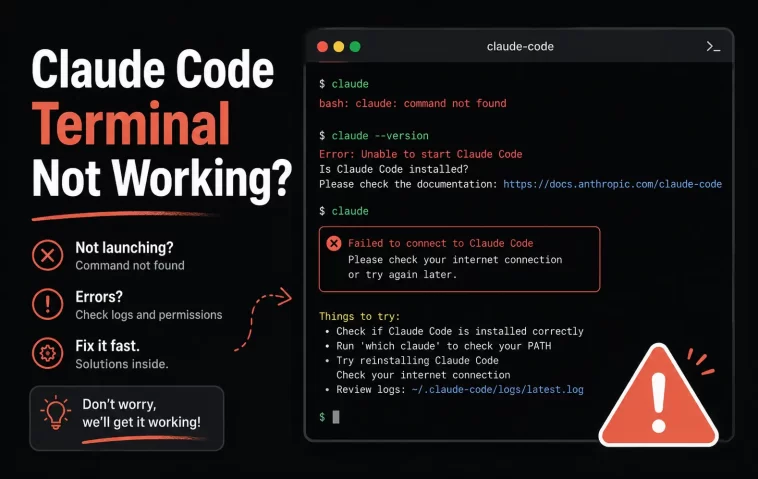
The first time I tried to use Claude Code from the terminal, the install seemed to finish without a single error. Then I typed claude and got hit with command not found: claude. No crash log, no obvious clue, just a terminal pretending the install never happened.
If you’re stuck at the same wall, this guide walks through how to use Claude Code from the terminal properly, why the most common errors happen, and how to fix them step by step — including the edge cases that basic “restart your terminal” advice doesn’t cover.
Why Claude Code Fails to Run From the Terminal
Most failures aren’t really about Claude Code itself. They come down to how your shell finds programs, how npm handles global packages, and how your OS treats permissions. Here are the three most common root causes.
1. The install directory isn’t in your PATH
When you run a command like claude, your shell searches every folder listed in your PATH environment variable, in order, until it finds a matching executable. The native Claude Code installer places the binary at ~/.local/bin/claude on macOS and Linux, or %USERPROFILE%\.local\bin\claude.exe on Windows. If that folder isn’t in your PATH, the shell has no way to find it, even though the file is sitting right there on disk.
This is the single most common reason people see command not found immediately after a “successful” install.
2. npm global installs write to root-owned folders
If you installed Claude Code using npm install -g @anthropic-ai/claude-code, npm’s default global prefix on many systems is /usr/local/lib/node_modules, a directory typically owned by root. Your user account doesn’t have write access there, so npm throws:
EACCES: permission denied, mkdir '/usr/local/lib/node_modules'The instinctive fix — running the install with sudo — creates a worse, longer-term problem. It leaves root-owned files mixed into your user-owned npm setup, which causes permission conflicts on every future global install, not just this one.
3. Multiple installations are fighting over the same command
It’s easy to end up with Claude Code installed two or three different ways without realizing it: once through npm, once through the native installer, maybe once through Homebrew. Each creates its own binary, and your shell only runs whichever one comes first in PATH. You can fix the PATH issue perfectly and still run an old, broken installation because a different claude binary is shadowing the working one.
A fourth, less obvious cause: the VS Code extension. Installing the Claude Code extension in VS Code does not add a claude command to your terminal PATH — it bundles a private copy of the CLI just for its own chat panel. If you’ve only ever installed the extension, ~/.local/bin/claude simply won’t exist, and no amount of PATH editing will fix it.
When This Problem Shows Up
A few real-world situations where this breaks in practice:
- Fresh install on a new machine: You run the install script, close the tab, open a new terminal, and
claudeisn’t recognized because the shell config wasn’t reloaded. - Switching from npm to the native installer: You had Claude Code working via npm, then ran the native install script, and now an old npm-managed binary takes priority in PATH.
- Corporate laptop or managed environment: IT-managed PATH variables, proxy-intercepted TLS, or restricted write access to
/usr/localcause installs to silently fail or behave inconsistently. - WSL (Windows Subsystem for Linux): Node.js installed via Windows npm doesn’t translate cleanly into the WSL environment, leading to platform detection errors or a binary that can’t execute.
- Apple Silicon vs Intel Macs: An x64 binary running on an ARM Mac (or vice versa) produces cryptic errors like
Illegal instructioninstead of a clean “wrong architecture” message.
Step-by-Step Fix: Getting Claude Code Working in Your Terminal
Step 1: Use the native installer, not npm
Unless you have a specific reason to use npm, install with the official script. It requires no root access and updates itself automatically in the background.
macOS, Linux, and WSL:
bash
curl -fsSL https://claude.ai/install.sh | bashWindows PowerShell:
powershell
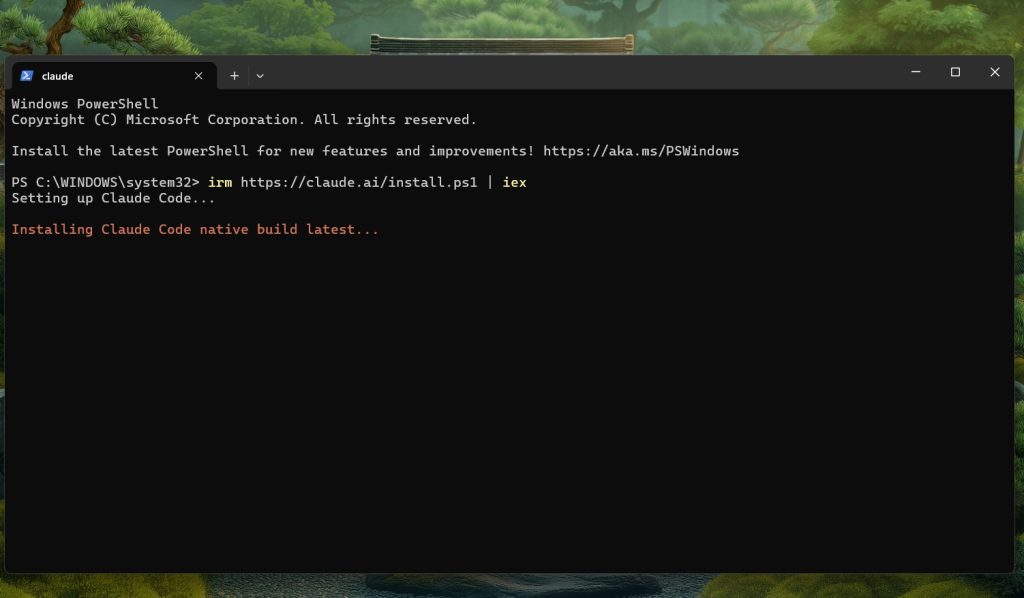
irm https://claude.ai/install.ps1 | iex
Windows CMD:
batch
curl -fsSL https://claude.ai/install.cmd -o install.cmd && install.cmd && del install.cmdIf you get The token '&&' is not a valid statement separator, you’re actually in PowerShell, not CMD — use the PowerShell command instead. If you get 'irm' is not recognized, you’re in CMD, not PowerShell. Check your prompt: PowerShell shows PS C:\, while CMD just shows C:\.
Step 2: Fix command not found by checking your PATH
After installing, open a brand-new terminal window (not the same tab — shell config files load only when a new session starts). Then check whether the install directory is actually in your PATH:
bash
echo $PATH | tr ':' '\n' | grep local/binIf nothing prints, the directory is missing. Add it manually:
bash
echo 'export PATH="$HOME/.local/bin:$PATH"' >> ~/.zshrc
source ~/.zshrc
Use ~/.bashrc instead of ~/.zshrc if you’re running Bash rather than Zsh. On Windows, the installer adds the path to your user environment variables automatically, but you still need to close and reopen your terminal for it to take effect.
Confirm it worked:
bash
claude --versionStep 3: If you used npm and hit EACCES, redirect the npm prefix (don’t use sudo)
If you’re committed to npm for some reason, fix the permission issue at the source instead of bypassing it with sudo:
bash
mkdir ~/.npm-global
npm config set prefix '~/.npm-global'
echo 'export PATH=~/.npm-global/bin:$PATH' >> ~/.zshrc
source ~/.zshrc
npm install -g @anthropic-ai/claude-code
This points npm’s global installs at a folder your user account actually owns, so you won’t hit EACCES again on this or any future global package.
Variation: switching from an npm install to the native installer
If Claude Code already works via npm but you want the auto-updating native version instead:
bash
npm uninstall -g @anthropic-ai/claude-code
curl -fsSL https://claude.ai/install.sh | bash
claude --version
Your existing configuration in ~/.claude/ is preserved through this switch, so you won’t lose settings or session history.
Variation: Homebrew users
Homebrew installs don’t auto-update, so if claude runs but feels outdated:
bash
brew upgrade claude-code(Or brew upgrade claude-code@latest if you installed the latest-channel cask instead of stable.)
Advanced Troubleshooting (When the Basic Fixes Don’t Work)
If you’ve fixed PATH and permissions but claude still won’t run cleanly, the cause is usually one of two things: a conflicting duplicate installation, or a platform/architecture mismatch.
Advanced Path 1: Diagnose duplicate or shadowed installations
When multiple install methods have been used on the same machine, your shell may be running a stale or broken binary even after PATH is fixed correctly. Check for duplicates:
bash
which -a claudeThis lists every claude executable your shell can see, in priority order. If you see more than one path, the first one in the list is what actually runs when you type claude. Remove or rename the ones you don’t want, or reorder your PATH so the correct one comes first.
Once you’re down to a single binary, run the built-in diagnostic:
bash
claude doctorThis checks installation type, PATH configuration, auth state, and basic config health in one pass, and is the official first step Anthropic’s own troubleshooting docs recommend if claude won’t start at all. If claude does start but something inside a session seems off (settings not applying, hooks not firing, MCP servers not loading), run /doctor from inside an active session instead — it adds a check of MCP server and context-window health that the shell-level claude doctor doesn’t cover.
Advanced Path 2: Architecture and platform mismatches
If you get errors like Illegal instruction, dyld: cannot load, or Exec format error, you’re likely running a binary built for the wrong CPU architecture or OS version.
Check your architecture:
bash
uname -marm64= Apple Silicon (M1/M2/M3/M4)x86_64= Intel
If you installed via npm, the platform-specific binary (e.g., the ARM build vs the x64 build) needs to match your hardware exactly. Corporate npm mirrors that strip out platform-specific optional dependencies are a known cause of this mismatch — the npm install silently grabs the wrong binary instead of failing outright. Switching from npm to the native installer fixes this because the install script detects your platform directly rather than relying on npm’s dependency resolution.
dyld errors specifically point to an OS version problem on macOS — Claude Code requires macOS 13.0 or later. Updating the OS is the only real fix here; switching installers won’t help, since Homebrew and the native script both ship the same underlying binary.
On a low-cost VPS or older server, Illegal instruction can also mean the CPU itself predates AVX instruction support (pre-2013 hardware), which the binary requires regardless of OS.
WSL-specific edge case
If you’re on Windows Subsystem for Linux and Node.js was installed through Windows (not through your Linux distro’s package manager), Claude Code may show platform detection errors. Install Node.js through your distro’s own package manager instead:
bash
sudo apt update
sudo apt install nodejs npm
Then reinstall Claude Code from inside the WSL shell, not from a Windows terminal pointed at WSL.
Separately, even once Claude Code runs correctly on WSL, you may notice search and file-discovery results seem incomplete. This isn’t a bug in Claude Code — it’s a known disk read performance penalty when working across the Windows/Linux filesystem boundary. If your project lives under /mnt/c/, move it to /home/ inside the WSL filesystem, or consider running Claude Code natively on Windows instead.
Best Practices to Avoid This Next Time
- Pick one install method and stick with it. Mixing npm, Homebrew, and the native installer on the same machine is the single biggest cause of “it works in one terminal but not another.”
- Always open a fresh terminal after installing. Existing terminal sessions don’t reload shell config files automatically.
- Avoid
sudo npm install -gentirely. It fixes the immediate error but creates ownership conflicts for every future global package. - Run
claude doctorafter any install or update, even if things seem fine. It catches PATH and config issues before they turn into a confusing mid-session failure. - If you’re not comfortable in a terminal at all, the Claude Code Desktop app provides the same functionality through a graphical interface, with no command-line setup required.
FAQ
Why does claude work in one terminal tab but not another? Shell configuration files (.zshrc, .bashrc) are read when a new shell session starts. A tab that was already open before you edited your PATH or ran the installer won’t pick up the change — only new sessions will.
I ran the install script and it said success, so why is the command still missing? The installer places the binary in ~/.local/bin, but it doesn’t always force-reload your current shell. Open a new terminal window, not just a new tab, and re-check with echo $PATH.
Should I use npm or the native installer? Use the native installer unless you specifically need npm for a managed deployment pipeline. It avoids the permission and PATH issues that npm’s global install model creates, and it auto-updates in the background.
I installed the VS Code extension — why doesn’t claude work in my regular terminal? The VS Code extension bundles its own private copy of the CLI just for its in-editor chat panel. It does not install a terminal-accessible claude command. You need the standalone installer for terminal use.
claude doctor says everything is fine, but the command still doesn’t run. What now? That means claude isn’t starting at all, so the shell-level claude doctor can’t be reached — the binary itself isn’t on your PATH. Re-run which -a claude to confirm whether the binary exists anywhere on disk before troubleshooting further; if it returns nothing, the install didn’t actually complete and needs to be re-run.
Editor’s Opinion
honestly this PATH stuff trips up way more people than it should, feels kinda silly in hindsight but in the moment it’s just confusing, you did everything right and the terminal still acts like nothing happened. I’ve broken my own setup more than once mixing npm and the native installer without realizing it lol. anyway just run claude doctor first, saves a ton of guessing, wish I’d known that on day one instead of poking around randomly for twenty minutes.
