Most site owners submit their sitemap to Bing and consider the job done. But getting your pages indexed faster takes a few more deliberate steps — here’s exactly how to do it.
Why Bing Indexing Speed Matters More Than Ever
I used to treat Bing as a secondary thought — something to set up once and forget. Then I noticed something: a new article I published took over two weeks to appear in Bing’s results, while a competitor’s similar post showed up in three days.
The difference wasn’t luck. It was a handful of specific settings and signals that tell Bingbot — Bing’s web crawler — to prioritize your site over others.
This matters beyond Bing’s own search traffic. ChatGPT Search retrieves results directly from Bing’s index. If Bing hasn’t indexed your page, it can’t appear in a ChatGPT answer either. With AI-driven search growing by roughly 5x year-over-year, that’s a real visibility gap.
This guide walks you through every step to improve your website’s indexing speed in Bing Webmaster Tools, from the basics to the more advanced fixes that most guides skip.
Step 1: Verify Your Site and Submit Your Sitemap
Before Bing can index your pages quickly, it needs to know your site exists and trust that you own it.
Verify your site:
- Go to bing.com/webmasters and sign in with a Microsoft, Google, or Facebook account
- Click “Add a site” and enter your domain
- Choose a verification method: HTML meta tag (easiest), XML file upload, DNS CNAME record, or import from Google Search Console (fastest if you’re already set up there)
- Complete verification — this is required before any other tool will work
Submit your sitemap:
Once verified, go to Configure My Site → Sitemaps in the left sidebar and click “Submit sitemap.” Paste your full sitemap URL — typically https://yourdomain.com/sitemap_index.xml — and click Submit.
Bing accepts XML, RSS 2.0, mRSS, Atom 0.3 and 1.0, and plain text sitemaps. For most websites, an XML sitemap is the right choice.
Sitemap best practices that affect speed:
- Keep your sitemap up to date — regenerate it automatically whenever you publish or delete content
- Include only canonical URLs you want indexed; never include pages with
noindextags or redirect URLs - Don’t include URLs that are blocked by your
robots.txtfile — Bing ignores blocked URLs in sitemaps but it wastes processing time - If you have a large site, use separate sitemaps for posts, pages, products, and images, and submit each one individually
A good sitemap gives Bingbot a clean roadmap of your site. A bloated or outdated sitemap slows everything down.
Step 2: Set Up IndexNow for Real-Time Indexing Notifications
This is the single biggest speed improvement you can make — and most site owners haven’t done it.
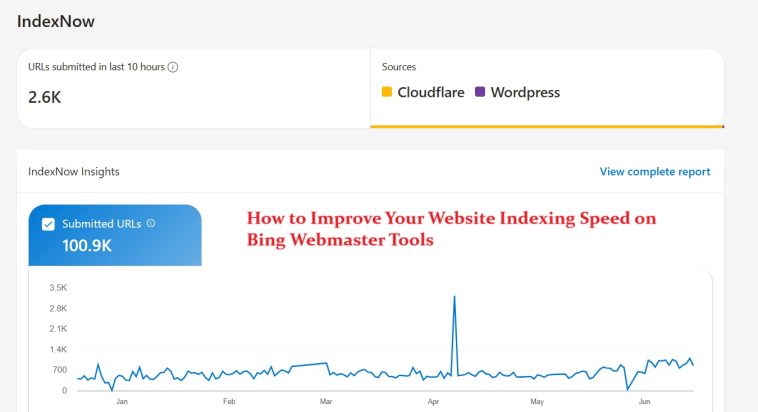
IndexNow is an open protocol backed by Microsoft that lets you instantly notify Bing whenever you publish new content, update an existing page, or delete a page. Without IndexNow, Bingbot discovers changes on its own schedule, which can take anywhere from a few days to several weeks. With IndexNow configured, Bing typically validates and crawls the submitted URL within 1–3 days — sometimes within hours.
How IndexNow Works
When you publish a page, IndexNow sends a single API ping to Bing that says: “This URL changed — come check it.” Bing validates the request and adds the URL to its crawl queue immediately instead of waiting for the next scheduled crawl.
Setting Up IndexNow on WordPress
You have two easy options:
Option A — Use the official IndexNow plugin:
- In WordPress, go to Plugins → Add New and search for “IndexNow Plugin”
- Install and activate it
- Go to Settings → IndexNow — the plugin automatically generates and hosts your API key
- Test it by publishing or updating a post, then check your Bing Webmaster Tools submission history within 24 hours
Option B — Use Rank Math or Yoast SEO (if you already use them):
Both SEO plugins have built-in IndexNow support. In Rank Math, go to General Settings → IndexNow and enable it. In Yoast, IndexNow is available in the premium version. Once activated, every publish or update triggers an automatic ping — no manual work needed.
Setting Up IndexNow on Non-WordPress Sites
- Shopify, Webflow, Squarespace: Use a webhook or automation via Zapier or Make to POST to the IndexNow API endpoint on each publish event
- Joomla: Install an IndexNow extension from the Joomla extensions directory and configure it with your API key
- Cloudflare users: Enable “Crawler Hints” under Caching Configuration — this automatically triggers IndexNow pings for all supported search engines
IndexNow pings Bing, Yandex, and other participating search engines simultaneously with a single submission. One setup, multiple search engines covered.
Step 3: Use the URL Submission Tool for Priority Pages
Even with IndexNow running automatically, you can manually push individual URLs to Bing’s crawl queue for faster processing.
How to submit individual URLs:
- In Bing Webmaster Tools, go to Configure My Site → URL Submission
- Click “Submit URLs”
- Enter one URL per line
- Click Submit
Bing allows up to 10,000 URL submissions per day through this tool. For most websites, that’s more than enough.
Use manual URL submission for:
- Important new articles or landing pages you just published
- Pages you’ve heavily updated and want re-crawled quickly
- High-priority product pages before a sale or launch
- Pages that aren’t getting picked up through your sitemap alone
Manual URL submission gives you direct control. Think of it as a way to say to Bingbot: “Check this page first.”
Step 4: Use the URL Inspection Tool to Diagnose Indexing Issues
If a specific page isn’t getting indexed — or is taking unusually long — the URL Inspection tool in Bing Webmaster Tools tells you exactly why.
How to use it:
- In the left sidebar, go to Reports & Data → URL Inspection
- Enter the full URL of the page you want to check
- Review the report
The URL Inspection tool shows you:
- Whether the page is currently indexed by Bing
- The last date Bingbot crawled it
- Any crawl errors or content processing issues
- Whether the page is being blocked by your
robots.txtfile - Canonical URL Bing resolved to
- SEO and schema issues flagged on the page
If the tool shows your page hasn’t been crawled recently, you can click “Request indexing” directly from that screen to push it into the crawl queue manually.
You can also click the “Live URL” tab to see what Bingbot actually sees when it visits your page — including the HTML source and HTTP headers. This is useful for catching rendering problems where your content isn’t loading correctly for the crawler.
Step 5: Fix Your robots.txt File — A Common Indexing Blocker
One of the most common reasons pages don’t get indexed is an accidental robots.txt block.
A robots.txt file tells search engine bots which parts of your site they’re allowed to crawl. A single misconfigured line can silently block Bingbot from your entire blog folder, your product pages, or even your whole site.
How to check your robots.txt in Bing Webmaster Tools:
- Go to Configure My Site → Crawl Control → robots.txt Tester
- Enter any URL from your site and click Test
- Bing will tell you immediately whether that URL is blocked or allowed
The robots.txt tester also lets you edit your robots.txt file directly within the dashboard. If you find an important page is blocked, remove the blocking rule and click “Verify.”
Best practices:
- Block pages that don’t need to be indexed: admin pages, login pages, thank-you pages, tag archives, and duplicate content
- Never add
Disallow: /— this blocks your entire site - Check your robots.txt after installing new plugins or themes, as they can sometimes add unexpected rules
Use your robots.txt to protect crawl budget — Bingbot’s limited time crawling your site — for pages that actually matter.
Step 6: Optimize Crawl Budget with the Crawl Control Feature
Every website gets a limited “crawl budget” — the number of pages Bingbot will visit in a given period. Larger, more established sites get more budget. Newer or lower-authority sites get less.
If Bingbot is wasting its budget on low-value pages, your important content waits longer to be indexed.
Bing Webmaster Tools has a Crawl Control feature that lets you manage this directly.
How to access it:
Go to Configure My Site → Crawl Control. From here, you can:
- Adjust the crawl rate — how aggressively Bingbot crawls your site
- Set specific crawl time windows — useful if heavy crawling slows down your server during peak hours
- Review the Site Explorer to see which pages Bingbot is visiting most and spot inefficient patterns
How to protect your crawl budget:
- Fix broken links (404 errors) — Bingbot wastes time trying to follow dead links
- Minimize redirect chains — each redirect consumes crawl budget; ideally point directly to the final URL
- Consolidate duplicate content with canonical tags — if two pages have near-identical content, Bingbot may crawl both and index neither
- Remove or
noindexlow-value pages like thin tag archives, empty category pages, and auto-generated parameter URLs
The Site Explorer tool inside Bing Webmaster Tools shows you a direct view of how Bingbot navigates your site structure — which pages it visits, which it skips, and which have crawl issues. It’s one of the most underused features in the dashboard.
Step 7: Strengthen Internal Linking
Internal links are one of the key signals Bingbot uses to discover new pages and decide how important they are.
A new post that has no internal links pointing to it is essentially invisible to Bingbot. It can only find it through your sitemap — which means waiting for the next scheduled crawl.
How to improve internal linking for faster indexing:
- When you publish a new page, immediately add internal links to it from 2–3 existing, well-visited pages on your site
- Use descriptive anchor text that reflects the topic of the linked page — not just “click here”
- Create hub pages or topic clusters where a central page links to several related posts, and those posts link back
- Run a Site Explorer check to find orphaned pages — pages with no internal links pointing to them
Pages with more internal links pointing to them get crawled more frequently. This is especially important for new content you want indexed fast.
Step 8: Improve Page Speed and Technical Health
Bingbot has a time limit when it visits your site. If your pages load slowly, Bingbot may crawl fewer pages per visit or abandon the crawl entirely before reaching all your content.
Faster pages allow Bingbot to crawl more of your site in the same amount of time — directly improving indexing speed.
Technical improvements that help Bingbot crawl faster:
- Compress and resize images — oversized images are the most common cause of slow load times
- Enable browser caching — reduces the data Bingbot needs to download on repeat visits
- Use a CDN (Content Delivery Network) — distributes your content across multiple servers so Bingbot gets a fast response regardless of its crawl location
- Minify CSS and JavaScript — reduces file sizes without changing functionality
- Eliminate unnecessary redirects — each extra redirect adds latency to every page load
You can run a full technical audit using Bing Webmaster Tools’ Site Scan feature under Diagnostics & Tools → Site Scan. It crawls your site and flags issues like broken links, missing alt text, slow pages, redirect chains, and duplicate title tags — all of which affect how efficiently Bingbot can process your site.
Step 9: Use Schema Markup to Help Bing Understand Your Content
Schema markup (structured data) doesn’t directly make Bingbot crawl faster, but it makes your pages easier to process — which can speed up indexing and improve how your content appears in Bing results.
Bing explicitly supports and rewards schema for articles, products, FAQs, recipes, reviews, local businesses, and events.
How to validate your schema in Bing Webmaster Tools:
- Go to Diagnostics & Tools → Markup Validator
- Enter a URL and click Validate
- Bing will show you any errors or warnings in your structured data
Fix any schema errors flagged here. Broken structured data can confuse Bing’s content processing pipeline and delay indexing.
If you use Rank Math or Yoast, both plugins generate schema automatically for common content types. Check the Markup Validator after making changes to confirm everything is reading correctly.
Step 10: Monitor and Iterate — Check Indexing Status Regularly
Getting indexed fast is an ongoing process, not a one-time task.
Use these reports inside Bing Webmaster Tools on a regular basis:
- Search Performance — shows which queries your indexed pages appear for, their rankings, and click-through rates; use this to find pages that are indexed but underperforming
- Crawl Reports — shows crawl errors, pages Bingbot couldn’t access, and trends over time; investigate any sudden spike in errors
- Sitemaps — check that your sitemap is being read and that the number of submitted pages versus indexed pages is close; a large gap means something is blocking indexing
- IndexNow History — if you’ve set up IndexNow, this log shows which URLs were submitted and whether Bing accepted them
Revisit the Site Scan monthly to catch new technical issues before they accumulate. Small problems — a new plugin adding a noindex to archives, a misconfigured redirect — can quietly slow down indexing for weeks if you don’t catch them.
Quick Reference: Indexing Speed Checklist
| Action | Impact on Indexing Speed | Priority |
|---|---|---|
| Verify site and submit sitemap | Essential foundation | Do first |
| Set up IndexNow | Biggest single speed gain | High |
| Submit URLs manually | Fast-tracks priority pages | High |
| Check URL Inspection for errors | Diagnoses specific issues | High |
| Fix robots.txt blocks | Removes crawl barriers | High |
| Improve crawl budget management | More pages indexed per crawl | Medium |
| Strengthen internal linking | Helps Bingbot discover pages | Medium |
| Improve page speed | More pages crawled per visit | Medium |
| Add schema markup | Improves content processing | Medium |
| Monitor reports monthly | Catch issues before they compound | Ongoing |
FAQ: Website Indexing Speed on Bing Webmaster Tools
How long does Bing normally take to index a new page?
Without any optimization, Bing can take anywhere from a few days to several weeks to index a new page, depending on your site’s authority, crawl frequency, and how easily discoverable the page is. With IndexNow set up and a clean sitemap submitted, most pages get crawled within 1–3 days.
Why is my page not getting indexed even after I submitted it?
The most common reasons are: a robots.txt rule blocking Bingbot, a noindex meta tag on the page, canonical tag pointing to a different URL, slow page load times causing Bingbot to time out, or the page having very few or no internal links pointing to it. Use the URL Inspection tool in Bing Webmaster Tools to diagnose the specific issue.
Does IndexNow guarantee faster indexing?
It significantly improves indexing speed, but it’s not a guarantee. IndexNow tells Bing to prioritize crawling the URL — it still needs to evaluate the page content before deciding whether to index it. Pages that meet Bing’s quality guidelines and have good technical health will be indexed fastest.
Does improving Bing indexing also help with Google?
Some improvements do double duty. Fixing your robots.txt, improving page speed, strengthening internal links, and adding schema markup all benefit both Google and Bing. However, IndexNow is a Bing-specific protocol (Google does not officially support it for general web pages), so that improvement only applies to Bing, Yandex, and other IndexNow-participating search engines.
How many URLs can I manually submit per day in Bing Webmaster Tools?
You can submit up to 10,000 URLs per day through the URL Submission tool. This limit applies to the vast majority of sites. If you manage a very high-volume site, you can use Bing’s URL Submission API to automate submissions beyond what the dashboard allows.
What’s the difference between sitemap submission and IndexNow?
A sitemap tells Bing about all the pages on your site — it’s a list Bingbot refers to when planning its crawls. IndexNow is a real-time notification system that alerts Bing the moment a specific URL changes. Both serve different purposes and work best together: a sitemap for full site coverage, IndexNow for immediate notification of new and updated content.
Does Bing index mobile and desktop versions of my site differently?
Bing evaluates mobile-friendliness as a ranking factor, but unlike Google it does not use strict mobile-first indexing. Fast-loading, mobile-optimized pages still perform better in Bing and get crawled more efficiently, but Bing is somewhat more lenient on technical mobile requirements than Google.
Editor’s Opinion
honestly bing indexing was something i ignored for way to long. setting up indexnow was a game changer for me, pages that used to take 2 weeks now show up in a few days. the url inspection tool is also underrated, it told me straight away that two of my pages had a noindex tag i didnt even know about from an old plugin. my advice: do steps 1, 2, and 4 first, those three alone will make the biggest difference. the rest is just fine tuning. dont overthink it.
