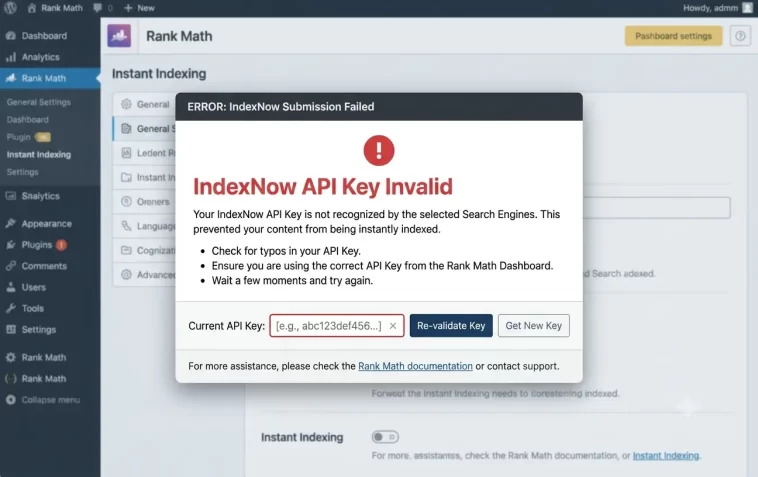
If you’ve been staring at a frustrating “IndexNow API Key Invalid” error inside your Rank Math Instant Indexing panel, you’re not alone. This error stops your URLs from being submitted to search engines like Bing and Yandex, which means your new content takes longer to get noticed. The good news is that the IndexNow API Key Invalid error in Rank Math almost always has a fixable root cause — and this guide walks you through every solution, step by step.
What Is the IndexNow API Key Invalid Error?
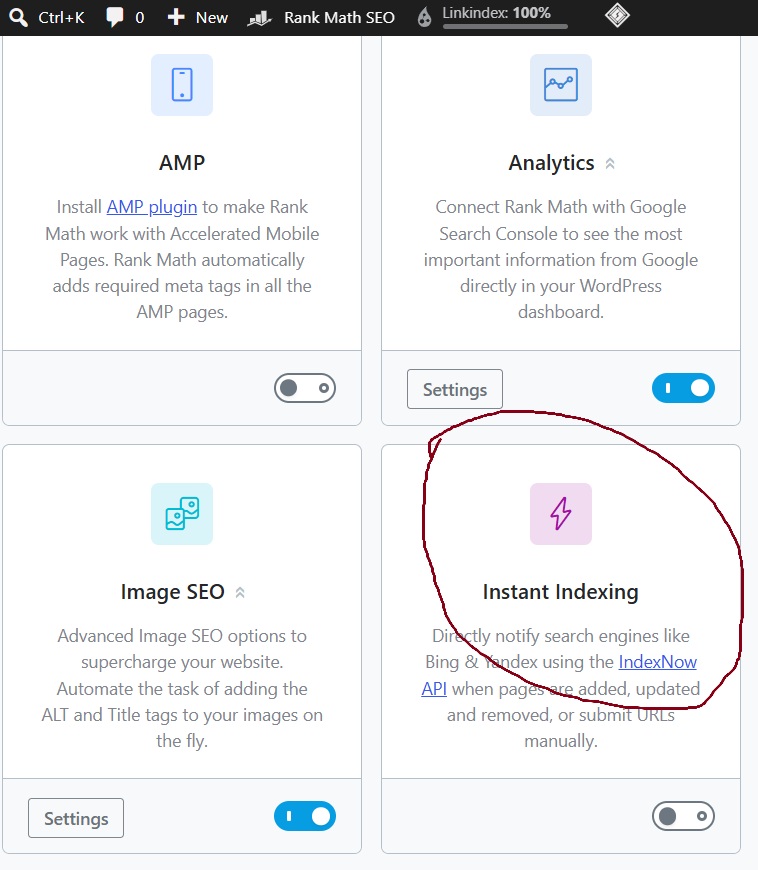
IndexNow is a protocol that lets you notify search engines the moment your content is published or updated. Rank Math integrates this feature through its Instant Indexing module. When everything works correctly, Rank Math automatically generates an API key, hosts a .txt file on your domain, and uses that key to submit URLs.
The “Invalid API Key” error appears when the search engine pings your site to verify ownership and either can’t find the key file, finds the wrong content in it, or the file is being blocked. There are several reasons this can happen, and we’ll cover all of them.
Why Does This Error Happen?
Before jumping into the fixes, it helps to understand what’s going wrong behind the scenes. The most common causes include:
- The
.txtkey file was never created automatically when you enabled the module - A caching plugin is serving a stale or missing version of the key file
- Your
robots.txtfile is blocking search engines from reading the key - A plugin conflict is preventing Rank Math from writing the file
- The API key was changed but the old
.txtfile is still sitting on the server - The WordPress option “Discourage search engines” is accidentally enabled
- The key file exists but contains extra spaces or characters
Now let’s fix it.
Step 1: Check That the API Key File Is Accessible
The first thing to do is verify whether your API key file is actually reachable by search engines. Rank Math hosts this file at a URL like:
https://yourdomain.com/[your-api-key].txtTo find your exact API key, go to WordPress Dashboard → Rank Math SEO → Instant Indexing → Settings. You’ll see your API key listed under the “API Key” field. There’s also a Check Key button right there — click it. A new tab will open showing the key file location.
If the new tab shows your API key as plain text, the file is accessible and the error may be cache-related (jump to Step 3). If you get a 404 error or a blank page, the file doesn’t exist on your server — move to Step 2.
Step 2: Manually Create the API Key .txt File
This is the most common fix. Rank Math is supposed to auto-generate the key file when you enable Instant Indexing, but on some server configurations it fails silently.
Here’s how to create the file manually:
- Go to Rank Math SEO → Instant Indexing → Settings and copy your full API key.
- Open a plain text editor — Notepad on Windows or TextEdit (in plain text mode) on Mac.
- Create a new file and paste only the API key inside it. No spaces before or after. No line breaks. Nothing else.
- Save the file and name it exactly
[your-api-key].txt— the filename must match your API key character for character. - Upload this file to the root directory of your WordPress site — that’s the same folder where
wp-config.phplives. - You can do this via cPanel File Manager or an FTP client like FileZilla.
Once uploaded, visit https://yourdomain.com/[your-api-key].txt in your browser. You should see only the API key on a blank page. If so, the file is live.
Step 3: Clear Your Website Cache
This step trips up a lot of people. Even if the key file exists and is correct, a caching plugin or CDN can serve an old cached response to search engines — causing them to see a 404 or stale content when trying to verify your key.
After creating or updating the key file, always do the following:
- Go to your caching plugin (WP Rocket, W3 Total Cache, LiteSpeed Cache, etc.) and clear all caches
- If you’re using a CDN like Cloudflare, purge the CDN cache as well
- If your hosting provider offers server-level caching (like Kinsta or WP Engine), clear that too
After clearing the cache, use the Check Key button again in Rank Math to confirm the file is now visible. Then try submitting a URL to see if the error is gone.
Step 4: Check Your robots.txt File
Your robots.txt file could be the invisible culprit. If any rule in your robots.txt blocks access to .txt files, or disallows crawling of the root directory, search engines won’t be able to read your API key — and they’ll reject every submission.
To check this in Rank Math, go to Rank Math SEO → General Settings → Edit robots.txt. Look for any Disallow rules that might be too broad. In particular, watch for lines like:
Disallow: /*.txt$Disallow: /
If you see rules that could block access to text files in the root, remove them or narrow the scope. Once you save, clear your cache again and retest.
You should also go to WordPress Dashboard → Settings → Reading and make sure the checkbox labeled “Discourage search engines from indexing this site” is unchecked. It’s a small setting that’s easy to overlook, but when checked, it sends a noindex signal that can interfere with the entire indexing process.
Step 5: Regenerate the API Key Inside Rank Math
If your key file exists, your cache is clear, and robots.txt looks fine but the error persists, it’s time to regenerate the API key entirely. This gives you a fresh key and forces Rank Math to attempt writing a new file.
Here’s how to do it:
- Go to Rank Math SEO → Instant Indexing → Settings
- Look for the option to generate or reset the API key
- Save the settings
- Rank Math will attempt to create the new
.txtfile automatically - Use the Check Key button to verify the new file is accessible
- If the auto-creation fails again, manually upload the new key file following the steps in Step 2 above
Keep in mind that after regenerating, search engines need to re-verify the new key during the next URL submission. This happens automatically — you don’t need to register anything manually.
Step 6: Check for Plugin Conflicts
Sometimes another plugin interferes with how Rank Math writes or serves the key file. This is especially common with security plugins, firewall plugins, or other SEO plugins running simultaneously.
To test for a plugin conflict:
- Go to Plugins → Installed Plugins in your WordPress dashboard
- Temporarily deactivate all plugins except Rank Math
- Check the key file URL to see if it’s now accessible
- If it works, reactivate your other plugins one by one, checking the key URL each time
- When the error returns, the plugin you just reactivated is the culprit
Common plugins that can interfere include iThemes Security, WordFence, Sucuri, All in One SEO, and certain caching configurations. If you identify a conflict, look for a setting in that plugin that might be restricting file access or blocking specific URL patterns.
Step 7: Update Rank Math to the Latest Version
This step seems obvious but is often skipped. In November 2025, a specific bug was patched in the Rank Math Instant Indexing module where changing the API key was not working at all — the old key would remain active even after saving a new one. If you’re running an older version of Rank Math, this bug alone could be causing your invalid key error.
Go to WordPress Dashboard → Updates and make sure Rank Math SEO is on the latest version. Also update any other plugins that handle indexing or SEO. After updating, repeat the regenerate process from Step 5.
Step 8: Confirm Your Site URL Matches the Key
IndexNow uses your API key to verify that the submitted URLs belong to your domain. If your site URL has changed — say, from http:// to https://, or from www to non-www — the association between your key and your domain may be mismatched.
Check that the URL stored in WordPress Dashboard → Settings → General (both Site Address and WordPress Address) exactly matches the domain you’re submitting URLs from. Even a trailing slash mismatch can cause issues in some configurations.
If you recently migrated your site or switched to HTTPS, regenerate your API key after the migration so it’s tied to the correct domain format going forward.
Step 9: Manually Submit a Test URL
Once you’ve applied the relevant fixes, don’t wait passively for the next post to test things. Go to Rank Math SEO → Instant Indexing → URL Submission and manually submit a URL you know is live and indexed.
Watch the response code in the IndexNow History tab:
- 200 — Success. The URL was accepted and the key is valid.
- 202 — Accepted, key verification still pending. This is normal and resolves within a few hours.
- 400 — Bad request. Often a URL formatting issue.
- 403 — Forbidden. The key file is being blocked (go back to Steps 2 and 4).
- Invalid API Key message — Key file not found or contents are wrong (revisit Steps 2 and 5).
If you see a 200 or 202, you’re in good shape. The “IndexNow API Key Invalid” error should be gone.
Quick Troubleshooting Checklist
Before contacting support, run through this checklist:
- Key file is accessible at
yourdomain.com/[api-key].txt - Key file contains only the API key — no extra characters
- Website cache is fully cleared
- CDN cache is purged
- robots.txt has no rules blocking
.txtfiles - “Discourage search engines” option is unchecked
- No conflicting SEO plugins are active
- Rank Math is updated to the latest version
- Site URL in WordPress settings matches your actual domain
FAQ: IndexNow API Key Invalid Error in Rank Math
What causes the IndexNow API Key Invalid error in Rank Math?
The most common cause is that the API key .txt file either wasn’t created automatically, is inaccessible due to server settings, or is being blocked by your robots.txt file or a caching plugin.
Will regenerating the API key break my existing indexing history?
No, regenerating the key won’t delete your indexing history or affect indexed URLs. Search engines simply re-verify ownership using the new key on your next URL submission.
How do I know if my IndexNow API key file is working?
Visit https://yourdomain.com/[your-api-key].txt directly in your browser. If you see only the API key as plain text, the file is working. If you get a 404 or blank page, the file needs to be created or uploaded manually.
Can a security plugin cause the IndexNow API Key Invalid error?
Yes. Plugins like WordFence or iThemes Security can sometimes block access to .txt files in the root directory. Temporarily deactivating security plugins to test for conflicts is a recommended troubleshooting step.
Does IndexNow work with both Bing and Google?
IndexNow is currently supported by Bing, Yandex, and other search engines that have adopted the protocol. Google has its own separate indexing API and does not currently participate in the IndexNow protocol.
What’s the difference between a 202 and an “Invalid API Key” response?
A 202 response means the URL was accepted but the key is still being verified — this is normal and usually resolves within hours. An “Invalid API Key” error means the key file couldn’t be found or validated at all, which requires manual troubleshooting.
Should I keep IndexNow enabled even after fixing the error?
Absolutely. Once fixed, IndexNow is one of the fastest ways to get new and updated content in front of Bing and other participating search engines. Keeping it enabled is a solid SEO practice.
Final Thoughts
The IndexNow API Key Invalid error in Rank Math sounds more complicated than it actually is. In most cases, the fix comes down to one of three things: the key file is missing from your server, a caching layer is hiding it from search engines, or your robots.txt is blocking access. Work through the steps above in order, and you’ll most likely have it resolved within 15 minutes.
Once the key is validated, Rank Math’s Instant Indexing module becomes a genuinely powerful tool — getting your content in front of search engines within minutes of publishing rather than waiting days for a crawl.
Editors Final Note
Friends, to solve this problem, please carefully examine and research the topic I’ve written about. I’ve mentioned the key points in the text; this is actually a general problem, but it’s very easy to solve. Friends, please follow the step-by-step instructions in this topic, and I believe you will definitely reach a solution. Thank you, and good luck!
