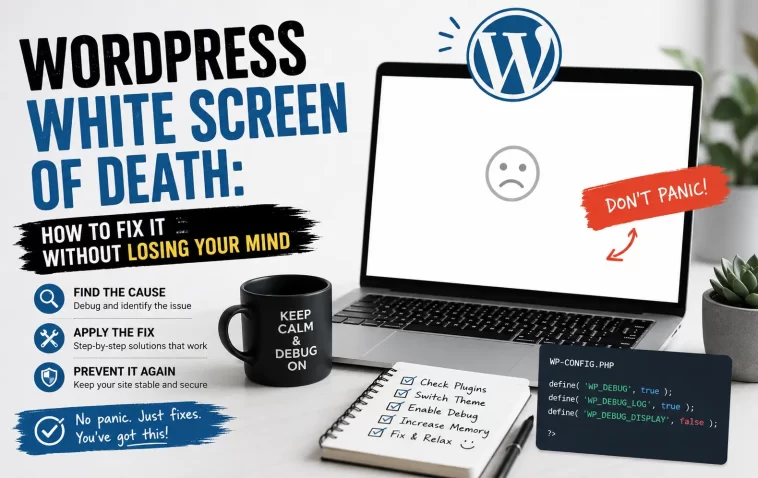
The first time this happened to me, I refreshed the page about six times before I accepted it wasn’t a caching glitch. No error, no red text, just a blank white page where my client’s homepage used to be. If you’re dealing with the WordPress white screen of death right now, here’s the short version: it’s almost never as bad as it looks, and in most cases you can be back online in under fifteen minutes.
Quick Answer
- The white screen usually means a PHP fatal error or exhausted memory limit crashed before WordPress could show an error message
- Try
yoursite.com/wp-adminseparately from the homepage — if one loads and the other doesn’t, that narrows the cause fast - Deactivate plugins via FTP by renaming the
pluginsfolder, then reactivate one at a time - Bump the PHP memory limit in
wp-config.phpif plugins aren’t the issue - Turn on
WP_DEBUGtemporarily to see the actual error instead of guessing
Why It Happens
There isn’t a single cause of WSOD, and that’s exactly why it’s such an annoying error to deal with — it’s a symptom, not a diagnosis. A few things show up constantly:
PHP exhausts its memory limit. From what I’ve seen, this is the single most common cause on real sites in 2026, and it’s also the one that produces the truest “blank screen” — as opposed to a “there has been a critical error” message. When PHP runs out of memory before WordPress’s own error handler loads, the server just terminates the request. No message, nothing to log, just white.
A plugin conflict or bad update. Two plugins hooking into the same function, an incompatible update, or a plugin that hasn’t been tested against your current PHP version — any of these can bring the whole site down instantly. Plugins are responsible for the overwhelming majority of WSOD cases, way more than themes.
A corrupted or incompatible theme. Less common than plugins, but a theme update that assumes a newer WordPress version, or a broken functions.php edit, produces the same blank result.
PHP version mismatches. So if your host is still running an older PHP branch while your plugins expect 8.1 or higher, that gap alone can trigger fatal errors that manifest as a white screen.
A failed WordPress update leaving a stuck .maintenance file. This one’s easy to miss. If an update gets interrupted, WordPress can get stuck thinking it’s mid-upgrade, and that shows up as a blank page too.
Common Scenarios
- Only the admin area is blank, the site itself loads fine — usually points to an admin-only plugin, like a security plugin or dashboard widget, or a user-role specific conflict
- The whole site is blank, front end and admin both — more likely a memory limit or a global PHP fatal error affecting every request
- Only one specific post or page is blank — often a corrupted block, a broken shortcode, or a plugin conflict scoped to that content type
- The screen appeared right after an update — check the update log first; this is almost always plugin, theme, or PHP version related, not a hosting issue
Step-by-Step Fixes
Step 1: Check if wp-admin still loads
Go to yoursite.com/wp-admin separately from your homepage. If your dashboard loads but the front end doesn’t, you can fix most of this without touching FTP at all. If both are blank, you’ll need file access — SFTP, SSH, or your host’s file manager.
Step 2: Deactivate all plugins
If you can reach wp-admin, go to Plugins and deactivate everything at once. If you can’t, connect via FTP, go to wp-content, and rename the plugins folder to something like plugins-off. WordPress can’t find the folder it expects, so it treats every plugin as disabled.
Reload your site. If it comes back, a plugin caused this. Rename the folder back to plugins, then reactivate them one at a time, reloading after each one. Whichever activation brings the white screen back is your culprit.
Step 3: Switch to a default theme
If plugins weren’t it, test your theme. Rename your active theme’s folder via FTP, or switch to a default theme like Twenty Twenty-Four through the dashboard if you still have access. WordPress will fall back automatically if it can’t find the active theme.
Step 4: Increase the PHP memory limit
Open wp-config.php and add this line above /* That's all, stop editing! */:
define( 'WP_MEMORY_LIMIT', '256M' );WordPress’s default is a stingy 32MB, which isn’t nearly enough for a modern site running page builders or WooCommerce. 256MB is a reasonable target, and some hosts let you push it higher through php.ini if 256 still isn’t enough.
Step 5: Turn on WP_DEBUG to see what’s actually happening
Add these lines to wp-config.php:
define( 'WP_DEBUG', true );
define( 'WP_DEBUG_LOG', true );
define( 'WP_DEBUG_DISPLAY', false );
WP_DEBUG_DISPLAY set to false keeps the error out of the visitor-facing page (which matters — leaving raw PHP errors visible to the public is a bit of a security issue) while still writing everything to /wp-content/debug.log. Open that log and you’ll usually see exactly which file and line triggered the fatal error.
Step 6: Restore from a backup as a last resort
If none of the above brings the site back, and you’ve got a backup from before the issue started, restoring is often faster than continuing to dig. Not satisfying, but sometimes it’s the pragmatic move.
What Actually Worked For Me
The site I mentioned earlier — client’s homepage, totally blank, admin login page working fine. My first instinct was plugins, obviously, since that’s the textbook answer. I deactivated everything through wp-admin since I still had access, reloaded, and the front end came right back. Great, found it, I thought.
Except when I reactivated plugins one by one, none of them brought the white screen back. Every single plugin reactivated cleanly. I sat there for a solid ten minutes convinced I’d somehow fixed it by looking at it wrong.
Turned out it wasn’t a plugin at all — it was a stuck .maintenance file left over from an auto-update that had gotten interrupted, probably by a brief hosting timeout. Deactivating all plugins had reset some cached state that happened to mask the real issue temporarily, but the maintenance file was still sitting in the root directory. I found it almost by accident while poking around via FTP for something else entirely, deleted it, and the intermittent blank screen that had been coming back on and off stopped for good. Not a clean diagnostic process at all, more like stumbling into the answer sideways.
Advanced Fixes and Edge Cases
Check your host’s error logs, not just WordPress’s. Sometimes the WSOD is actually a 500 Internal Server Error happening at the Apache or Nginx level, before PHP even gets involved. Your host’s control panel usually has a separate error log outside of WordPress that catches this.
Look for a stuck .maintenance file. If an update process gets interrupted, this file sits in your root directory telling WordPress to show a maintenance message — which can sometimes render as blank depending on your theme. Deleting it via FTP is safe if you’re confident no update is actually in progress.
Rule out a database connection issue. A true WSOD and a “Error establishing a database connection” message aren’t the same thing, but a misconfigured wp-config.php database credential can sometimes fail in a way that produces a blank page instead of the expected error, depending on your host’s error suppression settings.
Use Health Check & Troubleshooting if you have dashboard access. This built-in tool lets you disable plugins and switch themes just for your own session, without affecting what visitors see — genuinely useful if the site is otherwise functioning for the public and you don’t want to take it fully offline while diagnosing.
Prevention Tips
- Don’t let hosts auto-update plugins and core simultaneously without reviewing what changed
- Keep a recent backup running automatically — restoring is often faster than diagnosing
- Test major plugin and theme updates on staging first if your host offers it
- Keep your PHP version reasonably current; a lot of WSOD cases trace back to plugins expecting PHP 8.1+ while the server’s still on an older branch
- Set
WP_DEBUGback to false once you’re done troubleshooting — leaving it on exposes server details to anyone who triggers an error on a production site
FAQ
Does the white screen delete my content? No. It’s a display failure, not data loss. Your database and files are still there; they’re just failing to render.
Why does my site show a white screen only sometimes? Intermittent WSOD usually points to a memory limit that’s borderline — fine most of the time, but tips over under heavier traffic or a specific page with more resource-hungry elements.
I can’t access FTP or my dashboard at all. Now what? Contact your host’s support and ask them to check server-level error logs. Most hosts can see what’s happening even when you’re fully locked out.
Is this a hacking issue? Rarely, but not impossible. If the white screen appeared alongside other odd behavior — unexpected admin users, weird redirects — it’s worth a security scan. But for most cases, it’s a plugin, memory, or update issue, not a compromise.
Will reinstalling WordPress core fix it? Sometimes, if core files got corrupted, but that’s not the first thing to try. Rule out plugins and memory limits before touching core files.
Editor’s Opinion
the white screen freaks people out way more than it should, mostly because it gives you zero information by default. once you turn debug mode on it stops being scary and just becomes a normal error to fix. the maintenance file thing still annoys me a bit, not gonna pretend that was a clean fix, i basically found it by accident. anyway — check memory limit and plugins first, that covers most cases, the weird ones come after.
