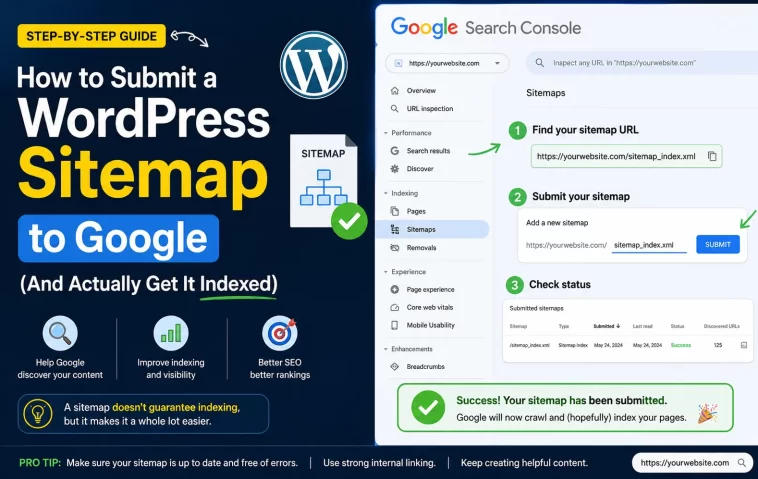
I broke a client’s indexing for about two weeks once, purely because I resubmitted a sitemap URL that had a trailing slash mismatch. Google just quietly ignored it. If you’re trying to submit a WordPress sitemap to Google and it’s not showing up, or Search Console keeps flagging errors, you’re not doing anything unusually wrong — this trips up a lot of people. The good news is the fix is almost always fast once you know where to look.
Quick Answer
- Your sitemap URL is usually
/sitemap_index.xml(Rank Math, Yoast) or/wp-sitemap.xmlif you’re not running an SEO plugin - Go to Google Search Console → Indexing → Sitemaps → paste the URL → Submit
- If it fails, check robots.txt isn’t blocking it and that the URL returns a 200 status, not a redirect or 404
- Submitting a sitemap does not force indexing — it just tells Google what exists
- Give it a few days before assuming something’s broken
Why Sitemap Submission Fails (Or Looks Like It Failed)
There isn’t one single cause here, and honestly that’s what makes this annoying to troubleshoot for beginners. A few things show up over and over:
Wrong sitemap URL. WordPress has had a built-in sitemap since version 5.5, sitting at /wp-sitemap.xml. But if you’re running Rank Math or Yoast, they disable the core one and generate their own, usually at /sitemap_index.xml. So if you submit the wrong one, or you submit both without realizing it, Search Console can get confused about which one is “the” sitemap.
Robots.txt is blocking crawlers. This one’s sneaky. Some caching or security plugins add a disallow rule that accidentally catches your sitemap path. And if Googlebot can’t fetch the file, it doesn’t matter how correct the content is.
Redirect or SSL mismatches. If your site moved from http to https, or www to non-www, and the redirects aren’t clean, the sitemap URL you’re submitting might 301 somewhere Google doesn’t expect. Search Console tends to report this as a vague “couldn’t fetch” error rather than telling you exactly what happened.
Site verification issues. You’d be surprised how often the actual problem isn’t the sitemap at all — it’s that the property in Search Console was verified against the wrong domain variant (http vs https, or with vs without www), so nothing you submit under that property behaves correctly.
Technical Comparison: Sitemap Sources in WordPress
| Source | Default URL | Notes |
|---|---|---|
| WordPress core (5.5+) | /wp-sitemap.xml | Basic, no images/priority data, gets disabled by most SEO plugins |
| Yoast SEO | /sitemap_index.xml | Splits into sub-sitemaps by post type |
| Rank Math | /sitemap_index.xml | Similar structure to Yoast, configurable exclusions |
| All in One SEO | /sitemap.xml (or _index) | Varies by version, worth double-checking in-plugin |
Not every site behaves identically here — if you’ve switched plugins recently, from what I’ve seen the old sitemap URL sometimes stays cached in Search Console until you manually remove it.
Step-by-Step: Submitting Your Sitemap
Step 1: Confirm your sitemap actually exists
Open your browser and go to yourdomain.com/sitemap_index.xml. If you see an XML file listing sub-sitemaps (posts, pages, categories), you’re good. If you get a 404, your SEO plugin either isn’t generating one or has sitemaps disabled in its settings.
Step 2: Check the sitemap loads with a 200 status, not a redirect
You can eyeball this in the browser’s network tab, or just trust that if the URL bar didn’t change after loading, you’re fine. If it redirected you somewhere, note the final URL — that’s the one you’ll actually want to submit.
Step 3: Verify robots.txt isn’t blocking it
Go to yourdomain.com/robots.txt and look for a Disallow line that might catch your sitemap path. Most WordPress sites reference the sitemap right in robots.txt automatically, which is a good sign if you see it there.
Step 4: Log into Google Search Console
Pick the correct property. This matters more than people think — if you have both an http and https property, or www and non-www, make sure you’re working inside the one that matches your actual live URL structure.
Step 5: Submit the sitemap
Under Indexing → Sitemaps, paste in just the path after your domain (like sitemap_index.xml) and hit Submit. You don’t need the full URL, just the relative path.
Step 6: Wait, then check status
Google usually processes it within a few hours to a day or two. It’ll show “Success” with a count of discovered URLs. That count won’t match your indexed pages count — that’s normal, not an error.
What Actually Worked For Me
The two-week thing I mentioned earlier — here’s the actual story, because I think it’s more useful than a clean tutorial version. I’d migrated a site from Yoast to Rank Math for a client, and Rank Math generated its sitemap fine. I submitted it, got a green “Success,” and figured that was that.
Except new posts weren’t getting indexed. I checked the sitemap manually, it looked correct. I re-verified the property, re-submitted, nothing changed. I even went down the rabbit hole of checking canonical tags, thinking maybe there was a duplicate content issue confusing Google. There wasn’t.
It turned out the old Yoast sitemap was still referenced in a cached robots.txt served by the hosting provider’s edge caching layer — not the actual robots.txt file, a cached version of it, from before the plugin switch. Google was reading stale rules. Purging the host’s cache (not just WordPress’s cache — a separate CDN layer) fixed it within a day.
That’s not something a “resubmit your sitemap” tutorial would ever catch, and I only found it because a coworker mentioned offhand that their host caches robots.txt aggressively. So: if a fix doesn’t work and everything looks technically correct, it’s worth asking what’s caching in front of WordPress, not just what WordPress itself is doing.
Advanced Fixes and Edge Cases
Check Search Console’s URL Inspection tool directly. Instead of relying on sitemap status alone, paste an individual URL from your sitemap into the URL Inspection tool. It’ll tell you if Google has crawled it, indexed it, or hit a specific block — this is more granular than the sitemap report.
Look at “Discovered — currently not indexed” vs “Crawled — currently not indexed.” These sound similar but mean different things. Discovered-not-indexed usually means Google hasn’t gotten to it yet, often a crawl budget thing on larger sites. Crawled-not-indexed means Google looked and decided not to include it — that’s more likely a content quality or duplication issue, not a sitemap problem at all.
Multiple sitemaps from conflicting plugins. If you’ve ever installed more than one SEO plugin (even briefly, even if you deactivated it), check for leftover sitemap files. Old ones sometimes stay accessible and get double-crawled, which wastes crawl budget on larger sites.
Server-level XML validation errors. On rare occasions, a plugin conflict injects stray output before the XML declaration, which breaks parsing. If Search Console reports “couldn’t read the sitemap,” view the raw source (not the rendered version) and check the very first characters — there shouldn’t be anything before <?xml.
Prevention Tips
- Don’t run two SEO plugins with sitemap generation enabled at the same time
- Re-check your sitemap URL after any plugin switch, domain migration, or SSL change
- Keep an eye on the Sitemaps report in Search Console every few weeks, not just once
- If you exclude content types from indexing, exclude them from the sitemap too — sending Google noindex pages inside a sitemap sends mixed signals
FAQ
Do I need to resubmit my sitemap every time I publish a new post? No. Once it’s submitted, Google revisits it periodically on its own.
Why does my sitemap show “Success” but pages still aren’t indexed? Submission just means Google received the file. Indexing is a separate decision based on content, crawl budget, and site quality signals — a green checkmark doesn’t guarantee anything downstream.
Can I have more than one sitemap? Yes, and most SEO plugins already split large sites into several automatically (posts, pages, categories, etc.) under one index file. That’s normal and not something to fix.
Is submitting through robots.txt enough, or do I also need Search Console? Referencing it in robots.txt helps Google discover it passively, but manually submitting through Search Console gives you the reporting and error visibility that robots.txt alone won’t show you.
My sitemap URL keeps changing after I switch themes — is that normal? The sitemap URL is controlled by your SEO plugin, not your theme, so a theme switch shouldn’t change it. If it did change, something else is going on — worth double-checking which plugin is actually generating it.
Editor’s Opinion
honestly sitemaps get way more anxiety than they deserve. people treat a “success” message like it means their content is now indexed, and that’s just not what it means. it’s a to-do list you hand google, not a guarantee. the robots.txt caching thing i ran into still bugs me a little because it wasted so much time on the wrong theory. if something looks fine and isn’t working, check what’s sitting in front of wordpress before you tear apart wordpress itself.
