Quick Answer
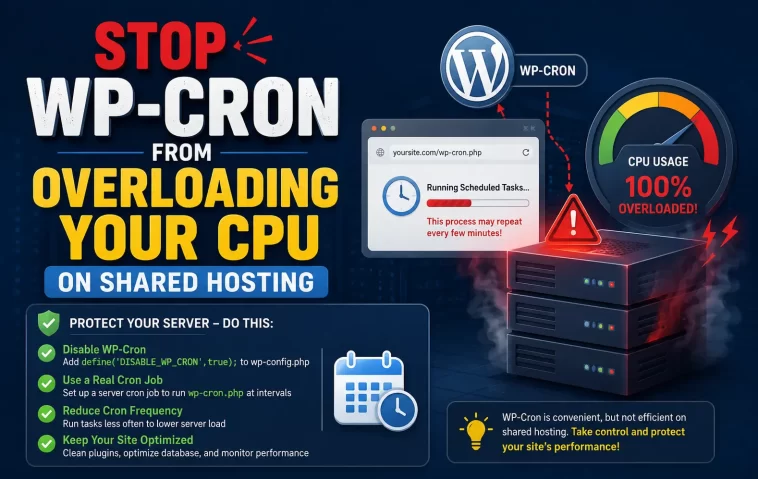
- WP-Cron runs on every page load by default, which on shared hosting with limited CPU allotments turns into death by a thousand cuts
- The real fix is disabling the default trigger in
wp-config.phpand replacing it with a real system cron job - Set the system cron interval to 5-15 minutes depending on how time-sensitive your scheduled tasks actually are
- Plugin bloat (especially backup and SEO plugins scheduling their own hooks) is the most overlooked contributor
- Most “optimize WP-Cron” tutorials skip the part where you have to actually audit what’s running — that’s usually where the CPU spikes are hiding
So I got an “Excessive CPU Usage” warning email from a budget host last year, the kind that threatens suspension if you don’t fix it in 24 hours. Turned out it wasn’t a hacked plugin or a runaway query. It was WP-Cron, quietly firing on every single page load, every single time, for a site that gets a decent amount of traffic but nowhere near enough to justify what was happening server-side.
If you’re dealing with wp-cron overloading your CPU on shared hosting, you’re probably seeing one of two things: a host warning about excessive resource usage, or just a site that feels sluggish for no obvious reason. Both point to the same root issue. And the fix isn’t complicated, but it does require understanding why WordPress handles scheduled tasks the way it does — because the default behavior is honestly kind of a bad fit for shared hosting environments.
Why WP-Cron Eats CPU on Shared Hosting
WordPress doesn’t have a real cron daemon built in. What it calls “WP-Cron” is actually a pseudo-cron system that piggybacks on page visits. Every time someone loads a page on your site, WordPress checks wp-cron.php to see if any scheduled tasks are due, and if so, runs them right then, in that request.
On a low-traffic site this barely matters. But shared hosting plans typically allocate a fixed, fairly small amount of CPU time per account, and a few things compound to make WP-Cron disproportionately expensive there:
- Shared CPU caps mean every wp-cron.php execution competes with your actual visitors’ requests for the same limited resource pool, and hosts often throttle or flag accounts that cross a usage threshold, regardless of whether the spike came from real traffic or background tasks.
- Concurrent requests trigger concurrent cron checks. If five people load pages at the same second and a task is due, WordPress can technically try to fire that task multiple times before the lock mechanism kicks in — not always, but it happens, especially under any kind of load or with caching plugins that bypass normal request flow.
- Plugins schedule far more than you’d expect. Backup plugins, SEO plugins, security scanners — a lot of them hook into
wp_schedule_eventand add their own recurring tasks without telling you. I’ve seen sites with a dozen cron jobs stacked up that the site owner had no idea existed. - Missed schedules pile up. If your site gets low traffic for a stretch (say overnight), WP-Cron doesn’t fire on schedule — it fires on the next visit, and by then it might be trying to “catch up” on multiple overdue tasks at once.
That last one catches people off guard. It’s not that WP-Cron is randomly slow — it’s that it’s reactive, not proactive, and reactive scheduling on a resource-capped server is just asking for trouble.
Common Scenarios Where This Bites You
This shows up differently depending on your setup, and it’s worth knowing which bucket you’re in.
On a WooCommerce store, WP-Cron overload usually pairs with abandoned cart plugins and stock sync tasks, both of which schedule frequent recurring events. On a basic blog with no e-commerce, it’s almost always backup plugins or a caching plugin’s cache-warming routine. And on multisite installs — well, multisite makes everything worse here, because WP-Cron checks run per-site, not network-wide, so a network of 10 sites can mean 10x the background overhead on shared resources that weren’t sized for that.
I’ve also seen this hit harder right after a migration. Not 100% sure why, but my guess is leftover cron entries from the old environment combined with a fresh DNS propagation period where bots and crawlers are hitting the site more than usual, triggering more page loads, which means more cron checks.
Step-by-Step Fixes
Step 1: Confirm WP-Cron Is Actually the Problem
Don’t just assume. Install WP Crontrol (free plugin) and check what’s scheduled. You’re looking for events that fire way more often than they need to, or duplicate entries from a plugin that got reinstalled or updated.
Image: WP Crontrol events list showing scheduled hooks, their next run time, and recurrence interval
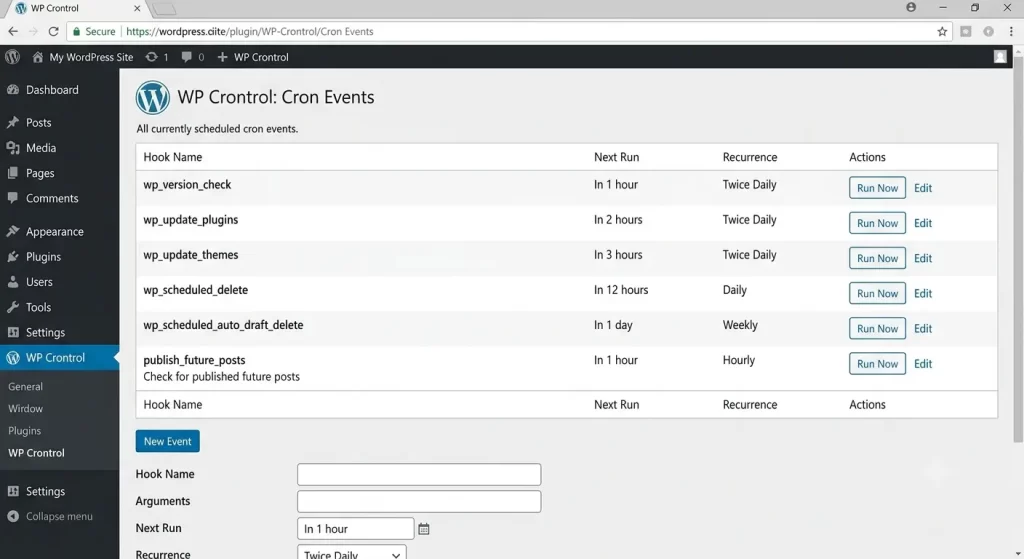
If you see the same hook name listed two or three times with different “next run” times, that’s a duplicate scheduling bug — usually from a plugin update that didn’t clean up properly.
Step 2: Disable the Default WP-Cron Trigger
In your wp-config.php, add this line above the /* That's all, stop editing! */ comment:
php
define('DISABLE_WP_CRON', true);This stops WordPress from checking for due tasks on every page load. It doesn’t disable scheduled tasks entirely — it just stops them from firing inline with visitor requests.
Step 3: Set Up a Real System Cron Job
This is the part people skip, and skipping it just breaks scheduled tasks entirely rather than fixing the CPU issue. You need something external actually triggering wp-cron.php on a fixed schedule.
Most shared hosts give you a cPanel cron job interface. Set it up like this:
*/15 * * * * wget -q -O - https://yourdomain.com/wp-cron.php?doing_wp_cron >/dev/null 2>&1That runs every 15 minutes instead of on every page load. Adjust the interval based on what you actually need — if you’ve got time-sensitive scheduled posts, you might want 5 minutes; if it’s mostly cleanup tasks, 30 minutes is fine.
[Image: cPanel Cron Jobs interface showing the command field, minute/hour schedule selectors, and the common settings dropdown]
A lot of hosts also let you use curl instead of wget — check which one’s actually available on your plan, because not every shared host includes both, and the cron job will just silently fail if you pick the wrong one.
Step 4: Audit and Trim Plugin-Scheduled Tasks
Go back into WP Crontrol and look at every recurring event. For each one, ask whether you actually need it that frequently. Backup plugins defaulting to hourly backups on a site that updates content once a week is a common offender — drop it to daily or weekly.
What Actually Worked For Me
Honestly, my first attempt was just disabling WP-Cron and calling it done. That was a mistake — scheduled posts stopped publishing on time, and I didn’t notice for almost two days because I wasn’t checking that part of the site closely. So lesson one: disabling the default trigger without replacing it with a real cron job just trades one problem for a worse one.
After fixing that, the CPU warnings stopped for about three weeks, then came back. Turned out a security plugin had re-enabled its own internal cron check on update, completely separate from WordPress’s DISABLE_WP_CRON constant — it had its own scheduling logic that ignored that flag entirely. That one took a while to track down because I assumed the constant covered everything plugin-related. It doesn’t, necessarily, depending on how a plugin is coded.
What finally worked was the system cron approach combined with manually disabling that plugin’s internal scheduler from its own settings page. Annoying that I had to dig through a support forum thread to even find out that setting existed — it wasn’t documented anywhere obvious.
Advanced Fixes and Edge Cases
Server-level cron via SSH (if your shared host allows it): Some shared hosting plans do give SSH access even on lower tiers. If yours does, you can set up the cron job directly through crontab -e instead of relying on cPanel’s interface, which gives you more control over logging and error output:
*/15 * * * * php /home/username/public_html/wp-cron.php >/dev/null 2>&1Calling PHP directly instead of hitting the URL avoids an HTTP round-trip and is slightly lighter on resources, though the difference is small.
Checking for cron lock conflicts: If you’re running any kind of object caching (Redis, Memcached) alongside cron jobs, occasionally the cron lock transient gets stuck and prevents future runs from firing at all. You’d see this as tasks just not running rather than running too often. Clearing the doing_cron transient manually via WP Crontrol or a database query usually resolves it.
Logging cron execution: Add logging to confirm your system cron is actually hitting the URL successfully rather than silently failing (wrong path, wrong domain, SSL cert issues on the cron command itself are a surprisingly common cause of “I set it up but nothing changed”).
Prevention Tips
Check your scheduled cron events every few months, not just when something breaks — plugin updates have a habit of adding new scheduled tasks without much warning. And don’t install backup or security plugins that schedule hourly checks unless your site actually changes that often; daily is plenty for most small to mid-sized sites. So if you’re migrating hosts, re-verify your system cron job got recreated — it’s a config setting that doesn’t always transfer automatically with a migration tool.
Frequently Asked Questions
Will disabling WP-Cron break scheduled posts? Yes, if you don’t replace it with a real cron job. Disabling the constant alone just stops the trigger — it doesn’t stop the need for one.
How often should I set my system cron interval? 15 minutes is a safe default for most sites. Drop to 5 minutes only if you genuinely need near-real-time scheduled publishing.
Can I just delete wp-cron.php instead? Don’t. Some plugins call it directly and you’ll get fatal errors. Use the DISABLE_WP_CRON constant instead.
My host says I’m still over CPU limits after setting up system cron. What now? At that point it’s probably not WP-Cron anymore — check for bot traffic, bloated database queries, or just outgrowing your hosting tier.
Does this affect SEO or site speed for visitors? A little, indirectly. Removing the inline cron check from page loads can shave a small amount off response time, especially on pages that happen to coincide with a scheduled task firing.
Editor’s Opinion
honestly this is one of those fixes that feels way too easy once you know it, but the docs around it are kind of scattered and assume you already know what a system cron job even is. the wp-config line takes 30 seconds. setting up the actual cron job in cpanel is the part that trips people up bc every host’s interface looks slightly different. also double check your cron actually fired at least once after setup, don’t just trust it blindly
