I remember the exact moment it happened. I was in the middle of a project, needed a quick screenshot, and hit Win+Shift+S like I always do. The screen dimmed, I made my selection — and then nothing. The Snipping Tool just crashed. No screenshot, no error message, no warning. Just gone.
If you’ve experienced the same thing, you’re not alone. The Windows 11 Snipping Tool crashing when using the Win+Shift+S shortcut has become one of the most reported issues in recent Windows updates. It’s frustrating, especially when it suddenly breaks without you changing anything.
The good news? Most of the time, this is fixable without reinstalling Windows or calling tech support. Let me walk you through exactly what’s happening and how to fix it.
Why Does the Snipping Tool Crash on Win+Shift+S?
Before jumping into fixes, it helps to understand what’s actually going wrong. The Snipping Tool in Windows 11 isn’t the same lightweight utility it used to be. Microsoft merged the old Snipping Tool and Snip & Sketch into a single app that runs through the Microsoft Store — which means it can break independently of Windows Update.
Here are the most common causes of the crash:
- Corrupted app files after a Windows or Store update
- Disabled notifications blocking the screenshot overlay from appearing
- Third-party app conflicts (Discord overlays, Nvidia GeForce Experience, OneDrive, Dropbox, etc.)
- Stalled background processes like Windows Explorer or the Windows Graphics Capture service
- Focus Assist being enabled, which can suppress the snipping toolbar entirely
- Outdated or conflicting display drivers
- A buggy Windows update — Microsoft has admitted to accidentally breaking built-in apps like Snipping Tool, Notepad, and Paint in certain Patch Tuesday releases
Understanding the root cause helps you pick the right fix instead of trying everything blindly.
Fix 1: Restart Windows Explorer
This is the fastest fix and works surprisingly often. A temporary Explorer crash can disable keyboard shortcuts system-wide, including Win+Shift+S.
- Press Ctrl + Shift + Esc to open Task Manager
- Find Windows Explorer in the list
- Right-click it and select Restart
- Wait a few seconds, then try Win+Shift+S again
You don’t need to reboot your entire PC for this. Restarting Explorer takes about five seconds and often brings the shortcut back immediately.
Fix 2: Check Your Notification Settings
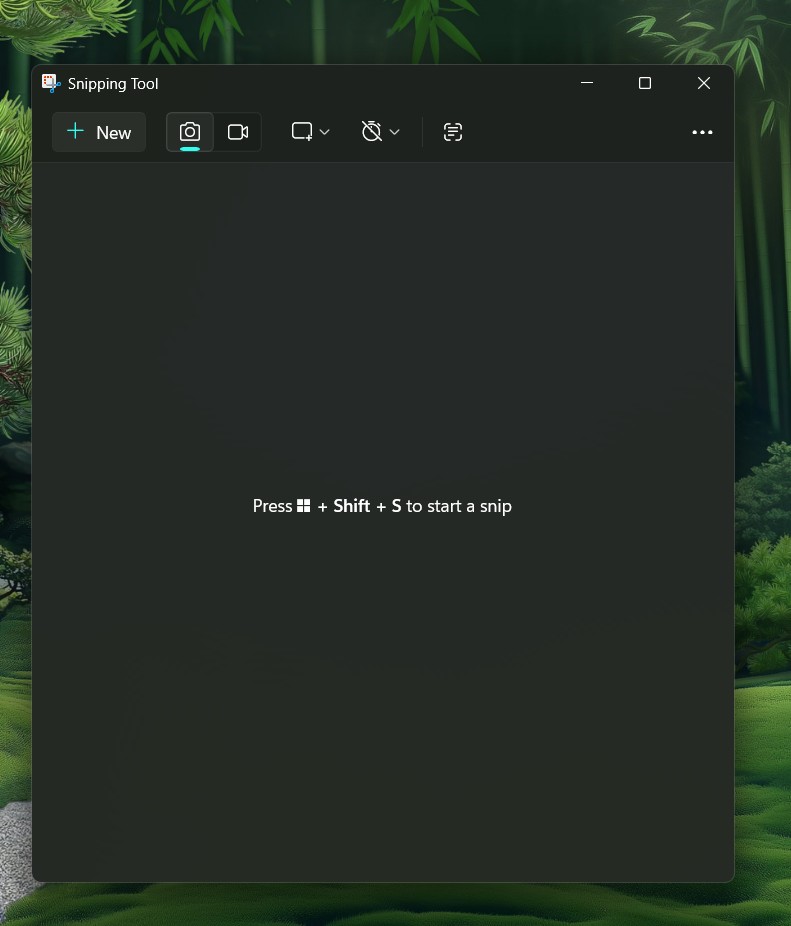
This is one of the most overlooked causes of the Snipping Tool crashing or not responding. When you press Win+Shift+S, Windows needs to display a notification-style thumbnail in the bottom-right corner. If notifications are blocked for the Snipping Tool, the app may crash trying to show it.
- Open Settings (Win+I)
- Go to System → Notifications
- Scroll down and make sure Snipping Tool is toggled On
- Also ensure the master Notifications toggle at the top is enabled
Once notifications are re-enabled, test the shortcut again.
Fix 3: Turn Off Focus Assist
Focus Assist is designed to reduce distractions, but it can sometimes block UI elements that the Snipping Tool depends on. If the screen dims when you press the shortcut but nothing else happens, this could be your issue.
- Open Settings → System → Focus Assist
- Set it to Off or Priority only
- Try Win+Shift+S again
If the snipping toolbar appears now, you’ve found your culprit. You can configure Focus Assist to be less aggressive rather than disabling it completely.
Fix 4: Repair or Reset the Snipping Tool App
Windows 11 has a built-in repair function that can fix corrupted Snipping Tool files without you having to uninstall anything. This is often the fastest proper fix for crashes triggered by Windows updates.
- Open Settings → Apps → Installed Apps
- Search for Snipping Tool
- Click the three-dot menu (…) next to it
- Select Advanced Options
- Click Repair first and wait for it to complete
- Test the shortcut — if it still crashes, go back and click Reset
Note: Resetting the app will clear its saved settings and data, but it won’t affect your screenshots or other files.
Fix 5: Close Conflicting Overlay Apps
Third-party apps that run overlays or hook into your keyboard shortcuts are a major cause of Win+Shift+S conflicts. Common culprits include:
- Discord (has its own screenshot shortcut)
- Nvidia GeForce Experience overlay
- OneDrive or Dropbox sync clients
- Greenshot, ShareX, or other screenshot tools
- Browser extensions that capture screen content
- Grammarly desktop app
Try this: close each of these apps one at a time using the System Tray, then test the shortcut after each one. If the Snipping Tool works after closing a specific app, you’ve identified the conflict. You can then go into that app’s settings and reassign or disable its screenshot shortcut.
Fix 6: Run SFC and DISM to Repair System Files
If the Snipping Tool keeps crashing even after repairs, your core Windows system files may be damaged. This can happen after failed updates or improper shutdowns.
Step 1 — Run SFC:
- Press Win+R, type cmd, then press Ctrl+Shift+Enter to open Command Prompt as Administrator
- Type the following and press Enter:
sfc /scannow- Wait for the scan to complete. If it finds corrupted files, it will attempt to fix them automatically.
Step 2 — Run DISM (if SFC finds issues it can’t fix):
- In the same admin Command Prompt, type:
DISM /Online /Cleanup-Image /RestoreHealth- This process can take 10–20 minutes. Let it finish completely before restarting your PC.
After running both tools and restarting, test the Snipping Tool again.
Fix 7: Update or Reinstall the Snipping Tool from Microsoft Store
Since Windows 11 delivers the Snipping Tool through the Microsoft Store, updating it there is separate from Windows Update. You might be running a buggy old version without realizing it.
- Open the Microsoft Store
- Click your Library icon (bottom-left)
- Click Get updates to check for pending app updates
- If a Snipping Tool update is available, install it
If updating doesn’t help, reinstall it:
- Go to Settings → Apps → Installed Apps
- Find Snipping Tool, click the three-dot menu, and select Uninstall
- Open Microsoft Store, search for Snipping Tool, and reinstall the official Microsoft app
This gives you a completely clean install of the app with no corrupted files.
Fix 8: Switch the Default Handler to Screen Snipping
This is a clever workaround that many users don’t know about. The Win+Shift+S shortcut can be handled by either the full Snipping Tool app or a lighter system feature called Screen Snipping. If the full app is buggy, you can redirect the shortcut to use the more stable built-in handler instead.
- Go to Settings → Apps → Default Apps
- In the search bar, type Snipping Tool and click on it
- Scroll down to find MS-SCREENCLIP
- Click on it and change the default from Snipping Tool → Screen Snipping
Now when you press Win+Shift+S, Windows uses the lighter Screen Snipping overlay instead of launching the full app. You still get the same selection UI, and your screenshot still copies to the clipboard.
Fix 9: Update Your Display Drivers
Screenshot tools use display drivers to capture screen content. An outdated or conflicting driver can cause the Snipping Tool to crash, especially on systems with dedicated graphics cards or multiple monitors.
- Right-click the Start button and select Device Manager
- Expand Display Adapters
- Right-click your GPU (Intel, Nvidia, or AMD) and select Update driver
- Choose Search automatically for drivers
Alternatively, visit your GPU manufacturer’s website directly — Nvidia, AMD, or Intel — and download the latest driver for your specific card model.
Fix 10: Use System Restore as a Last Resort
If nothing else has worked and the Snipping Tool started crashing after a specific Windows update or software installation, System Restore can roll Windows back to a point when everything worked — without touching your personal files.
- Press Win+S and search for Create a restore point
- Click System Restore
- Choose a restore point from before the crashes started
- Follow the on-screen steps and let Windows restart
This is a more drastic step, so only use it if you’ve tried everything above and still can’t get the app to work.
Quick Summary: Which Fix to Try First?
| Problem Symptom | Best First Fix |
|---|---|
| Screen dims but nothing happens | Check notification settings or Focus Assist |
| App crashes immediately on shortcut | Repair or Reset in App Settings |
| Shortcut does nothing at all | Restart Windows Explorer |
| Worked before, broke after an update | Update or Reinstall via Microsoft Store |
| Crashes only when certain apps are open | Close overlay/screenshot apps |
| Persistent crash after multiple fixes | Run SFC/DISM then reinstall |
FAQ: Windows 11 Snipping Tool Crashing
Q: Why did my Snipping Tool suddenly stop working after a Windows update?
Windows 11 updates the Snipping Tool through the Microsoft Store rather than Windows Update, so the app can break even when the rest of your system is fine. A patch may have introduced a bug or corrupted the app’s files. Updating or reinstalling from the Store usually fixes this.
Q: The screen dims when I press Win+Shift+S but nothing else happens. What’s wrong?
This usually means the Snipping Tool overlay is loading but can’t display the toolbar. The most common causes are disabled notifications for the Snipping Tool, Focus Assist blocking the UI, or a conflicting app grabbing the keyboard shortcut before it reaches Snipping Tool.
Q: Can I use Win+Shift+S without the Snipping Tool app being installed?
Yes, but only partially. The shortcut activates the snipping overlay through the Screen Snipping system component. However, the full editing and saving features require the Snipping Tool app. You can use Fix 8 above to redirect the shortcut to Screen Snipping if the full app is broken.
Q: Does resetting the Snipping Tool delete my saved screenshots?
No. Resetting the app clears its internal settings and temporary data, but it does not touch your screenshot files. Those are saved in your Pictures folder or wherever you’ve directed them.
Q: Why does the Snipping Tool work sometimes but crash other times?
Intermittent crashes are often caused by a conflict with a background app that doesn’t run all the time, or by the Windows Graphics Capture service stalling under certain conditions. Restarting Explorer, identifying conflicting apps, or running an SFC scan usually resolves this.
Q: Is there a way to take screenshots if Snipping Tool is completely broken?
Yes. You can press PrtSc to capture the full screen to your clipboard, or Alt+PrtSc to capture just the active window. You can also use the Snip & Sketch shortcut via Settings if Screen Snipping still works. Third-party tools like ShareX are also a solid alternative.
Q: My Snipping Tool crashes specifically when I click on the thumbnail after taking a screenshot. What’s the fix?
This specific crash pattern is tied to the app’s clipboard or graphics handling. The Repair option in App Advanced Settings (Fix 4) typically resolves this. If not, a full reinstall from the Microsoft Store is the next step.
Q: Does this issue affect all versions of Windows 11?
It can affect Home, Pro, Enterprise, and Education editions equally. The root cause is usually the app package, not the Windows edition. Users on Windows 11 24H2 and later builds have reported this issue, and Microsoft has acknowledged crashes in certain Patch Tuesday updates.
The Snipping Tool crashing on Win+Shift+S is annoying, but it’s almost always fixable without drastic action. Start with the simplest steps — restarting Explorer and checking your notification settings — and work your way down the list. In most cases, the Repair/Reset option or a fresh install from the Microsoft Store will take care of it. If you’ve tried everything and the tool still won’t cooperate, the Screen Snipping workaround in Fix 8 will at least keep you productive while you dig deeper.
