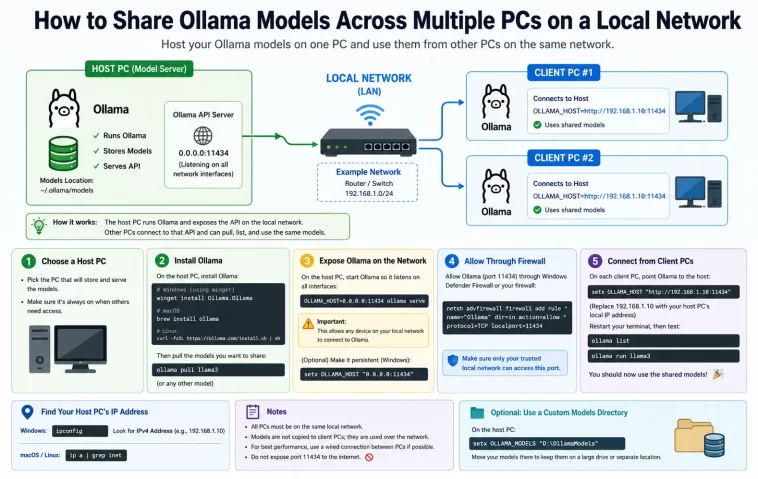
Running a large model locally is already a win. Running it once and letting every machine on your network use it — without downloading it again on each one — is the setup most people don’t know Ollama supports out of the box. I got this working in about 20 minutes on my home lab, and the main thing that slowed me down wasn’t Ollama itself, it was a firewall rule I’d forgotten I set.
Quick Answer
- Ollama binds to
127.0.0.1:11434by default — it won’t accept connections from other machines until you change that - Set the
OLLAMA_HOSTenvironment variable to0.0.0.0on the host machine - Open port 11434 in the host’s firewall
- From any other machine on the network, point your client at
http://[HOST_IP]:11434 - Models don’t need to be installed on the client machines — they run entirely on the host
Why It Doesn’t Work Out of the Box
Ollama’s default bind address is 127.0.0.1, which is localhost only. That’s a reasonable security default — you probably don’t want an LLM API open to the world if you’re on a public network. But it also means any request coming in from a different IP, even one on your own LAN, gets silently refused.
The symptoms look different depending on how you’re connecting. If you’re using curl from another machine, you’ll get a connection refused or a timeout with no helpful message. If you’re using Open WebUI or a similar frontend pointed at a remote host, you’ll get a generic “could not connect” error. Neither of those tells you the actual problem.
There are three real causes here:
- Bind address is localhost — Ollama isn’t listening on the network interface at all
- Firewall is blocking port 11434 — Ollama is listening on the right address, but the OS firewall is dropping the packets before they arrive
- The client is using the wrong IP — you’ve configured the host correctly but you’re using a hostname that doesn’t resolve, or the machine has multiple network interfaces and you’re targeting the wrong one
That third one trips people up more than you’d think. A machine with both Wi-Fi and Ethernet active will have two LAN IPs. If your client is on the wired network and you’re pointing it at the Wi-Fi IP, things won’t work even if Ollama is configured correctly.
Setting Up the Host Machine
This is the PC where your models actually live. It needs more VRAM, more RAM, and probably more storage. Everything else on the network is just a thin client talking to this machine.
On Linux
Step 1: Set the OLLAMA_HOST environment variable
If you installed Ollama via the official install script, it runs as a systemd service. You can’t just set an environment variable in your shell and expect the service to pick it up — you need to tell systemd about it.
bash
sudo systemctl edit ollama.serviceThis opens a drop-in config file. Add:
ini
[Service]
Environment="OLLAMA_HOST=0.0.0.0"
Save it, then reload and restart:
bash
sudo systemctl daemon-reload
sudo systemctl restart ollama
Step 2: Verify Ollama is now listening on all interfaces
bash
ss -tlnp | grep 11434You should see 0.0.0.0:11434 in the output. If you still see 127.0.0.1:11434, the environment variable didn’t take effect — double-check the systemd drop-in file path (it goes in /etc/systemd/system/ollama.service.d/override.conf).
Step 3: Open the firewall
bash
# For ufw
sudo ufw allow 11434/tcp

# For firewalld
sudo firewall-cmd --permanent --add-port=11434/tcp
sudo firewall-cmd --reload[Image: Screenshot of terminal showing ss -tlnp output with Ollama listening on 0.0.0.0:11434]
On Windows
This is where I lost the most time. The environment variable approach works differently on Windows because Ollama runs as a background process that starts with Windows, not a traditional service you can easily edit.
Step 1: Set the system environment variable
Open System Properties → Advanced → Environment Variables. Under “System variables” (not user), create a new variable:
- Name:
OLLAMA_HOST - Value:
0.0.0.0
Step 2: Restart Ollama completely
Quit Ollama from the system tray, then start it again. Just restarting from the tray icon sometimes doesn’t pick up environment variable changes — actually quit and relaunch it.
Step 3: Open the Windows Firewall
Windows Defender Firewall will block inbound connections on 11434 by default. Go to Windows Defender Firewall → Advanced Settings → Inbound Rules → New Rule. Select Port, TCP, specific port 11434, allow the connection. Name it something you’ll recognize.
Or from PowerShell if you prefer:
powershell
New-NetFirewallRule -DisplayName "Ollama LAN" -Direction Inbound -Protocol TCP -LocalPort 11434 -Action AllowOn macOS
Set the environment variable via a launchd plist, or just run Ollama manually in a terminal with the variable set for testing:
bash
OLLAMA_HOST=0.0.0.0 ollama serveFor a permanent setup, you’d edit the launchd agent that Ollama installs. The plist is usually at ~/Library/LaunchAgents/com.ollama.ollama.plist — add the environment key there and reload it with launchctl.
Connecting Client Machines
Once the host is configured, every other machine just needs to know where to find it. You don’t install models on the clients — they’re talking to the host’s API, and the models run there.
Find the host’s local IP first:
bash
# Linux/macOS
ip addr show   # or hostname -I

# Windows
ipconfig
Pick the IP on your LAN subnet (typically 192.168.x.x or 10.x.x.x). Then from any client machine, test the connection:
bash
curl http://192.168.1.100:11434/api/tagsThat should return a JSON list of installed models. If it times out, the firewall is probably still blocking. If it returns “connection refused,” Ollama isn’t bound to 0.0.0.0 yet.
Using the Ollama CLI from a Remote Machine
Set OLLAMA_HOST on the client too, pointing at the host:
bash
export OLLAMA_HOST=http://192.168.1.100:11434
ollama run llama3.2
The model runs on the host. Your terminal is just sending input and receiving output. From what I’ve seen, latency on a gigabit LAN is basically unnoticeable for text generation — the bottleneck is always the model inference speed, not the network.
Using Open WebUI
If you’re running Open WebUI (probably the most common frontend people pair with Ollama), point it at the host during setup:
bash
docker run -d -p 3000:8080 \
  -e OLLAMA_BASE_URL=http://192.168.1.100:11434 \
  --name open-webui \
  ghcr.io/open-webui/open-webui:main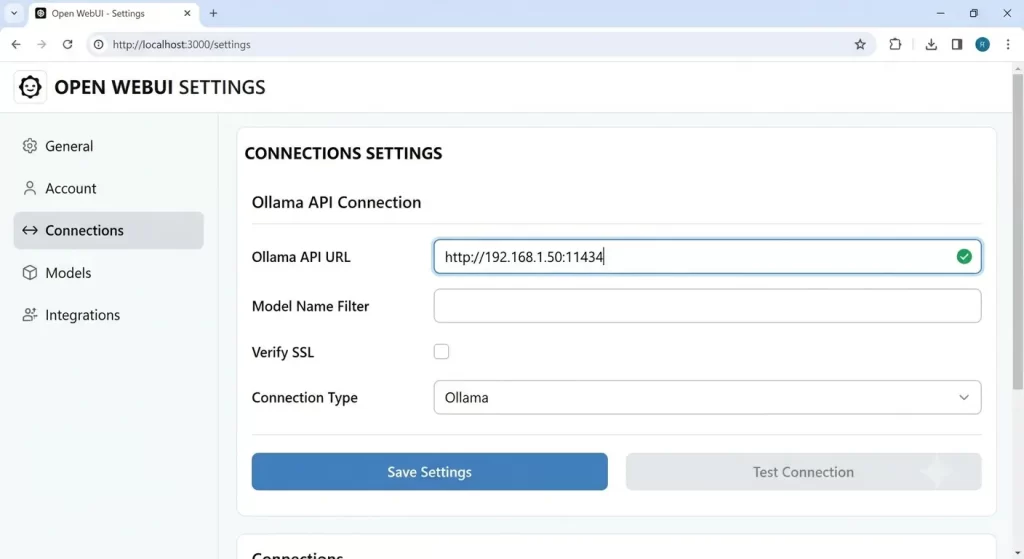
You can run Open WebUI on any machine on the network — it doesn’t have to be the Ollama host. I run it on a cheap mini PC that stays on 24/7 and connects to a beefier desktop that I spin up for actual inference. Works fine.
What Actually Worked For Me
My setup: a Linux desktop with a decent GPU as the host, a laptop, and a Raspberry Pi running Open WebUI. The goal was to run models once and have all three clients able to use them.
First attempt: I set OLLAMA_HOST=0.0.0.0 in my user shell profile and restarted the Ollama service. Didn’t work. The service runs as its own user under systemd — my user’s environment variables are invisible to it. That wasted about 15 minutes.
Second attempt: edited the systemd unit file directly (not the drop-in, which was a mistake — direct edits get overwritten on Ollama updates). Got it working, then lost the config after an update two weeks later. Annoying.
Third attempt: used the systemctl edit override approach. That’s the right method. Survived two Ollama updates since then without breaking.
The Raspberry Pi was the unexpected part. It can’t run models itself — it doesn’t have the RAM or compute. But as a thin client pointing at the desktop? It runs Open WebUI fine and the actual inference happens on the desktop. That’s the scenario this whole setup is built for, and it works better than I expected.
Advanced: Locking Down Access on the Host
Binding to 0.0.0.0 means any machine that can reach port 11434 on your host can use your Ollama instance. On a trusted home network this is probably fine. On a work network or anywhere less controlled, you might want to restrict it.
Bind to a Specific Interface Instead
Instead of 0.0.0.0, you can bind to just one network interface’s IP:
bash
Environment="OLLAMA_HOST=192.168.1.100"This way Ollama only listens on that one interface. If someone’s on a different subnet or connecting via a different interface, they won’t see it at all.
Use a Reverse Proxy with Basic Auth
If you want to expose Ollama to a slightly wider set of machines but still require authentication, put nginx or Caddy in front of it. Ollama’s API has no built-in auth mechanism — that’s a known limitation. A reverse proxy with basic auth or IP allowlisting is the standard workaround.
A minimal Caddy config for this:
:11435 {
    basicauth {
        user $2a$14$[hashed_password_here]
    }
    reverse_proxy localhost:11434
}
Use a different external port (11435 in this example) so the direct port stays closed and all traffic goes through the proxy. Not 100% sure why Ollama doesn’t have native auth yet — it’s a common ask on their GitHub — but as of early 2026 you’re still doing this manually.
Troubleshooting Common Problems
Clients can reach the host but get slow responses
This is almost always the host hitting memory limits and swapping. Check GPU utilization with nvidia-smi or rocm-smi. If the model isn’t fitting in VRAM, Ollama falls back to CPU/RAM, which is much slower. Either run a smaller model or add more VRAM.
Connection works once then stops
Could be the host going to sleep. Disable sleep/hibernate on the host machine, or at least disable the network interface from going to sleep. On Linux: sudo ethtool -s eth0 wol g to enable wake-on-LAN if you want a smarter solution.
OLLAMA_HOST set but still binding to localhost
On Windows specifically: check that you set it as a System environment variable, not a user variable. The Ollama background process runs under a different user context and won’t see user-scoped variables.
Multiple models requested at once
Ollama queues requests by default — it doesn’t run two model instances in parallel. If two clients hit it simultaneously, one waits. You can set OLLAMA_NUM_PARALLEL to allow parallel requests, but that multiplies VRAM usage. Test before assuming your hardware can handle it.
Prevention and Maintenance
- Don’t expose port 11434 to the internet. This sounds obvious but if you’ve got port forwarding rules on your router from old projects, double-check. Ollama has no auth — anyone who can reach it can run inference on your hardware.
- Assign the host a static local IP (via your router’s DHCP reservation, not the OS). If the IP changes, every client config breaks at once.
- Keep models on a drive with room to grow. Models are stored in
~/.ollama/modelson Linux/macOS andC:\Users\[user]\.ollama\modelson Windows. A default install location on a small system drive is going to cause problems eventually. - Version-pin your Ollama install if you have a setup that’s working. Ollama updates sometimes change API behavior in ways that break third-party frontends.
FAQ
Do I need to install Ollama on every PC, or just the host?
Just the host needs Ollama installed. Client machines only need something that can talk to an HTTP API — which could be a browser running Open WebUI, the Ollama CLI with OLLAMA_HOST set, or any custom script.
Will this work over Wi-Fi?
Yes, but expect lower throughput on streaming responses if your Wi-Fi is slow. For text generation the bottleneck is almost always inference speed, not bandwidth — even a 100 Mbps Wi-Fi connection is way faster than the token generation rate of most models. Where it matters is loading model weights initially, which involves transferring gigabytes. On a wired LAN that’s fast, over Wi-Fi it can take a moment.
Can two people use the models at the same time?
They can send requests at the same time, but Ollama queues them unless you set OLLAMA_NUM_PARALLEL. Both users will get responses, but one will wait for the other to finish. For small teams this is usually fine. For anything heavier, you’d want a proper inference server like vLLM or LiteLLM in front.
What’s the OLLAMA_ORIGINS variable I keep seeing mentioned?
That’s for CORS — if you’re getting cross-origin errors when a browser-based frontend tries to talk to Ollama, you need to set OLLAMA_ORIGINS to allow requests from that frontend’s origin. Example: OLLAMA_ORIGINS=http://192.168.1.50:3000. It’s a separate issue from the bind address.
Does this work with GPU passthrough in a VM?
Yes, with some setup. If your VM has GPU passthrough configured correctly and Ollama is installed inside the VM, the network sharing setup is identical. The headache is the GPU passthrough itself, which is a whole other rabbit hole and varies a lot by hypervisor and GPU vendor.
My laptop keeps disconnecting from the Ollama host after a few minutes.
Almost always a sleep/power management issue on the host side. The host is going to sleep, the TCP connection drops, and the client has nothing to reconnect to. Disable sleep on the host, or at minimum prevent the network adapter from sleeping.
Editor’s Opinion
Honestly this is one of those things that should be a one-liner in the docs and kind of isn’t. The OLLAMA_HOST=0.0.0.0 part is documented, the firewall part is not, and the systemd-specifically-not-your-shell-environment thing burned me and I’ve seen it burn a lot of people on Reddit too. Once it clicks it’s genuinely great — one beefy machine doing the work, everything else just connecting to it. My Raspberry Pi “running” a 70B model is still a bit funny to think about.
