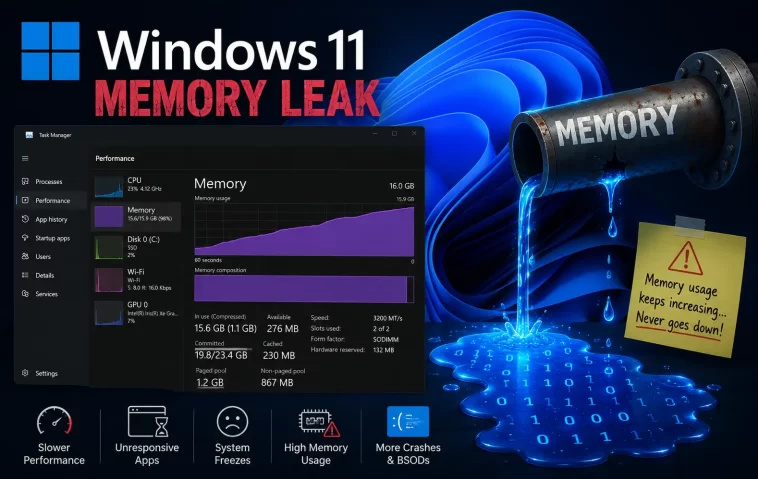
I noticed my RAM usage creeping up from 40% to 85% over the course of a normal workday, and Task Manager kept pointing fingers at two processes I barely understood: wsappx and svchost. If you’re dealing with a Windows 11 memory leak tied to these system processes, the short version is that it’s almost always a background service stuck in a loop, not actual malware, and there are a handful of fixes that consistently work.
Quick Answer
- wsappx memory leaks are usually tied to the Microsoft Store install/update service (AppXSvc) running constantly in the background
- svchost.exe leaks are typically caused by a specific Windows service hosted under it, not svchost itself
- Disabling unnecessary Store app updates and isolating the offending service via Resource Monitor fixes most cases
- A stuck Windows Update component or corrupted search indexer is the second most common cause
- Full reset of the affected service (or a targeted SFC/DISM scan) resolves the cases that survive a simple restart
Why It Fails
svchost.exe isn’t really a single process — it’s a generic host that Windows uses to run services that live in DLL files instead of standalone EXEs. So when people say “svchost is leaking memory,” what they actually mean is one of dozens of services running under that umbrella is misbehaving, and svchost just happens to be the visible wrapper.
There are a few specific causes I’ve run into, and they’re worth separating because the fix is different for each:
- Windows Search Indexer (SearchIndexer.exe / under svchost for the WSearch service) gets stuck re-indexing. This happens a lot after a major Windows update, when the index gets partially rebuilt and never finishes cleanly.
- wsappx hosting AppXSvc or ClipSVC stays active long after a Store app install or update finishes. Normally this should idle out within a minute or two. When it doesn’t, it’s often because a specific app failed to fully register, and the service keeps retrying.
- DiagTrack (Connected User Experiences and Telemetry) leaking memory over hours, especially on machines with a lot of background telemetry enabled by IT policy or third-party software.
- A driver-level memory leak that gets misattributed to svchost because the kernel-mode component reports its allocations through a generic system service.
- Third-party antivirus or backup software hooking into a Windows service and never releasing memory it grabbed during a scan.
The thing that throws people off is that Task Manager’s default view groups these under one name, so it looks like “svchost” or “wsappx” themselves are broken. They’re not. They’re reporting on whatever’s actually misbehaving underneath.
Common Scenarios
This shows up differently depending on what you’re running:
- Fresh Windows 11 installs, right after the first big batch of updates — usually wsappx finishing app installs slowly
- Machines with Microsoft Store set to auto-update, where multiple apps try to update at once and one gets stuck
- Laptops that sleep/wake frequently, where the search indexer seems to lose track of its state and restarts indexing from a weird point
- Enterprise-managed machines with telemetry and monitoring agents, where DiagTrack or a similar service balloons over a full workday
I’ve seen this hit hardest on machines that have been running for 10+ days without a restart. Memory that should get released slowly accumulates, and by day two or three it’s noticeable even to someone who doesn’t normally check Task Manager.
Step-by-Step Fixes
Step 1: Identify which actual service is leaking
Open Task Manager, go to the Details tab, and sort by Memory. Right-click the svchost or wsappx entry and choose “Go to service(s).” This shows you which specific services are running under that process ID — that’s the information you actually need before doing anything else.
If you’ve got Resource Monitor handy (search for “resmon”), it gives a cleaner breakdown under the CPU tab, showing each svchost instance with its associated services listed individually.
Step 2: Restart the specific offending service
Once you know the service name (commonly WSearch, AppXSvc, or DiagTrack), open Services (services.msc), find it, right-click, and Restart. Don’t restart the whole machine yet — restarting just the service is faster and tells you whether the leak is tied to that service specifically.
Step 3: Disable Store app auto-updates temporarily
Open the Microsoft Store, go to Settings (the three-dot menu), and turn off “Update apps automatically.” This stops wsappx from cycling through update checks in the background. Leave it off for a day and watch whether wsappx memory stabilizes.
Step 4: Rebuild the search index if WSearch is the culprit
Go to Settings > Privacy & Security > Searching Windows, and use the option to rebuild the index, or delete the index files manually under C:\ProgramData\Microsoft\Search\Data\Applications\Windows after stopping the WSearch service. This forces a clean rebuild instead of whatever broken state it was stuck in.
Step 5: Run SFC and DISM
sfc /scannow
DISM /Online /Cleanup-Image /RestoreHealth
This catches corrupted system files that can cause a service to behave erratically. Not glamorous, but it actually fixes a chunk of these cases — more than people expect, honestly.
Step 6: Check for third-party hooks
Temporarily disable third-party antivirus or backup agents one at a time and monitor memory for a few hours after each. If disabling one specific tool drops memory usage immediately, you’ve found your real culprit and it was never a Windows process to begin with.
What Actually Worked For Me
My first instinct was to blame Windows Update, since that’s the easy target everyone reaches for. I paused updates for a week, restarted a few times, and the leak came right back within a day. So that wasn’t it.
I then spent a good chunk of an evening going down the SFC/DISM route, assuming corrupted system files were the cause. Both scans came back clean — no errors, nothing fixed, nothing changed. A little annoying, not going to pretend otherwise, especially since DISM takes forever on a slow connection.
The actual fix came from checking Resource Monitor and noticing that one particular svchost instance kept climbing specifically tied to WSearch. I remembered an old habit from Windows 10 days — delete the search index and force a rebuild — and that’s what finally did it. Memory usage flattened out within about an hour of the index finishing its rebuild. Your mileage may vary, but if your leak correlates with disk activity from indexing, this is worth trying before anything more invasive.
Advanced Fixes and Edge Cases
Event Viewer diagnostics: Open Event Viewer and check Windows Logs > System for repeated warnings or errors tied to the service in question. A service that’s crashing and auto-restarting in a loop will show this clearly, and that loop is a common hidden cause of slow memory accumulation that looks like a leak but is actually repeated failed restarts.
Memory diagnostic via Performance Monitor: Set up a Data Collector Set targeting the specific svchost PID over several hours. This gives you an actual graph instead of guessing from Task Manager snapshots, and it’s the only reliable way to confirm whether memory is climbing steadily or just fluctuating normally under load.
Driver-level leaks: Use poolmon.exe (from the Windows Driver Kit) to check kernel pool tags if you suspect a driver is the real source. This is overkill for most people, but if you’ve ruled out every standard service and the leak persists, a faulty driver reporting through the kernel is the next place to look. Not something I do often, but it’s saved me once.
Group Policy and telemetry settings: On enterprise machines, check whether telemetry level is set higher than needed via Group Policy. DiagTrack memory growth is more aggressive at higher telemetry settings, and IT-managed defaults sometimes leave this higher than necessary for a standard user machine.
Prevention Tips
- Restart your machine at least every few days instead of relying purely on sleep/hibernate
- Keep Store app auto-updates on a schedule rather than fully automatic if you’ve had wsappx issues before
- Run SFC scans periodically as routine maintenance, not just when something’s already broken
- Avoid stacking multiple antivirus or monitoring tools that hook into the same system services
FAQ
Is wsappx a virus? No. It’s a legitimate Windows process tied to the Microsoft Store. Malware sometimes disguises itself with similar names, but the real wsappx lives under System32 and isn’t something to panic about by default.
Why does svchost.exe show up multiple times in Task Manager? Because each instance hosts a different group of services. This is normal and expected — it’s not duplication or a bug.
Can I just kill the process to free memory? You can, but it’ll likely restart immediately or break whatever service was running under it, sometimes causing more problems than the leak itself.
Does this affect gaming performance? If the leak is severe enough to push memory usage near your total RAM, yes — you’ll see stuttering and longer load times as the system starts paging to disk.
Is 8GB of RAM enough if this keeps happening? It can be, but a leak that pushes 8GB to its limit regularly is going to be more noticeable than the same leak on a 16GB machine. More RAM buys you time, not a fix.
Editor’s Opinion
honestly this one took longer to track down than i expected going in. everyone assumes svchost issues mean malware or a broken windows install, and most of the time it’s neither — it’s just one service stuck doing something it shouldn’t be. the search index thing fixed it for me but i’ve seen other people fix the exact same symptoms by disabling store auto updates instead. check resource monitor before you do anything drastic, that’s really the whole trick here.
