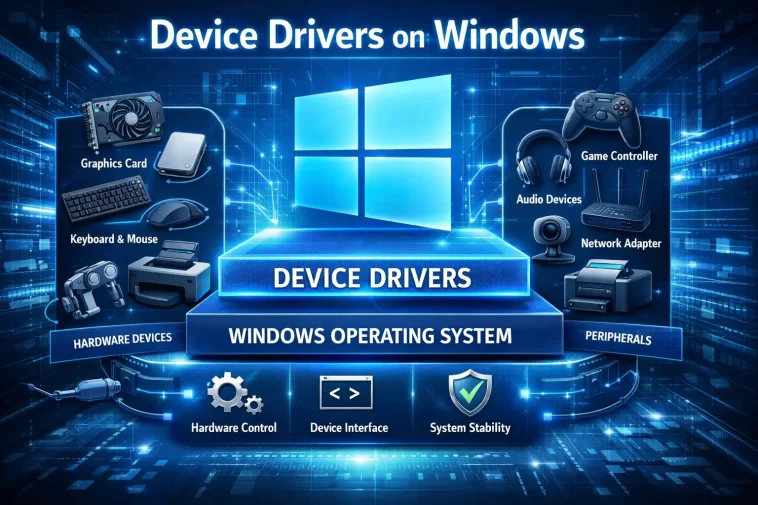
If Windows Update keeps telling you “the best drivers for your device are already installed” while your GPU stutters or your Wi-Fi keeps dropping, you’ve run into the gap between what Windows thinks is current and what the manufacturer actually shipped last month. Learning to manually update your device drivers in Windows closes that gap, and it’s not nearly as risky as it sounds once you know where the actual landmines are. I’ve done this enough times across different hardware that I’ve got opinions about which method works for which device — so let’s skip the generic checklist and get into what actually matters.
Quick Answer
- Open Device Manager (right-click Start, or Win + X)
- Right-click the device, choose Update driver, then Search automatically for drivers
- If that finds nothing useful, go to the manufacturer’s site (NVIDIA, AMD, Intel, Realtek, your laptop brand) and download the driver directly
- For an .exe installer, just run it — it handles the old driver for you
- For a .zip/.inf package, use Update driver > Browse my computer for drivers and point it at the extracted folder
- GPU drivers are the one category where you sometimes need a proper clean install, not just an overwrite
Why Windows Update Isn’t Enough Here
Windows Update is fine for a lot of drivers, and for plenty of devices it’s genuinely the right place to start. But it has a real limitation that catches people off guard: it only distributes drivers that have gone through Microsoft’s certification pipeline. Manufacturers like NVIDIA, AMD, Intel, and Realtek push new releases to their own download portals well before — sometimes months before — those same drivers get certified for automatic distribution through Windows Update.
So when Device Manager says you’ve got the latest driver, that’s not really a lie. It’s just telling you the truth about a narrower question than the one you’re asking. “Latest driver Windows knows about” and “latest driver that exists” are two different things, and the gap between them is exactly where manual updates earn their keep.
There’s also a stricter wrinkle as of the past year: Windows 11 now blocks certain older drivers outright instead of just warning about them. A security change pushed through in 2026 closed off the cross-signing certificate program that a lot of older, unsigned-by-current-standards drivers were relying on. If you’ve got hardware old enough that the manufacturer never updated its signing certificate, Device Manager might refuse the install entirely rather than show you a “just trust me” warning dialog. There’s no safe workaround for that on a system you actually rely on — the fix is getting a current, properly signed driver from the manufacturer, not disabling signature enforcement.
Step 1: Check What You Actually Have
Before changing anything, find out what’s currently installed. This matters more than it sounds — without it you’re guessing whether an update is even worth doing.
- Right-click Start and select Device Manager
- Expand the relevant category (Display adapters, Network adapters, Sound video and game controllers, etc.)
- Right-click the device, choose Properties
- Click the Driver tab
- Note the Driver Version and Driver Date
Compare that against what’s currently on the manufacturer’s support page. If the gap is months (or longer) on something like a GPU, network adapter, or audio chipset, it’s usually worth the update. For a mouse driver from last year that’s working fine, probably not.
One thing I check at this stage that a lot of guides skip: while you’re in Properties, click the Details tab and switch the dropdown to Hardware IDs. That string tells you the exact chipset or model, which matters a lot for things like network adapters where the product name on the box doesn’t always match what the manufacturer’s download page expects.
Step 2: Try Windows’ Automatic Search First
It costs nothing to try and it’s not unusual to be surprised.
- Right-click the device in Device Manager and select Update driver
- Choose Search automatically for drivers
- Let it check
If it says it found something, great. If it says the best driver is already installed, don’t take that as the final word — see Step 1’s gap explanation above.
Step 3: Download Directly From the Manufacturer
This is the method that actually matters most of the time, especially for graphics, network, and chipset drivers.
- Go to the manufacturer’s official support page — nvidia.com/drivers, amd.com/support, intel.com/support, or your laptop/motherboard brand’s own portal
- Enter the exact model (use that Hardware ID if the model name is ambiguous)
- Select the correct Windows version and architecture — Windows 11, 64-bit for almost everyone at this point, though ARM64 exists now too if you’re on one of the newer ARM laptops
- Download the file
From here it splits into two paths depending on what you got.
If it’s an .exe installer: Just run it. Close anything that’s actively using the device first (especially for GPU drivers — close games, streaming software, anything rendering). The installer handles removing the old driver and putting in the new one. Restart when it asks, even if it doesn’t insist on it immediately.
If it’s a .zip with an .inf file inside: Extract it fully first — and I mean fully, not just opened in a preview pane. A half-extracted archive is one of the more common reasons a driver install silently fails with no real error message; Windows just can’t find a valid .inf where it expects one. Once it’s extracted:
- In Device Manager, right-click the device and choose Update driver
- Select Browse my computer for drivers
- Click Browse, navigate to the extracted folder
- Check Include subfolders (matters more than you’d think — some packages bury the .inf two levels deep)
- Click Next
If Windows finds a valid, compatible driver in that folder, it installs it. If not, you’ll get told the existing driver is already the best match — which, again, depends on whether you trust that claim given everything above.
GPU Drivers Are a Different Animal
Graphics drivers deserve their own callout because a standard overwrite-style update doesn’t always clean up after itself the way other drivers do. Display drivers integrate deeply with Windows — shader caches, registry entries, leftover DLLs from old versions — and a normal install just stacks the new one on top rather than properly removing what’s there. Most of the time that’s fine. But if you’re switching between NVIDIA and AMD, or you’ve been chasing a driver-related crash for a while, leftover debris from old installs is a real and recurring cause of glitches that don’t make sense otherwise.
For that situation, a proper clean install means:
- Download the new driver first and save it somewhere accessible (you won’t have internet access in the next step)
- Boot into Safe Mode
- Run Display Driver Uninstaller (DDU, free, from Wagnardsoft via guru3d.com) to fully purge the old driver and its remnants
- Reboot normally and run the new installer
- If it’s an NVIDIA installer, choose Custom Install instead of Express, and check Perform a clean installation — it’s a checkbox easy to miss in the rush to click through
This is overkill for routine updates. It’s the right call when something’s actually gone sideways and a normal update hasn’t fixed it.
What I’ve Actually Run Into
The driver I’ve had the most trouble with, somewhat predictably, was a network adapter on an older laptop. Device Manager kept insisting the existing driver was current. So was Windows Update. Both agreed, both were wrong — the chipset manufacturer had a release nearly a year newer that fixed a specific intermittent-disconnect bug I was dealing with, and neither built-in tool had any idea it existed.
Tried the obvious path first: download the manufacturer’s .exe, run it, expect it to just work. It got partway through and stalled, no error, just sat there. Turned out — and I didn’t figure this out quickly — the network adapter was actively in use by a VPN client running in the background, and the installer couldn’t fully release the old driver while it was live. Closed the VPN software, ran the installer again, and it went through clean on the second try.
So that’s the honest version: not a clean systematic diagnosis, more like trial, stall, half-remembered hunch about background software locking a device, and then it worked. From what I’ve seen since, “something else is using the device” is an underrated cause of installs that hang or silently fail — way more common than people checking for it, in my experience.
What Tends to Work, and What Doesn’t
The fix that resolves the most actual problems, in practice, is just going straight to the manufacturer’s site and installing their current package rather than relying on Windows Update or Device Manager’s automatic search. It’s not glamorous advice, but it’s the one with the best hit rate by a wide margin.
What’s commonly recommended but rarely the actual fix: third-party “driver updater” tools that scan your whole system and claim to fix everything in one click. They’re not always scams, but they’re inconsistent, occasionally install generic or mismatched drivers, and the genuinely useful ones are doing nothing you couldn’t do yourself by going to the manufacturer directly. I wouldn’t build a habit around them.
When Things Go Wrong
Yellow exclamation mark in Device Manager after an update. Usually means the install didn’t fully complete or there’s an internal conflict. Roll it back (Properties > Driver tab > Roll Back Driver) and reinstall fresh.
Roll Back Driver is grayed out. Windows didn’t keep a copy of the previous version — this happens more than you’d expect. Uninstall the device entirely (Uninstall device, check “Delete the driver software for this device”), restart, and reinstall the older version manually from the manufacturer’s site if you need to go back.
Device stopped working entirely after an update. Restart first — sounds obvious, fixes more than it should. If it’s still broken, uninstall the device in Device Manager and restart again; Windows will often reinstall a generic but working driver automatically.
Unsigned driver warning, or an outright block. Don’t disable driver signature enforcement as a workaround on a system you actually depend on. Get a currently signed release from the manufacturer instead.
Prevention Tips
- Stick to graphics, network, chipset, and audio drivers for manual attention — most other devices are fine left on Windows Update
- Always extract .zip downloads fully before pointing Device Manager at them
- Close apps actively using a device before updating its driver, especially VPN clients, capture software, or anything with deep hooks into networking or graphics
- Avoid beta or “Game Ready” preview drivers unless you specifically need something in them — they’re not always more stable than the last stable release
- Keep a record (even just a note) of your previous driver version before updating something critical, in case Windows doesn’t save a rollback copy
FAQ
Do I really need to update every driver on my PC? No. Focus on graphics, network adapter, chipset, and audio if you’re not having a specific problem. Updating a mouse driver that’s working fine adds nothing.
Is it safe to install drivers from third-party sites instead of the manufacturer? Stick to the manufacturer’s own site. Third-party driver download sites bundle adware often enough that it’s not worth the risk for something this easy to get directly.
Why does Device Manager say my driver is up to date when I know it isn’t? Because it’s only checking against what Windows Update has certified, not what the manufacturer has actually released. They’re different lists.
What’s PnPUtil and do I need it? It’s a built-in command-line tool for managing Windows’ driver store directly — pnputil /add-driver "path\to\driver.inf" /install. Most people never need it; it’s mainly useful if Device Manager’s GUI install path is being uncooperative for some reason.
Can a driver update cause a Blue Screen of Death? Yes, it happens, particularly with GPU and chipset drivers if the install was interrupted or conflicted with leftover files from a previous version. It’s part of why a clean install matters more for GPUs than for most other hardware.
Editor’s Opinion
manufacturer site beats device manager nine times out of ten for anything that actually matters — gpu, network, chipset. just extract your zips properly and close whatever’s using the device first, that one’s saved me more headaches than any actual driver trick.
