I tried making a Windows 11 install USB last month for a clean install on an old laptop, and the Media Creation Tool failed twice before it actually worked — no useful error message either time, just “something went wrong” and a vague error code. If you’re trying to use the Windows 11 Media Creation Tool and it’s hanging, failing partway through, or not detecting your USB drive at all, you’re dealing with a tool that’s notoriously inconsistent about telling you what’s actually wrong.
The basic process is simple enough. But the failure modes aren’t well documented anywhere official, so I’m covering both here.
Quick Answer
- Download the Media Creation Tool directly from Microsoft’s official Windows 11 download page, not a third-party mirror
- Use a USB drive of at least 8GB, formatted as FAT32, and back up anything on it first — it gets wiped
- Run the tool as Administrator, and disable antivirus temporarily if it’s failing partway through
- Common error 0x80042405 usually means a USB or disk space issue, not a download problem
- If creation keeps failing, downloading the ISO separately and using Rufus is a reliable workaround
What the Media Creation Tool Actually Does
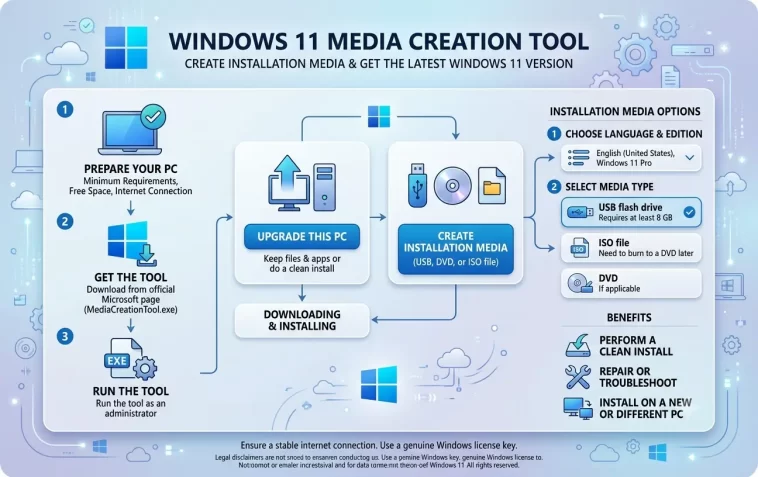
It’s worth knowing this before troubleshooting it. The tool downloads the current Windows 11 installation files directly from Microsoft, then either burns them to a USB drive as bootable install media or packages them into an ISO file you can use later — for a virtual machine, for burning to DVD, or for mounting directly to upgrade in place.
It’s not the only way to get Windows 11 install media. So if it keeps failing for you specifically, that’s a sign to switch approach rather than keep retrying the exact same steps.
Why It Fails (Common Causes)
USB drive issues are the single biggest cause. A drive with bad sectors, one that’s NTFS instead of FAT32, or one that’s just slightly too small after formatting overhead can cause the tool to fail partway through with no clear explanation.
Antivirus or firewall software interfering with the download. Some security software flags the tool’s behavior (downloading a large file and writing to a raw disk) as suspicious and silently blocks part of the process without a clear warning popup.
Insufficient free space on the system drive. The tool needs temporary space on your C: drive even when writing to USB, since it downloads files locally before transferring them. Less than around 8GB free can cause a failure that looks completely unrelated to disk space.
Microsoft’s servers being temporarily overloaded. This sounds like a cop-out reason, but it’s genuinely real — right after a new Windows 11 feature update releases, the download step fails more often simply because demand spikes hard for a few days.
Running the tool without Administrator rights. It needs elevated permissions to write boot sectors to a USB drive. Without that, it can get partway through and then fail at the actual disk-writing step.
Outdated or corrupted USB controller drivers. Less common, but a flaky USB port or outdated chipset driver can cause writes to fail intermittently, especially on older laptops being used to create the media.
Step-by-Step: Using the Media Creation Tool
Step 1: Download the tool from Microsoft’s official site. Go to the Windows 11 download page directly — search “download windows 11” and confirm the URL is microsoft.com before downloading anything.
Step 2: Run it as Administrator. Right-click the downloaded file and choose “Run as administrator.” Skipping this is one of the more common reasons people hit a failure later in the process.
Step 3: Accept the license terms and choose your language/edition. Untick “Use the recommended options for this PC” if you’re creating media for a different machine than the one you’re using right now.
Step 4: Choose USB flash drive or ISO file. USB gives you bootable media immediately. ISO gives you more flexibility — you can use it with Rufus, mount it directly, or burn it later.
Step 5: Select your USB drive (if going that route) and wait. This step wipes the drive completely, so double-check you’ve selected the right one before continuing. The download and write process usually takes 15-30 minutes depending on your connection.
Step 6: Verify the USB drive once it’s done. Open File Explorer and confirm the drive shows Windows installation files rather than appearing empty — a silent failure sometimes leaves a drive that looks done but isn’t actually bootable.
What Actually Worked For Me
First attempt failed at around 60% with error 0x80042405, no real explanation given. I assumed my USB drive was bad and tried a second one, same result almost immediately.
So I checked free space on my C: drive, which I hadn’t thought to do, and it turned out I had under 5GB free after months of accumulated update files and never running disk cleanup. That’s not something the error message hinted at even slightly — it read like a USB problem, not a storage problem on the source machine entirely.
Freed up about 20GB by running Disk Cleanup and clearing out old Windows.old files, and the tool completed without issue on the next try. I’ll admit that one was a bit of luck that I happened to check disk space at all — it wasn’t a systematic process, just running out of obvious things to blame.
Advanced Fixes and Edge Cases
Use Rufus with a manually downloaded ISO as a fallback. If the Media Creation Tool keeps failing specifically at the USB-writing stage, downloading the Windows 11 ISO directly from Microsoft and using Rufus to create the bootable USB sidesteps whatever the tool’s specific issue is. This is genuinely the most reliable fallback when the tool itself won’t cooperate.
Check Event Viewer for the actual underlying error. Windows Logs > Application sometimes has more detail than the vague error code the tool shows you, particularly around disk write failures or permission issues.
Try a different USB port, ideally USB 2.0 over 3.0 for older machines. Sounds backwards, but some older laptops have flaky USB 3.0 controller drivers that cause intermittent write failures that a USB 2.0 port doesn’t have.
Disable third-party antivirus completely (not just real-time protection) during the process. Some security suites have separate components beyond the main real-time scanner that still interfere with raw disk writes even when the main protection is “paused.”
Check the drive’s actual write speed and health with a tool like CrystalDiskMark. A USB drive that’s dying or was always a slow, low-quality unit can fail mid-write in a way that looks like a software problem but is genuinely a hardware limitation.
Prevention Tips
- Run Disk Cleanup occasionally so you’re not caught without free space when you need to create install media
- Use a reasonably reputable USB drive for install media — extremely cheap drives fail more often during large sequential writes
- Always download tools directly from Microsoft, never from a third-party “mirror” site, even if it’s faster
- Keep a spare known-good USB drive specifically for this kind of task if you do system work often
FAQ
Can I use the Media Creation Tool to upgrade in place instead of a clean install? Yes, choosing “Upgrade this PC now” instead of creating media does an in-place upgrade, keeping your files and apps.
Why does the tool say my PC doesn’t meet requirements when it clearly does? Sometimes this is a TPM or Secure Boot detection issue, not an actual hardware shortfall — worth checking BIOS settings before assuming your PC genuinely can’t run Windows 11.
Is the ISO method safer than the USB method? Not safer exactly, just more flexible. Both download identical files from Microsoft.
My USB drive shows as way smaller than its actual size after this — is it broken? Usually not. Bootable USB media partitioning makes drives show reduced capacity in File Explorer afterward; reformatting the drive normally restores it.
Does this tool let me create Windows 10 media instead? No, this specific tool is for Windows 11 only. Microsoft has a separate Media Creation Tool page for Windows 10.
Editor’s Opinion
the error codes this tool gives you are genuinely useless most of the time, error 0x80042405 told me nothing close to “you’re out of disk space.” if it fails twice, don’t keep retrying the same way — just grab the iso directly and use rufus instead, saves a lot of guessing.
