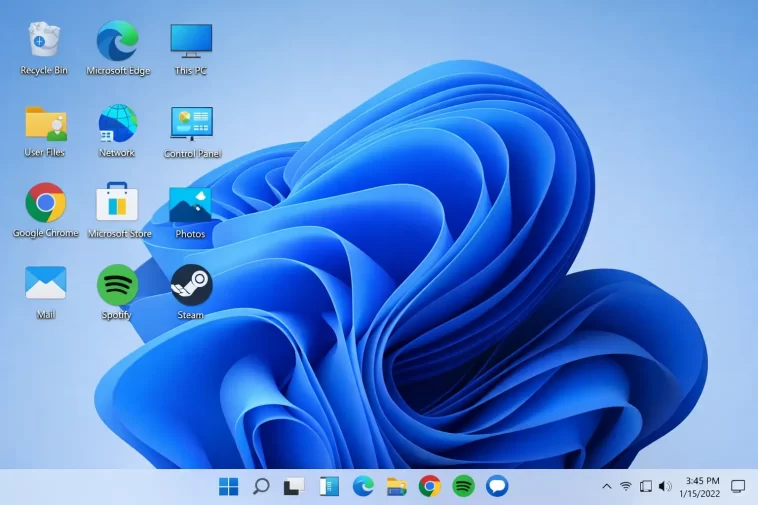
I clicked something on my desktop a while back, the icons vanished, and I spent a solid five minutes assuming I’d broken something. Showing desktop icons in Windows 11 is usually a one-click fix, but there are a few situations — after a driver update, a display change, or a weird Explorer crash — where that one click doesn’t actually bring them back.
Most of the time this takes ten seconds. So I’ll cover the quick fix first, then the less obvious causes for when that doesn’t work.
Quick Answer
- Right-click the desktop, go to View, and make sure Show desktop icons is checked
- If icons are still missing, check Settings > Personalization > Themes > Desktop icon settings
- A second monitor or recent driver update can sometimes “move” icons off-screen rather than hide them
- Restarting Windows Explorer (not your whole PC) fixes most display glitches without a reboot
- Tablet mode or certain third-party launchers can also hide the desktop layer entirely
Why Desktop Icons Disappear
There are a few different culprits here, and they’re not all the same fix.
The “Show desktop icons” toggle got switched off. This is by far the most common cause, and it’s usually accidental — a stray click while right-clicking for something else, or a setting that got toggled during a Windows update.
Display scaling or a monitor change pushed icons off-screen. If you unplugged a second monitor, changed resolution, or updated a graphics driver, Windows sometimes “remembers” old icon positions that no longer exist on your current display setup. They’re technically still there, just sitting somewhere off the visible screen.
Windows Explorer crashed or is stuck. Explorer.exe is responsible for rendering the desktop, taskbar, and Start menu. If it crashes quietly in the background, the desktop can go blank without any error message at all.
A third-party desktop tool or launcher is overlaying the real desktop. Software like Rainmeter, Fences, or certain customization tools can hide the native Windows desktop layer underneath their own interface — so the icons aren’t gone, you’re just looking at something else on top of them.
Tablet mode or a touch-optimized layout is active. Less common on a Windows 11 desktop PC, but on convertible laptops and tablets, certain modes change how (or whether) the desktop icon layer displays.
Step-by-Step Fix
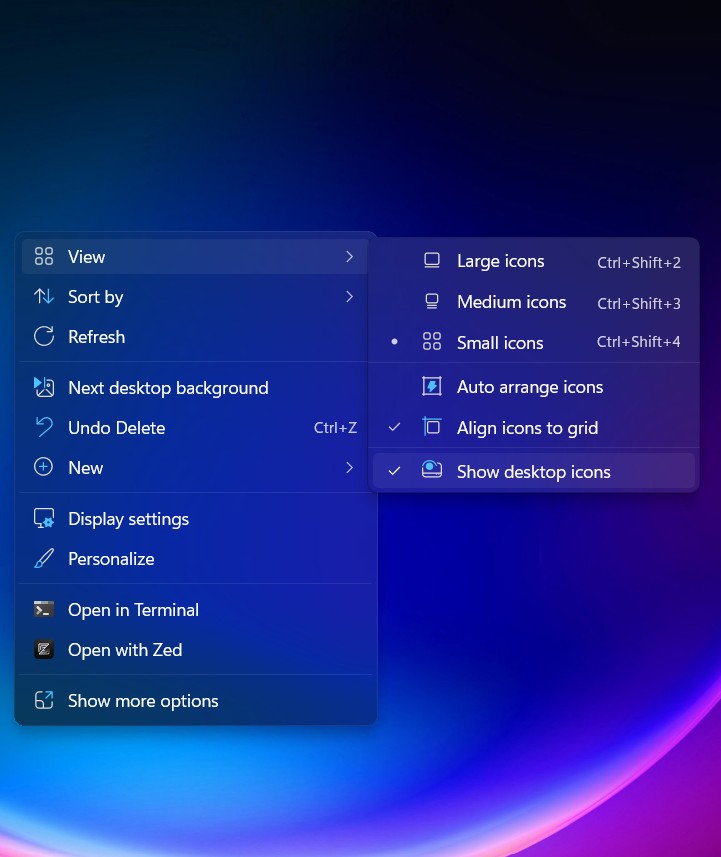
Step 1: Right-click an empty area of the desktop. Make sure you’re clicking empty space, not an existing icon.
Step 2: Hover over “View” in the context menu. A submenu will open with icon size options and the show/hide toggle.
Step 3: Click “Show desktop icons” to check it. If there’s already a checkmark next to it, uncheck and recheck it anyway — sometimes the toggle gets visually stuck even when the underlying setting is fine.
Step 4: If icons still don’t appear, restart Windows Explorer. Open Task Manager (Ctrl + Shift + Esc), find “Windows Explorer” in the Processes tab, right-click it, and choose Restart. This refreshes the desktop rendering without a full reboot.
Step 5: Check Personalization settings for individual icon visibility. Go to Settings > Personalization > Themes, scroll down to Desktop icon settings, and confirm This PC, Recycle Bin, and any other icons you want are checked there too — this is a separate setting from the right-click toggle and controls which system icons show up at all.
Advanced Fixes and Edge Cases
Reset icon positions if they’ve drifted off-screen. Right-click the desktop, choose View > Auto arrange icons, and toggle it off and back on. This forces Windows to recalculate icon positions based on your current screen layout, which fixes the “icons exist but are off-screen” problem from a monitor or resolution change.
Check Task View for a virtual desktop mix-up. If you’re using multiple virtual desktops (Win + Tab), it’s worth confirming you’re actually looking at the desktop you think you are — icons can appear “missing” simply because you’re on a different virtual desktop than usual.
Rebuild the icon cache if icons show as blank or generic. This is a slightly different symptom — icons are visible but look wrong. Open Command Prompt as admin and clear the icon cache files in %localappdata%, then restart Explorer. From what I’ve seen this fixes blank/generic icon issues more reliably than just restarting Explorer alone.
Check for a stuck or crashed Explorer process via Task Manager details. If restarting Explorer through the normal method doesn’t help, end the process entirely under the Details tab and relaunch it manually by going to File > Run new task and typing explorer.exe.
Prevention Tips
- Avoid toggling desktop view settings repeatedly while looking for something else in the right-click menu — it’s an easy accidental click
- After changing monitor setups, give Windows a few seconds to reposition icons before assuming they’re gone
- Keep desktop customization tools updated if you use any, since outdated versions are more likely to glitch with newer Windows 11 builds
- If you rely heavily on desktop icons for shortcuts, consider pinning the most important ones to the taskbar too as a backup
FAQ
Why did my desktop icons disappear after a Windows Update? Usually the “Show desktop icons” toggle got reset during the update. Check that first.
I restarted Explorer and icons are still missing — now what? Check Personalization > Themes > Desktop icon settings. That’s a separate switch from the right-click menu.
Can a virus or malware hide desktop icons? Rare, but possible. If nothing above works and you’re seeing other odd behavior too, a quick malware scan isn’t a bad idea.
Will this happen again after the next update? Hard to say for sure — it’s not extremely common, but it does happen occasionally, so your mileage may vary depending on your build.
Editor’s Opinion
ninety percent of the time it’s just the view toggle getting bumped accidentally, nothing dramatic. the off-screen icon thing after unplugging a monitor is the one that actually gets people though, since it looks like everything vanished when really it’s just sitting two feet to the right of your visible screen. auto arrange fixes that one almost every time.
