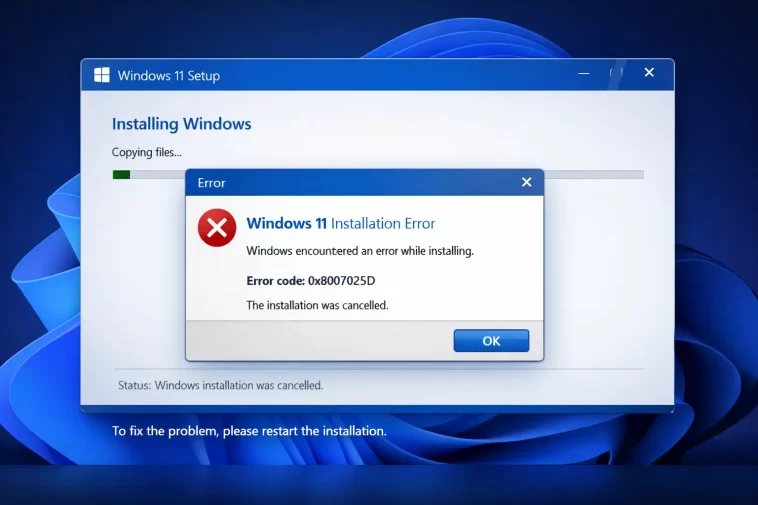
Error 0x8007025D stops Windows 11 setup cold — no warning, no useful message, just a failure screen and a hex code that tells you almost nothing on its own. It’s an I/O error, which means something went wrong reading or writing data during the installation process, and it can come from several different places.
What 0x8007025D Actually Means
The error code breaks down like this: 0x80070 is a standard Win32 error prefix, and 025D maps to ERROR_IO_DEVICE — a generic I/O failure at the hardware level. That’s both informative and frustrating, because it narrows things to a hardware or media problem without telling you which one.
In practice, 0x8007025D during Windows 11 setup usually means one of these:
- The installation media is corrupted — bad sectors on the USB drive, or the ISO was written incorrectly
- The target drive has bad sectors or is starting to fail — the installer can’t write to certain areas
- RAM is faulty — this one surprises people, but Windows setup loads a significant portion of the installer into memory, and a bad RAM stick causes I/O errors that look identical to drive failures
- The USB port or cable is flaky — cheap USB 3.0 hubs and extension cables cause intermittent read errors
- The ISO download was incomplete or corrupted — partial downloads that pass a basic file size check but fail SHA-256 verification
That last one is worth emphasizing. A lot of people download the ISO, see it’s roughly the right size, and assume it’s fine. It might not be.
Fix 1: Verify the ISO Before Anything Else
If you downloaded the ISO from Microsoft’s site, verify the hash before assuming the media is good. Microsoft publishes SHA-256 hashes for all Windows 11 ISOs on the download page.
In PowerShell:
powershell
Get-FileHash "C:\path\to\Win11.iso" -Algorithm SHA256Compare the output to what Microsoft lists. If it doesn’t match — even by one character — redownload the ISO. A mismatch means the file is corrupted and will cause errors during installation regardless of what else you do.
And if you’re using the Media Creation Tool instead of a direct ISO download, there’s no hash to verify. In that case, just re-run the tool and let it re-download everything fresh. Don’t reuse the temporary files it cached from a previous run.
Fix 2: Recreate the USB Drive Properly
Assuming the ISO is clean, the next most common cause is a badly written USB drive. Windows’ built-in “copy to USB” methods don’t always produce bootable media that installs reliably. Use Rufus instead.
- Download Rufus (from rufus.ie — the portable version works fine)
- Plug in your USB drive (8 GB minimum, 16 GB recommended)
- Select your ISO in Rufus
- Set Partition scheme to GPT (for UEFI systems) or MBR (for legacy BIOS)
- Leave everything else at defaults
- Click START
One thing people miss: Rufus will warn you that it needs to download an additional file for Windows 11 compatibility (specifically for bypassing TPM/Secure Boot checks if needed). Let it. Don’t skip that step.
After writing, do a sanity check — browse the USB in File Explorer and confirm the sources\install.wim or install.esd file exists and is several gigabytes in size. If it’s missing or tiny, the write failed.
Fix 3: Try a Different USB Port (and Skip the Hub)
This sounds trivial but it’s caught me off guard before. USB hubs — especially unpowered ones — cause intermittent read errors under sustained load. Windows setup reads a lot of data over a sustained period, and a hub that works fine for file transfers can fail under that kind of continuous throughput.
Plug the USB drive directly into a port on the motherboard. Prefer a USB 2.0 port if you have one available — counterintuitively, USB 2.0 is often more stable for bootable media than USB 3.0 on some older systems. The speed difference doesn’t matter much during setup.
Also avoid front-panel USB ports on desktops. They’re wired through the case and the connection quality varies. Use a rear I/O port directly on the motherboard.
Fix 4: Test Your RAM
This is the fix that most guides bury at the bottom or skip entirely. But faulty RAM is a legitimate and surprisingly common cause of 0x8007025D — because Windows setup decompresses installation files into memory, and a bad memory address turns that into an I/O error.
Quick test using Windows Memory Diagnostic:
- Press Win + R, type
mdsched.exe, press Enter - Choose Restart now and check for problems
- Let it run through at least one full pass (takes 10–20 minutes)
- Check results in Event Viewer after reboot: Windows Logs > System, filter for source “MemoryDiagnostics-Results”
More thorough test using MemTest86:
MemTest86 runs outside Windows entirely, which makes it more reliable for catching subtle errors. Download it, write it to a USB, boot from it, and let it run for at least 2 full passes. One pass isn’t enough to catch intermittent errors.
If either test finds errors — pull one RAM stick at a time and retry. If you have two sticks and one is bad, the test results will tell you which slot failed. Try running with just one stick and see if setup completes.
Fix 5: Check the Target Drive
If the drive you’re installing onto has bad sectors, setup will hit 0x8007025D when it tries to write to them. Run a surface test before retrying.
For the drive you’re installing to, boot from a live environment or a separate Windows installation and run:
chkdsk D: /f /r /xReplace D: with the correct drive letter. The /r flag scans for bad sectors and attempts recovery — this takes time on large HDDs, considerably less on SSDs.
Alternatively, use the drive manufacturer’s diagnostic tool (Seagate SeaTools, WD Data Lifeguard, Samsung Magician, etc.) for a more thorough surface scan. These tools can often recover or reallocate bad sectors that CHKDSK misses.
If the drive is an SSD and showing bad sectors, that’s a serious warning sign. Back up immediately and consider replacing it before installing a new OS on it.
Fix 6: Clean the Target Partition Before Installing
Sometimes setup fails not because of bad hardware, but because of partition table inconsistencies — remnants of a previous OS, misaligned partitions, or a drive that was converted between MBR and GPT improperly.
During Windows 11 setup, when you reach the “Where do you want to install Windows?” screen:
- Select the target partition
- Click Delete to remove it (and any other partitions on that drive if you’re doing a clean install)
- Select the resulting unallocated space
- Click New to let setup create fresh partitions
- Proceed with installation
If you want more control, press Shift + F10 during setup to open a Command Prompt, then use diskpart:
diskpart
list disk
select disk 0
clean
convert gpt
exit
This wipes the disk entirely and converts it to GPT. Only do this if you’re absolutely sure you’ve selected the right disk and have no data to preserve.
What Actually Worked For Me
I ran into 0x8007025D on a machine I was rebuilding — an older desktop with a mix of components. Setup failed consistently at around 67% during the “Copying files” phase.
I went through the obvious stuff first: new ISO, new USB, different port. Still failed. Then I ran Windows Memory Diagnostic and it came back clean, so I moved on. What I should have done was run MemTest86 instead — the built-in tool missed something.
I eventually pulled one of the two RAM sticks (just on a hunch, honestly — I didn’t have a clean diagnosis at that point), and setup ran through without errors. Swapped the sticks and tried again with the other one — also fine. Turned out the issue was the two sticks together: the system was unstable at that specific dual-channel configuration at whatever speed the BIOS had set. Not exactly a clean systematic fix. More like I stumbled into the answer.
So: don’t skip RAM testing, and don’t trust Windows Memory Diagnostic alone. MemTest86 is worth the extra ten minutes to set up.
Comparison: Causes and How to Identify Them
| Cause | How to Confirm | Fix |
|---|---|---|
| Corrupted ISO | SHA-256 hash mismatch | Redownload ISO |
| Bad USB write | Missing/tiny install.wim on USB | Recreate with Rufus |
| Flaky USB connection | Error only via hub or front port | Use direct rear port |
| Faulty RAM | MemTest86 errors | Remove/replace bad stick |
| Bad sectors on target drive | CHKDSK or manufacturer tool | Replace drive or reallocate sectors |
| Partition table issues | Setup fails on specific partition | Delete and recreate partitions |
Advanced: Reading Setup Logs for the Exact Failure Point
If you’re still stuck, the setup logs tell you exactly where things broke. After a failed install attempt, these exist even on a machine that never booted into Windows:
- Boot from your USB and open a Command Prompt (Shift + F10 during setup)
- Navigate to
X:\$WINDOWS.~BT\Sources\Panther\ - Open
setuperr.log— this contains only errors, making it faster to scan than the full log - Also check
setupact.logfor context around the error entries
Look for lines containing 0x8007025D and check what file or operation immediately preceded the error. If it’s consistently failing on the same file, that file path often tells you whether the problem is on the source (USB) or destination (target drive).
A failure on \sources\install.wim points to the USB. A failure on a path like \Windows\System32\... during the copy phase points to the target drive or RAM.
Prevention Tips
- Always verify ISO hashes before writing to USB — takes 30 seconds and saves hours
- Use Rufus for USB creation, not Windows’ built-in tools
- Run MemTest86 before any major OS installation on a machine you haven’t thoroughly tested
- Don’t install onto a drive that’s showing any SMART warnings — check with CrystalDiskInfo first
- Use rear motherboard USB ports, not hubs or front-panel ports
- If a setup attempt fails, delete the
$WINDOWS.~BTand$WINDOWS.~WSfolders before retrying — leftover staging files from a failed run can cause the next attempt to fail too
FAQ
Does 0x8007025D always mean a hardware problem? Usually, yes — it’s an I/O error at the hardware level. But a corrupted ISO or bad USB write can trigger the same code without any actual hardware failure. Start with the media before assuming your drive or RAM is bad.
Can I get this error installing from a DVD instead of USB? Yes. The same error can appear with optical media, and a scratched or dirty disc causes identical symptoms. Clean the disc and try again, or just switch to USB — optical installs are slower and more prone to read errors anyway.
Setup fails at the same percentage every time — what does that mean? It means the installer is hitting the same problematic file or disk region repeatedly. That’s useful information. If it’s consistently early in the process (under 20%), the problem is likely on the source media. If it’s consistently later (50%+), suspect the target drive or RAM.
I replaced the USB and ISO and still get the error. What now? Test RAM with MemTest86. If that’s clean, run a full surface scan on the target drive. If both come back fine, try a different SATA/NVMe port or cable for the target drive — cable and controller issues can cause 0x8007025D too.
Will this error damage my existing data? At the “Copying files” stage, no. Your existing partition is untouched until the installer actually commits changes. A failed install at this point is annoying, not destructive. If you’re doing an in-place upgrade, your data is still there.
My USB drive works for other things — can it still be the problem? Yes. A USB drive that works for file transfers can still have marginal sectors that fail under the sustained sequential read that setup requires. Try a different drive, preferably a name-brand one rather than a no-name flash drive.
Does this error happen with in-place upgrades too, or just clean installs? Both. In-place upgrades are actually more likely to hit this because setup is reading and writing simultaneously while the OS is running, which stresses both the source (internet or cached files) and the target drive at the same time.
Editor’s Opinion
The RAM angle is what gets people. Everyone checks the USB, checks the ISO, maybe runs CHKDSK — and then gives up thinking it’s some obscure Windows bug. But 0x8007025D from bad RAM is genuinely common and MemTest86 is the only tool that catches it reliably. The built-in memory diagnostic misses too much. Five minutes to set up MemTest86, two hours to run it properly, and you’ll know for certain. Worth it before you spend money on a new drive you might not need.
