Dependent drop-down lists are easy enough when everything lives on one sheet. But the second you try to pull your source data from a different worksheet — or worse, split the lists across several sheets — Excel starts throwing “source may not be a reference to a cell or range” errors, and half the tutorials out there just don’t cover that case. I ran into this building a project tracker last year, and it took some trial and error to get it working cleanly.
Quick Answer
- Use named ranges instead of direct cell references — this is the part that actually fixes the cross-sheet issue
- Data validation’s “List” source field can’t directly reference another worksheet unless you name the range first
- INDIRECT() combined with named ranges is the standard way to make the second dropdown depend on the first
- Keep your source lists on a dedicated hidden helper sheet to avoid clutter and accidental edits
- Named ranges can’t contain spaces, so replace them with underscores before setting anything up
Why the Standard Method Breaks Across Sheets
So here’s where most people get stuck. If you try to type Sheet2!A1:A5 directly into the Data Validation “Source” box, Excel will often reject it or just silently fail to populate the dropdown — especially in older Excel versions and sometimes even in current ones depending on how the workbook’s structured. There are a few real reasons for this, not just “Excel being buggy”:
1. Data Validation lists don’t fully support cross-sheet direct references. This has been a quirk of Excel’s validation engine for a long time. It works fine for a single dropdown, but the moment you introduce a second, dependent dropdown using INDIRECT(), unnamed cross-sheet ranges tend to break down entirely.
2. INDIRECT() needs a text string it can resolve to an actual range — and sheet names with spaces break that string. If your worksheet is named “Product List” instead of “ProductList,” INDIRECT() chokes on the space unless you wrap it carefully, and most tutorials skip this detail entirely.
3. Named ranges scoped to “Worksheet” instead of “Workbook” won’t be visible where you need them. This one’s sneaky. If you define a named range while a specific sheet is active and don’t change the scope, that name only works on that sheet — try to reference it from a dropdown on another sheet and it just won’t show up, no error, no warning.
Comparison: Reference Methods for Dependent Dropdowns
| Method | Works Across Sheets? | Handles Spaces in Names? | Best For |
|---|---|---|---|
| Direct cell reference | No, unreliable | N/A | Single-sheet dropdowns only |
| Named range (workbook scope) | Yes | Yes, with underscores | Most dependent dropdown setups |
| INDIRECT() + named range | Yes | Only if names avoid spaces | Multi-level dependent dropdowns |
| Table-based structured reference | Partially | Yes | Dynamic lists that grow/shrink |
Step-by-Step Setup
Step 1: Organize Your Source Data on a Helper Sheet
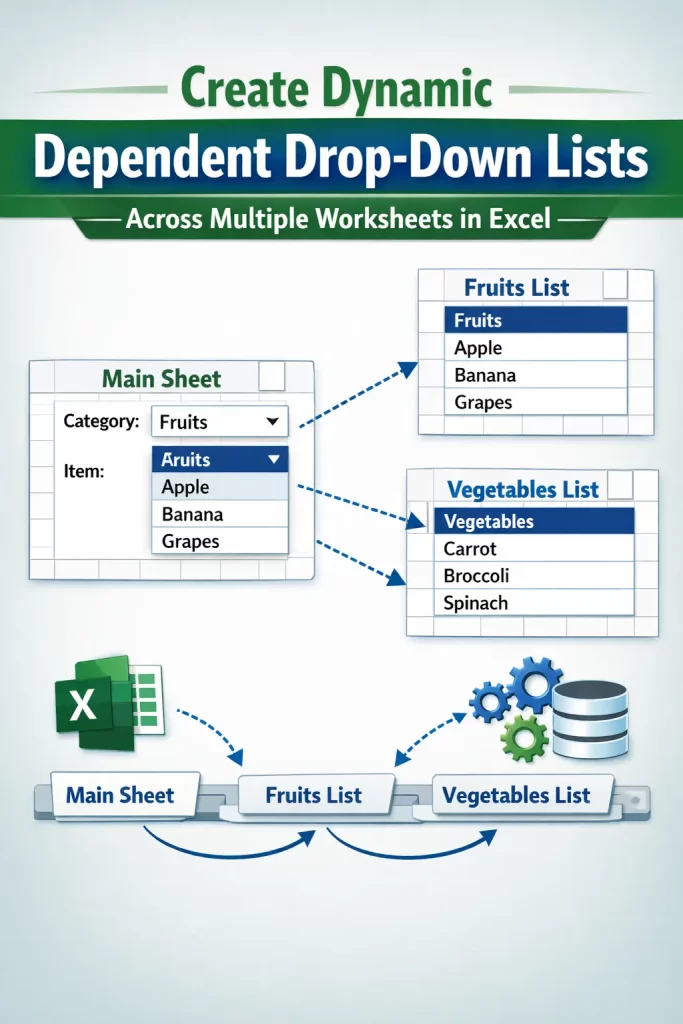
Put all your category lists on a dedicated sheet — call it “Lists” or “Source” — with each category’s items in its own column. So if your first dropdown is “Fruit” and “Vegetable,” column A holds fruit names and column B holds vegetable names, headed by “Fruit” and “Vegetable” respectively.
Keep it simple here. Don’t merge cells, don’t leave blank rows in the middle of a list — both will cause the named range to misbehave later.
Step 2: Name Each List (Workbook Scope, Not Worksheet)
- Select the range of items for one category (not the header)
- Go to Formulas → Name Manager → New
- In the “Name” field, type the category name exactly as it appears in your header row — but replace spaces with underscores (e.g., “Leafy_Greens”)
- Under “Scope,” make sure it’s set to Workbook, not the specific sheet
- Repeat for every category
This step is where most cross-sheet setups fail, honestly. People name the range fine but leave scope on the active worksheet by accident, and then wonder why the dropdown on another tab comes up empty.
Step 3: Create the First (Primary) Dropdown
On the sheet where users will actually pick values:
- Select the cell for the primary dropdown
- Go to Data → Data Validation
- Under “Allow,” choose “List”
- In “Source,” reference your helper sheet range directly, or better, use a named range covering all your category headers
Step 4: Create the Dependent Dropdown Using INDIRECT()
- Select the cell for the second dropdown
- Data → Data Validation → List
- In “Source,” type:
=INDIRECT(SUBSTITUTE($A$2," ","_"))— adjusting the cell reference to match wherever your primary dropdown selection lives - The SUBSTITUTE part matters here because it converts whatever the user picked (which might have a space, like “Leafy Greens”) into the underscore format your named range actually uses
Step 5: Test Across Every Sheet That Uses the Dropdown
Don’t just test on the sheet where you built it. Copy the validation to a different worksheet and confirm the dependent list still populates correctly — this is the step people skip, and it’s exactly where the workbook-scope issue from Step 2 shows up if you missed it.
What Actually Worked For Me
My first attempt used worksheet-scoped named ranges because that’s what auto-populates when you just select a range and type a name in the Name Box directly — I didn’t realize it defaulted to worksheet scope instead of workbook scope. Everything worked perfectly on the sheet I built it on, and then completely failed the moment I copied the dropdown to another tab. No error message, just an empty list, which is almost more frustrating than getting an actual error.
I spent probably 40 minutes checking my INDIRECT() syntax, assuming that was the problem, before I even thought to check the Name Manager scope column. That’s not entirely accurate — I did check it once early on, but I didn’t actually notice the scope column said “Sheet1” instead of “Workbook” because I wasn’t looking for it specifically. Once I went back through Name Manager and manually changed each range’s scope to Workbook, it started working everywhere immediately. Lesson learned: check scope first, not last.
Advanced Fixes and Edge Cases
Dynamic lists that grow or shrink. If your category lists change size over time, wrap them in an Excel Table (Ctrl+T) instead of a plain range, then name a range that references the table column using structured references like Fruit[Column1]. This way, adding a new item to the list automatically extends the dropdown without redefining the named range.
Three-level dependent dropdowns (e.g., Country → State → City). This works the same way, just chained — each dropdown’s INDIRECT() formula references the cell above it. The main thing to watch is that every single named range at every level needs workbook scope, and every category name across all three levels needs to be completely unique. Duplicate names between levels will silently break things.
#REF! or blank dropdown after copying to a new sheet. Usually means either the named range scope is wrong (see above), or the SUBSTITUTE function isn’t matching the actual text in the primary dropdown cell exactly — check for trailing spaces or inconsistent capitalization in your source headers.
Protecting the helper sheet without breaking validation. You can hide and even protect the “Lists” sheet — named ranges keep working even when their source sheet is hidden or protected, as long as you don’t lock the cells in a way that prevents Excel from reading them (protection blocks editing, not reading, so this is usually fine).
Prevention Tips
- Always set named range scope to Workbook when building anything that’ll be referenced across sheets
- Avoid spaces in category headers from the start — it saves you from needing SUBSTITUTE() in every formula
- Keep your helper/source sheet in the same workbook, never a separate linked file — external references add another layer of fragility to dependent dropdowns
- Document your named ranges somewhere (even just a comment in the workbook) if the sheet will be handed off to someone else later
FAQ
Why does my dependent dropdown show the right list on one sheet but not another? Almost always a named range scoped to a specific worksheet instead of the whole workbook. Check Name Manager and fix the scope column.
Can I use spaces in my category names instead of underscores? Not in the named range itself — Excel doesn’t allow spaces there. But you can keep spaces in the actual header text and use SUBSTITUTE() in your INDIRECT formula to bridge the two.
Does this work in Google Sheets the same way? Not exactly. Google Sheets uses a different approach for dependent dropdowns, and INDIRECT() syntax differences mean you can’t just copy this setup over directly.
My dropdown works but shows blank as an option too. How do I stop that? Check your named range for blank rows at the end — validation lists often include one extra blank cell if the range was selected a little too generously.
Is there a way to do this without INDIRECT() at all? Yes, with FILTER() in Excel 365, though it works differently and doesn’t rely on named ranges the same way. Worth trying if you have access to it, but the method above still works fine on older Excel versions.
Editor’s Opinion
took me way longer to figure this out then it should have, mostly because the scope setting is buried and easy to overlook. once you actually get workbook scope right the whole thing just works, no drama. if your dropdown is empty on a new sheet, check scope before you touch anything else, thats basically always the answer.
