The ads.txt warning in AdSense looks scarier than it usually is — most of the time it’s a five-minute fix, not a sign your account’s in trouble. I’ve fixed this exact error on three different client sites, and every single time it came down to either the file being in the wrong place or a caching plugin serving a stale version. Here’s the fast version, no fluff.
Quick Answer
- Create a plain text file named exactly
ads.txt, no extension tricks, no capitalization changes - It must live at your domain root:
yoursite.com/ads.txt, not in a subfolder - Add one line with your AdSense publisher info, formatted exactly as AdSense shows you in your account
- Clear any caching plugin or CDN cache after uploading — this is the step people forget most
- Give it 24-48 hours before assuming it’s still broken; AdSense doesn’t re-crawl instantly
Why This Error Shows Up
Ads.txt (Authorized Digital Sellers) is a text file Google and other ad networks check to confirm you’re actually authorized to sell ad space on your domain. It’s an anti-fraud measure, not a WordPress feature, which is part of why it trips people up — there’s no menu for it in your dashboard by default.
1. The file doesn’t exist yet. Most common reason, especially on newer sites or sites that recently switched hosting or themes. AdSense checks for it automatically and flags it as missing if there’s nothing at the root URL.
2. It’s in the wrong location. Uploading it into /wp-content/ or any subfolder doesn’t count. It has to resolve at exactly yoursite.com/ads.txt — no exceptions, no redirects that change the final URL.
3. Caching is serving an old version, or serving nothing. If you added the file correctly but a page cache or CDN cached the 404 response from before the file existed, Google’s crawler might keep seeing the old cached “not found” result until that cache clears.
4. The publisher ID or line format is wrong. Even a small typo, extra space, or wrong case in your AdSense publisher ID line causes the check to fail, since ads.txt parsing is strict about formatting.
There’s a less common cause worth knowing: multisite or subdomain setups sometimes only have ads.txt on the main domain, but each subdomain being monetized separately technically needs its own accessible ads.txt too, depending on how AdSense is checking it.
Step-by-Step Fix
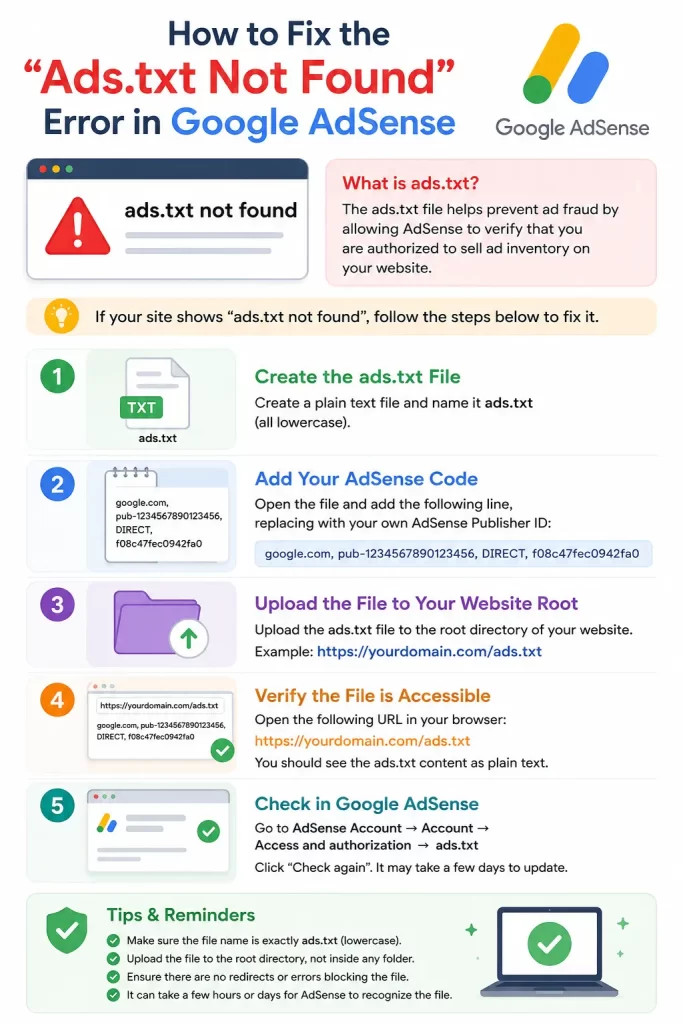
Step 1: Get Your Exact Ads.txt Line From AdSense
In your AdSense account, go to Sites → click your site → there’s usually a direct link or snippet showing the exact line you need, something like:
google.com, pub-1234567890123456, DIRECT, f08c47fec0942fa0Copy this exactly. Don’t retype it manually — copy-paste avoids typo issues entirely.
Step 2: Create the File
Open a plain text editor (Notepad, not Word) and paste in the line from Step 1. Save it as ads.txt — make sure your editor doesn’t sneakily save it as ads.txt.txt, which happens more than you’d think on Windows if file extensions are hidden.
Step 3: Upload It to Your Site Root
If you’re on WordPress with FTP/File Manager access: Upload directly to the root directory — the same folder that contains wp-config.php, not inside wp-content or wp-admin.
If you’re using a plugin instead: Yoast SEO and Rank Math both let you edit ads.txt content directly from their settings without needing FTP access — under Yoast’s Tools section or Rank Math‘s General Settings. This is the easier route if you don’t want to touch files directly.
Step 4: Confirm It’s Actually Accessible
Visit yoursite.com/ads.txt directly in a browser, logged out, in incognito mode. You should see the plain text content, not a 404, not your homepage, not a redirect to somewhere else.
Step 5: Clear Every Layer of Cache
Clear your WordPress caching plugin’s cache, then clear any CDN cache (Cloudflare, etc.) separately — these are two different caches and clearing one doesn’t clear the other. So don’t stop after just the plugin cache if you’re also running a CDN in front of your site.
Step 6: Wait, Then Recheck in AdSense
AdSense’s crawler doesn’t re-check instantly. Give it a day or two before assuming the fix didn’t work — checking too early and panicking is a pretty common mistake here.
What Actually Worked For Me
The first time I hit this, I uploaded the file correctly on the first try and figured that’d be the end of it. But AdSense kept flagging it as missing for almost three days straight, which had me second-guessing whether I’d formatted the publisher line wrong.
Turned out the site was behind Cloudflare, and Cloudflare had cached a 404 response for /ads.txt from before I’d added the file — so even though the file existed correctly on the actual server, anyone (including Google’s crawler) hitting that URL through Cloudflare was still getting served the old cached “not found” page. I hadn’t even thought to check the CDN layer separately since I’d already cleared the WordPress cache and assumed that covered it. Purging the specific URL in Cloudflare’s cache (not just a general “clear everything,” just that one path) fixed it within a few hours.
Advanced Fixes and Edge Cases
Multiple ad networks needing separate lines. If you’re running AdSense alongside other networks (Ezoic, Mediavine, etc.), your ads.txt needs one line per network, all in the same file — don’t create separate files per network, that’s not how the spec works.
Redirect chains breaking the check. If your site has an old HTTP-to-HTTPS redirect or a www/non-www redirect that changes the URL in a way that isn’t a clean 301, the ads.txt check can fail even though the file technically exists somewhere. Check that yoursite.com/ads.txt resolves in one clean hop, not several redirects deep.
Robots.txt accidentally blocking it. Rare, but worth a 30-second check — make sure your robots.txt file isn’t disallowing crawler access to the root in a way that inadvertently affects ads.txt visibility to bots.
Prevention Tips
- Bookmark your AdSense-provided ads.txt line so you have it ready if you ever migrate hosts or rebuild the site
- Exclude
/ads.txtfrom cache rules on any CDN or caching plugin going forward, since it should always serve fresh - Check it after any major site migration — this file has a habit of getting lost in host transfers
FAQ
Do I need ads.txt if I’m using a plugin that already manages ads for me? Usually yes, unless the plugin explicitly states it handles ads.txt automatically — check its documentation rather than assuming.
How long does AdSense take to stop showing the error after I fix it? Typically 24-48 hours, sometimes a bit longer. It’s not instant, so don’t keep re-uploading the file thinking that speeds it up.
Can I have ads.txt and app-ads.txt at the same time? Yes, they serve different purposes (web vs. in-app), and having both doesn’t cause any conflict.
Will this error stop me from earning money in the meantime? It can reduce ad fill rates on some inventory since certain buyers won’t bid on unauthorized inventory, so it’s worth fixing promptly rather than ignoring the warning.
Editor’s Opinion
this one always looks way more alarming in the adsense dashboard then it actually is. 90% of the time its just a missing file or a cache serving something stale. check the cdn layer seperately from your normal cache, that’s the step everyone forgets and its usually the actual fix.
