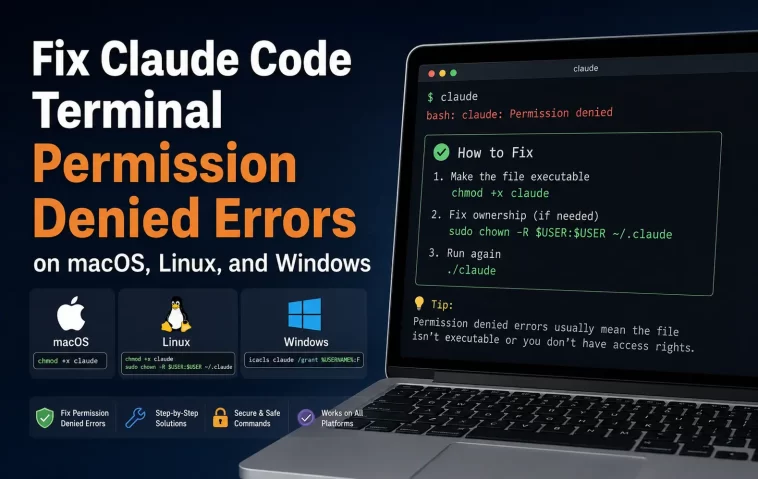
I lost about an hour of a Tuesday afternoon to a Claude Code terminal permission denied error that turned out to be a leftover root-owned file from a Docker build three weeks earlier. So, this one’s personal. If you’ve just hit EACCES: permission denied (or the Windows flavor of “access denied”) trying to install, run, or update Claude Code, you’re not doing anything wrong — this happens to almost everyone at some point, usually right after a fresh install or a system update.
Quick Answer
If you just want the fast version before the full breakdown:
- Never install Claude Code with
sudo— it creates root-owned files that keep causing errors later - Reinstall using the official native installer instead of npm; it avoids permission conflicts almost entirely
- Run
claude doctorfirst — it usually tells you exactly which directory is the problem - Fix ownership with
sudo chown -R $(whoami) ~/.npm ~/.claude, never chmod 777 - On WSL, move your project off
/mnt/c/— NTFS permissions don’t play well with Claude Code
Why It Fails
There isn’t one single cause here, which is annoying, but from what I’ve seen it usually comes down to one of these:
npm’s global install location isn’t user-writable. When you install with npm install -g @anthropic-ai/claude-code, npm’s default global prefix on macOS and Linux often points to a system directory like /usr/local/lib, which needs elevated rights to write to. So the first-time install already sets you up to hit permission errors on every future update.
Something got installed or run as root at some point. This is the sneaky one. And it doesn’t have to be Claude Code itself — a Docker build, a CI job, or a single sudo git commit can leave files owned by root sitting in your project or in .git/objects. Claude Code then tries to touch those files as your normal user and gets rejected.
OS-level security layers are blocking access, not the filesystem. macOS Gatekeeper, System Integrity Protection, and the newer Privacy & Security folder permissions can all silently deny Claude Code access to a folder with zero useful error message. On Linux it’s SELinux or AppArmor. On Windows it’s UAC and NTFS ACLs, or antivirus locking a file mid-download.
WSL and mounted Windows drives don’t behave like real Linux filesystems. If your project sits on /mnt/c/, the NTFS driver doesn’t support every Linux permission operation Claude Code expects, so you’ll see EPERM even though everything “looks” fine when you check permissions manually.
Common Scenarios
Where this actually shows up varies a lot depending on platform:
- macOS, fresh npm install — EACCES the moment you run
npm install -g @anthropic-ai/claude-codewithout sudo - macOS, after an OS upgrade — permission denied errors appear on every single bash command Claude runs, even though the command output is fine underneath the noise
- Windows, native PowerShell install — installer fails with “process cannot access the file” because antivirus is scanning the partially downloaded binary
- WSL2 — install works, but any file operation inside
/mnt/c/throws EPERM - Shared Linux servers — one teammate installs globally with sudo, then everyone else gets blocked because the global prefix is now root-owned
- VS Code / Cursor integrated terminal — works fine in a regular terminal, but the IDE’s terminal loads a different PATH and can’t find
claudeat all, which looks like a permission issue but isn’t one
Step-by-Step Fixes
Step 1: Run the built-in diagnostic first
Before touching anything manually, run:
claude doctorThis checks your install health and usually names the exact folder or file causing trouble. Skipping this step and jumping straight to chmod commands is how people end up fixing the wrong thing for twenty minutes.
Step 2: Switch to the native installer
If you installed via npm and you’re fighting permissions, the native installer sidesteps the whole problem because it installs to ~/.local/bin on macOS/Linux instead of a system directory.
macOS/Linux:
curl -fsSL https://claude.ai/install.sh | bashWindows PowerShell:
irm https://claude.ai/install.ps1 | iexOne thing that trips people up on Windows — if you accidentally run the macOS/Linux curl command in PowerShell, you’ll get a parameter error because PowerShell’s curl is actually an alias for Invoke-WebRequest and doesn’t understand -fsSL. Use the PowerShell line above instead.
Step 3: Check that the install directories are actually writable
test -w ~/.local/bin && echo "writable" || echo "not writable"
test -w ~/.claude && echo "writable" || echo "not writable"
If either comes back “not writable,” fix it directly rather than guessing:
sudo mkdir -p ~/.local/bin
sudo chown -R $(whoami) ~/.local
sudo chown -R $(whoami) ~/.claude
That’s the safe use of sudo here — you’re only touching your own home directory, not system paths.
Step 4: If you’re staying on npm, redirect the global prefix
Sometimes people don’t want to switch installers mid-project, and that’s fair. You can fix npm’s permission model directly:
mkdir -p ~/.npm-global
npm config set prefix '~/.npm-global'
export PATH=~/.npm-global/bin:$PATH
source ~/.bashrc
npm install -g @anthropic-ai/claude-code
Step 5: Clean up root-owned files from past sudo mistakes
If ownership got poisoned by a previous sudo install or a Docker build:
sudo chown -R $(whoami):$(whoami) ~/.npm ~/.claude
sudo chown -R $(whoami) /path/to/your/project
Check .git specifically if git operations are failing — a single sudo git command in the past is enough to leave .git/objects root-owned, and that error message (“insufficient permission for adding an object to repository database”) gives no hint that this is the actual cause.
Step 6 (Windows-specific): Grant folder access via Privacy settings
On macOS, if Claude Code’s desktop app crashes immediately when opening a project with no useful error (“process exited with code 1”), it’s very often not a code problem at all — it’s Privacy & Security blocking folder access. Go to System Settings > Privacy & Security and grant Claude access to the folder. Genuinely one of the worse error messages I’ve run into, because nothing about “exited with code 1” suggests a permissions dialog is the fix.
Technical Comparison Table
| Symptom | Likely Cause | Fix |
|---|---|---|
EACCES during npm install -g | npm prefix is a system directory | Switch to native installer or redirect npm prefix |
| Permission error on every bash command after macOS update | Temp directory permissions changed | Usually cosmetic — commands still run; update Claude Code |
Git errors referencing .git/objects | A past sudo git command | sudo chown -R $(whoami) .git |
| EPERM on files inside WSL | Project lives on /mnt/c/ | Move project into ~/ on the Linux filesystem |
| App crashes opening a folder, no clear error (macOS) | Privacy & Security blocking access | Grant folder access manually in System Settings |
What Actually Worked For Me
Okay so here’s the honest version. My first guess was a broken npm install, because that’s usually the culprit and I’ve fixed it before. I reinstalled npm entirely. Didn’t help. I then spent a while messing with ~/.npm-global prefixes, convinced I’d misconfigured something — that’s not entirely accurate, let me back up, I actually had it configured correctly the whole time.
The actual problem was a Docker build I’d run two or three weeks prior that dropped a handful of root-owned output files into my project folder, and Claude Code kept choking on those specific files whenever it tried to write nearby. claude doctor didn’t catch it because the install itself was healthy — it was a project-level ownership issue, not an installation one. I found the actual fix from a half-remembered GitHub issue comment about Docker builds poisoning file ownership, ran a targeted chown on the project directory, and it just worked immediately. Kind of annoying that the fix was that simple after all that.
Advanced Fixes and Edge Cases
Diagnosing with system logs. On Linux, if you suspect SELinux or AppArmor is the real blocker rather than plain file ownership, check dmesg or /var/log/audit/audit.log for denial entries. This is worth doing before you go down the chmod rabbit hole, because no amount of chown fixes a security module actively denying the operation.
Container and cgroup checks. If you’re running inside a container or a restricted environment and sandboxed execution fails, check cat /proc/1/cgroup to confirm you’re actually in a container. Some container setups just don’t support sandboxing, and in those cases running without the sandbox — while less secure — may be the only option.
WSL1 vs WSL2 matters more than people think. WSL1 doesn’t support sandboxed execution at all. If you’re getting weird permission behavior and you’re not sure which version you’re on, run wsl --list --verbose to check. I’ve seen people troubleshoot for an hour without realizing they were still on WSL1.
node_modules corruption. If permission errors are isolated to node_modules and nothing else, don’t bother chasing individual file permissions inside it — delete the whole folder and reinstall. It’s faster, and from what I’ve seen it resolves the issue close to 100% of the time.
Prevention Tips
- Never run
claude,npm, orgitwith sudo — not even once, not even “just this time” - Keep the
~/.claudedirectory permissions tight (chmod 700 ~/.claude), not wide open - If you’re on a shared Linux machine, each user should have their own per-user npm prefix instead of one global sudo install
- Avoid working inside
/mnt/c/if you’re on WSL — keep projects on the Linux filesystem - Run
claude doctorperiodically, not just when something breaks, since it flags brewing permission issues early
FAQ
Claude Code was working fine yesterday, why is it suddenly showing permission denied? Most often it’s not actually a new permission problem — it’s an expired authentication token. Run claude auth status, and if it’s expired, claude auth login. If that’s not it, check whether antivirus software updated overnight and started flagging the config directory.
Is it safe to use sudo chown to fix this? Yes, but only on your own home directory paths like ~/.npm and ~/.claude. Never run a recursive chown on /usr or /usr/local — that can break your whole OS, not just Claude Code.
I get a 401 Unauthorized error, is that a permission issue? No. That’s authentication, not filesystem permissions. Different problem, different fix — re-login instead of touching file ownership.
Why does Claude Code keep asking for permission on every action even though the install is fine? That’s a separate, intentional permission system for tool use (file writes, command execution), configured in .claude/settings.json. It’s not related to filesystem EACCES errors at all, even though the wording is confusingly similar.
Do I need to reinstall every time this happens? Not usually. Reinstalling via the native installer helps when ownership is deeply tangled, but a targeted chown fixes most cases without a full reinstall.
Editor’s Opinion
honestly this is one of those bugs where the error message is doing you no favors. “permission denied” tells you nothing about whether it’s npm, git, macos privacy settings, or some docker leftover from weeks ago. run claude doctor first, always, before you start chowning things randomly. and if youre on a mac and the app just crashes with no real error — check privacy settings before you assume your install is broken. that one wasted more of my time than it should have.
