A good Type-C hub 2026 buyers can rely on turns one slim port into a full workstation. If your laptop only has one or two USB-C ports, a hub lets you connect monitors, drives, keyboards, and more without carrying a bag full of dongles.
This guide covers the ten best multifunctional Type-C hubs of 2026, based on real-world testing data, port variety, and value for money. Whether you need a travel-friendly option or a desk-anchored powerhouse, you’ll find the right pick below.
Why You Need a Type-C Hub in 2026
Modern laptops and tablets keep getting slimmer, and manufacturers keep removing ports to make that happen. A single USB-C port is rarely enough for daily work.
A hub solves this instantly. It restores access to monitors, external drives, SD cards, and Ethernet, all through one cable.
Here’s what a quality hub gives you:
- More ports for keyboards, mice, and storage
- Video output for one or more external displays
- Pass-through charging so your device charges while connected
- Portability that a bulky docking station can’t match
Type-C Hub vs. Docking Station: What’s the Difference?
These two terms get confused often, so here’s a quick breakdown.
Type-C hubs are compact, require no separate power supply, and usually cost between $30 and $150. They’re ideal for simple setups: one monitor, a mouse, and a keyboard.
Docking stations are bulkier, need their own power brick, and often cost over $400. They make sense if you run multiple monitors, webcams, and audio gear at once.
For most remote workers and students, a hub is the smarter and cheaper choice.
The 10 Best Type-C Hubs 2026
1. TP-Link UH6120C
This hub nails the essentials without any fuss. It’s a 6-in-1 design built for stability, avoiding the overheating and random disconnects that plague cheaper models.
It includes 100W Power Delivery charging, fast data transfer, and a 4K HDMI port. This makes it a strong daily driver for anyone who just wants dependable performance.
Best for: Everyday users who want a reliable all-rounder.
2. UGreen Revodok Pro 109
This is one of the best-balanced hubs on the market right now. It packs eight downstream ports, including micro and standard SD slots, three USB-A ports, Ethernet, and a 4K at 60Hz HDMI output.
The SD card slots use a spring-free design, which feels more reliable over time. Data transfer through its USB-C port reaches up to 10Gbps, and video output stays smooth even during long sessions.
Best for: Users who want the most complete port selection in one hub.
3. Anker 555 8-in-1 Hub
The Anker 555 is a close runner-up to the UGreen model, missing the top spot only due to a shorter cable and one less USB-A port. It still performs reliably, supporting a 4K monitor, Ethernet, and standard peripherals without hiccups.
It’s often priced within a few dollars of its competitor, so whichever one is on sale is usually the smarter buy.
Best for: Budget-conscious buyers who still want solid performance.
4. Anker 565 11-in-1 Hub
Stepping up from the 555, the Anker 565 offers eleven ports instead of eight, running at a faster 10Gbps. The extra ports include an additional USB-A slot and an audio jack.
It also adds a DisplayPort 1.4 connection alongside HDMI, giving you more flexibility for video output. This makes it a strong choice for anyone juggling multiple display types.
Best for: Users who need more video output options.
5. Satechi Slim Plus
If looks matter to you, the Satechi Slim Plus is likely the best-looking hub available. It’s crafted from aluminum that matches the Space Gray or Silver finish of Apple laptops, sitting flush instead of dangling awkwardly.
Despite its slim profile, it doesn’t skimp on function, offering 4K HDMI output and solid data speeds. It also manages heat well for such a thin device.
Best for: Apple users who care about design as much as function.
6. Baseus 12-in-1 Hub
This hub takes a feature-rich approach, cramming in dual HDMI ports, DisplayPort, three USB-A ports, SD and TF card readers, Ethernet, a 100W PD port, and a headphone jack.
It can support up to three extended displays on Windows laptops with the right graphics setup. Its design even raises the laptop slightly, which helps with typing ergonomics.
Best for: Multi-monitor Windows setups.
7. Belkin Connect 4-Port Hub
Most hubs convert USB-C into USB-A ports, but the Belkin Connect does the opposite. It turns one USB-C port into four, which is useful now that many webcams, microphones, and SSDs use Type-C exclusively.
It supports 100W pass-through charging and data speeds up to 10Gbps, so your laptop charges while your peripherals run at full speed.
Best for: Users with an all Type-C peripheral setup.
8. EZQuest USB4 Dual Display 8-in-1 Hub
This hub is stocked with seven downstream USB-C ports, four of which support the USB4 standard. While USB4 can technically hit 40Gbps, these particular ports run at 10Gbps, which is still fast for most tasks.
It’s a strong pick for anyone who has fully moved away from USB-A devices and wants a hub built entirely around modern connectors.
Best for: Users with newer, all-USB-C peripherals.
9. Hiearcool 7-in-1 Hub
For buyers on a tight budget, the Hiearcool is one of the most affordable and well-reviewed compact hubs available. It costs under $30 and still includes 4K HDMI, dual USB-A 3.0 ports, and SD and microSD slots.
It’s a simple plug-and-play design, making it a great starter hub for students or casual users.
Best for: Budget shoppers who need the basics covered.
10. Satechi OnTheGo 7-in-1 Multiport Adapter
This hub stands out for its unique round, magnetic design with a coiled USB-C cable. Despite calling itself a multiport adapter, it functions just like a hub, offering seven ports in a pocketable 2.55-inch body.
None of the ports hit top-tier pro specs, but they’re capable enough for everyday work, and the compact size makes it easy to toss in a bag.
Best for: Frequent travelers who want something small and easy to carry.
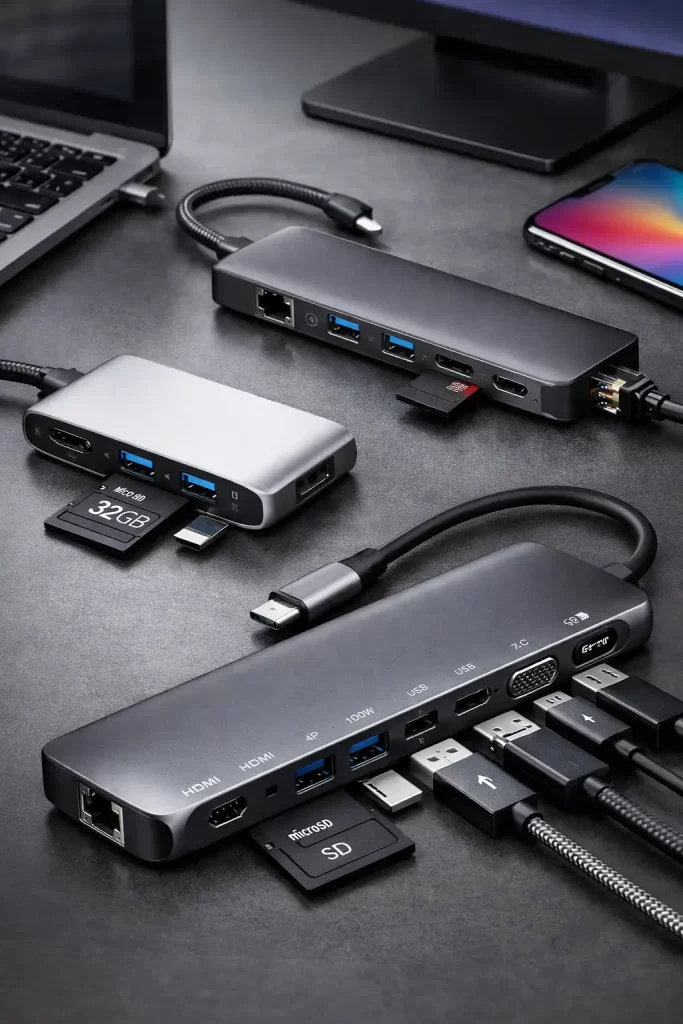
How to Choose the Right Type-C Hub
Not every hub fits every setup. Here’s how to narrow down your choice.
Check Your Power Delivery Needs
Power Delivery (PD) wattage tells you how much charge a hub sends back to your device while running other peripherals.
- 60W is enough for most MacBook Air models
- 85–100W suits MacBook Pro and similar Windows ultrabooks
- 140W or more is needed for gaming laptops
Keep in mind that a hub rated for 100W PD usually delivers closer to 85W to your actual device, since the hub itself uses some power.
Think About Display Needs
If you regularly connect an external monitor, check the HDMI or DisplayPort specs carefully. A 4K at 60Hz output looks far better than the 30Hz found on cheaper hubs.
Some hubs, like the Baseus 12-in-1, support multiple extended displays on Windows machines. Mac users should note that macOS display mirroring has its own limitations regardless of the hub used.
Consider Your Existing Peripherals
Take stock of what you already own before buying:
- Do you use an external hard drive with a USB-A cable?
- Do you need an SD card reader for a camera?
- Is your Wi-Fi unreliable enough that Ethernet is worth having?
- Are your peripherals mostly USB-A or newer USB-C models?
Answering these questions will point you toward the right port combination.
Common Mistakes to Avoid
Buyers often run into the same issues when shopping for a hub. Watch out for these:
- Ignoring power delivery specs. A hub with too little wattage will slow-charge your device.
- Overlooking display refresh rates. A 30Hz HDMI port can make your monitor feel sluggish.
- Choosing based on port count alone. More ports don’t matter if they’re all the same type you don’t need.
- Skipping compatibility checks. Some hubs behave differently across older laptops, so check reviews for your specific model.
Frequently Asked Questions
What is the best Type-C hub for 2026?
The UGreen Revodok Pro 109 and Anker 555 8-in-1 are among the most well-rounded options this year, offering strong port variety and reliable performance for most users.
Does a Type-C hub slow down my laptop?
No. A hub has no impact on your CPU or RAM performance. It simply manages data and power routing between your device and connected peripherals.
Can a Type-C hub charge my laptop while I use it?
Yes, most modern hubs support pass-through charging. Just make sure the hub’s Power Delivery wattage matches or exceeds your laptop’s charging requirements.
How many displays can a Type-C hub support?
Most hubs support one external display comfortably. Some higher-end models, like the Baseus 12-in-1, can support up to three displays on compatible Windows laptops.
Is a Type-C hub the same as a docking station?
No. Hubs are smaller, cheaper, and don’t need separate power. Docking stations are larger, more expensive, and designed for complex multi-monitor setups.
Will a Type-C hub work with my MacBook?
Most hubs on this list are compatible with recent MacBook Air and MacBook Pro models. Always double check the specific hub’s compatibility list before buying, since older Macs may have limitations.
Final Thoughts
The best Type-C hub 2026 has to offer depends heavily on how you actually work. If you want an all-around reliable pick, the UGreen Revodok Pro 109 or TP-Link UH6120C are great starting points.
If design matters as much as function, the Satechi Slim Plus is hard to beat. And if you’re on a budget, the Hiearcool 7-in-1 proves you don’t need to spend much to get solid daily performance.
Think about your ports, your power needs, and your display setup before buying. The right hub should make your workspace simpler, not more complicated.
Editor’s Opinion
I bought a cheap hub once and it overheated after like 20 minutes lol, so trust me, dont just go for the cheapest one you see. Spending a bit more on a decent brand like Anker or Ugreen really is worth it, i learned that the hard way. Also check the HDMI refresh rate before buying, alot of ppl skip that part and end up with a laggy screen. Honestly a good hub just makes life easier, no more swaping cables every five minuts.
