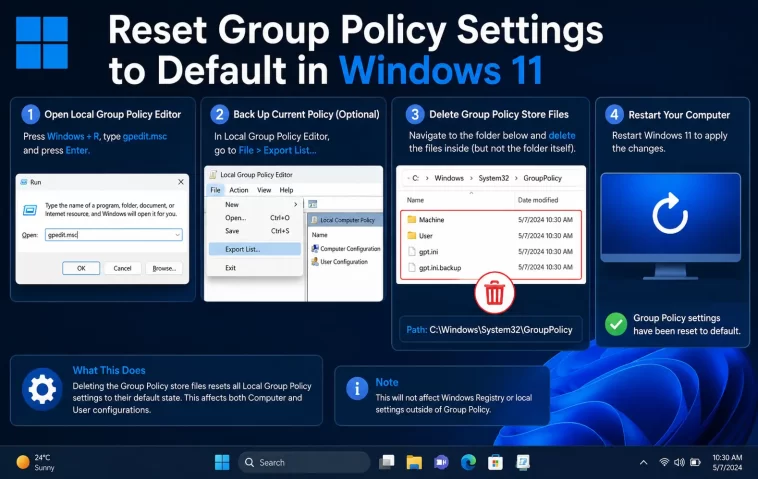
If you need to reset group policy settings to default in Windows 11, it usually means something got changed — either by you, by an admin, by malware, or by a script you ran six months ago and forgot about — and now something on your machine is behaving weird. I’ve dealt with this more times than I’d like to admit, mostly after testing policy changes on a personal VM and forgetting to roll them back before I actually needed the machine to work normally.
The good news: resetting group policy isn’t as scary as it sounds. The bad news: Windows doesn’t give you one clean “reset everything” button, so you’ll be using a mix of tools depending on what exactly broke.
Quick Answer
- Delete the contents of
C:\Windows\System32\GroupPolicyandGroupPolicyUsers, then rungpupdate /force - Use
RSoP(rsop.msc) orgpresult /h report.htmlto see what policies are actually applied - For registry-based policy leftovers, check
HKLM\SOFTWARE\PoliciesandHKCU\SOFTWARE\Policies - On domain-joined machines, a local reset won’t help much — the domain will just reapply the same GPOs
- If Local Group Policy Editor is missing (common on Home edition), you’ll need a workaround before any of this applies to you
Why Group Policy Settings Get Stuck or Won’t Reset
There isn’t one single cause here, and honestly a lot of guides oversimplify this. From what I’ve seen, it’s usually one of these:
Cached policy files that don’t get cleared automatically. Windows caches applied policies in Registry.pol files under System32\GroupPolicy. Deleting the folder and forcing an update is the standard fix, but people expect gpupdate /force alone to fix it — it won’t, if the underlying .pol files are corrupted rather than just outdated.
Domain policies overriding local ones. This trips up more people than it should. If your PC is joined to a domain (common in office setups), local Group Policy edits get flattened by domain GPOs on the next sync. So you can reset locally all day and nothing changes, because the domain controller just reapplies its version 90 seconds later.
Registry remnants that Group Policy Editor doesn’t fully clean up. Setting a policy to “Not Configured” in gpedit.msc doesn’t always remove the registry key it created — sometimes it just stops managing it, leaving a stale value behind that still affects behavior.
Third-party software or scripts that set policy-adjacent registry keys directly. Some antivirus tools, parental control software, or IT management tools (Intune, SCCM) write directly to the same registry paths Group Policy uses. Resetting GP through normal channels won’t touch these.
And one that’s easy to miss: multiple local GPOs (Windows 11 Pro and Enterprise support per-user local GPOs, not just the single default one). If you forget those exist, you can reset the main one and still see leftover restrictions.
Step-by-Step: Resetting Local Group Policy
Step 1: Try the Built-In Reset First
Windows 11 doesn’t have an official “reset to default” button in gpedit.msc, which is honestly one of the more annoying design choices Microsoft has made here. But you can effectively force a reset:
- Press
Win + R, typegpedit.msc, hit Enter (skip to the workaround section below if this doesn’t exist on your edition) - Navigate to each policy category you’ve changed
- Right-click and set modified policies back to “Not Configured”
- Close gpedit, open Command Prompt as admin, run
gpupdate /force
This works fine for a handful of changes. It’s tedious for anything more than that — I wouldn’t recommend it if you’ve made more than about 10–15 changes.
Step 2: Full Reset via File Deletion
For a proper wipe:
- Open Command Prompt as Administrator
- Run:
RD /S /Q "%WinDir%\System32\GroupPolicyUsers"
RD /S /Q "%WinDir%\System32\GroupPolicy"- Restart the PC
- Run
gpupdate /forceagain after reboot
This deletes both machine and user policy configurations. It’s the closest thing Windows has to an actual reset. Note that this only affects local policy — if you’re on a domain, see the section below because this step alone won’t hold.
Step 3: Verify With RSoP
Don’t just assume it worked. Run rsop.msc or gpresult /h report.html and actually check what’s applied. I’ve skipped this step before, assumed everything was clean, and then spent 20 minutes confused about why a setting was still active. Turned out it was coming from a GPO I’d forgotten was even there.
Step 4: Check the Registry for Leftovers
Some settings persist in the registry even after policy reset:
HKEY_LOCAL_MACHINE\SOFTWARE\PoliciesHKEY_CURRENT_USER\SOFTWARE\PoliciesHKEY_LOCAL_MACHINE\SOFTWARE\Microsoft\Windows\CurrentVersion\Policies
If a setting is still active after the file-level reset, it’s very possibly living here. You can manually delete the specific key, but back up the registry first — I’m not going to pretend there’s zero risk in poking around here manually.
What If gpedit.msc Doesn’t Exist? (Windows 11 Home)
Local Group Policy Editor isn’t included in Windows 11 Home by default. If gpedit.msc gives you a “not found” error, that’s expected, not a bug. You’ve got two options: enable it manually by installing the .mgs/.mgb files (a somewhat known trick involving a batch script that pulls files from the WinSxS folder), or just skip straight to registry editing for whatever specific setting you’re trying to reset. Honestly, for most Home users, going straight to the registry key for the specific thing you changed is faster anyway.
Comparison: Reset Methods and When They Actually Work
| Method | Fixes local GPO | Fixes domain GPO | Fixes registry remnants | Effort |
|---|---|---|---|---|
| Manual “Not Configured” in gpedit | Yes | No | No | Low, but slow for many settings |
| Delete GroupPolicy folder + gpupdate | Yes | No | No | Medium |
| Registry cleanup under Policies keys | Sometimes | No | Yes | Medium-high, some risk |
| Rejoin domain / contact IT | No (not your call) | Yes | Sometimes | Low effort, but not in your control |
What Actually Worked For Me
I’ll be honest, my first attempt was deleting the GroupPolicy folder and expecting it to just fix everything. It didn’t — a couple of settings stuck around, specifically something related to Windows Update deferral that I’d set months earlier for testing. I ran gpupdate /force twice, rebooted, still there.
Turned out the setting had also written a value directly to the registry under HKLM\SOFTWARE\Policies\Microsoft\WindowsUpdate, and deleting the GroupPolicy folder doesn’t touch that path at all — it only clears the cached policy files, not the actual registry values those policies wrote. That’s not something I found in any official documentation, by the way. I found it in a random forum post from 2019, half-remembered it existed, and went looking for that exact key. Deleted the specific value manually, ran gpupdate one more time, and that finally cleared it.
So the “proper” fix isn’t always the file deletion step everyone recommends first. Sometimes that’s necessary but not sufficient.
Advanced Fixes and Edge Cases
Secedit for security policy specifically. Regular Group Policy reset doesn’t always touch Local Security Policy settings cleanly. For those, you can run:
secedit /configure /cfg %windir%\inf\defltbase.inf /db defltbase.sdb /verboseThis resets security policy to Windows defaults. Use with caution — it’s a broad reset and will affect things like password policy and audit settings, not just the one thing you’re trying to fix.
Event Viewer for policy application errors. If policies aren’t applying (or aren’t clearing) at all, check Applications and Services Logs > Microsoft > Windows > GroupPolicy > Operational. Errors here often point to permission issues on the SYSVOL share (domain environments) or corrupted local policy files.
LGPO.exe from Microsoft’s Security Compliance Toolkit. This is a command-line tool built specifically for exporting and resetting local policy in bulk. It’s more reliable than manual gpedit work if you’re dealing with a lot of settings, though it’s not something most home users will need.
Prevention Tips
- Export your current policy state before making changes (
LGPO.exe /bcreates a backup you can restore from) - Avoid testing group policy changes on your daily driver machine — use a VM
- Document any registry keys you edit directly outside of gpedit, since those won’t show up when you check policy through normal tools
- On domain machines, always confirm with IT before assuming a local reset will hold
FAQ
Does resetting group policy delete my files? No. It only affects policy configuration, not personal files or installed programs.
Why does my policy keep reapplying after I reset it? You’re probably on a domain. Local resets get overwritten by domain GPOs on the next background refresh, which happens roughly every 90–120 minutes by default.
Is there a one-click reset tool from Microsoft? Not officially, no. LGPO.exe from the Security Compliance Toolkit is the closest thing, but it’s a command-line tool, not a GUI reset button.
Can I just reinstall Windows instead? You could, but that’s a lot of effort for a policy issue. Save it as a last resort.
Will gpupdate /force alone fix a broken policy? Sometimes, but not if the underlying .pol files are corrupted rather than just stale. In that case you need the file deletion step first.
Editor’s Opinion
honestly this is one of those areas where microsoft coulda just… given us a reset button. like a real one. instead you’re stitching together file deletion, registry checks, and secedit like some kind of forensic exercise. it works, it’s just more steps than it needs to be. if your policy issue is domain related, stop messing with local settings and just email your IT person, save yourself the time.
