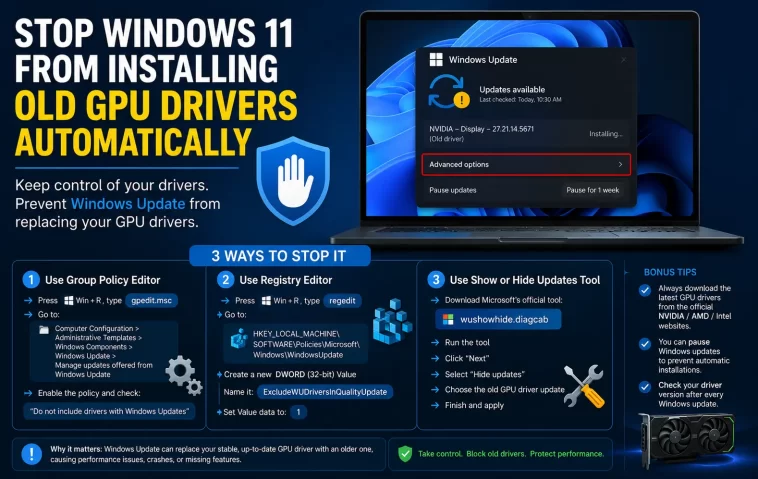
If you’re trying to stop Windows 11 from installing old GPU drivers automatically, you’ve probably already been through this cycle: install the latest driver from NVIDIA or AMD, reboot, and a few days later Windows Update quietly replaces it with an older WHQL version you didn’t ask for. It’s a genuinely frustrating loop, and it happens more than Microsoft seems to want to admit.
I ran into this on a GPU I’d just updated for a specific game fix, only to have Windows roll it back within a week without any real explanation. So here’s what actually stops it, not just the generic “turn off driver updates” advice that half-works at best.
Quick Answer
- Turn off automatic driver installation under Device Installation Settings
- Use Group Policy (or registry edit on Home) to block driver updates through Windows Update specifically
- Hide the specific driver update using the Show or Hide Updates troubleshooter
- Set your network as metered temporarily if you need a quick, less permanent option
- Don’t rely on GeForce Experience or Adrenalin alone — they don’t block Windows Update from acting independently
Why Windows Keeps Reinstalling Old Drivers
This isn’t random, even though it feels that way. There are a few real mechanisms behind it.
Windows Update treats driver updates separately from feature/quality updates. Even with automatic updates configured “normally,” driver delivery runs through its own channel, and it doesn’t check what you manually installed — it checks what Microsoft’s WHQL catalog has certified, and pushes that if it thinks your version is older or “not recognized” as current.
Device Installation Settings only cover Plug and Play — not everything. A lot of guides tell you to disable automatic driver downloads in Settings > Windows Update > Advanced options > Optional updates, or under the older Device Installation Settings panel. That helps, but it doesn’t fully stop Windows Update from re-pushing a driver it considers a “critical” or “recommended” update, which GPU drivers sometimes get classified as after a security patch.
Windows doesn’t always recognize custom or beta driver versions correctly. If you installed a beta driver, or one from a slightly different branch than what’s in Microsoft’s catalog, Windows can misread your currently installed version as older than it actually is, and “helpfully” replace it.
Group Policy for driver updates isn’t available or enabled by default on Home edition. This is the one that trips people up most — the cleanest fix (Group Policy) straight up doesn’t exist as a GUI option unless you’re on Pro, Enterprise, or Education. Home users have to go through the registry instead, and most guides don’t mention this clearly enough.
An overlooked cause worth mentioning: driver rollback after a Windows feature update. Big Windows 11 updates sometimes reset driver-related settings entirely, including any exclusions you’d previously set up. If this keeps happening right after an update, that’s very possibly why.
Comparison: Blocking Methods and What They Actually Cover
| Method | Blocks future auto-updates | Removes already-pushed update | Available on Home | Persists through Windows updates |
|---|---|---|---|---|
| Device Installation Settings | Partial | No | Yes | Sometimes |
| Group Policy (Pro/Enterprise) | Yes | No | No | Usually |
| Registry edit (Home equivalent) | Yes | No | Yes | Usually |
| Show/Hide Updates tool | No | Yes, for that specific update | Yes | No — has to be redone per update |
| Metered connection | Yes, indirectly | No | Yes | No |
Step-by-Step Fixes
Step 1: Disable Automatic Driver Installation (Device Installation Settings)
- Press
Win + R, typesysdm.cpl, Enter - Go to Hardware tab, click Device Installation Settings
- Select “No” — let me choose what to do
- Choose “Never install driver software from Windows Update”
This is the first layer and it’s necessary, but it’s not sufficient on its own — I want to be clear about that up front, since a lot of people stop here and then wonder why the driver still gets replaced.
Step 2: Block Driver Updates via Group Policy (Pro/Enterprise)
- Press
Win + R, typegpedit.msc - Navigate to Computer Configuration > Administrative Templates > Windows Components > Windows Update > Manage updates offered from Windows Update
- Find “Do not include drivers with Windows Updates,” set to Enabled
- Restart, then run
gpupdate /force
This is the most reliable single fix if your edition supports it.
Step 3: Registry Equivalent (Windows 11 Home)
Since gpedit.msc isn’t available on Home:
- Open Registry Editor as admin
- Navigate to
HKEY_LOCAL_MACHINE\SOFTWARE\Policies\Microsoft\Windows\WindowsUpdate - If the
WindowsUpdatekey doesn’t exist, create it, then create a DWORD value namedExcludeWUDriversInQualityUpdateand set it to 1 - Restart
Back up the registry before doing this — not because it’s especially dangerous, but because it’s just good practice whenever you’re manually creating keys that don’t already exist.
Step 4: Hide the Specific Update That Already Got Pushed
If the old driver’s already installed and you just want it gone without a full policy change:
- Download Microsoft’s “Show or Hide Updates” troubleshooter (this used to be a built-in wushowhide.diagcab tool; it’s not bundled by default anymore, so you’ll need to grab it from Microsoft’s own troubleshooting page)
- Run it, let it scan, find the GPU driver update in the list
- Select it, choose Hide
This stops that specific update from reinstalling but won’t block future ones — you’ll be repeating this step periodically unless you also do Step 2 or 3.
What Actually Worked For Me
Honestly, my first attempt was just the Device Installation Settings toggle, because that’s what every guide leads with. It held for about two weeks, then the driver got replaced again after a cumulative update reset some settings. That’s not entirely accurate actually — thinking back, it wasn’t the cumulative update itself, it was a driver reinstall triggered by Windows detecting “new hardware” after I’d swapped a monitor. Different trigger, same symptom, which threw me off for a while.
What actually held long-term was the registry key from Step 3, combined with hiding the specific already-pushed update once. And I only found the registry key because a comment on a years-old forum thread mentioned it in passing — it’s not something Microsoft documents clearly anywhere I could find at the time.
Advanced Fixes and Edge Cases
Check Device Manager driver history if you’re unsure what’s actually installed. Right-click your GPU, Properties, Driver tab — the date and version shown here is the actual truth, regardless of what any driver software’s UI claims.
Windows Update logs for confirmation. If you want to confirm Windows Update is the actual source (rather than GeForce Experience or Adrenalin auto-updating separately), check Get-WindowsUpdateLog via PowerShell, or look at Event Viewer under Microsoft > Windows > WindowsUpdateClient. This tells you definitively whether the driver came through Windows Update or through the vendor’s own software.
Driver Store cleanup for persistent old versions. Sometimes an old driver keeps getting reinstalled because it’s still sitting in the Driver Store as a “ranked” option. Running pnputil /enum-drivers lists everything stored, and pnputil /delete-driver [oem#.inf] /uninstall removes old versions specifically — useful if Windows keeps defaulting back to a specific old package rather than pulling something new.
Prevention Tips
- Disable driver updates through Windows Update once, using the registry or Group Policy method, rather than repeatedly hiding individual updates
- Use your GPU vendor’s own software (GeForce Experience, AMD Software) for driver management instead of relying on Windows Update at all
- After any major Windows feature update, double-check your driver exclusion settings, since they occasionally get reset
- Avoid installing beta or non-WHQL drivers if you specifically want Windows Update to leave your GPU driver alone — non-standard versions are more likely to get “corrected”
FAQ
Will this stop other driver updates too, like for my mouse or Wi-Fi card? Yes, the Group Policy and registry methods block all driver updates through Windows Update, not just GPU ones. If you want GPU-specific exclusion only, you’ll need the Show/Hide Updates tool per update instead.
Does GeForce Experience or AMD Software prevent this on its own? No. They manage their own update checks but don’t stop Windows Update from acting independently in the background.
Why did my driver get replaced right after a Windows feature update? Feature updates sometimes reset device installation settings. Worth checking your settings again after any major update.
Is it safe to fully disable driver updates through Windows Update? Generally yes, especially if you’re already managing GPU drivers manually through the vendor’s software. Just remember you’re now responsible for security-related driver patches too.
Can I block just one specific driver version from being reinstalled? Sort of — hiding the update stops that exact push, but if Windows decides on a different old version later, you’ll be hiding a new one. It’s not a permanent per-version block.
Editor’s Opinion
not gonna lie, this is one of those things that feels intentionally confusing on microsofts part. the fact that gpedit doesnt even exist on home edition for something this common is kind of a bad look. registry fix works fine once you know it exists, i just wish it wasnt buried this deep. anyway if the device installation settings toggle isnt holding for you, dont waste more time on it, go straight to the registry key.
