Windows 11 Caps Lock delay is one of those bugs that sounds too minor to matter until you’re typing a password with capital letters and the indicator light lags half a second behind your actual keypress. I ran into this on a laptop after a Windows update and assumed it was a dying keyboard at first — it wasn’t, and the actual cause turned out to be something I wouldn’t have guessed.
This isn’t usually a hardware failure. It’s almost always a software layer sitting between your keypress and the actual toggle, and there are a few different culprits depending on your setup.
Quick Answer
- Check if Filter Keys is enabled under Ease of Access — this is the single most common cause
- Disable keyboard-related overlay/RGB software temporarily to test
- Update your keyboard driver, especially on laptops with OEM keyboard utilities
- For Bluetooth keyboards, check for general Bluetooth latency issues separate from Caps Lock specifically
- Check Sticky Keys settings, since a specific sub-setting there can cause a similar delay
Why Caps Lock Lags in Windows 11
There’s no single cause here, and honestly the symptom is generic enough that it gets mixed up with a few different underlying issues.
Filter Keys has a built-in repeat delay setting that people don’t realize is active. Filter Keys, an Ease of Access feature, is designed to ignore brief or repeated keystrokes for accessibility reasons — and it has a setting specifically for how long a key needs to be held before it registers. If this got toggled on accidentally (it’s got a keyboard shortcut — holding Shift for 8 seconds — that’s easy to trigger without realizing it), Caps Lock and other keys can feel sluggish across the board, not just Caps Lock specifically, though people tend to notice it on Caps Lock first because of the visual indicator light.
Sticky Keys interacting oddly with modifier-adjacent keys. Caps Lock isn’t technically a modifier key the same way Shift or Ctrl are, but on some keyboard layouts and driver combinations, Sticky Keys settings still introduce a small delay to it. This one’s less common but does show up.
OEM keyboard software polling conflicts. Gaming keyboards and laptops with dedicated keyboard utility software (Lenovo Vantage, ASUS Armoury Crate, Corsair iCUE, Razer Synapse) sometimes intercept keypresses for their own processing — remapping, macro detection, lighting sync — before passing them to Windows. That extra hop is where delay often creeps in, and it’s not always obvious since the software runs in the background without a visible window.
Driver-level debounce settings. Some keyboard drivers implement their own debounce delay (a small delay meant to prevent double-registering a single press) that’s more aggressive than necessary, and Caps Lock’s toggle nature makes any debounce delay more visually obvious than it would be on a regular letter key.
And one that’s genuinely easy to overlook: Bluetooth or 2.4GHz wireless keyboards experiencing general input latency that isn’t Caps Lock-specific at all. If every key feels slightly delayed, not just Caps Lock, the issue isn’t Caps Lock’s toggle logic — it’s your connection.
Common Scenarios
- Laptop keyboards, especially after a Windows or driver update — usually Filter Keys or an OEM keyboard utility conflict
- Mechanical/gaming keyboards with dedicated software — usually the software’s own processing layer adding delay
- Bluetooth keyboards — general connection latency, not a Caps Lock-specific bug
- Fresh Windows installs where the issue wasn’t present before — worth checking Filter Keys first, since it’s sometimes toggled during initial setup accidentally
Step-by-Step Fixes
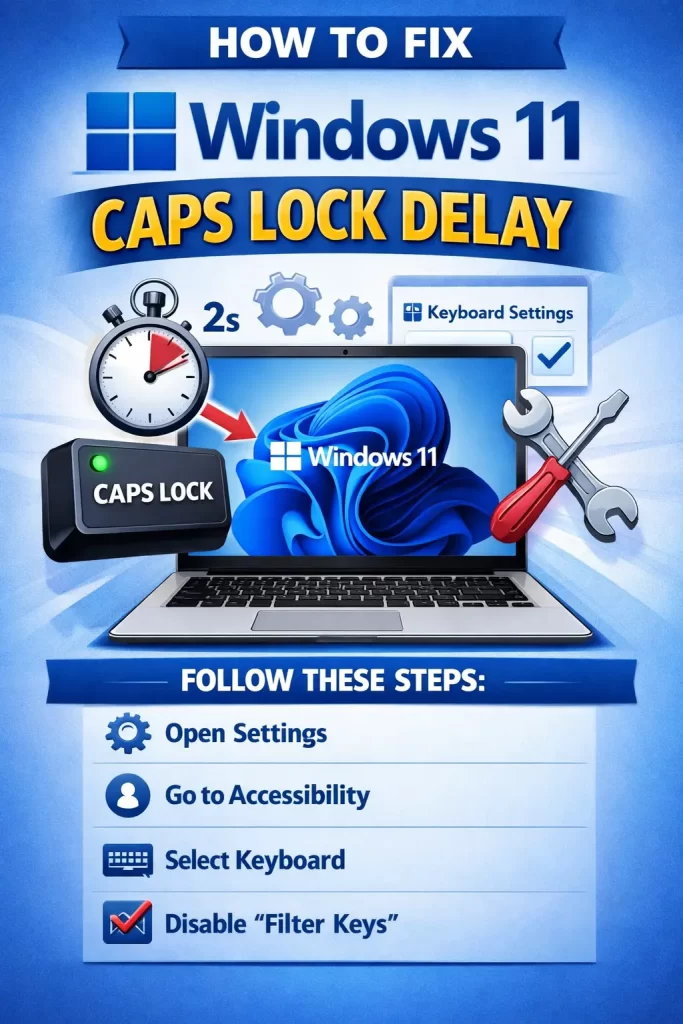
Step 1: Check and Disable Filter Keys
- Settings > Accessibility > Keyboard
- Find Filter Keys, make sure it’s off
- Also check “Advanced keyboard settings” if visible, since the repeat delay slider lives here and can be misconfigured even with Filter Keys nominally off in some builds
This fixes the issue outright more often than any other single step here. If you only try one thing, try this one first.
Step 2: Check Sticky Keys Settings
- Settings > Accessibility > Keyboard > Sticky Keys
- Turn off entirely if you don’t need it, or check the sub-options if you do
Step 3: Test With OEM Keyboard Software Closed
- Close Lenovo Vantage, Armoury Crate, iCUE, Synapse, or whatever keyboard-adjacent software your device came with
- Test Caps Lock responsiveness with it fully closed (not just minimized to tray, actually closed)
If the delay disappears, you’ve found your cause. From there, check that software’s settings for anything related to key processing delay, macro detection sensitivity, or lighting sync polling — these are the usual culprits within that kind of software.
Step 4: Update Keyboard Driver
- Device Manager, expand Keyboards
- Right-click your keyboard entry, Update driver
- For laptops specifically, check the manufacturer’s support page for a dedicated keyboard/embedded controller driver, since generic Windows drivers don’t always cover laptop-specific keyboard controllers fully
Step 5: For Bluetooth Keyboards, Rule Out Connection Latency First
- Test with a wired keyboard temporarily if possible
- If the delay disappears entirely with a wired keyboard, this isn’t a Caps Lock bug — it’s Bluetooth latency, and you’re better off addressing that separately (interference, driver, or the keyboard’s own connection quality)
What Actually Worked For Me
I assumed this was a driver issue and spent a while updating and rolling back the keyboard driver on Device Manager without any real change. That wasn’t it. Turned out my laptop’s vendor utility software had a “smart lighting” feature that syncs the keyboard backlight to key input, and it was intercepting every keystroke to check for lighting triggers before passing it along — Caps Lock specifically, since it also controls an indicator light, seemed to get extra processing on top of that.
Not 100% sure why Caps Lock specifically was worse than other keys in that software’s implementation, but disabling the smart lighting feature entirely fixed it immediately, no driver changes needed in the end. I probably should’ve checked that software before touching drivers at all, but it wasn’t the first thing that came to mind.
Advanced Fixes and Edge Cases
Registry check for keyboard response rate settings. Under HKEY_CURRENT_USER\Control Panel\Accessibility\Keyboard Response, there’s an AutoRepeatDelay and related values that occasionally get set by third-party accessibility or automation tools without a clear UI toggle to undo it. Worth checking if the Settings app itself shows everything as off but the delay persists anyway.
Event Viewer isn’t usually useful here, worth mentioning since it’s a common troubleshooting reflex — keyboard input processing generally doesn’t log in a way that’s diagnostic for this specific issue. Don’t waste time digging through it for this one.
USB polling rate conflicts on keyboards with software-adjustable polling. Some gaming keyboards let you set polling rate manually. An unusually low polling rate (125Hz on a keyboard defaulted to expect 1000Hz software-side) can create a mismatch that manifests as input delay across all keys, Caps Lock included.
Prevention Tips
- Avoid installing OEM keyboard software unless you actually need its specific features (macros, lighting customization) — the base driver is usually enough otherwise
- Check Filter Keys and Sticky Keys settings after any accessibility-related changes, intentional or not
- Keep laptop keyboard drivers updated through the manufacturer’s own support page, not just generic Windows Update drivers
- If using Bluetooth keyboards, keep firmware updated on the keyboard itself, not just Windows-side drivers
FAQ
Is this the same issue as Caps Lock not working at all? No, that’s usually a different problem — often driver-related or a physical key issue. This guide is specifically about delay, not total failure to toggle.
Does this happen on desktop keyboards too, or just laptops? Both, though laptop-specific keyboard utility software is a more common cause on laptops specifically. Desktop mechanical keyboards with their own software have a similar but separate cause.
Why does the Caps Lock indicator light lag but the actual letters still type correctly in uppercase? That’s a slightly different symptom — the toggle itself might be registering fine, but the visual indicator update is lagging separately. Less common, and usually points to the OEM software rather than a core Windows setting.
Will a Windows reset fix this? Probably not worth it for this specific issue. It’s almost always a setting or third-party software, not something baked into core Windows that requires a reset.
Does gaming mode or Focus Assist affect this? Not directly, no. Those don’t touch keyboard input processing in a way that would cause this.
Editor’s Opinion
genuinely didnt expect the lighting software to be the cause here, felt like a weird rabbit hole for such a small annoyance. if you’ve got any oem software running with your keyboard, close it before you touch drivers or accessibility settings, could save you some time. filter keys is still probably the first thing to check tho, thats the most common one by far from what ive seen people report.
