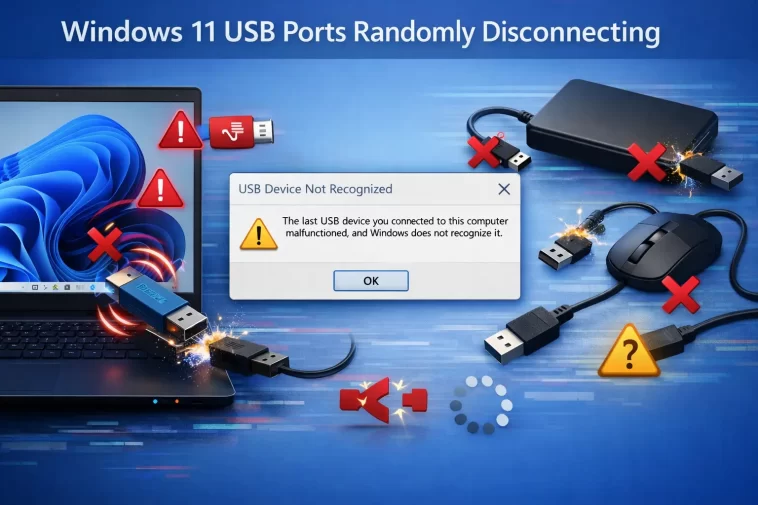
Windows 11 USB ports randomly disconnecting is one of the more annoying intermittent issues because it rarely happens on demand — it’ll disconnect your mouse mid-task, or your external drive mid-transfer, then work fine for hours afterward like nothing happened. I’ve chased this on a desktop where it turned out to be a power setting, and separately on a laptop where the actual cause was something to do with a nearby wireless device, which wasn’t remotely on my radar going in.
Because this is intermittent by nature, the fix usually comes from ruling things out systematically rather than finding one obvious smoking gun.
Quick Answer
- Disable USB selective suspend under power settings — this is the single most common cause
- Check for USB 3.0 interference with 2.4GHz wireless devices (mice, keyboards) plugged in nearby
- Update or reinstall USB controller drivers, not just individual device drivers
- Check physical connections — loose ports, damaged cables, and front panel headers are more common than people assume
- Test with unpowered hubs removed, since insufficient power delivery is a frequent culprit with multiple devices
Why USB Ports Disconnect Randomly
There’s a genuinely wide range of causes here, spanning power management, driver issues, and plain physical hardware — and because they’re all intermittent by nature, none of them are easy to isolate from casual use alone.
USB selective suspend puts individual ports to sleep to save power, and doesn’t always wake them cleanly. This Windows power management feature can suspend USB ports that appear idle, then fails to resume them properly on some hardware combinations. It’s more common on laptops running on battery, but desktops with aggressive power plans aren’t immune either.
Insufficient power delivery through unpowered hubs or overloaded ports. USB 2.0 and 3.0 ports have specific power budgets, and if you’re running multiple devices through an unpowered hub — especially anything drawing real current, like an external hard drive — you can hit the ceiling and get random disconnects that look like a driver issue but are actually just not enough power to go around.
USB 3.0’s frequency range genuinely interferes with 2.4GHz wireless devices. This is a real, documented issue, not an urban myth — USB 3.0 controllers and cables can emit interference in a range that overlaps with 2.4GHz wireless mice, keyboards, and dongles. If your wireless mouse or keyboard receiver is plugged directly into or near a USB 3.0 port, this can cause exactly the kind of random disconnect people assume is a driver problem.
Driver conflicts after Windows Update replaces an OEM USB controller driver with a generic one. Windows Update sometimes pushes a generic Microsoft USB driver over a manufacturer-specific one that was working fine, and the generic driver doesn’t always handle power state transitions the same way. This tends to show up right after a Windows Update, which is a useful timing clue if you notice it.
Physical issues — loose ports, damaged cables, and front panel header connections. This one gets dismissed too quickly by people jumping straight to software fixes. Front panel USB headers on desktop cases are a common weak point; a slightly loose header cable can cause intermittent disconnects that look identical to a software issue until you actually wiggle the connection and watch it happen.
And an overlooked cause worth mentioning: static electricity or minor power surges triggering port protection circuitry. Some motherboards and laptops have overcurrent protection that trips and briefly disables a port after a static discharge or voltage spike, without any clear indication that’s what happened — it just looks like the port dropped out for no reason.
Common Scenarios
- Wireless mouse/keyboard disconnecting specifically, other USB devices fine — check for 2.4GHz interference from nearby USB 3.0 ports first
- External hard drive disconnects during large transfers — often a power delivery issue, especially through an unpowered hub
- Disconnects only on battery, not when plugged in (laptops) — almost always USB selective suspend
- Front panel USB ports specifically, rear motherboard ports fine — check the header cable connection inside the case
- Started right after a Windows Update — check Device Manager for a driver change on your USB controller
Step-by-Step Fixes
Step 1: Disable USB Selective Suspend
- Settings > System > Power & battery > Screen and sleep, or search “Edit power plan” in Start
- Click “Change advanced power settings”
- Find USB settings > USB selective suspend setting, set both Plugged in and On battery to Disabled
Step 2: Check Device Manager Power Management Settings Per Device
- Device Manager, expand Universal Serial Bus controllers
- Right-click each USB Root Hub, Properties, Power Management tab
- Uncheck “Allow the computer to turn off this device to save power”
Do this for each Root Hub entry — there are usually several, and Windows doesn’t let you batch-apply this setting unfortunately, so it’s tedious but worth doing thoroughly rather than just the first one you see.
Step 3: Rule Out USB 3.0 Interference
- If a wireless mouse or keyboard receiver is plugged into a USB 3.0 port (usually blue, or marked “SS”), move it to a USB 2.0 port instead
- If you’re using a USB extension cable for the receiver, that can also help, since it moves the receiver physically further from USB 3.0 cabling and shielding
This sounds like an unlikely fix until you’ve seen it work, but it resolves a surprising number of “random wireless mouse disconnect” reports specifically.
Step 4: Check and Reinstall USB Controller Drivers
- Device Manager, expand Universal Serial Bus controllers
- Right-click your USB 3.0/3.1 Extensible Host Controller entry, Uninstall device (don’t check “delete driver software” unless you’re specifically trying to force a generic reinstall)
- Restart — Windows will reinstall the driver automatically
If the issue started after a Windows Update and you suspect the OEM driver got replaced, check your motherboard or laptop manufacturer’s site for a dedicated chipset/USB driver package instead of relying on the reinstalled generic one.
Step 5: Test Physical Connections Directly
- For desktops, if front panel ports are affected, open the case and check the header cable connection at the motherboard
- Try a different cable if you’re troubleshooting a specific device, not just a different port
- For persistent single-port issues, test that exact port with a different, known-working device to isolate whether it’s the port or the original device
What Actually Worked For Me
The desktop case was straightforward once I actually looked — USB selective suspend, fixed in about five minutes once I found the setting. Not much of a story there, honestly, just a quick win.
The laptop case took a lot longer. My wireless mouse would drop for a second every so often, completely random as far as I could tell, and I went through driver reinstalls, power settings, even tried a different mouse, all with no consistent improvement. What actually fixed it was moving the tiny USB receiver from the USB 3.0 port I’d been using out of habit to one of the USB 2.0 ports on the same laptop. Immediate difference, no dropouts since.
That’s not something I’d have guessed on my own — a coworker mentioned it almost as an aside when I was complaining about it, said he’d had the exact same problem with a completely different laptop and mouse. Wouldn’t have found that by troubleshooting software settings alone, since the actual cause had nothing to do with software at all.
Advanced Fixes and Edge Cases
Check Event Viewer for USB-related error codes. Under Windows Logs > System, filter for Kernel-PnP source events around the time of a disconnect. Specific error codes here can indicate whether it’s a power issue, a driver crash, or a genuine hardware fault, which narrows things down significantly compared to guessing.
BIOS Legacy USB Support settings. On some motherboards, a Legacy USB Support setting interacting oddly with certain USB 3.0 controllers can cause boot-time or early-session disconnects specifically. Worth checking if the issue happens mainly right after boot rather than randomly throughout a session.
Check for firmware updates on USB hubs and docking stations. If you’re using a dock or a powered hub, check the manufacturer’s site for firmware updates — docking station USB controllers have their own firmware that can have known disconnect bugs, separate entirely from anything on the Windows side.
Prevention Tips
- Disable USB selective suspend proactively rather than waiting for disconnects to start
- Use USB 2.0 ports for wireless mouse/keyboard receivers where possible, saving USB 3.0 ports for actual high-bandwidth devices
- Use powered hubs for multiple bus-powered devices, especially external drives
- Periodically check front panel header connections if you’ve recently moved or opened your case for any reason
FAQ
Does this happen more on laptops or desktops? Both, but the specific causes differ — laptops lean toward power management (battery-saving settings), desktops lean more toward physical connections and power delivery through hubs.
Can a cheap USB cable actually cause this? Yes, more often than people expect, especially with cables that don’t properly shield against interference or that use thinner gauge wire than a device actually needs for stable power delivery.
Will updating Windows fix this, or does it sometimes cause it? Both have happened, honestly — some updates fix known USB power management bugs, others have introduced driver regressions. Check your specific timing (did it start right after an update) as your best clue either way.
Is a USB hub always to blame if I’m using one? Not always, but it’s worth testing without the hub first as a simple process of elimination, especially if you’ve got several devices, including anything power-hungry like an external drive, running through an unpowered one.
Should I be worried this is a sign of failing hardware? Not usually, if it’s inconsistent and follows one of the patterns above. Consistent, permanent port failure (not just something plugged into it) is more likely to actually be hardware failure specifically.
Editor’s Opinion
the usb 3.0 interference thing sounds made up until it happens to you, then suddenly it makes total sense. if your wireless mouse is doing the random drop thing, just move the reciever to a usb 2.0 port before you spend an hour on drivers, seriously, it takes ten seconds to test and it fixes it more often than youd think.
